Welcome to Building:bit Superkit repository
2.Control RGB color
Control a single RGB light
Control a single RGB light1. Learning objectives2. Programming2.1 Adding expansion packs2.2 Blocks used2.3 Combined blocks3. Experimental phenomenon
1. Learning objectives
In this course, we mainly learn how to control and light up a single RGB light on the superbit expansion board through MakeCode graphical programming.
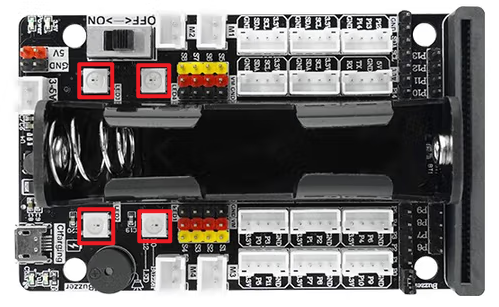
The 4 RGB lights are located on the expansion board as shown in the figure below.
2. Programming
Method 1 Online programming:
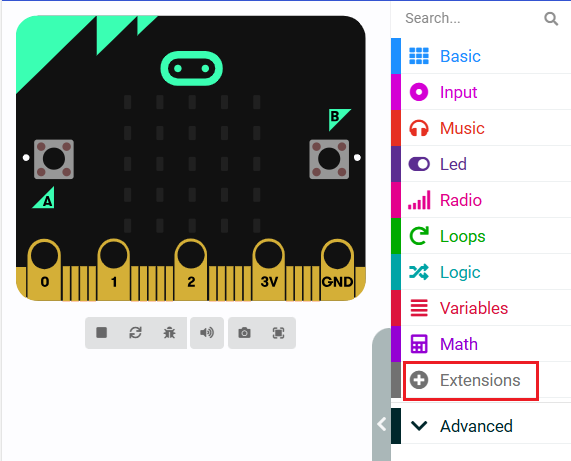
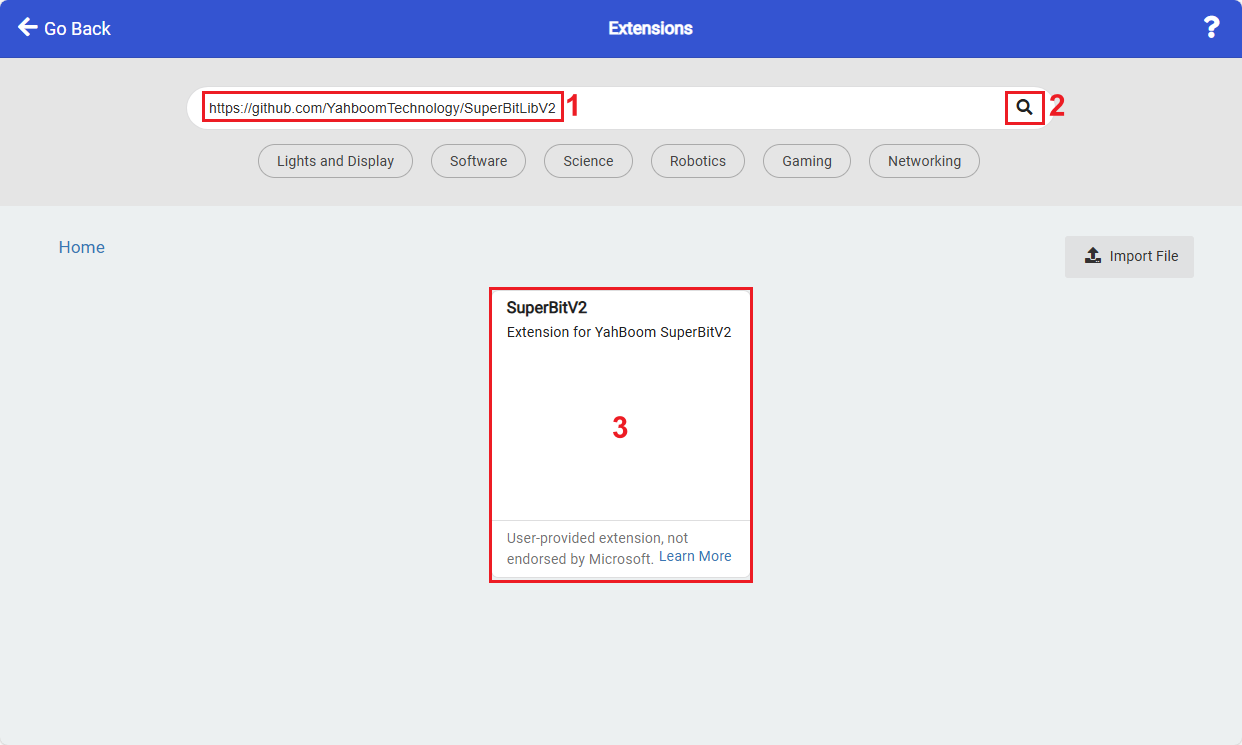
First, connect micro:bit to the computer via a USB data cable. The computer will pop up a U disk. Click the URL in the U disk: https://makecode.microbit.org/ to enter the programming interface. Then, add the Yahboom smart software package https://github.com/YahboomTechnology/SuperBitLibV2 to start programming.
Method 2 Offline programming:
Open the offline programming software MakeCode and enter the programming interface. Click [New] and add the Yahboom smart software package https://github.com/YahboomTechnology/SuperBitLibV2 to start programming.
2.1 Adding expansion packs
2.2 Blocks used
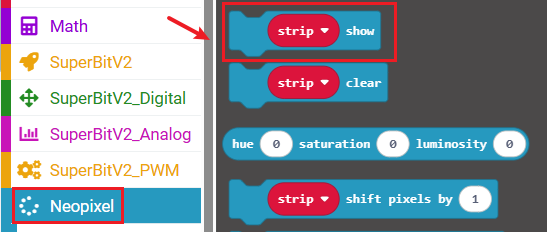
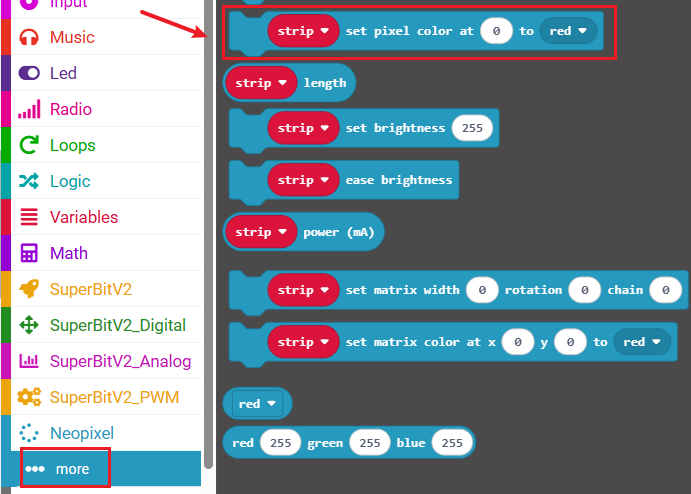
The locations of the blocks required for this programming are shown in the figure below.
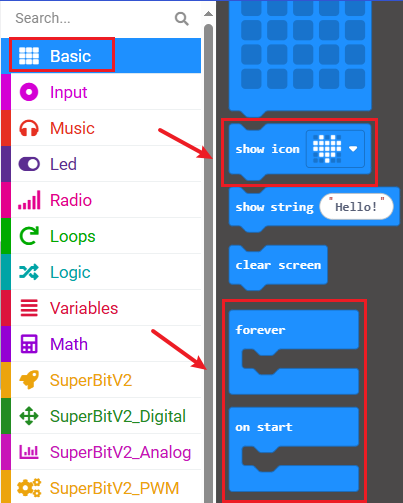
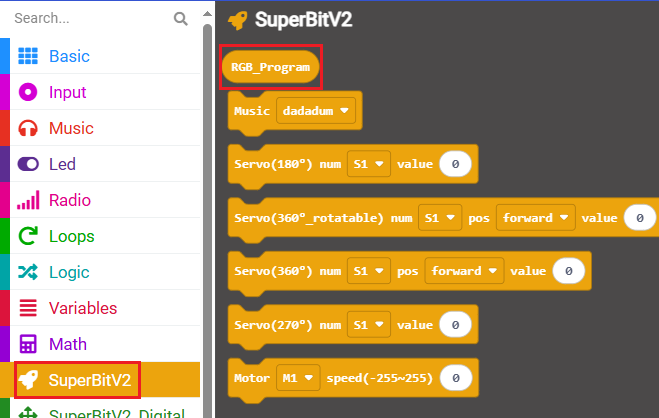
There are 4 RGB lights on the Super:bit expansion board, numbered from 0 to 3. In the building blocks shown in the figure below, we can control different RGB lights by setting different pixels. (In this course, we set the pixel to 0, that is, to control the first RGB light)
2.3 Combined blocks
The summary program is shown in the figure below.
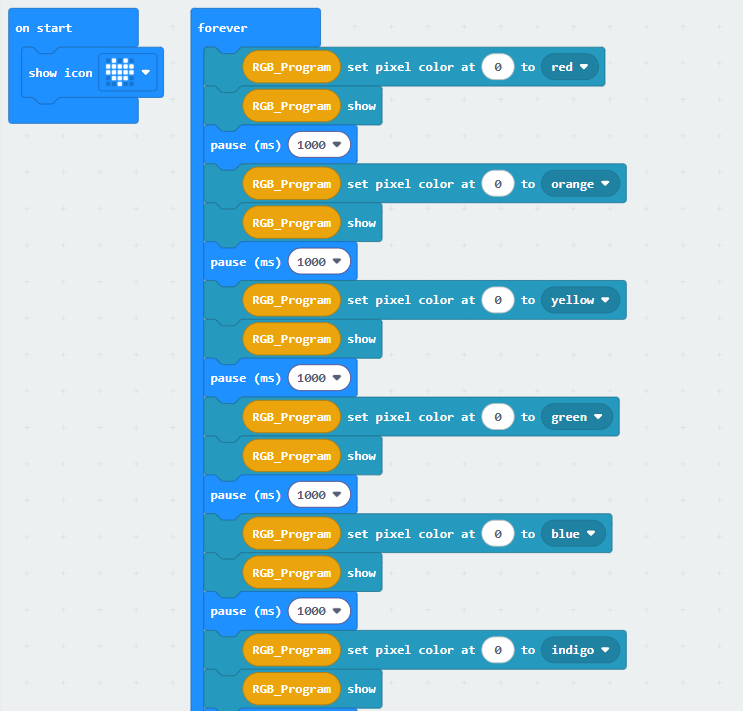
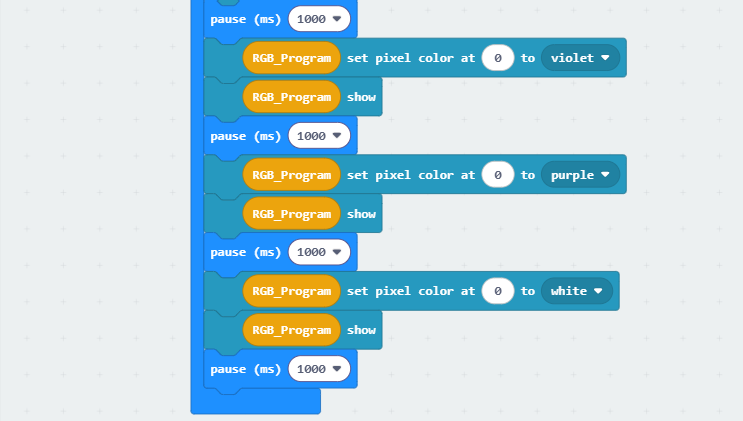
You can also directly open the microbit-RgbController.hex file provided in this experiment and drag it into the browser that opens the URL, and the program diagram of this project source code will be automatically opened
3. Experimental phenomenon
After the program is successfully downloaded, the micro:bit dot matrix will display a heart pattern, as shown in the figure below. At the same time, we can see that the first RGB light (serial number 0) will switch to a color every 1 second, red-->orange-->yellow-->green-->blue-->indigo-->violet-->purple-->white, and keep circulating in this state.
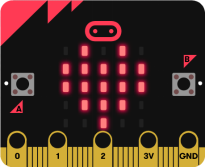
If you need to restart, please press the reset button on the back of the micro:bit motherboard.