Welcome to WLR722 LiDAR repository
20.ROS2 recording and playback tool
20. ROS2 Recording and Playback Tool
1. Introduction to Recording and Playback Tools
Bag2, a commonly used recording and playback tool in ROS2, is used to record topic data. We can use this command to store topic data as a file. Later, we can directly publish the topic data in the bag file without starting a node.
This tool is very useful when developing a real robot. For example, we can record topic data when the robot encounters a problem. After recording, we can publish it multiple times for testing and experimentation, or share the topic data with others to verify algorithms.
We will try using the bag tool to record topic data and replay it.
2. Usage Tutorial
2.1. Start the topic node to record
For example, the talker in the ros2 demo:
xxxxxxxxxxros2 run demo_nodes_py talker
2.2. Recording
/topic-name is the topic name
xxxxxxxxxx# Record a single topicros2 bag record /topic-name# Record multiple topicsros2 bag record topic-name1 topic-name2# Record all topicsros2 bag record -aOther Options
-o name Customize the output file name
xxxxxxxxxxros2 bag record -o file-name topic-name-s Storage format
Currently only supports sqllite3; others are available with extensions.
2.3. Viewing Recorded Topic Information
Before playing a video, you can view relevant information about the video through the file information, such as the time, size, type, and number of topic records.
xxxxxxxxxx# Assume the recorded file is rosbag2_2023_10_31-07_58_23ros2 bag info rosbag2_2023_10_31-07_58_232.4. Play and View
2.4.1. Play
Next, we can replay the data using the following command.
xxxxxxxxxxros2 bag play rosbag2_2023_10_31-07_58_232.4.2. View
Use the ros2 topic command to view the data.
xxxxxxxxxxros2 topic echo /chatter2.4.3. Playback Options
- Play at Multiple Speeds -r
The -r option modifies the playback speed. For example, the -r value, for example, 10 means 10x speed, playing the topic ten times faster.
xxxxxxxxxxros2 bag play rosbag2_2023_10_31-07_58_23 -r 10- Loop Playback -l
This is for looping a single song.
xxxxxxxxxxros2 bag play rosbag2_2023_10_31-07_58_23 -l- Play a Single Topic
xxxxxxxxxxros2 bag play rosbag2_2023_10_31-07_58_23 --topics /chatter3. Example
3.1. Running the talker node
xxxxxxxxxxros2 run demo_nodes_py talker3.2. Recording
xxxxxxxxxx# Record all topicsros2 bag record -a
How do I stop recording? Simply press Ctrl+C in the terminal to interrupt the recording.
You will then find a folder named rosbag2_2023_10_31-08_21_21 in the terminal.
Open the folder to see its contents.
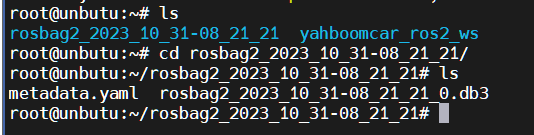
This completes the recording.
3.3. Play and View
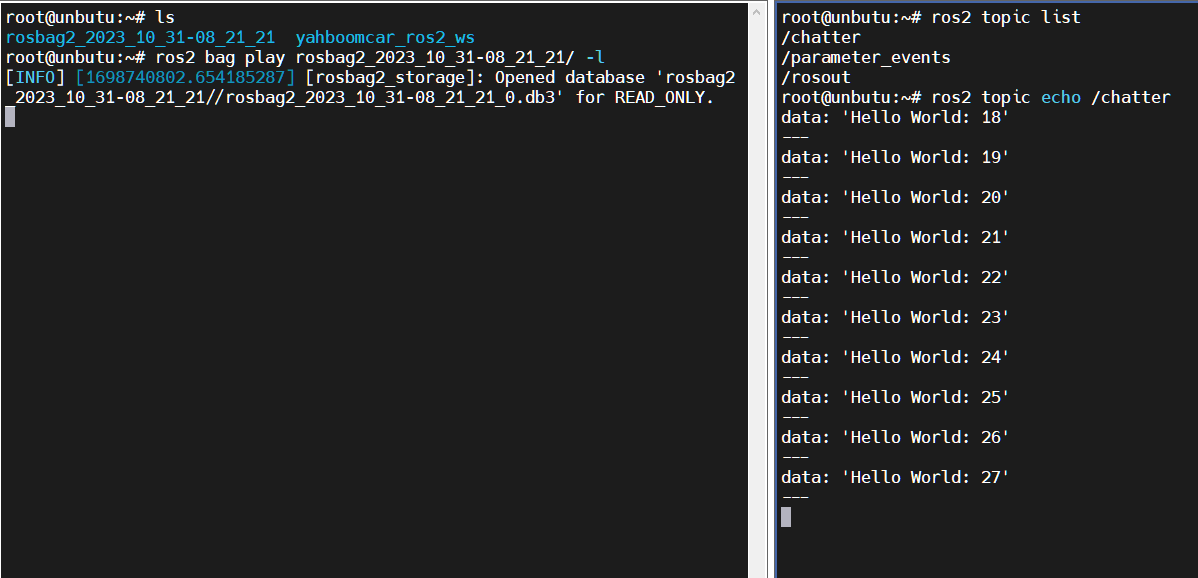
Here we loop the playback.
xxxxxxxxxxros2 bag play rosbag2_2023_10_31-07_58_23 -lOpen another terminal to view the topic:
xxxxxxxxxxros2 topic echo /chatter