Welcome to WiFi Camera Module repository
1. jetson
jetson configure camera
jetson configure camera1. Experiment preparation2. Experimental wiring3. Experimental steps and experimental results4. Analysis of wifi configuration source code
1. Experiment preparation
- jetson
- wifi camera
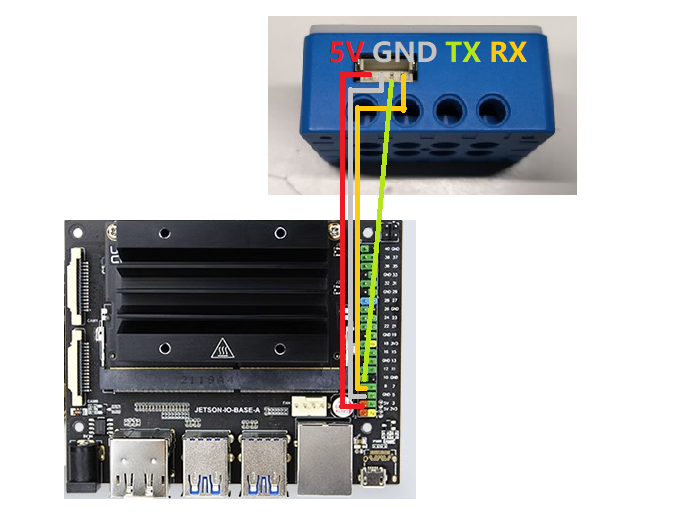
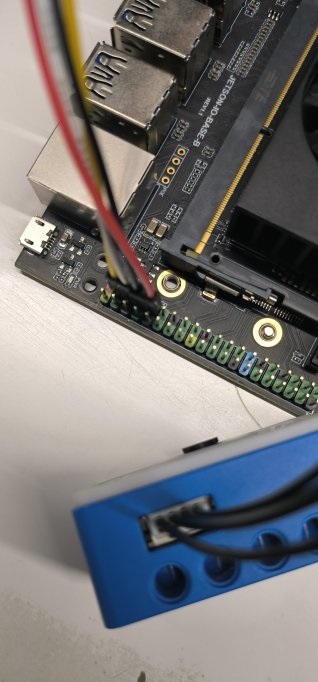
2. Experimental wiring
as the picture shows
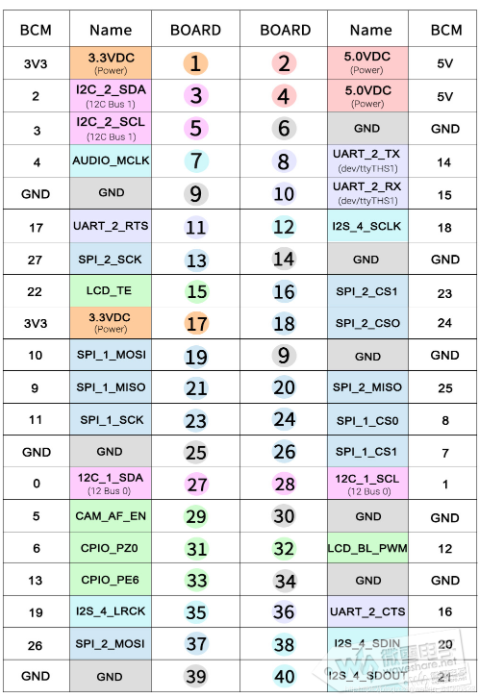
jetson pin diagram
3. Experimental steps and experimental results
- Open a new jetson terminal and send the source code of this experiment to jetson.
- Execute the following instructions
xxxxxxxxxxpython3 Jetson_SET_WIFI.py- If it is opened successfully, the following results will appear
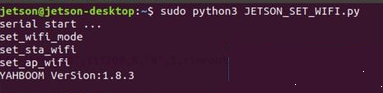 This information is related to configuring the camera wifi mode, reading version information and other related operations.
- If the AP+STA mode is turned on, then the IP addresses of the AP+STA will have the correct IP address (this source code is in this mode)
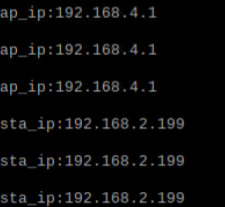 If only one mode is enabled, then sta_ip:null or ap_ip:null
When sta_ip:null occurs, you need to check whether the connected wifi name and password are correct. If correct, whether only the AP mode is turned on and the STA mode is not turned on.
- Transparent data transmission based on IP connection
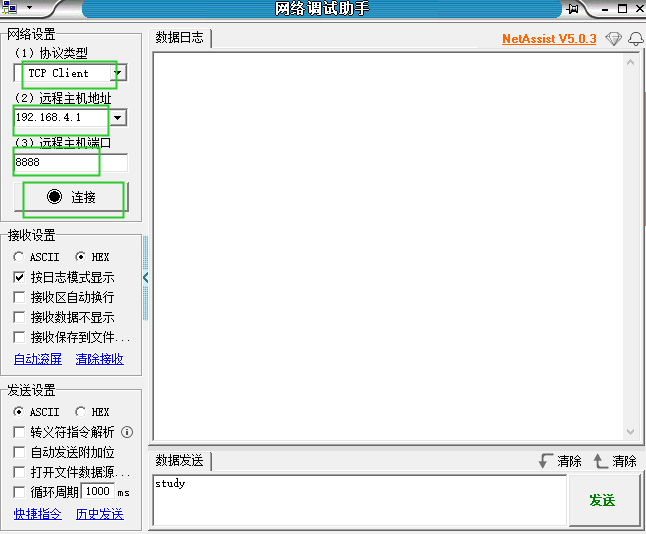
First open the NetAssist.exe software on your computer and make sure the computer and camera are on the same network segment.
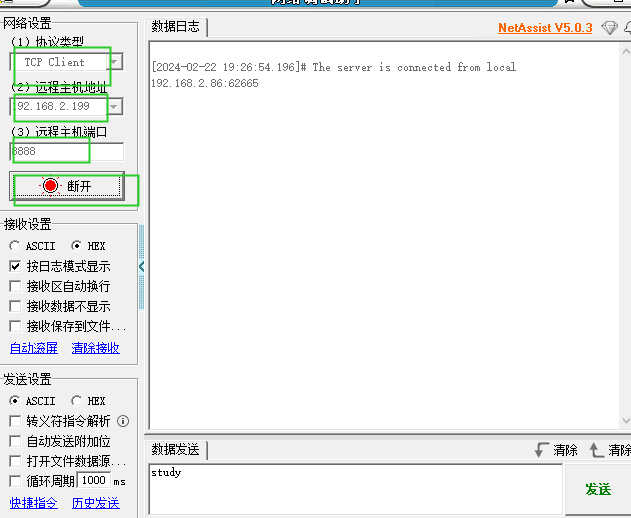
Then connect according to the obtained IP address. For example, the obtained sta_ip is: "192.168.2.199"/ap_ip is: "192.168.4.1"
Then there are 2 ways
- Connect the computer to the camera's spontaneous wifi, and then connect through the ip 192.168.4.1. The port number is 8888 and cannot be changed.
- The computer is connected directly through the IP address 192.168.2.199. The port number is 8888 and cannot be changed. The following figure is a diagram of a successful connection.
- Connect the computer to the camera's spontaneous wifi, and then connect through the ip 192.168.4.1. The port number is 8888 and cannot be changed.
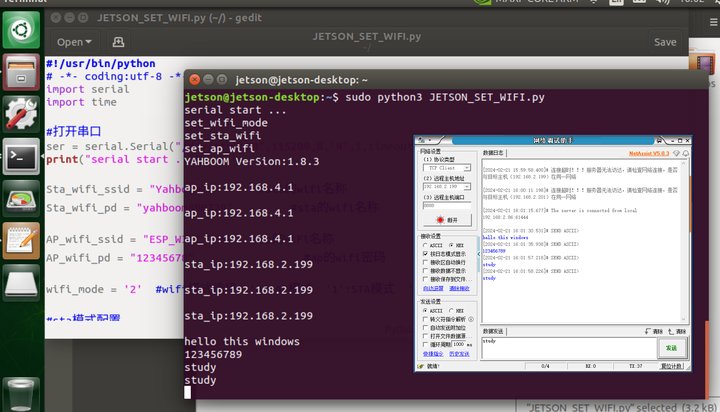
Then by sending the information, the Raspberry Pi terminal will also print the relevant information
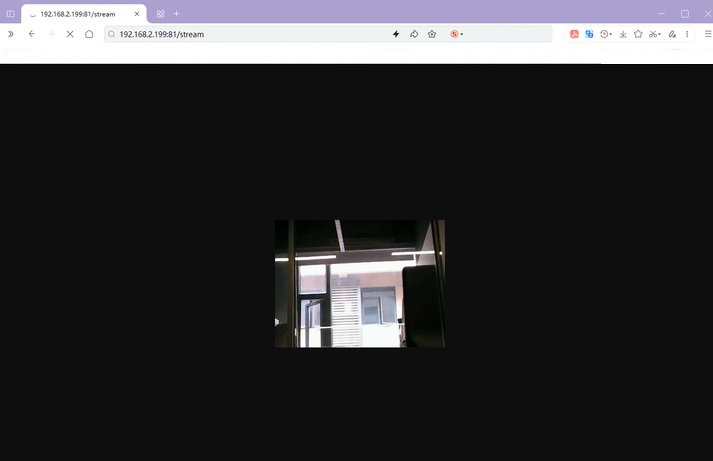
- View camera footage
Open the browser on your computer or mobile phone
Then watch the video through the obtained IP address. For example, the obtained sta_ip is: "192.168.2.199"/ap_ip is: "192.168.4.1"
Then you can watch the live camera footage in 2 ways
- Connect the computer to the camera's spontaneous wifi, and then enter http://192.168.4.1:81/stream through the browser to access the camera screen
- Directly enter http://192.168.2.199:81/stream on your computer to access the camera screen.
4. Analysis of wifi configuration source code
xxxxxxxxxxSta_wifi_ssid = "Yahboom"Sta_wifi_pd = "yahboom"AP_wifi_ssid = "ESP_WIFI_TEST"AP_wifi_pd = ""wifi_mode = '2'- Sta_wifi_ssid: The wifi name of sta is the name of the wifi to be connected
- Sta_wifi_pd: sta's wifi is the password of the wifi to be connected
- AP_wifi_ssid: The name of the wifi camera's spontaneous hotspot
- AP_wifi_pd: Password for wifi camera spontaneous hotspot
- wifi_mode: Working mode of wifi camera '0': AP mode '1': STA mode '2': AP+STA mode