yahboom
HomeTutorialsProduct
Solution
Blog
Online Store
About Us
EN/中文
Store
10-axis IMU Navigation Module📖
1.Preparation
  • 1.1 Introduction to the IMU module
  • 1.2 Install the IMU module
  • 1.3 Precautions for use
2.PC Software tutorial
  • 2.1 Install serial driver
  • 2.2 Connect to the PC software
  • 2.3 Configuration parameters
  • 2.4 Calibrate the IMU module
  • 2.5 Graphically display data
  • 2.6 Connected to the GPS module
3.Basic application
  • 3.1 Raspberry Pi-USB application
  • 3.2 JetsonNano-USB application
4.ROS application
  • ROS1 application case tutorial
  • ROS2 application case tutorial
5.Communication protocol
  • Communication protocol
6.STM32 tutorial
  • 1. serial port application routine
  • 2. IIC application routine
7.RDK X3 tutorial
  • RDK X3 tutorial
8.MSPM0 tutorial
  • MSPM0G3507 serial port application
  • MSPM0G3519 serial port applicationnew
Download
  • Code
  • 3D_Model_File
  • Annex
Download ZIP

Welcome to 10-axis IMU Navigation Module repository

2.6 Connected to the GPS module

Connected to the GPS module

Connected to the GPS module1. External GPS Instructions2. PC Software configures GPS parameters

1. External GPS Instructions

The four pin headers in the red box on the left side of the IMU module can be connected to the GPS module. The GPS module needs to output serial data that conforms to the NMEA-0183 standard, and the serial baud rate of the GPS is 115200bps, in order to form a GPS-IMU inertial navigation unit.

NC:blank

D1:Connect the data output pin of GPS

GND:ground

5V:DC 5V power supply
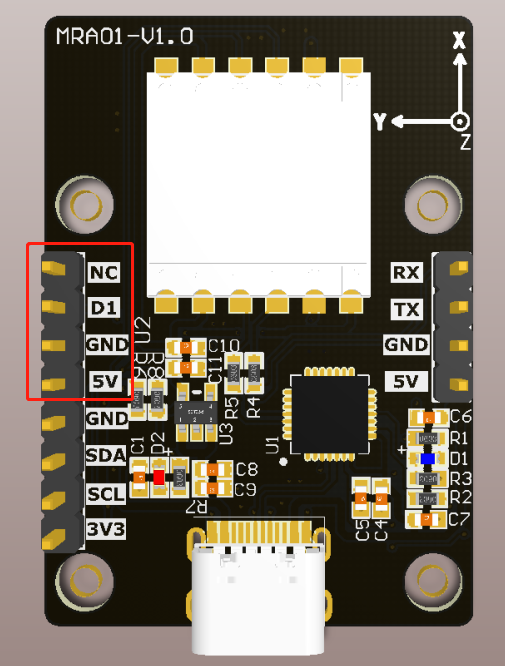
image-20220609145606079

2. PC Software configures GPS parameters

Open and connect the PC software.

Click 'Config' in the menu bar, and check 'Port', 'Loncation', 'PDOP', and 'Positioning Accuracy' in "Content".

Note: If "GPS Original" is checked, the module only outputs GPS original information, and other data will not be output.
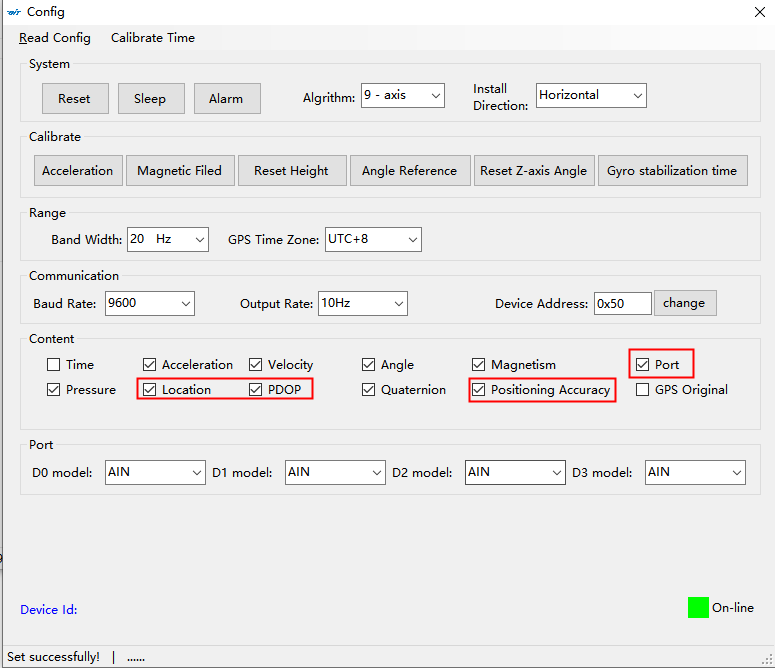
image-20220625181314101

Switch to the 'Data' interface and view GPS-related data in 'Location' and 'PDOP'.
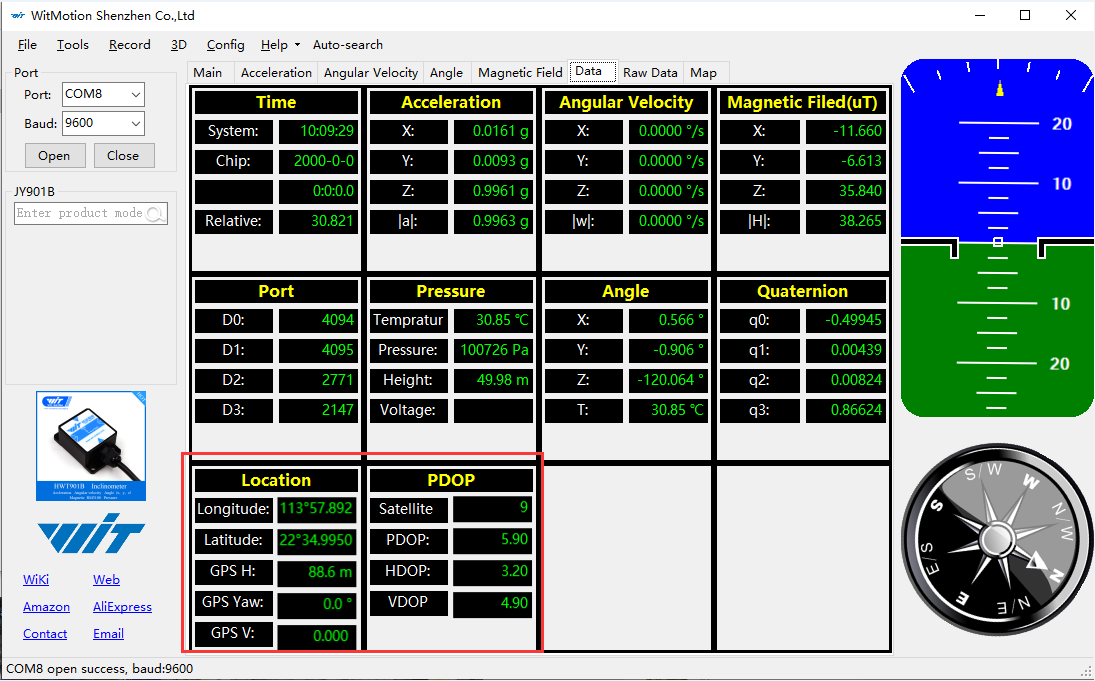
image-20220627101814804

Graphically display data
Raspberry Pi-USB application

COMPANY

  • About us
  • Team Style
  • Blog

LEARNING & EXPLORATION

  • Tutorials
  • Edge AI hardware
  • Educational robots
  • Embedded intelligent hardware

WHERE TO BUY

  • Yahboom Online Store
  • Amazon
  • Alibaba
  • AliExpress
  • Mercado

TECHNOLOGY SUPPORT

  • Email: support@yahboom.com

BE A DISTRIBUTOR

  • Email: sales@yahboom.com
QR Code

Copyright © 2017-2026 Yahboom. All Rights Reserved.

EN/中文