yahboom
HomeLearn
Solution
Blog
Online Store
About Us
EN/中文
10-axis IMU Navigation Module📖
1.Preparation
  • 1.1 Introduction to the IMU module
  • 1.2 Install the IMU module
  • 1.3 Precautions for use
2.PC Software tutorial
  • 2.1 Install serial driver
  • 2.2 Connect to the PC software
  • 2.3 Configuration parameters
  • 2.4 Calibrate the IMU module
  • 2.5 Graphically display data
  • 2.6 Connected to the GPS module
3.Basic application
  • 3.1 Raspberry Pi-USB application
  • 3.2 JetsonNano-USB application
4.ROS application
  • ROS1 application case tutorial
  • ROS2 application case tutorial
5.Communication protocol
  • Communication protocol
6.STM32 tutorial
  • 1. serial port application routine
  • 2. IIC application routine
7.RDK X3 tutorial
  • RDK X3 tutorial
8.MSPM0 tutorial
  • MSPM0G3507 serial port application
  • MSPM0G3519 serial port applicationnew
Download
  • Code
  • 3D_Model_File
  • Annex
Download ZIP

Welcome to 10-axis IMU Navigation Module repository

3.1 Raspberry Pi-USB application

Raspberry Pi-USB application routines

Raspberry Pi-USB application routines1. Hardware connection2. Software programming3. Install the serial port driver library4. Experimental effect

Products that need to be prepared: Win10 computer, IMU module, Type-C data cable, Raspberry Pi development kit.

1. Hardware connection

Use the Type-C data cable to connect the IMU module and the USB port of the Raspberry Pi.
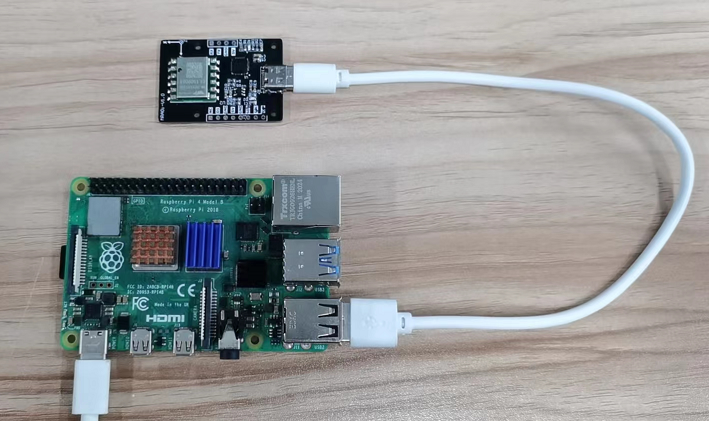
image-20220616175500190

2. Software programming

For specific code, please see the source code in the information.

If more than one USB device is connected, please check and confirm the USB device number of the IMU module, and modify the value of port.

The USB baud rate baud=9600 has been set in the program, and the baud value is modified according to the baud rate of the IMU module.
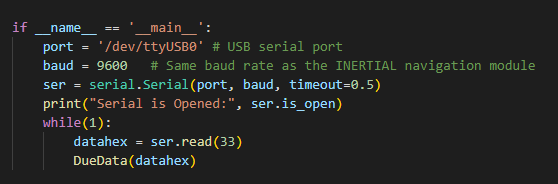
image-20220610095936209

3. Install the serial port driver library

If the serial serial port driver library is not installed in Python3, please run the following command to install it.

pip3 install pyserial

4. Experimental effect

Import the imu_usb.py file into the system, open the terminal, enter the corresponding folder, and then run the following command:

xxxxxxxxxx
python3 imu_usb.py

It can be seen that the terminal has been printing the data of the IMU module. When the posture of the IMU module is changed, the data will change accordingly.
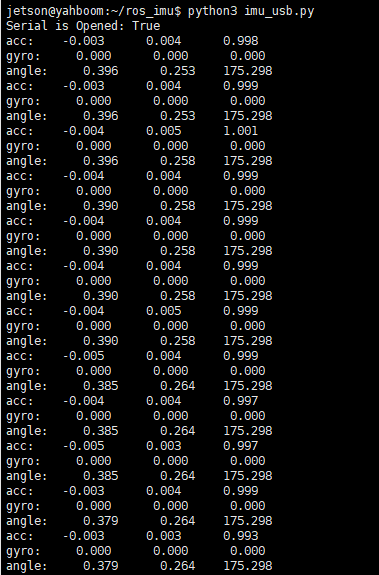
image-20220610101019136

Connected to the GPS module
JetsonNano-USB application

COMPANY

  • About us
  • Team Style
  • Blog

LEARNING & EXPLORATION

  • Tutorials
  • Edge AI hardware
  • Educational robots
  • Embedded intelligent hardware

WHERE TO BUY

  • Yahboom Online Store
  • Amazon
  • Alibaba
  • AliExpress
  • Mercado

TECHNOLOGY SUPPORT

  • Email: support@yahboom.com

BE A DISTRIBUTOR

  • Email: sales@yahboom.com
QR Code
QR Code

Copyright © 2017-2026 Yahboom. All Rights Reserved.

EN/中文