Welcome to MSPM0G3507 Development Board repository
01.CCS Theia Development
CCS Theia
CCS Theia1. MSPM0-SDK download2. MSPM0-SDK installation3. CCS Theia installation4. Manually configure SDK4.1 Configure other language display*4.2 Configure SDK5. Create a new project6. SYSCFG settings7. Compile the project7.1 Compile configuration7.2 Compile
CCS Theia (Code Composer Studio™ integrated development environment (IDE) Theia): Integrated development environment (IDE) for TI microcontrollers and processors.
MSPM0 Software Development Kit (SDK): Provides rich and comprehensive software resources, as well as corresponding tools and documents.
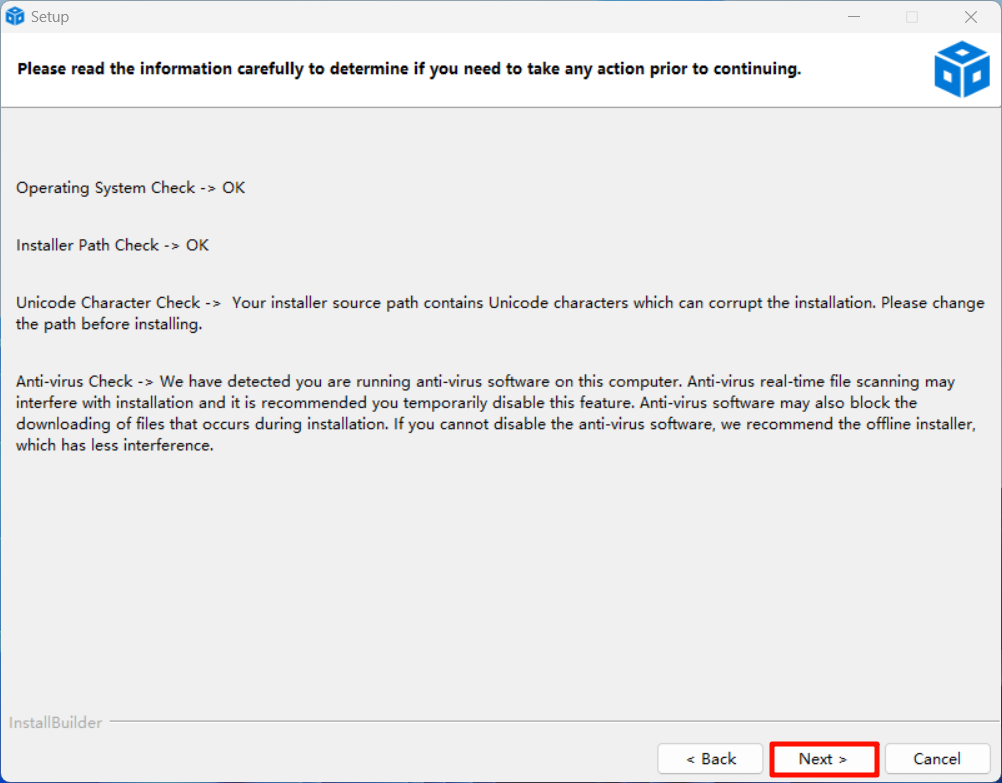
The path where the installation package is located and the path where the software is installed should not contain Chinese characters. Please install the installation package in a full English path
1. MSPM0-SDK download
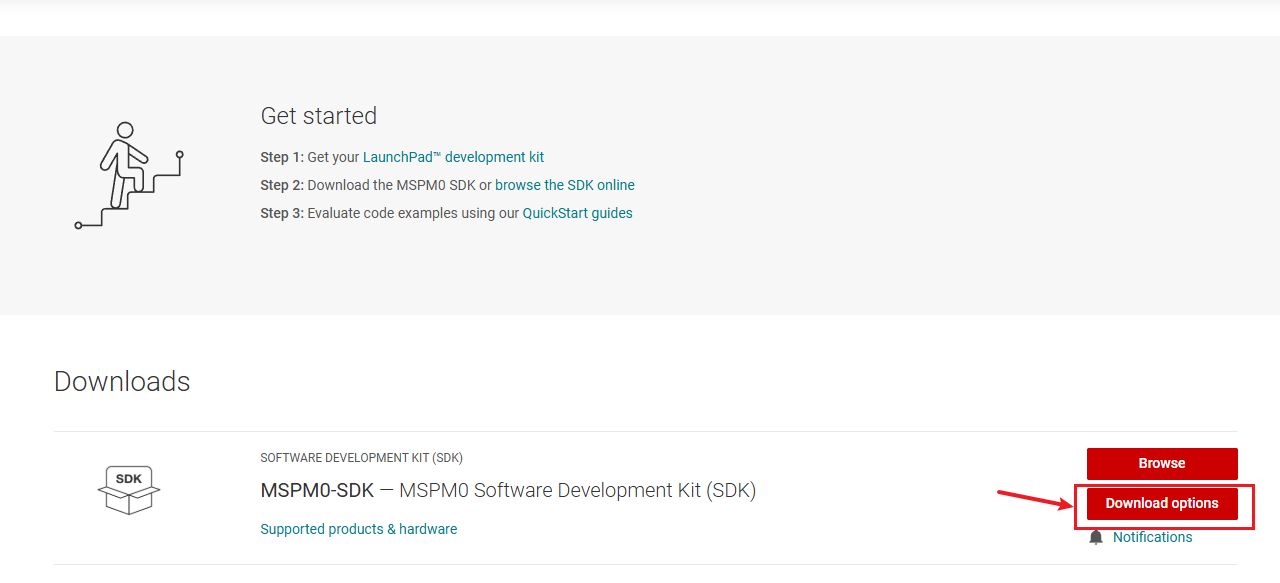
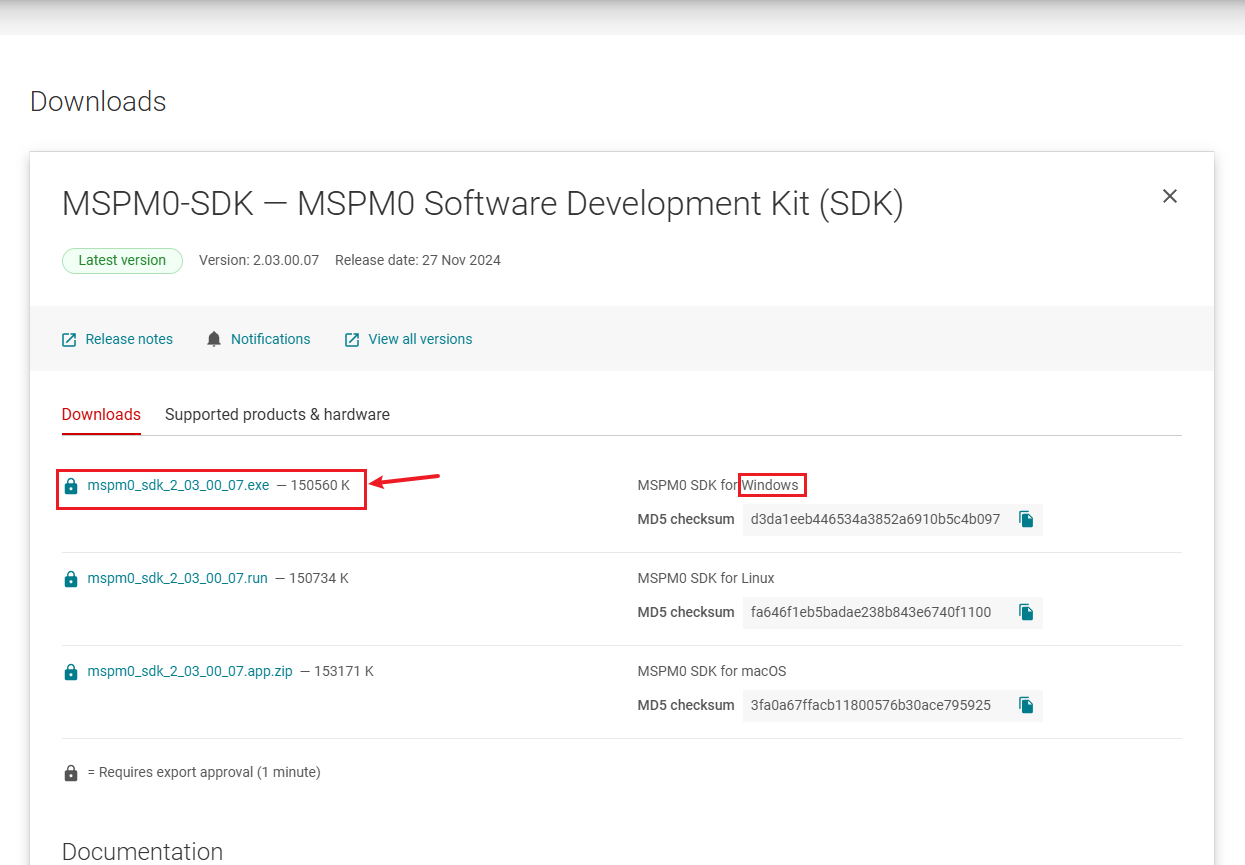
Download address: MSPM0-SDK Software development kit (SDK) | TI.com
You can download the latest version from the download link above, or use the version provided in our materials.
2. MSPM0-SDK installation
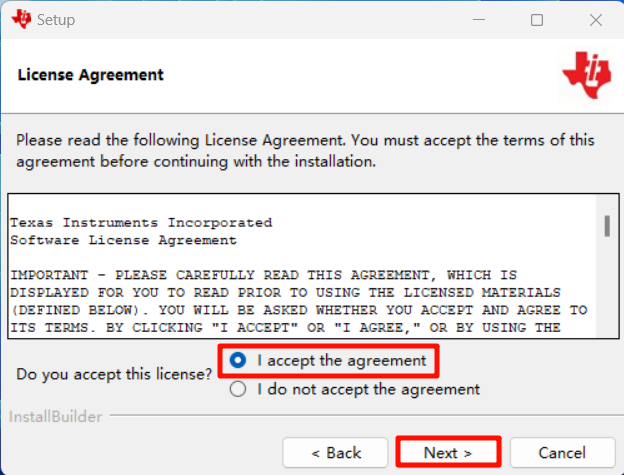
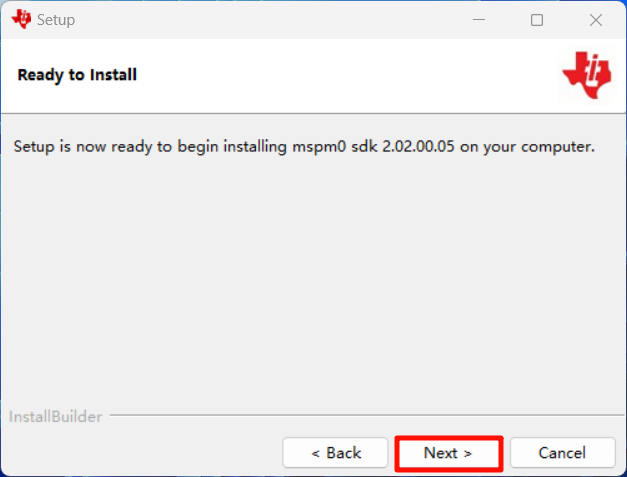
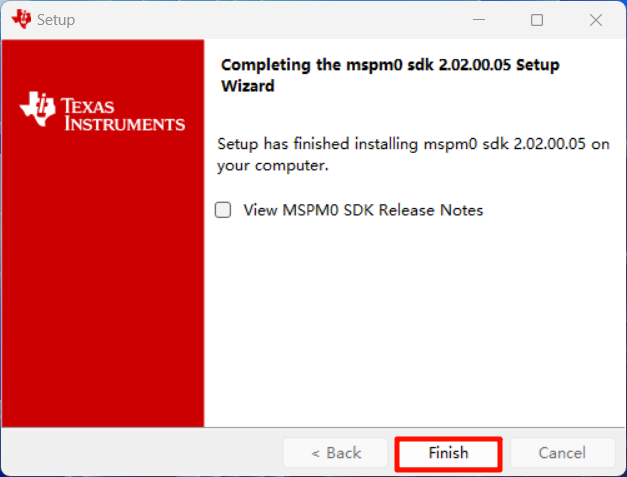
Open mspm0_sdk_xx.exe as an administrator and install according to the prompts:
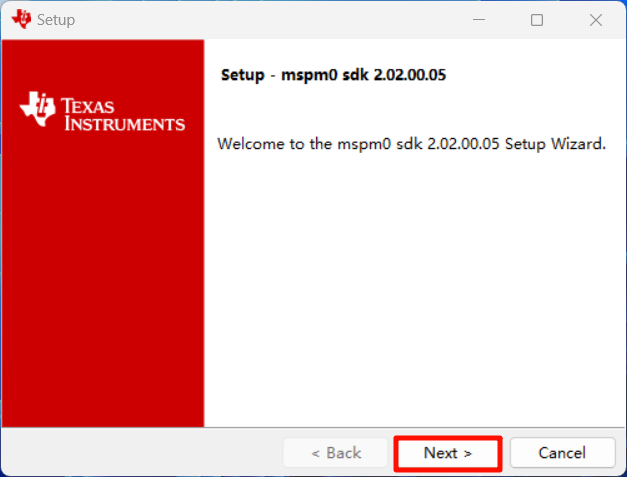
Agree to the agreement
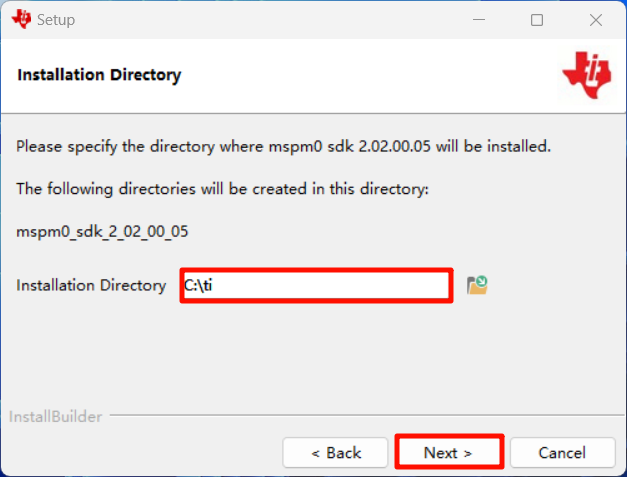
Installation location
The recommended default location for the software is:
3. CCS Theia installation
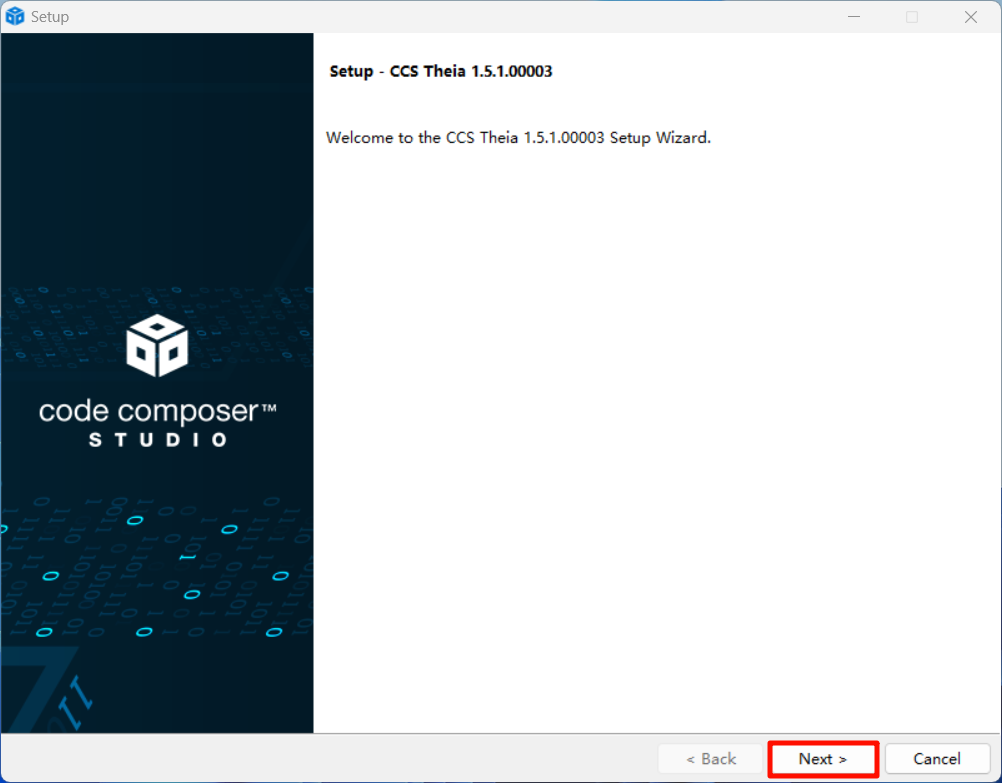
Open ccs_theia_setup_xx.exe as an administrator and install according to the prompts:
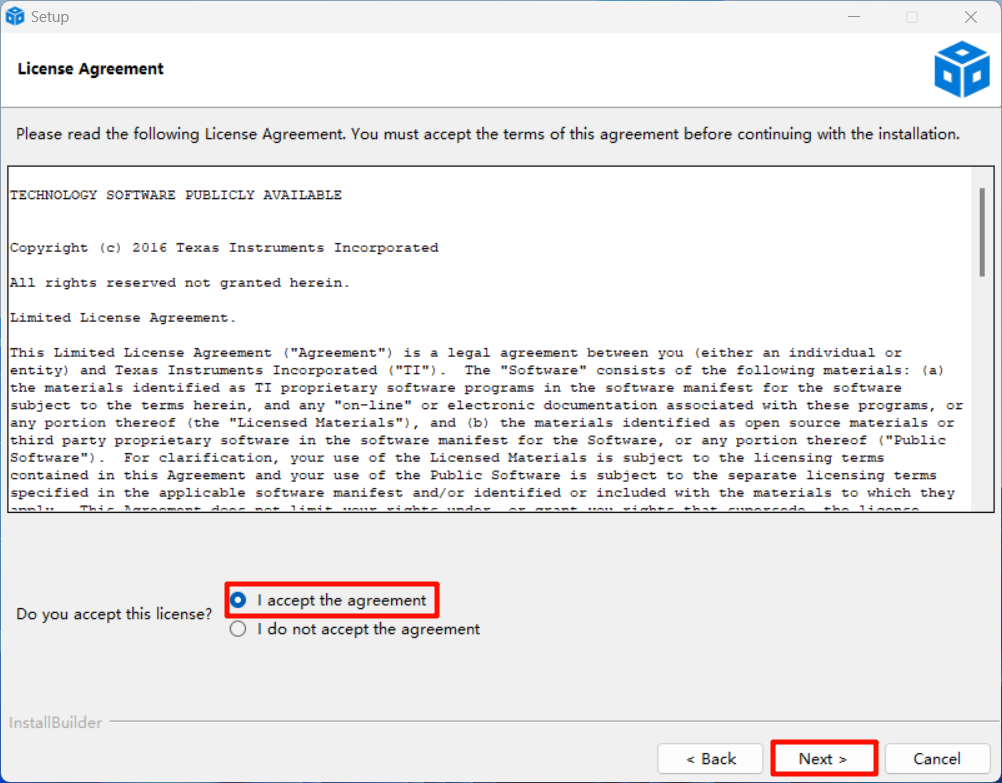
Agree to the agreement
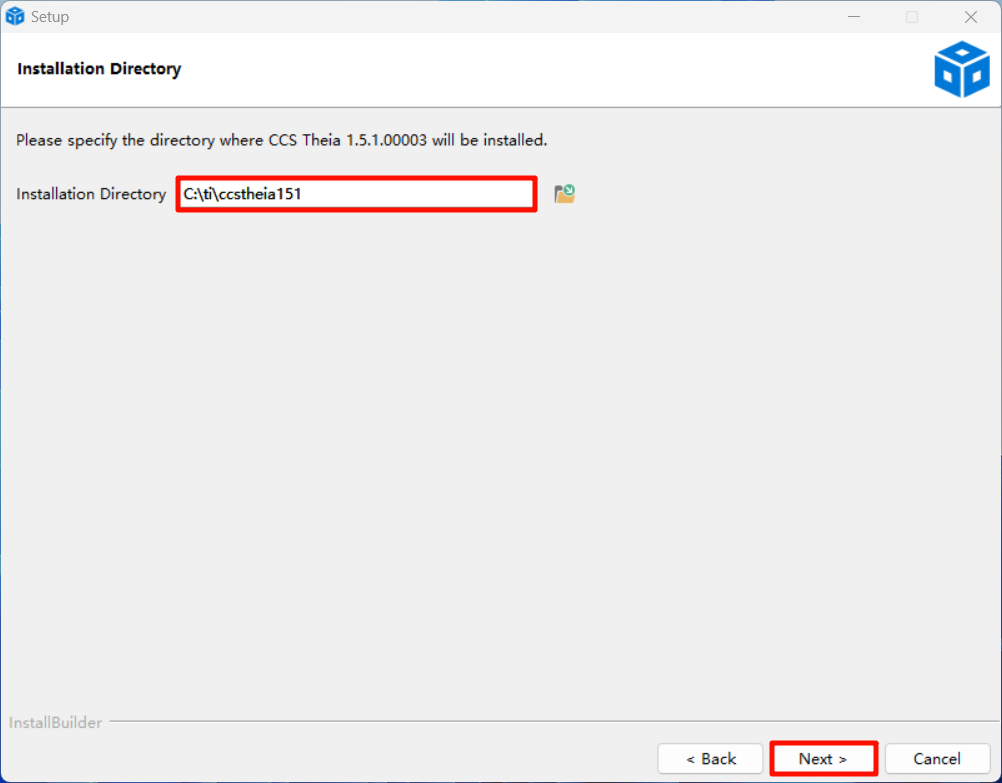
Installation location
The recommended default location for the software is:
Note that there cannot be Chinese characters in the path. If your computer user name is Chinese, it cannot be installed by default and must be installed in the English path.
Install components
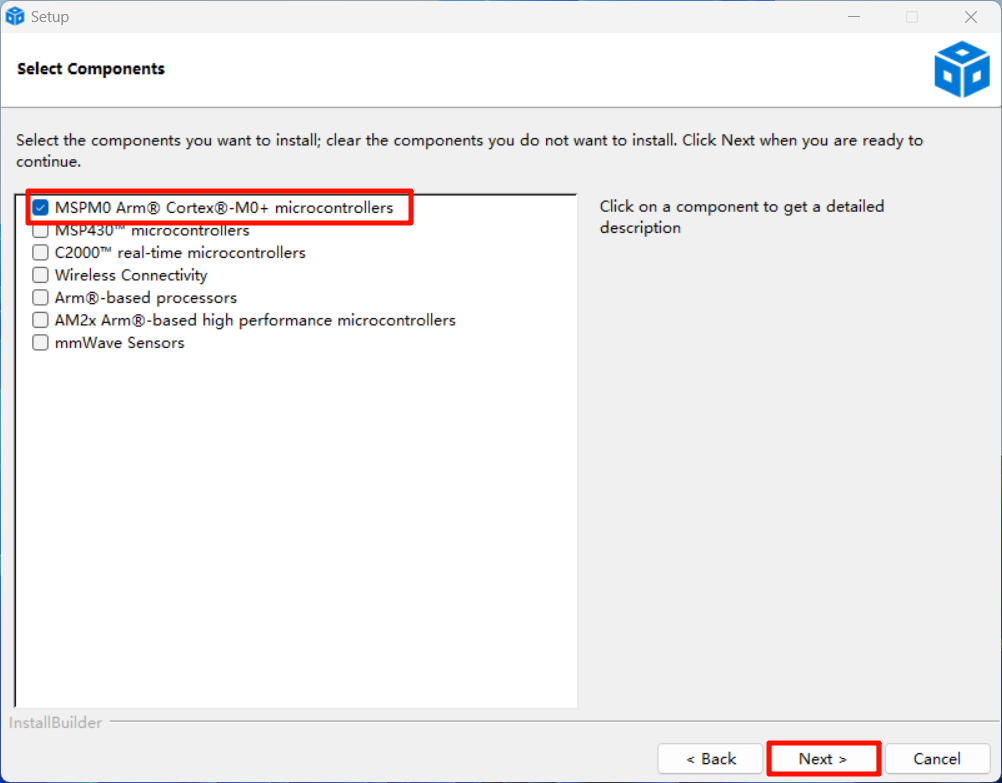
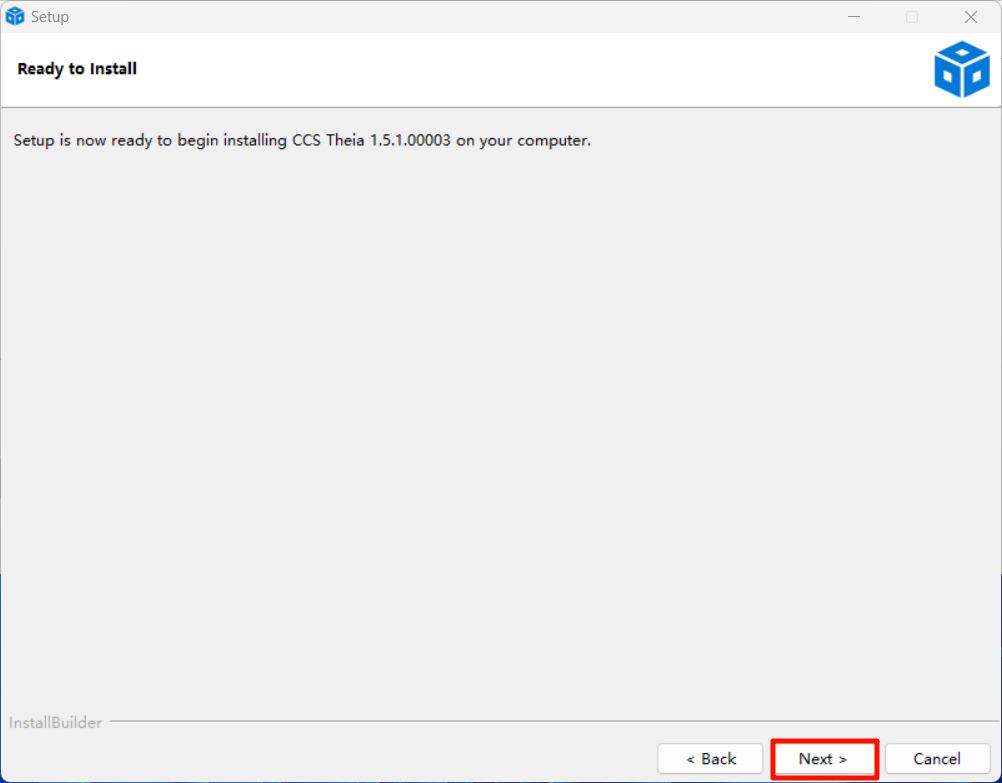
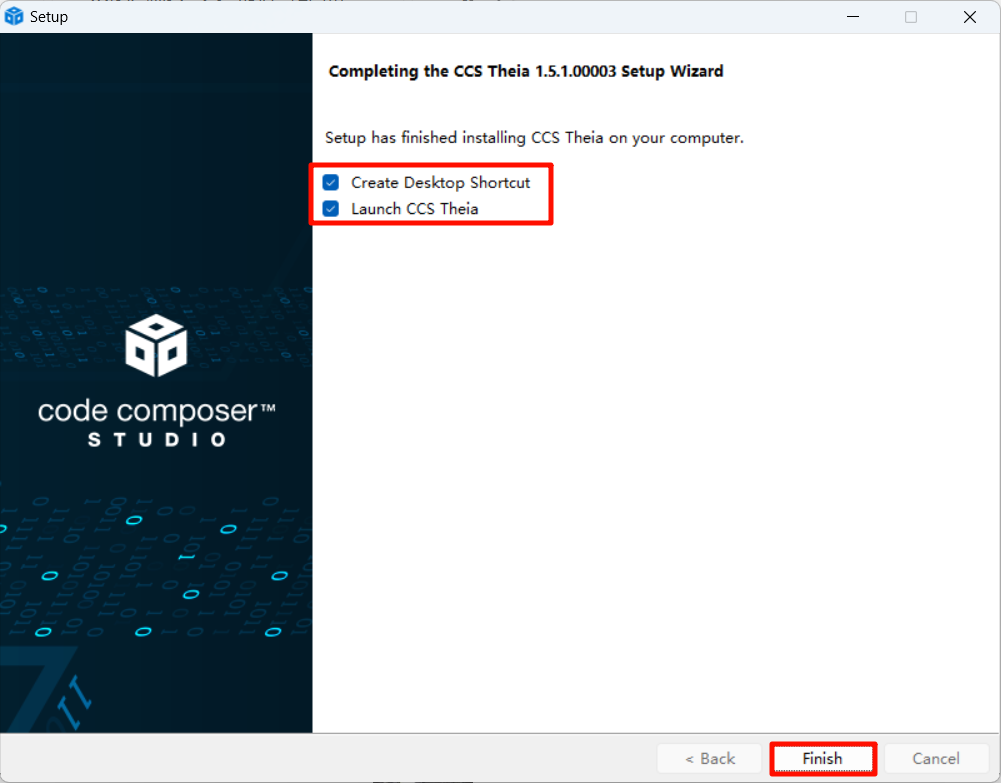
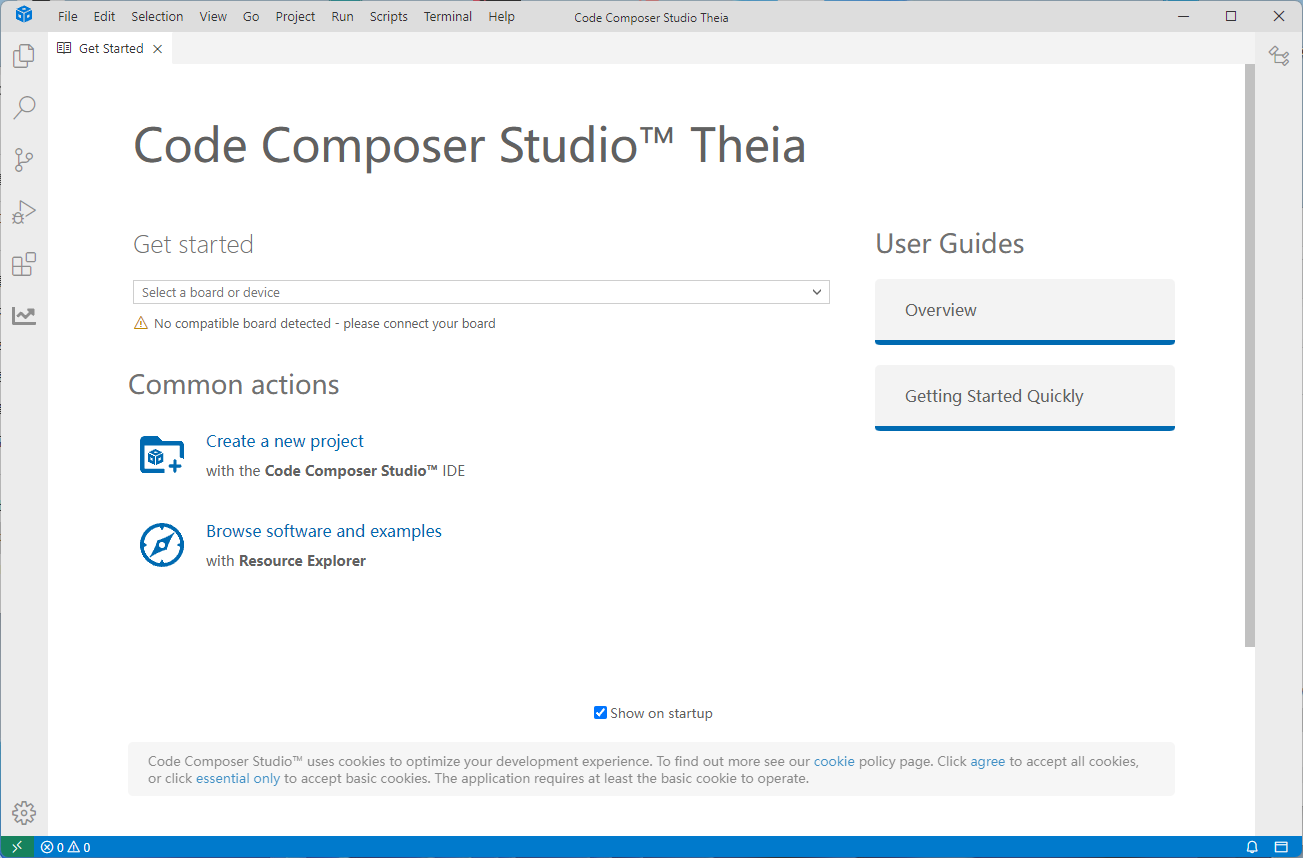
4. Manually configure SDK
4.1 Configure other language display*
You can skip this configuration tutorial without affecting the environment construction. Here we take setting Chinese display as an example.
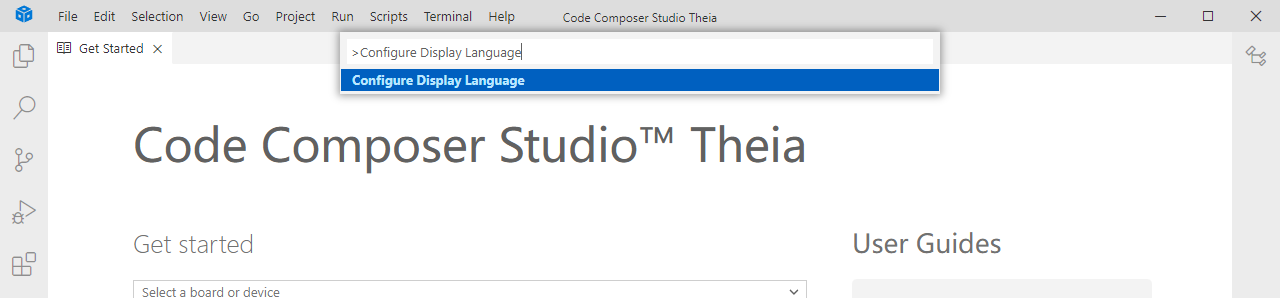
Press the shortcut keys shift+ctrl+P and enter Configure Display Language to enter the language configuration interface.
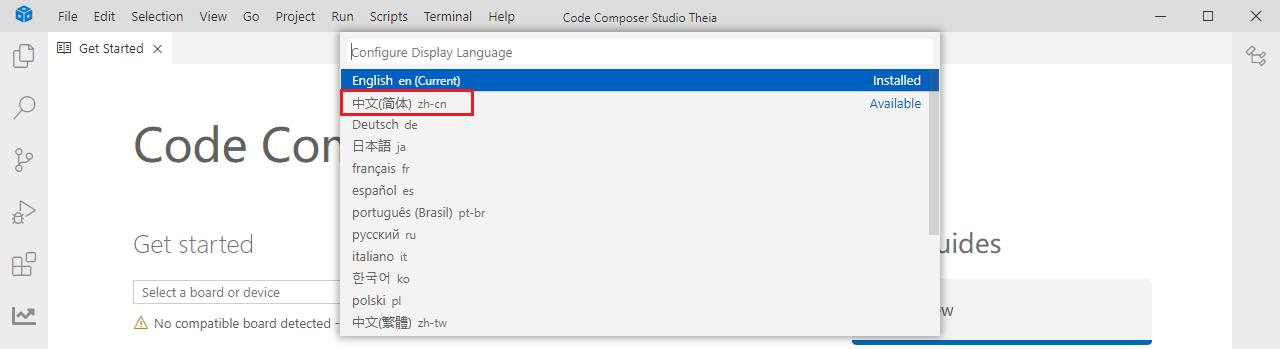
After CCS loads all languages, select Chinese to install.
4.2 Configure SDK
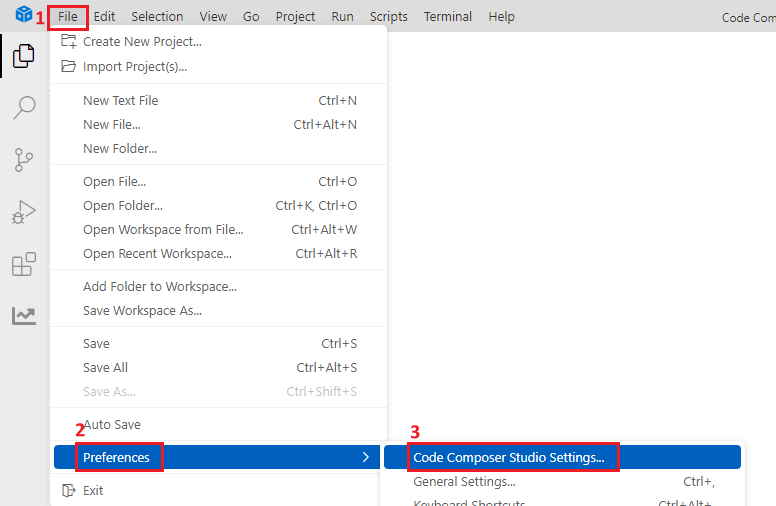
Open CCS File --> Preferences Code --> Composer Studio Settings...
Click Products and add the path of the SDK.
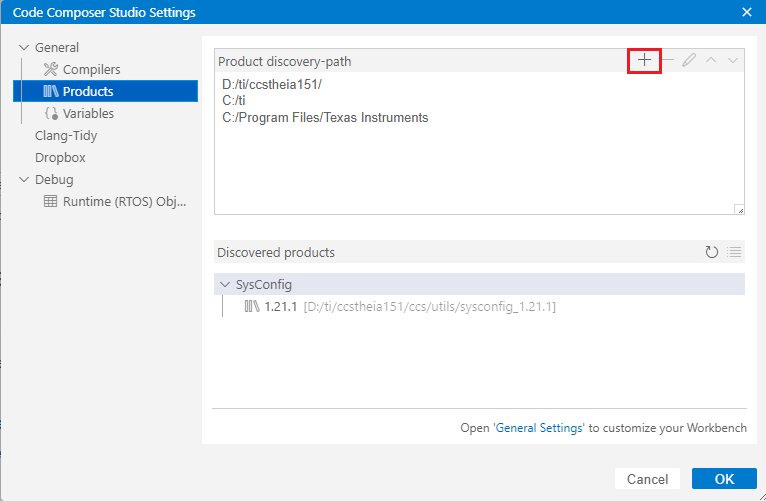
Select your own SDK path and import it into the CCS configuration, and the SDK will be automatically recognized.
The following figure is my SDK path address.
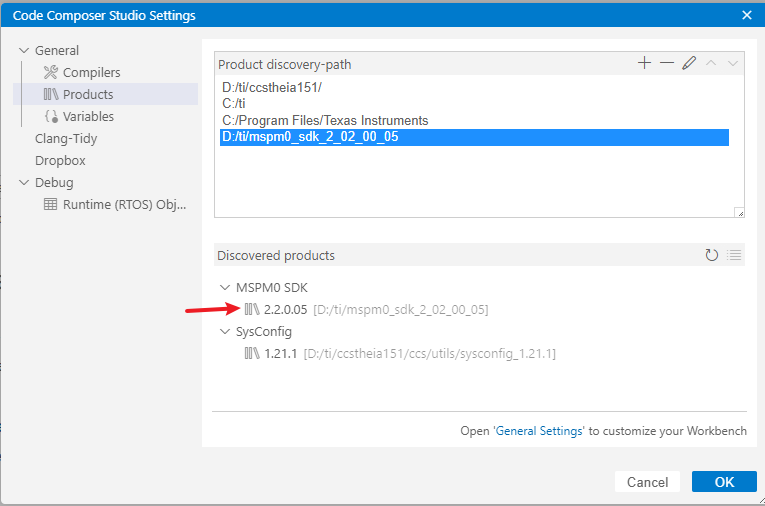
Click OK after completion.
5. Create a new project
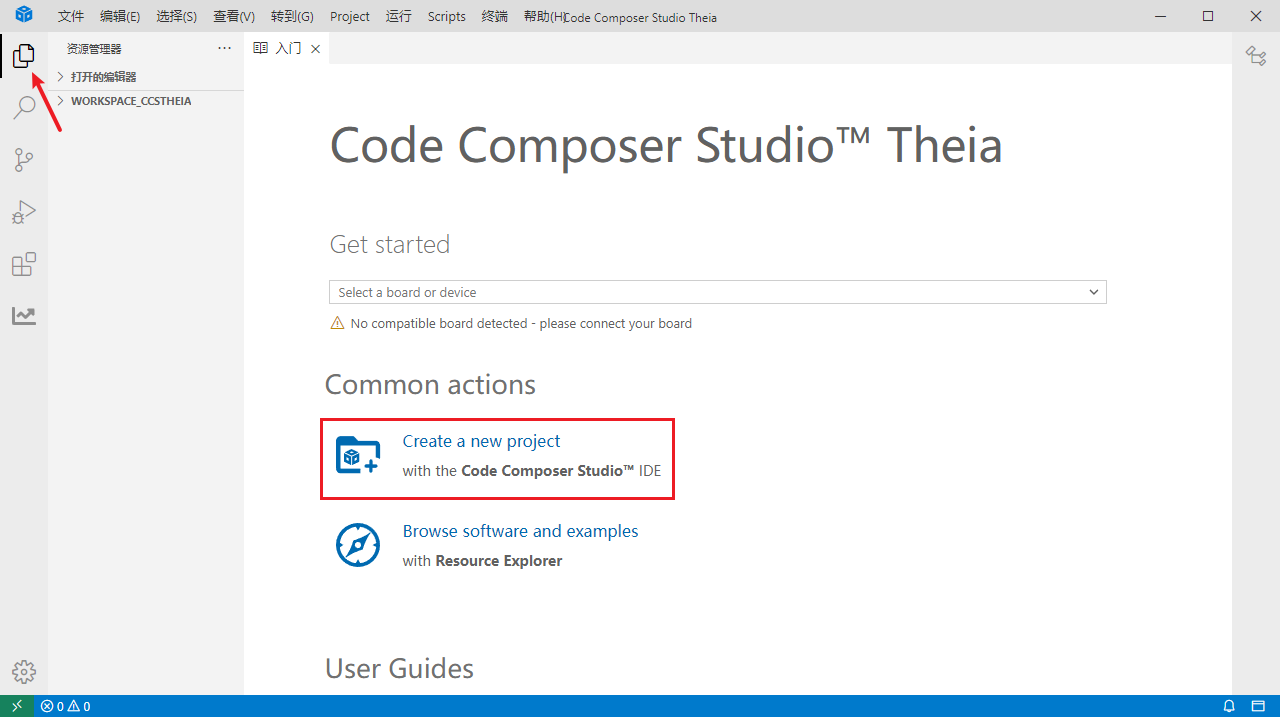
Click Create a new project to create a new project
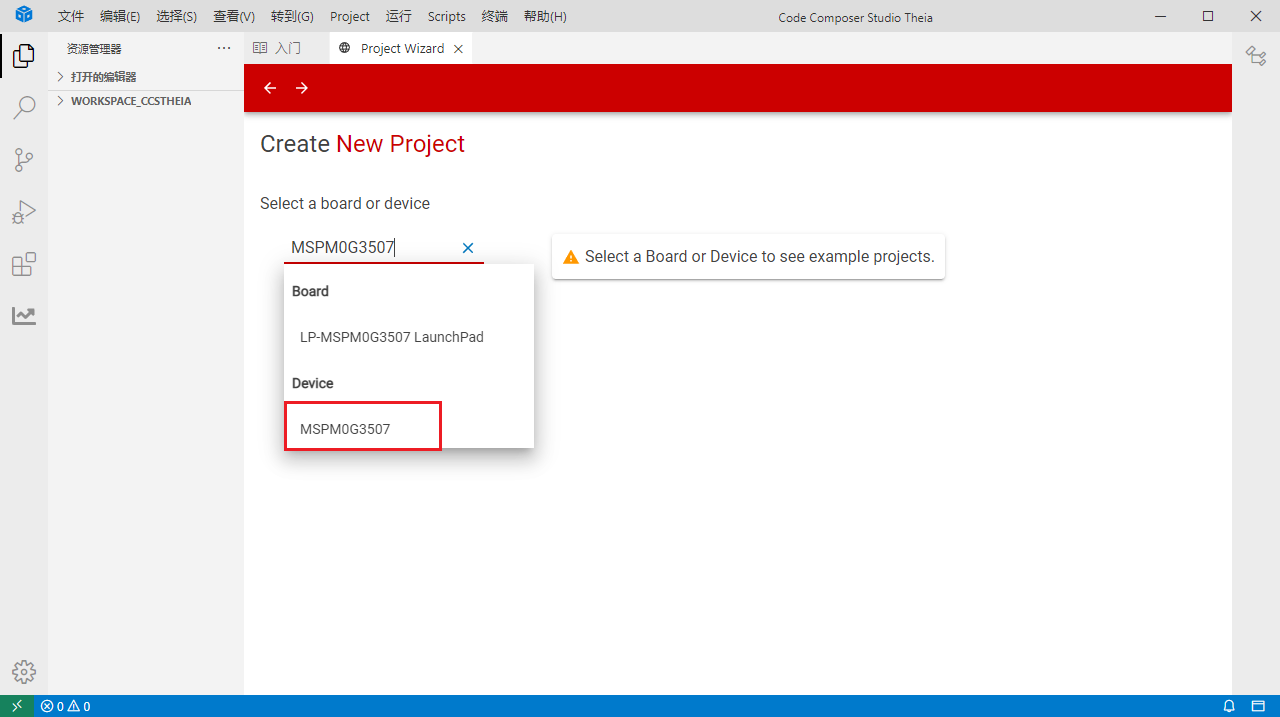
First manually enter MSPM0G3507, and select the device as MSPM0G3507 in the drop-down option.
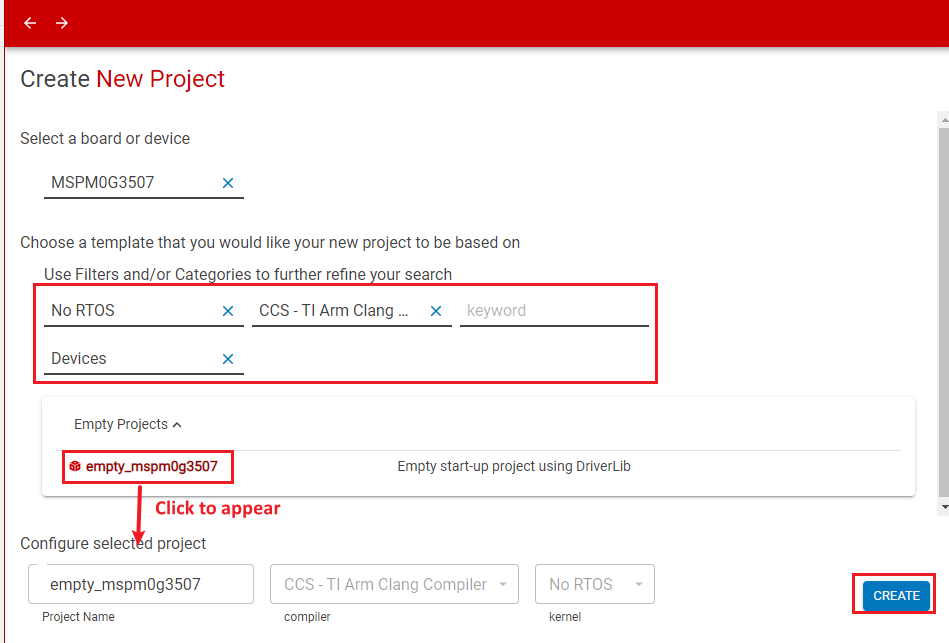
Then set the parameters as follows. After setting, click CREAT to create the project
During creation, you may be prompted that the SDK is not detected and whether to install it online. The SDK has been manually configured before. If a prompt appears, it means the latest version of the SDK. You can go to the SDK download link to download the latest version and reconfigure it.

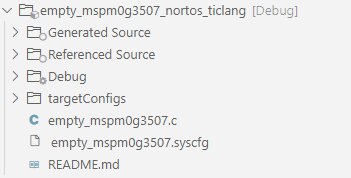
Here is the project we created.
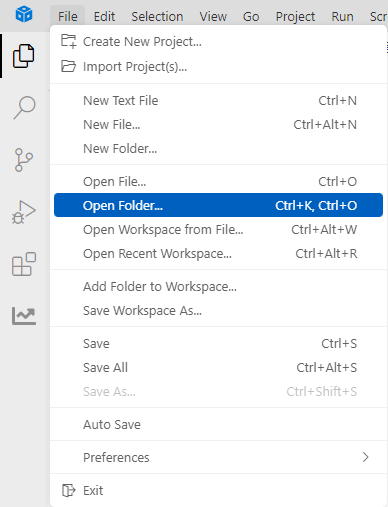
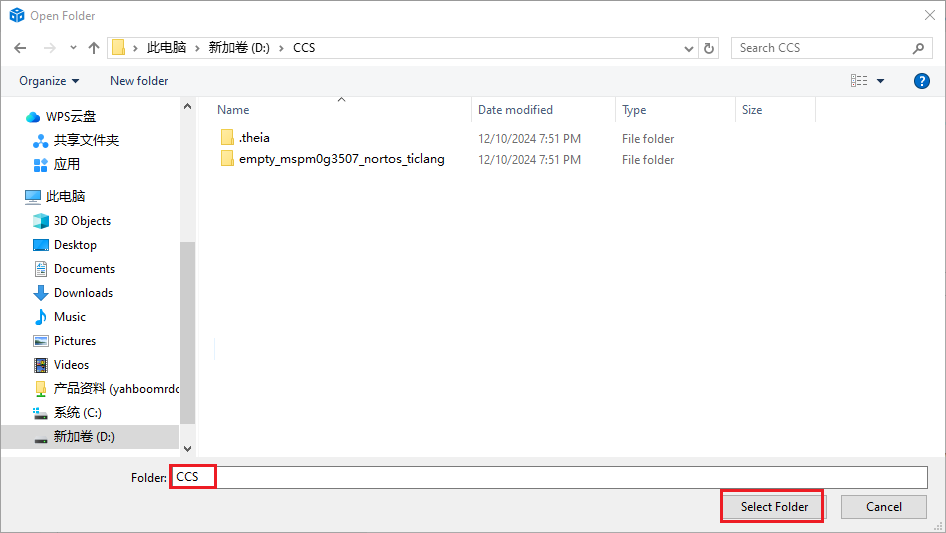
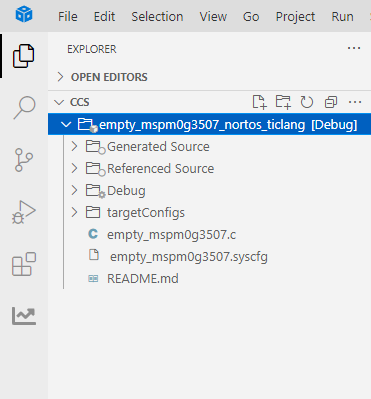
xxxxxxxxxxThe first time you open the software, the newly created project will be placed in the C:\Users\Administrator\workspace_ccstheia (workspace) path by default. You can copy the project file to another folder, and then open this folder in CCS Theia to generate a new workspace. The next time you open the software, the new workspace will be opened by default, and the newly created project will also be placed in the workspace by default.
6. SYSCFG settings
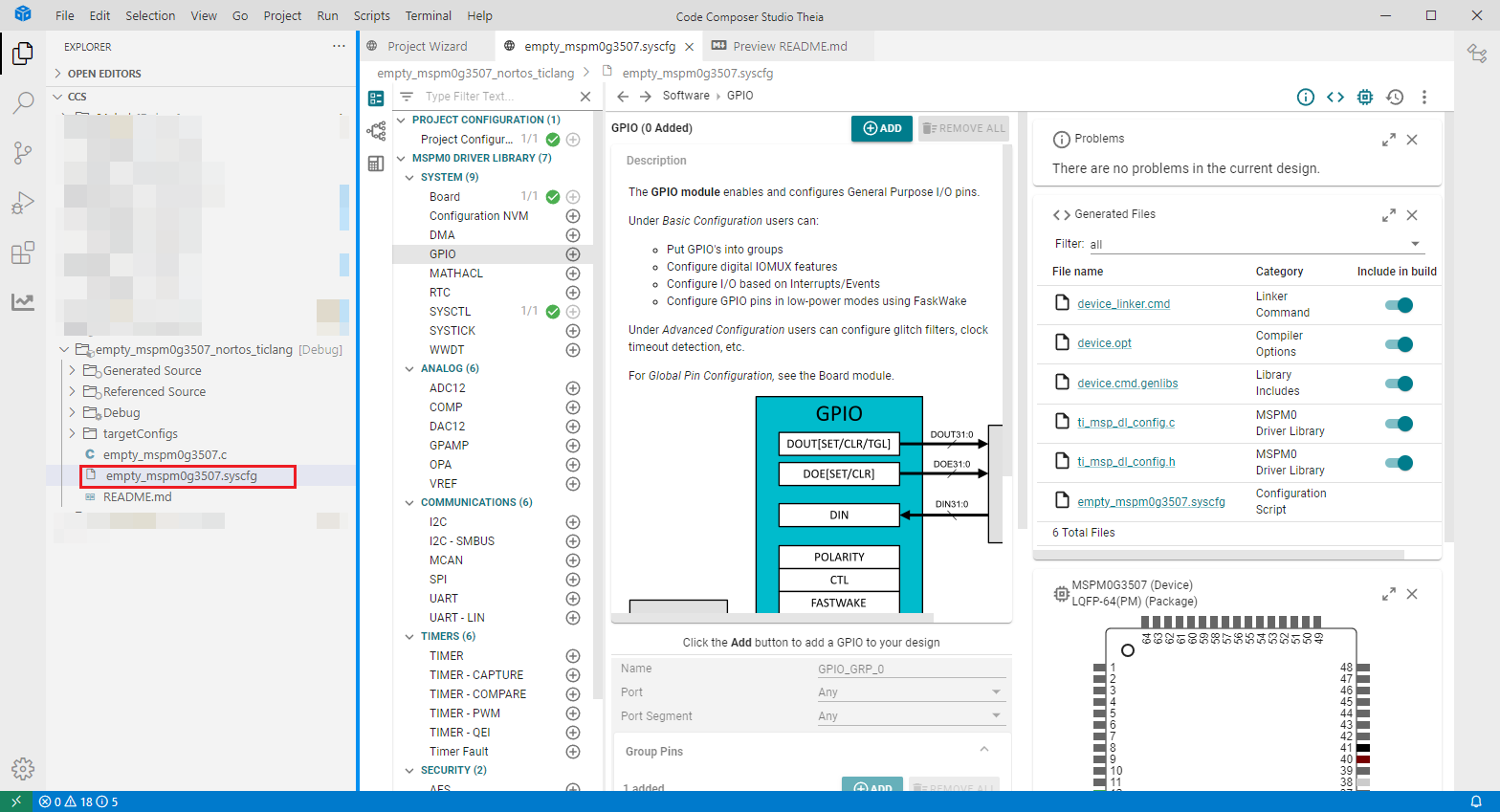
Click on the .syscfg file of the project and configure it on this page. After the configuration is completed, use the shortcut key Ctrl + S to save our configuration.
7. Compile the project
7.1 Compile configuration
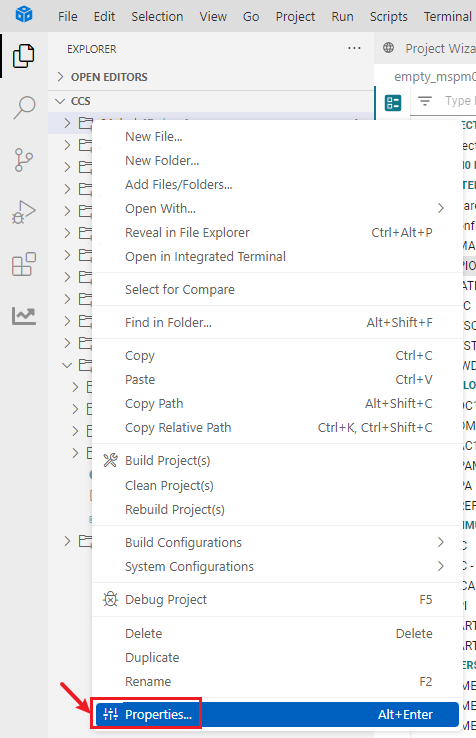
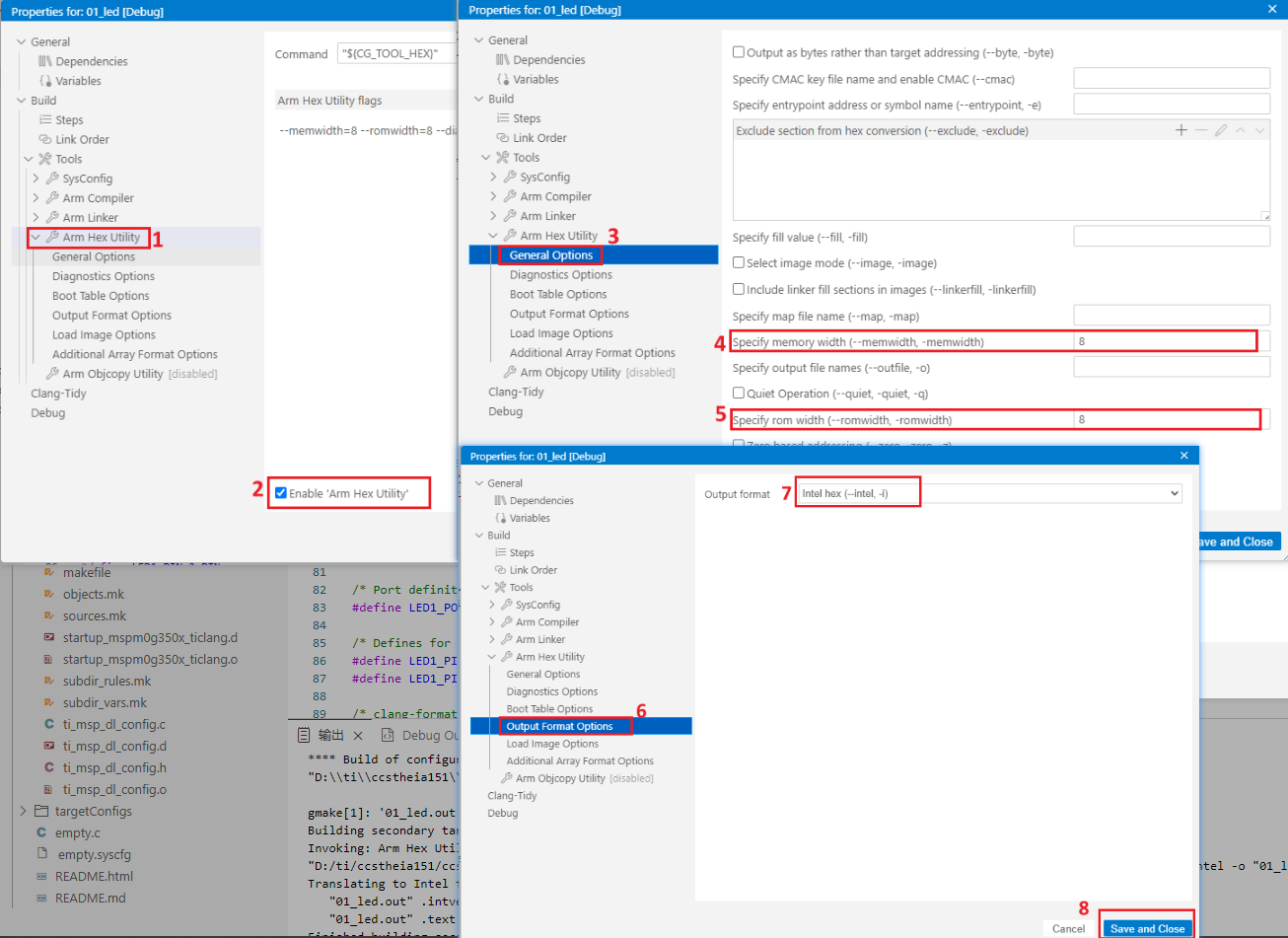
Right-click the project file and select Properties. Select Build →Tools → Arm Hex Utility and check Enable .
Select 8 memory and ROM width in General Options, select Intel hex (–intel, -i) in Output Format Options, and finally save and exit.
7.2 Compile
Right-click the project folder and select Build Project(s) to compile.
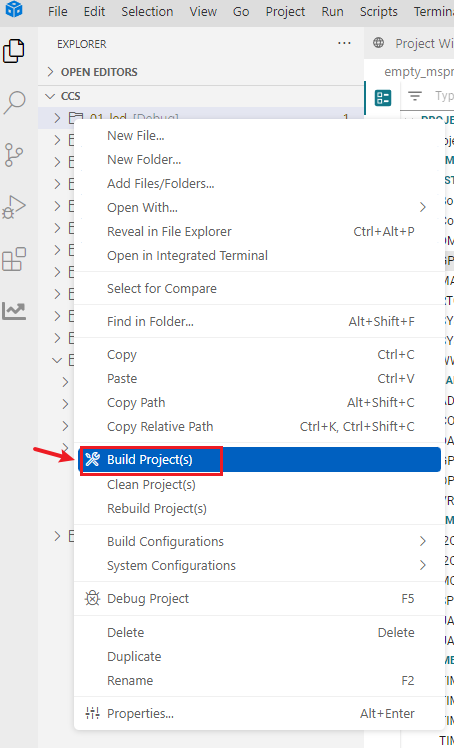
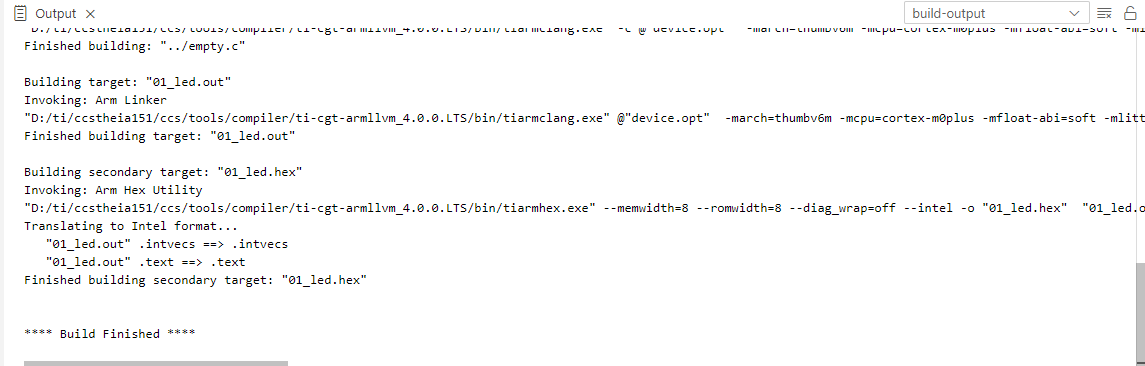
The normal compilation is as follows: