yahboom
HomeLearn
Solution
Blog
Online Store
About Us
EN/中文
Raspbot📖
1.First Trial and Installation
  • 1.1 Installation video
  • 1.2 First Trial
2.Remote control course
  • 2.1 APP control car
  • 2.2 IR control car
3.Preparation
  • 3.1 Preparation
  • 3.2 Run a code on JupyterLab
  • 3.5 TF card expand capacity
4.OpenCV Basic course
A.Getting started with OpenCV
  • 1.Introduction of OpenCV
  • 2.OpenCV image read and display
  • 3.OpenCV image write
  • 4.OpenCV image quality
  • 5.OpenCV pixel operation
B.OpenCV Geometric transformat
  • 1.Picture Zoom
  • 2.Picture Cut
  • 3.Picture Shift
  • 4.Picture Mirroring
  • 5.Affine Map
  • 6.Picture Rotation
  • 7.Perspective Transformation
C.OpenCV picture processing
  • 1.Grayscale processing
  • 2.Image Binarization
  • 3.Edge detection
  • 4.Drawing line segment
  • 5.Drawing rectangle circle
  • 6.Drawing text picture
D.OpenCV image beautification
  • 1.Histogram of color pictures
  • 2.Histogram equalization
  • 3.Image restoration
  • 4.Brightness enhancement
  • 5.Skin whitening
  • 6.Gaussian mean filtering
  • 7.Median filtering
E.OpenCV machine learning
  • 1.KNN recognition of handwritten numbers
  • 2.CNN recognition of handwritten numbers
  • 3.SVM recognition of handwritten numbers
5.Hardware Control course
  • 5.1 Drive buzzer
  • 5.2 Drive motor
  • 5.3 Drive servo
  • 5.4 Ultrasonic ranging
  • 5.5 Ultrasonic avoid
  • 5.6 Ultrasonic+IR avoid
  • 5.7 Tracking
  • 5.8 Restricting
  • 5.9 Drive LED
  • 5.10 IR control test
  • 5.11 IR control car
6.AI vision course
  • 6.1 Driver camera
  • 6.2 Color recognition
  • 6.3 HSV value test
  • 6.4 Camera color tracking
  • 6.5 Car color tracking
  • 6.6 Tensorflow object recognition
  • 6.7 QR code recognition
  • 6.8 QR code control
  • 6.9 Face detection
  • 6.10 Face tracking
  • 6.11 Autopilot
7.Battery and charging
  • Battery and charging
Download
  • APP(iOS/Android)
  • Code
  • Download image
  • Instruction manual
  • More Annex
Download ZIP
FAQ
  • 1、Raspbot-Raspberry Pi 4b version desktop connection WiFi method
  • 2、Can't connect your home WiFi
  • 3、How to check IIC function on Raspbot
  • 4、Gesture recognition cannot work normally.
  • 5、How to write image file into SD card

Welcome to Raspbot repository

3.5 TF card expand capacity

TF card expand capacity

This tutorial applies to motherboards that boot from either an SSD or SD card. All steps are the same!

Note:

  1. The system image file provided by Yahboom is compressed to facilitate downloading and replacing drives of different capacities (TF cards, USB flash drives, SSDs, etc.). If the actual drive capacity does not match the actual drive, you can follow this tutorial to expand it.
  2. This tutorial is for demonstration purposes only. The actual capacity of the TF card you receive will depend on the device you actually use.

GParted

GParted (Gnome Partition Editor) is a powerful graphical partition management tool, mainly used to manage disk partitions.

x
Linux systems can use this tool to manage disks

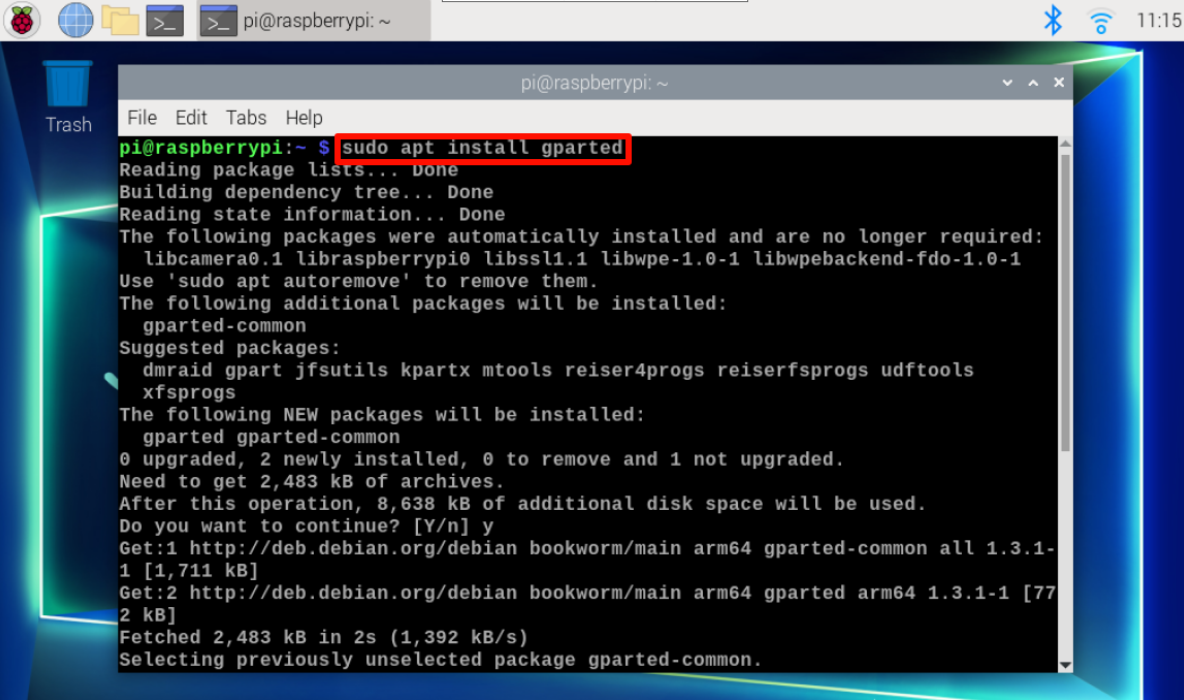
Install GParted

xxxxxxxxxx
sudo apt install gparted

1

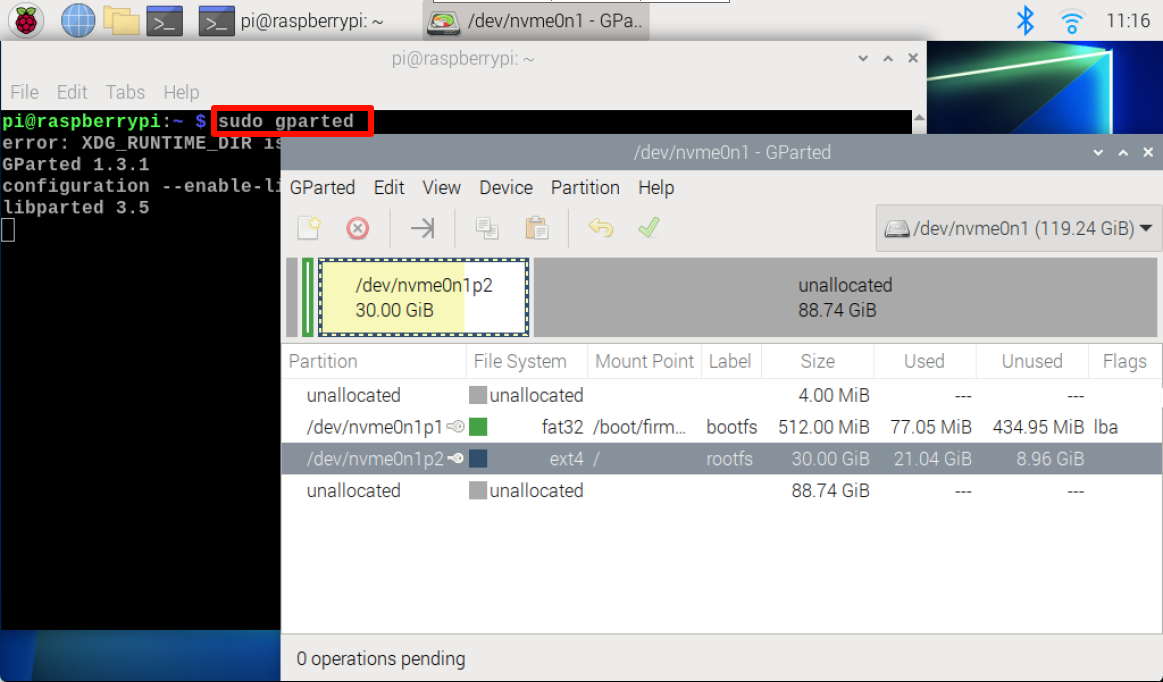
Start GParted

xxxxxxxxxx
sudo gparted

2

Expand capacity

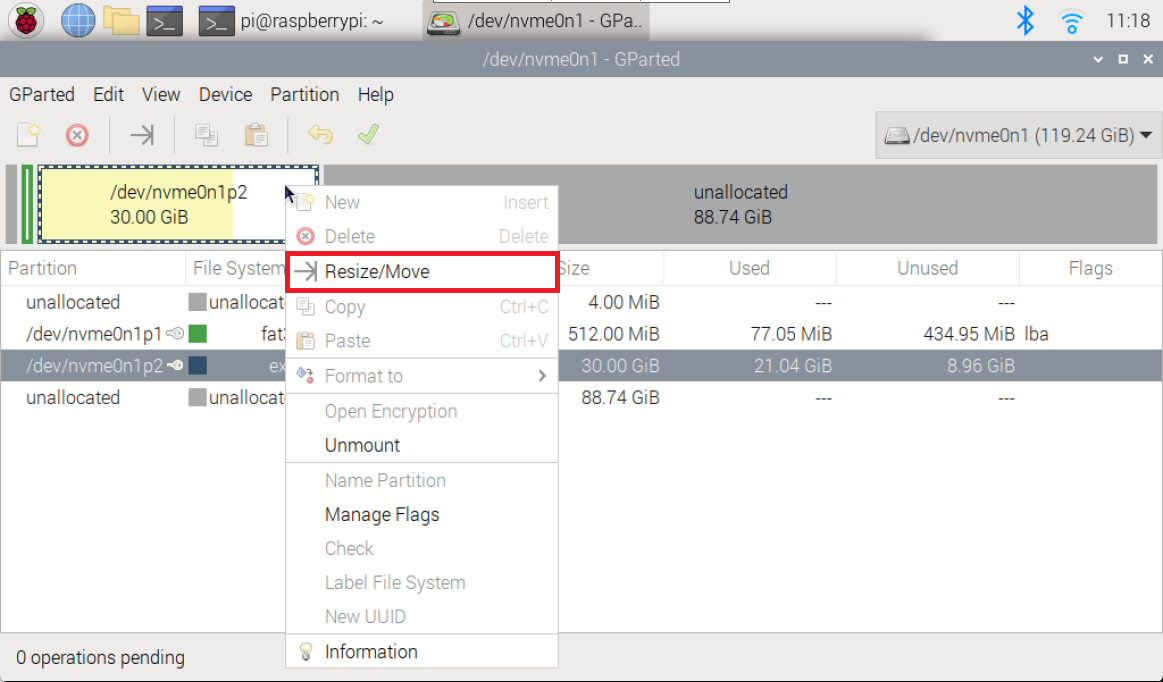
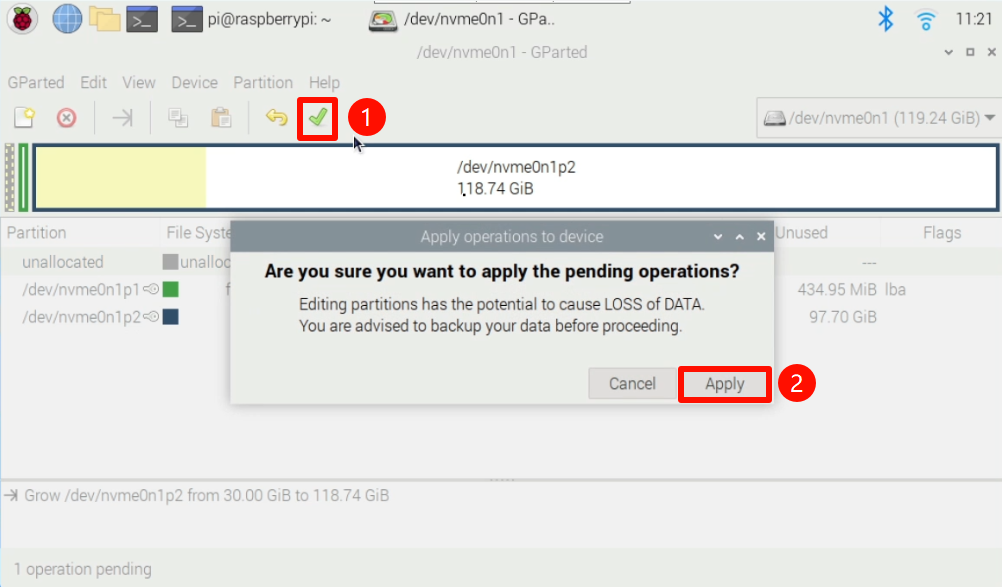
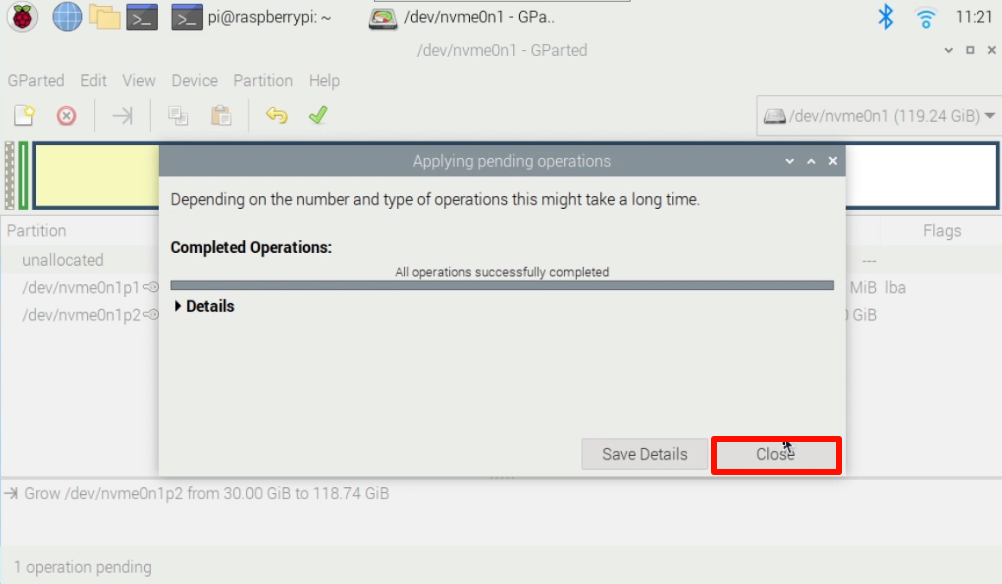
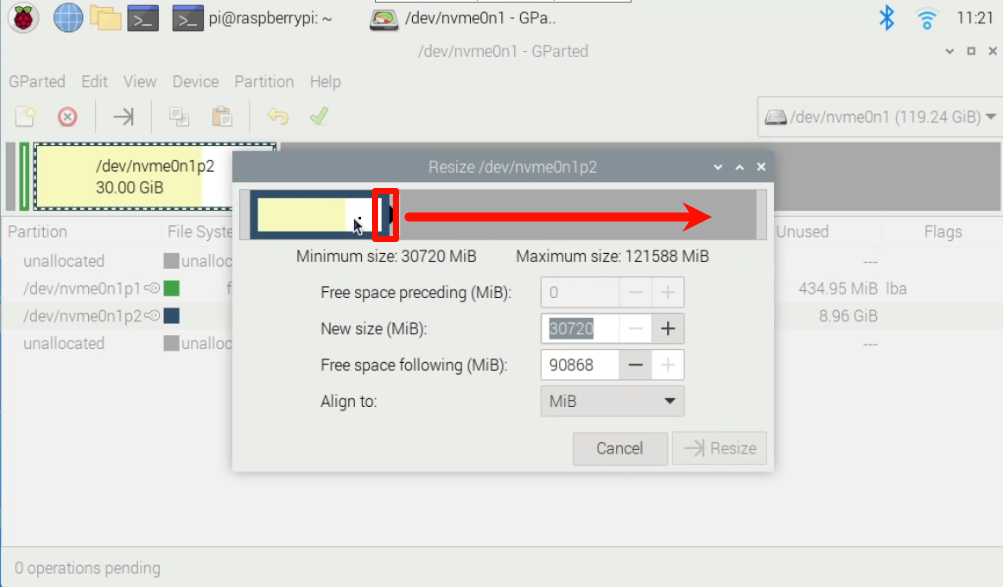
Right click on the disk(TF card) to allocate space and select "Resize/Move" to adjust the partition.

xxxxxxxxxx
该方法只能扩容,不可以压缩空间!

3

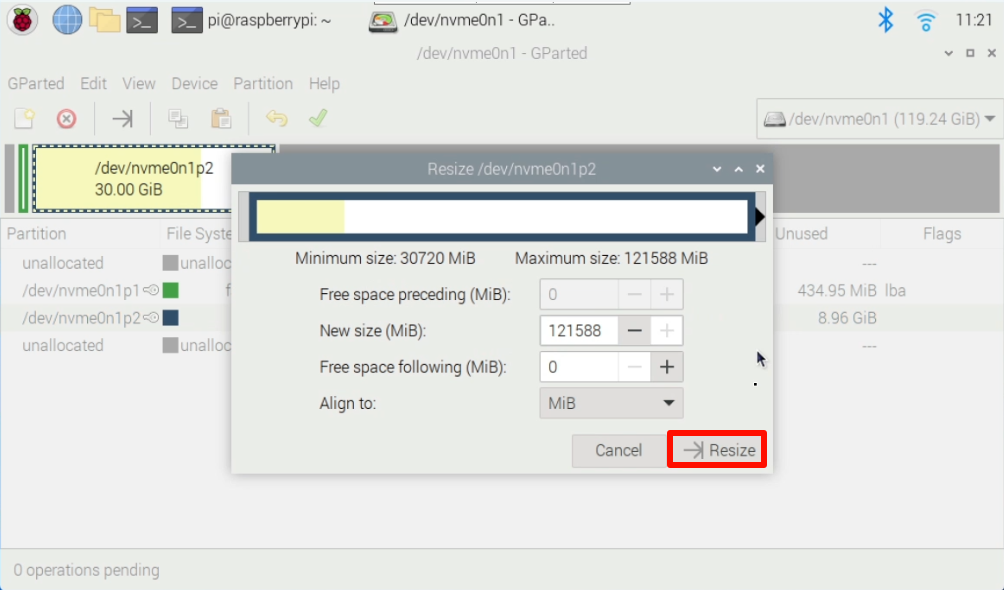
Drag the slider to adjust the partition:
4

5

6

7

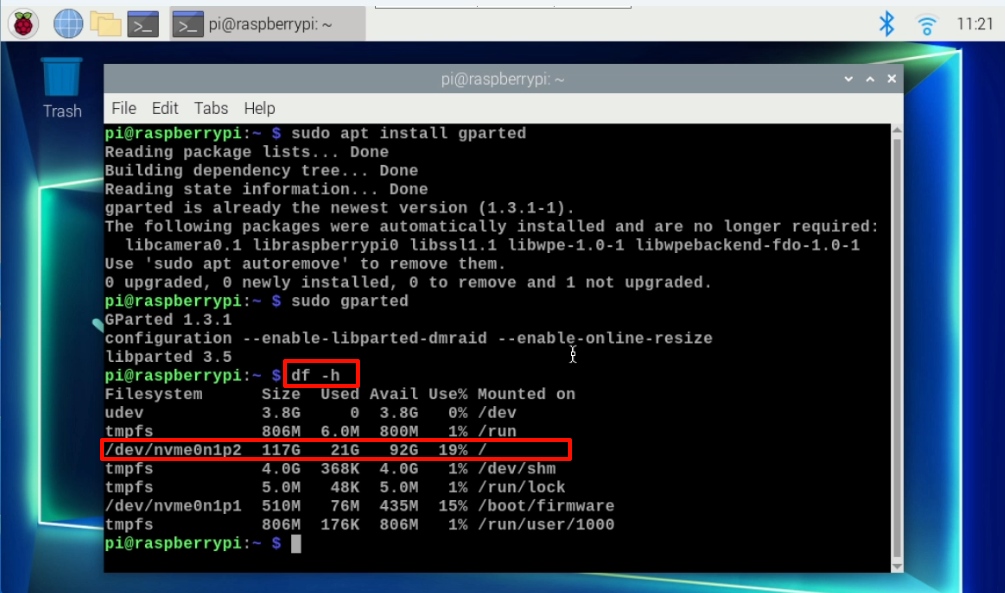
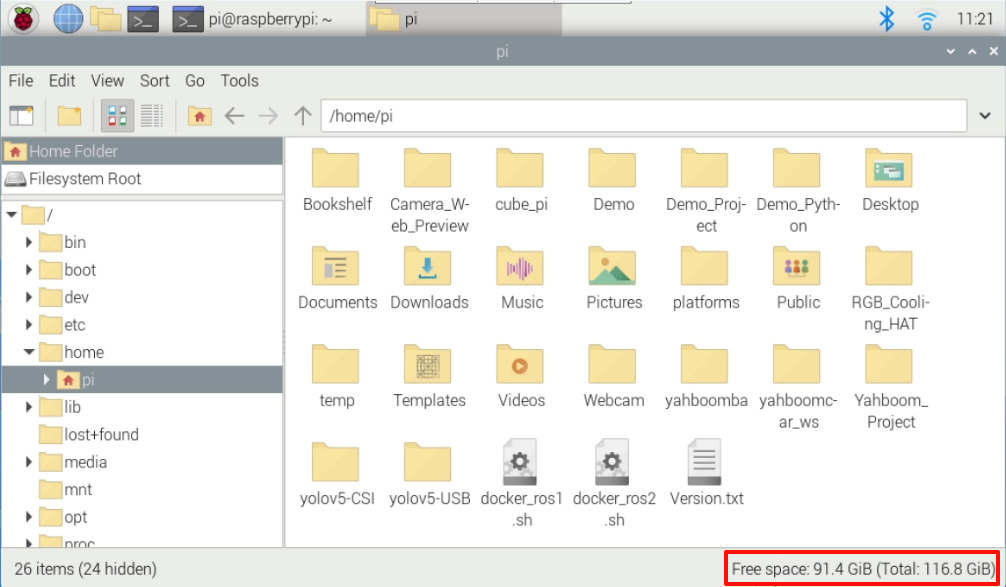
View partition size

After completing the disk(TF card) expansion, the newly allocated disk space can be seen in the system.
8

9

Run a code on JupyterLab
Introduction of OpenCV

COMPANY

  • About us
  • Team Style
  • Blog

LEARNING & EXPLORATION

  • Tutorials
  • Edge AI hardware
  • Educational robots
  • Embedded intelligent hardware

WHERE TO BUY

  • Yahboom Online Store
  • Amazon
  • Alibaba
  • AliExpress
  • Mercado

TECHNOLOGY SUPPORT

  • Email: support@yahboom.com

BE A DISTRIBUTOR

  • Email: sales@yahboom.com
QR Code
QR Code

Copyright © 2017-2026 Yahboom. All Rights Reserved.

EN/中文