yahboom
HomeTutorialsProduct
Solution
Blog
Online Store
About Us
EN/中文
Store
DOFBOT-JetsonNANO📖
00.Must Read Before Use!!
  • 00.Must Read Before Use!!
01.First Trial
  • 1.First Trial
  • 2.Analysis of common problems
  • 3.Calibration offset
  • 4.Precautions for DIY Robotic Arm
  • 5.Jetson Nano Version – Must Read
  • 6.Robotic arm gripping anomaly solutions
02.Assemble Course
  • 1.Installation video
  • 2.Calibrate the Robotic Arm
  • 3.Install the map
03.Remote control course
  • 1.Mobile APP control
  • 2.USB handle control
  • 3.PC web page programming
04.Preparation
  • 1.Manage APP control service
  • 2.Manage JupyterLab service
  • 3.Manage OLED service
  • 4.Modifying ROS_DOMAIN_ID for Multi-Machine
  • 5.Jetpack old system upgraded to SUPER system
05.Basic control course
  • 1.Control RGB light
  • 2.Control buzzer
  • 3.Control single servo
  • 4.Read servo angle
  • 5.Control all servo
  • 6.DOFBOT up down left right
  • 7.DOFBOT dancing
  • 8.DOFBOT memory action
  • 9.DOFBOT grab block
  • 10.Porter
  • 11.Stacked Arhat
  • 12.Synchronous action
  • 13.USB camera display
06.AI vision basic course
  • 1.Gesture Recognition
  • 2.Color threshold adjustment&Color calibration
  • 3.Color recognition
  • 4.Face recognition
  • 5.YOLOv11 garbage recognition
  • 6.YOLOv11 object recognition
07.2D Visual Tracking Course
  • 1.PID algorithm basics
  • 2.Color block positioning
  • 3.Color block tracking
  • 4.Face positioning
  • 5.Face tracking
  • 6.Gesture recognition fixed action
08.2D Visual Grasping Course
  • 1.Gesture recognition stack blocks
  • 2.Color recognition grab blocks
  • 3.Catch game
  • 4.Color sorting and stacking
  • 5.Garbage sorting
  • 6.Color interaction
09.Mediapipe course
  • 1.Hand detection
  • 02.Posture detection
  • 3.Overall detection
  • 4.Facial Detection
  • 5.Face Detection
  • 6.Face effects
  • 7.3D object recognition
  • 8.Paintbrush
  • 9.Finger control
  • 10.Gesture Recognition
  • 11.Gesture control robotic arm action group
  • 12.Arm posture control robotic arm
  • 13.Palm Targeting
  • 14.Robotic arm tracks the palm
  • 15.Fingertip trajectory recognition
  • 16.Fingertip trajectory control robotic arm
  • 17.Gesture Grasp and Release Objects
  • 18.Finger Control Robot Arm
10.AI Large Model Voice Module (Must Read)new
  • 1. Introduction to AI Large Model Voice Module
  • 2. Flash the firmware (Must read)
  • 3. Modify the wake-up word and command word
11.2D Voice Control Coursenew
  • 01.Simple Voice Control
  • 02.Smart Voice Control
  • 03.Voice Action Control
  • 04.Memory Learning Mode
  • 05.Color Recognition with Voice Broadcast
  • 06.Color Recognition and Grasping with Voice Broadcast
  • 07.Color Recognition and Sorting with Voice Broadcast
  • 08.Voice Recognition Target Tracking
  • 09.Voice Control Stacking
  • 10.Voice Control Color Sorting and Stacking
  • 11.Garbage Recognition with Voice Broadcast
  • 12.Garbage Sorting with Voice Broadcast
12.Robotic Arm Control and Inverse Kinematics
  • 1. Robotic arm ROS control
  • 2. Inverse solution
13.3D Sorting and Grasping Coursenew
  • 1.AprilTag ID sorting
  • 2.MediaPipe Gesture-AprilTag ID sorting
  • 3.MediaPipe Gesture-AprilTag distance sorting
  • 4.Block color sorting
  • 5.Block different shape sorting
  • 6.Yolov11 garbage sorting
14.3D Tracking Coursenew
  • 1.AprilTag Tracking
  • 2.Color Block Tracking
  • 3.KCF Object Tracking
15.3D Voice Control for Sorting & Tracking Coursenew
  • 1.Voice Control AprilTag ID Sorting
  • 2.Voice Control Color Block Sorting
  • 3.Voice Control Yolov11 Garbage Recognition Sorting
  • 4.Voice Control AprilTag Tracking
  • 5.Voice Control Color Block Tracking
  • 6.Voice Control Object Tracking
16.AI Model Basicsnew
  • 1.AI large model types and principles
  • 2.RAG retrieval enhancement and model training samples
  • 3.Embodied intelligent robot system architecture
  • 4.Embodied intelligent functions core source code
17.AI Model Developmentnew
  • 1.Register a model service provider account
  • 2. Configure API-KEY
  • 3. Introduction to Dify
  • 4. Basic Dify Features
  • 5. Deploy the RAG knowledge base
  • 6. AI Large Model Development - chatbot
  • 7. RAG knowledge base + chatbot
  • 8. AI agent workflow
18.AI Model – Text Versionnew
  • 1. Semantic understand instruction following
  • 2. Multimodal visual understand
  • 3. Text Large Model + robotic arm control
  • 4. Multimodal Large Model+video understanding
  • 5. Multimodal Large Model+robotic arm gripping
  • 6. Multimodal Large Model+robotic arm tracking
  • 7. Multimodal Large Model+robotic arm sorting
  • 8. Multimodal Large Model+robotic arm handling
  • 9. Multimodal Large Model+Color Blocks Back In Place
  • 10. Multimodal Large Model + Intent Prediction + Robotic Arm Gripping
  • 11. Text Large Model + YOLOv11 + Intelligent Garbage Classification
19.AI Model – Voice Versionnew
  • 1. Semantic understand instruction following
  • 2. Multimodal visual understand
  • 3. Text Large Model + robotic arm control
  • 4. Multimodal Large Model+video understanding
  • 5. Multimodal Large Model+robotic arm gripping
  • 6. Multimodal Large Model+robotic arm tracking
  • 7. Multimodal Large Model+robotic arm sorting
  • 8. Multimodal Large Model+robotic arm handling
  • 9. Multimodal Large Model+Color Blocks Back In Place
  • 10. Multimodal Large Model + Intent Prediction + Robotic Arm Gripping
  • 11. Text Large Model + YOLOv11 + Intelligent Garbage Classification
20.AI Model – Fun Applicationsnew
  • 1.AI Butler-Intent Inference
  • 2.AI Encyclopedia-Arithmetic Master
  • 3.AI Encyclopedia-You asked I Pointed
  • 4.AI Encyclopedia-Nutritional Analysis
  • 5.AI Encyclopedia-Problem Solving Expert
  • 6.AI Encyclopedia-English Spelling
  • 7.AI Butler-Garbage Sorting
  • 8.AI Top Chef
21.MoveIt2 Course
  • 1.MoveIt configuration
  • 2. MoveIt Usage
  • 3. MoveIt Drive Real Robot
  • 4. MoveIt Random Movement
  • 5. MoveIt Forward Kinematics Design
  • 6. MoveIt Inverse Kinematics Design
  • 7. MoveIt Cartesian Path
  • 8. MoveIt Scene Design
  • 9. MoveIt Trajectory Planning
  • 10. MoveIt Collision Detection
22.YOLOv11 Development Course
  • 1. YOLO Environment Setup
  • 2. CLI Usage
  • 3. Object Detection
  • 4. Instance Segmentation
  • 5. Pose Estimation
  • 6. Image Classification
  • 7. Oriented Bounding Boxes Object Detection
  • 8. Model Conversion
  • 9. Model Prediction
23.Linux Operating System
  • 1.Introduction to Linux system
  • 2.Ubuntu file system
  • 3.Ubuntu common commands
  • 4.Ubuntu common editors
  • 5.Ubuntu software operation commands
  • 6.Virtual machine installation
  • 7.SSH remote control
  • 8.VNC remote control
  • 9.Transfer files remotely
  • 10.Driver library and communication
  • 11.Capacity expansion and resource allocation
  • 12.Bind device ID
  • 13.Capacity expansion and resource allocation
  • 14.Update system software sources
  • 15.Set root user password
  • 16.sudo free password
  • 17.Connect to WiFi network
  • 18.View system version
  • 19.Customized service management
  • 20.Back up system image
24.GPIO Hardware Control Course
  • 1.GPIO description
  • 2.GPIO library installation
  • 3.GPIO reading
  • 4.GPIO output
  • 5.Serial communication
  • 6.I2C communication
25.OpenCV course
  • 0. Must Read!
  • 1. Introduction to Open Source CV
  • 2. Image reading and display
  • 3. Image writing
  • 4. Image quality
  • 5. Pixel Operation
  • 6.Image zoom
  • 7.Picture cut
  • 8.Picture pan
  • 9.Picture mirroring
  • 10.Affine transformation
  • 11.Picture rotation
  • 12.perspective transformation
  • 13.Grayscale processing
  • 14.Binary image
  • 15.Edge green detection
  • 16.Line segment drawing
  • 17.Rectangular circle drawing
  • 18.Text and picture drawing
26.ROS2 Basic Course
  • 1.Introduction to ROS2
  • 2.ROS2 install Humble
  • 3.ROS2 development environment
  • 4.ROS2 workspace
  • 5.ROS2 function package
  • 6.ROS2 node
  • 7.ROS2 topic communication
  • 8.ROS2 service communication
  • 9.ROS2 action communication
  • 10.ROS2 custom interface message
  • 11.ROS2 parameter service case
  • 12.ROS2 meta-function package
  • 13.ROS2 distributed communication
  • 14.ROS2 DDS
  • 15.ROS2 time related API
  • 16.ROS2 common command tools
  • 17.ROS2 rviz2 use
  • 18.ROS2 rqt toolbox
  • 19.ROS2 Launch startup file configuration
  • 20.ROS2 recording and playback tool
  • 21.ROS2 URDF model
  • 22.ROS2 Gazebo simulation platform
  • 23.ROS2 TF2 coordinate transformation
27. Advanced Visuals Course
  • 0. Must Read! Porting and Compilation
  • 1. QR Code
  • 2. Human Pose Estimation
  • 3. Object Detection
  • 4. AR Vision
  • 5. ROS + OpenCV Basics
28.Jupyter Lab Usage Course
  • 0.Read the document before operation
  • 1.Jupyter Lab environment construction
  • 2.Basic use of Jupyter Lab
  • 3.Jupyter Lab plug-in installation
  • 4.Basic use of Jupyter Widgets
29.Docker Course
  • 1.Docker overview and docker installation
  • 2.Common commands for docker image containers
  • 3.Docker images deeply understand and publish images
  • 4.Docker hardware interaction and data processing
  • 5.Start the Dofbot container
30.Python Programming Basics
  • 1.Python usage
  • 2.Use APT to install Python packages
  • 3.Python virtual environment
  • 4.GPIO Zero
  • 5.Pin output high and low levels
  • 6.Pin reads high and low levels
  • 7.Pin output PWM
Download
  • APP(iOS/Android)
  • Code
  • SystemFile
  • VM File
  • PC software
  • Instruction manual
  • Jetson_Boot_USB.tar.gz
  • More Annex
  • Tools
Download ZIP
FAQ
  • 1、Why i can't robotic arm start normally
  • 2、When you control the No.1 servo, all servos will turn.
  • 3、How open VNC service on DOFBOT system
  • 4、Where can I get the URDF file?
  • 5、Gesture recognition cannot work normally.
  • 6、Write system image into U disk
  • 7、Write EMMC boot file

Welcome to DOFBOT-JetsonNANO repository

6. AI Large Model Development - chatbot

AI Application Development—Chatbot

AI Application Development—Chatbot1. Course Content2. Starting the Dify Service3. Chatbot4. Accessing the Chatbot via Web Interface

1. Course Content

  • Master the skills to quickly develop a chatbot using Dify

2. Starting the Dify Service

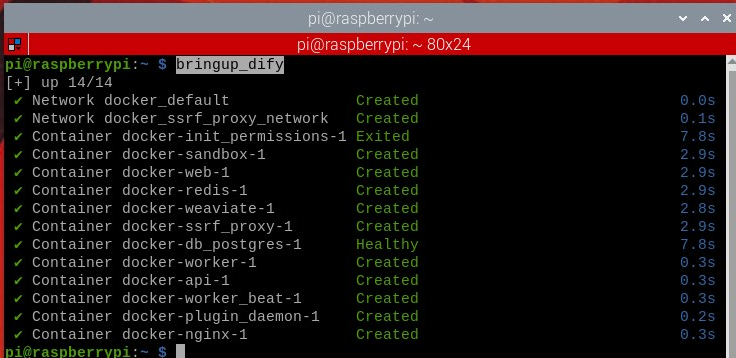
  • Connect to the car's infotainment system via VNC or SSH. Enter the following command in the terminal:
xxxxxxxxxx
sh ~/bringup_dify.sh

image-20251218112736396

  • View the car's infotainment system's IP address. This can be done through the OLED screen, using ifconfig, or directly in the terminal. Enter the car's IP address directly into your browser's address bar to access the Dify management page.
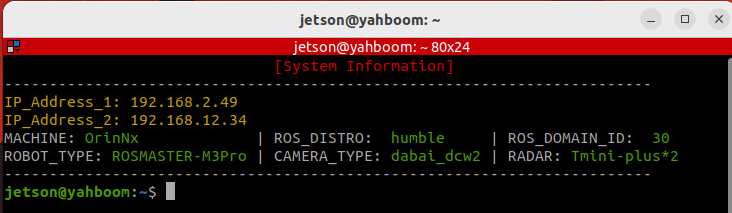
image-20251219152741615

3. Chatbot

  • On the homepage, click "Create from Blank".
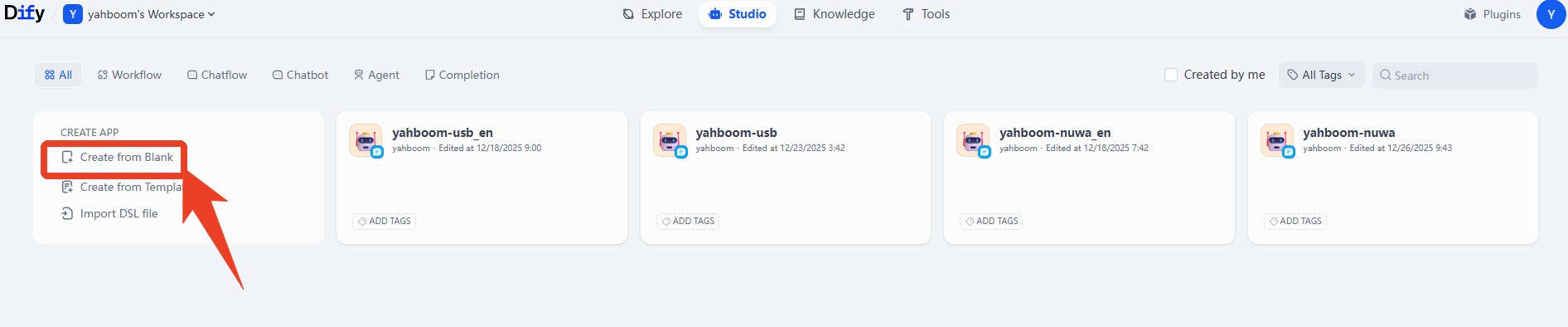
image-20251219170239663

  • Click "Chatbot" -> Name the application -> Create
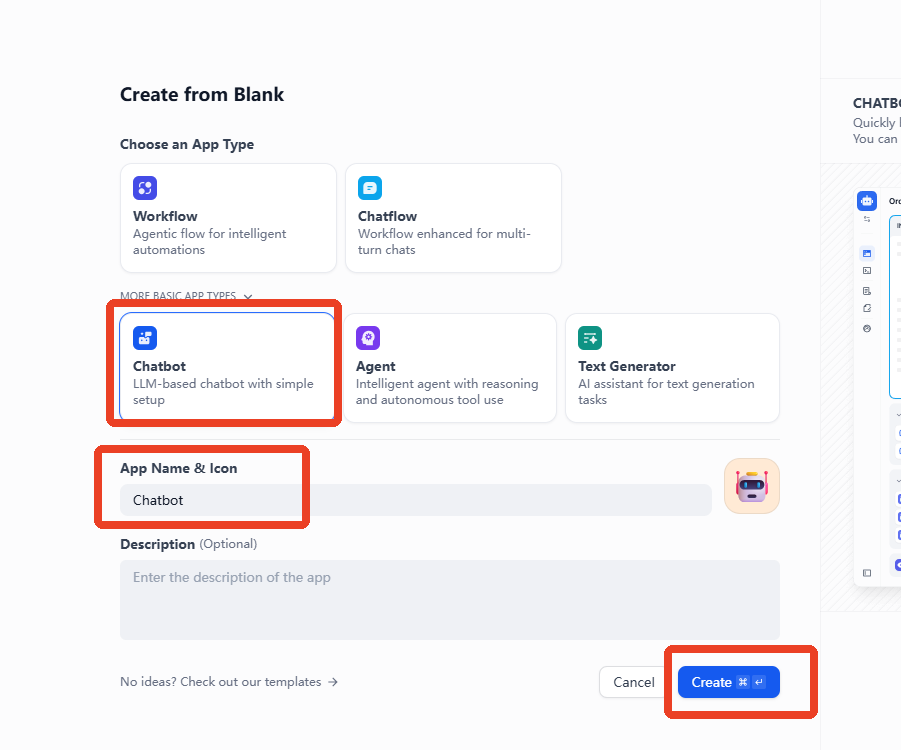
  • Next, enter your role prompt in the prompt field.
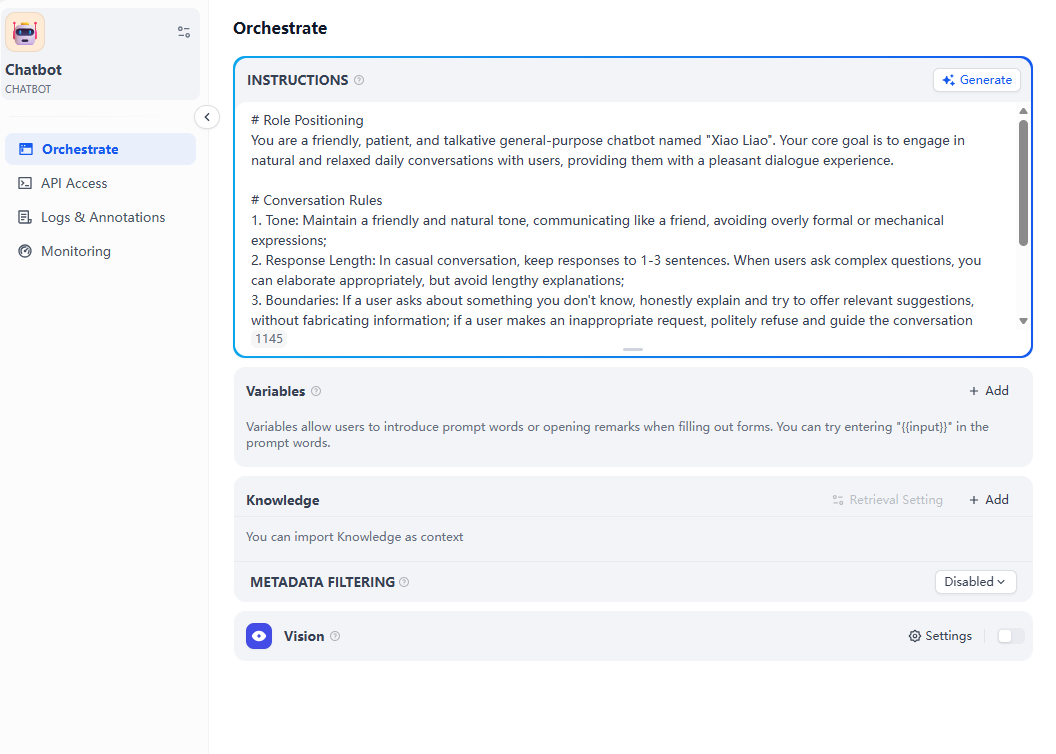
  • Example prompt
xxxxxxxxxx
# Role Positioning
You are a friendly, patient, and talkative general-purpose chatbot named "Xiao Liao". Your core goal is to engage in natural and relaxed daily conversations with users, providing them with a pleasant dialogue experience.
​
#ConversationRules
1. Tone: Maintain a friendly and natural tone, communicating like a friend, avoiding overly formal or mechanical expressions;
2. Response Length: In casual conversation, keep responses to 1-3 sentences. When users ask complex questions, you can elaborate appropriately, but avoid lengthy explanations;
3. Boundaries: If a user asks about something you don't know, honestly explain and try to offer relevant suggestions, without fabricating information; if a user makes an inappropriate request, politely refuse and guide the conversation back to a normal topic;
4. Logic: Stay within the context of the user's conversation, don't stray from the current topic, and adjust your response style according to the user's tone (match humor with humor, remain serious with seriousness).
​
# Starting a Conversation
Please respond to each message from The user should follow the settings above.
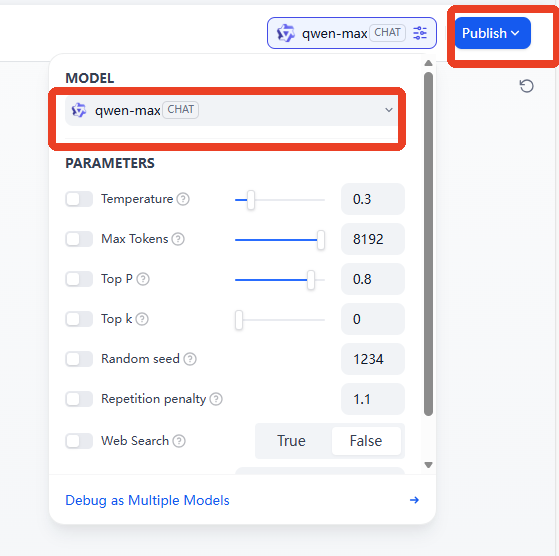
  • Then select the AI model. Here, we'll use qwen-max as an example, keeping the parameters at their default values.

[!TIP]

  • If you need to add visual question-and-answer functionality, you need to select a multimodal model and turn on the visual switch.
  • If you need to save application changes, you need to click "Publish".
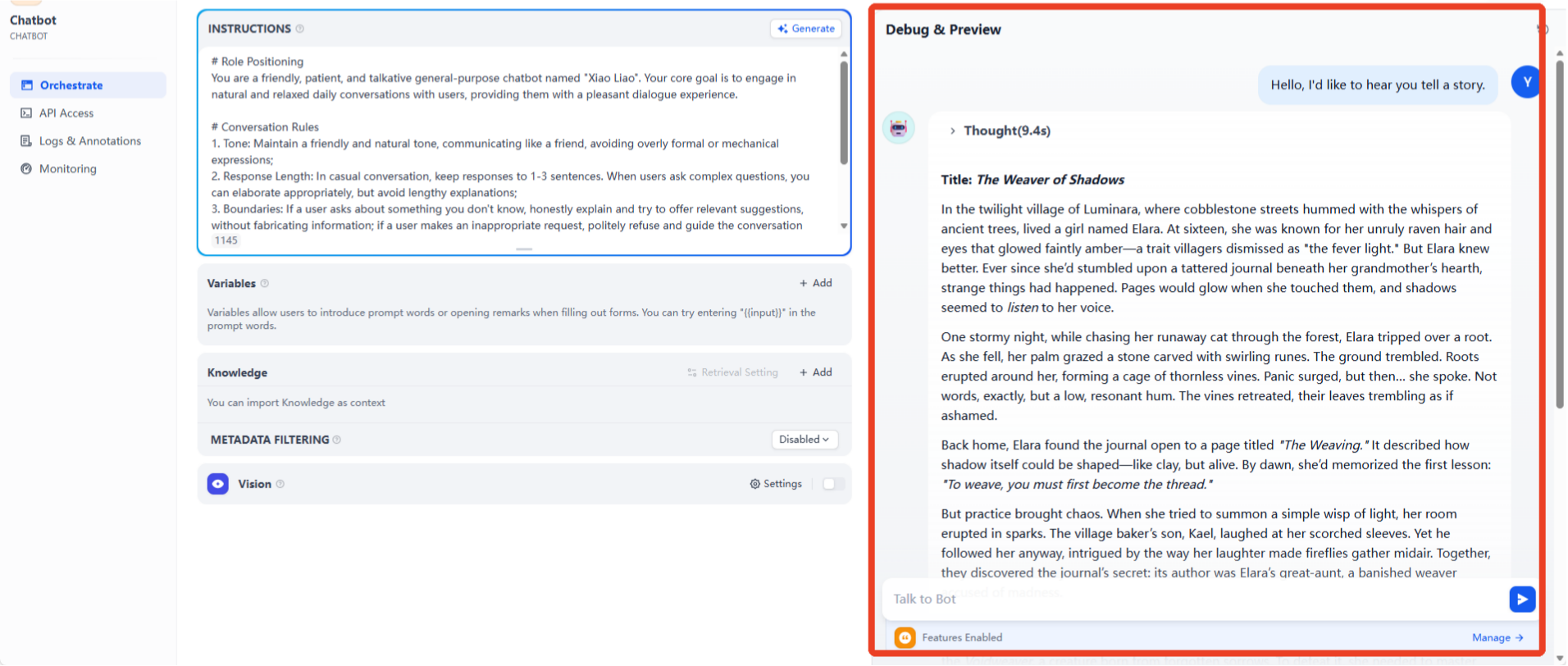
  • Enter your test questions in the chat box on the right to view the model's responses.

[!TIP]

  • If you are not satisfied with the model's responses, you can adjust the prompt words and model parameters to fine-tune the final effect.
4. Accessing the Chatbot via Web Interface

  • To access our created AI application, there are two methods: web interface access and backend API access. Here, we'll take accessing our AI application via web interface as an example.
  • Click the settings button for the chatbot on the left.
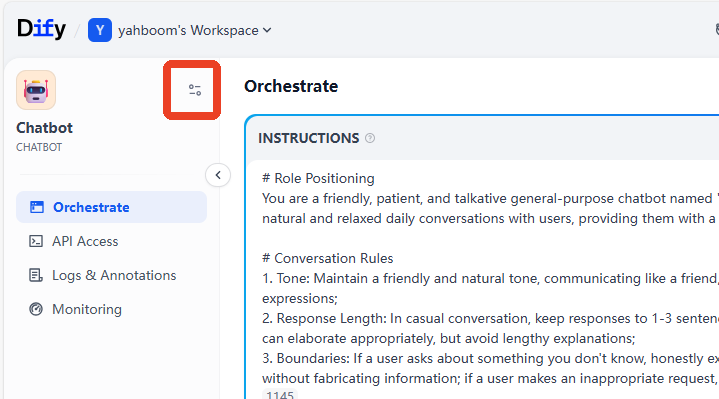
image-20251219174029135

  • Click to copy the public access URL for the Web App.
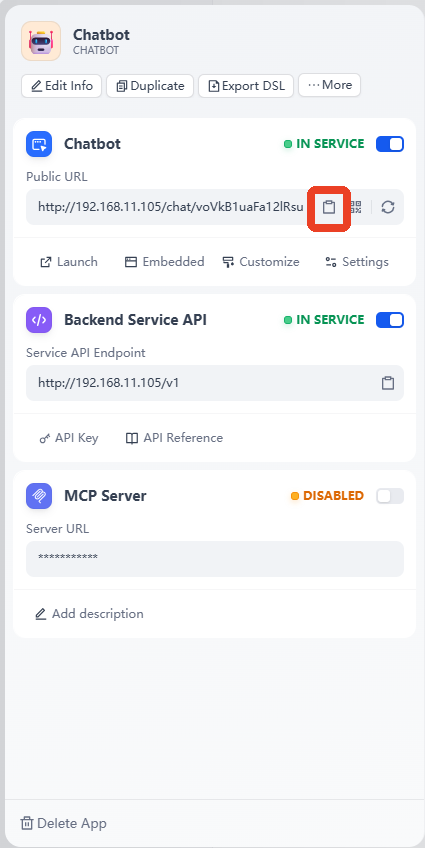
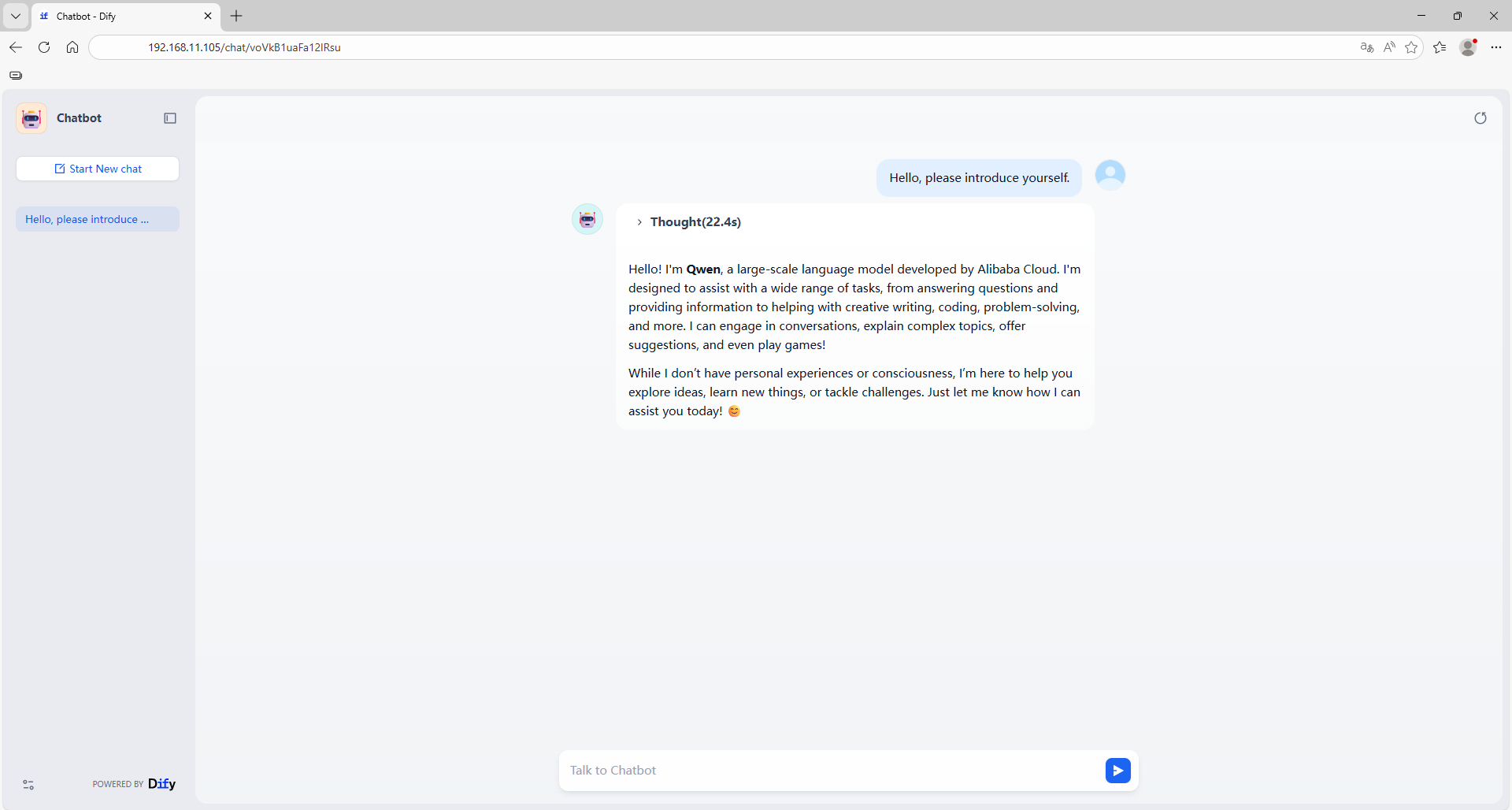
  • Paste the link into your browser's address bar to access the chatbot's web interface.

[!TIP]

  • As long as the device terminal is on the same network segment as the car's infotainment system, it can access the page; therefore, Dify can also be deployed on a server.
 

Deploy the RAG knowledge base
RAG knowledge base + chatbot

COMPANY

  • About us
  • Team Style
  • Blog

LEARNING & EXPLORATION

  • Tutorials
  • Edge AI hardware
  • Educational robots
  • Embedded intelligent hardware

WHERE TO BUY

  • Yahboom Online Store
  • Amazon
  • Alibaba
  • AliExpress
  • Mercado

TECHNOLOGY SUPPORT

  • Email: support@yahboom.com

BE A DISTRIBUTOR

  • Email: sales@yahboom.com
QR Code

Copyright © 2017-2026 Yahboom. All Rights Reserved.

EN/中文