Welcome to DOFBOT-JetsonNANO repository
11.ROS2 parameter service case
11. ROS2 parameter service case
1. Introduction to parameters
Similar to global variables in C++ programming, they facilitate sharing data across multiple programs. Parameters are global dictionaries in the ROS robot system, allowing data to be shared across multiple nodes.
In the ROS system, parameters exist in the form of a global dictionary. What is a dictionary? Just like a real dictionary, they consist of a name and a value, also known as a key and a value. Alternatively, we can think of them as being like parameters in programming: there's a parameter name, followed by an equals sign, and then the parameter value. To use it, you simply access the parameter name.
Parameters have a rich set of features. For example, if a node shares a parameter, other nodes can access it. If a node modifies a parameter, other nodes can immediately be notified and obtain the latest value.
2. Parameters in the Little Turtle Example
In the Little Turtle example, the emulator provides a number of parameters. Let's use this example to familiarize ourselves with the meaning of parameters and command line usage.
Since a GUI is displayed here, the following examples are demonstrated in the virtual machine that comes with the tutorial for ease of operation.
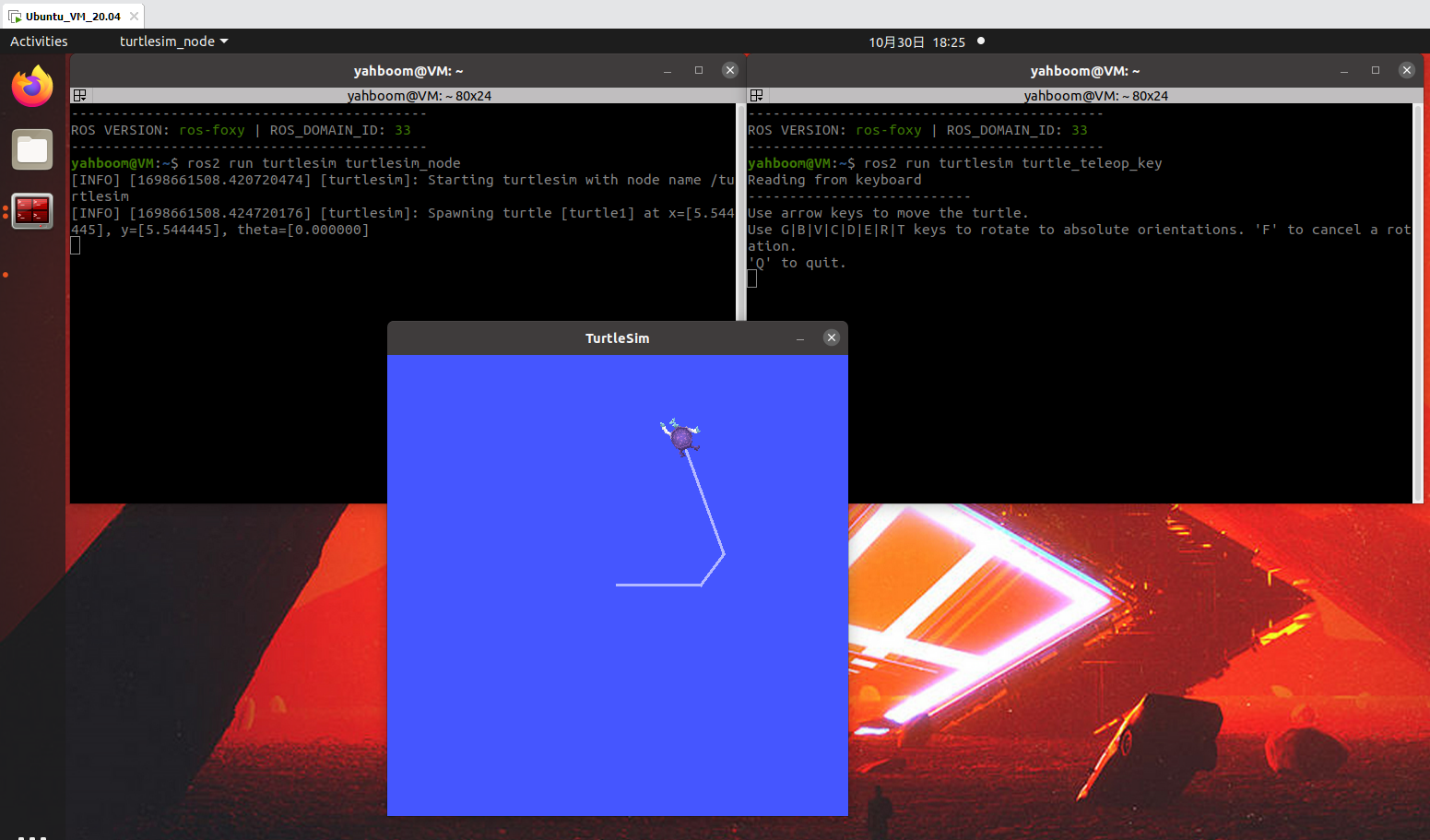
- Launch two terminals in the virtual machine, running the turtle simulator and the keyboard control node respectively:
xxxxxxxxxxros2 run turtlesim turtlesim_noderos2 run turtlesim turtle_teleop_key
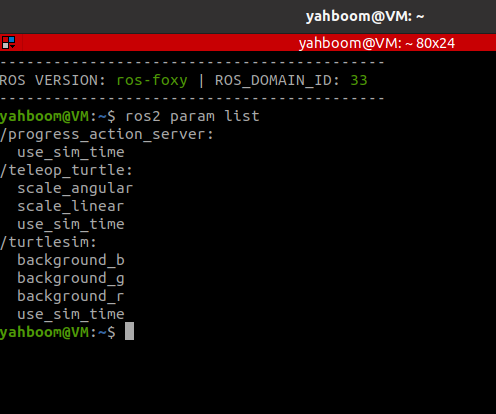
- Launch a terminal in the virtual machine and use the following command to view the parameter list:
xxxxxxxxxxros2 param list
- Querying and Modifying Parameters
To query or modify the value of a parameter, follow the param command with a get or set subcommand:
xxxxxxxxxxros2 param describe turtlesim background_b # View the description of a parameterros2 param get turtlesim background_b # Query the value of a parameterros2 param set turtlesim background_b 10 # Modify the value of a parameter- Saving and Loading Parameter Files
Querying/modifying parameters one by one is too cumbersome. Why not try using a parameter file? Parameter files in ROS use the YAML format. You can follow the param command with the dump subcommand to save all the parameters for a node to a file, or use the load command to load all the contents of a parameter file at once:
xxxxxxxxxxros2 param dump turtlesim >> turtlesim.yaml # Save the parameters of a node to a parameter fileros2 param load turtlesim turtlesim.yaml # Load all parameters from a file at once3. Parameter Examples
3.1. Creating a New Function Package
- Create a new function package in the src directory of the workspace
xxxxxxxxxxros2 pkg create pkg_param --build-type ament_python --dependencies rclpy --node-name param_demoAfter executing the above command, the pkg_param package will be created, a param_demo node will be created, and the relevant configuration files will be configured.
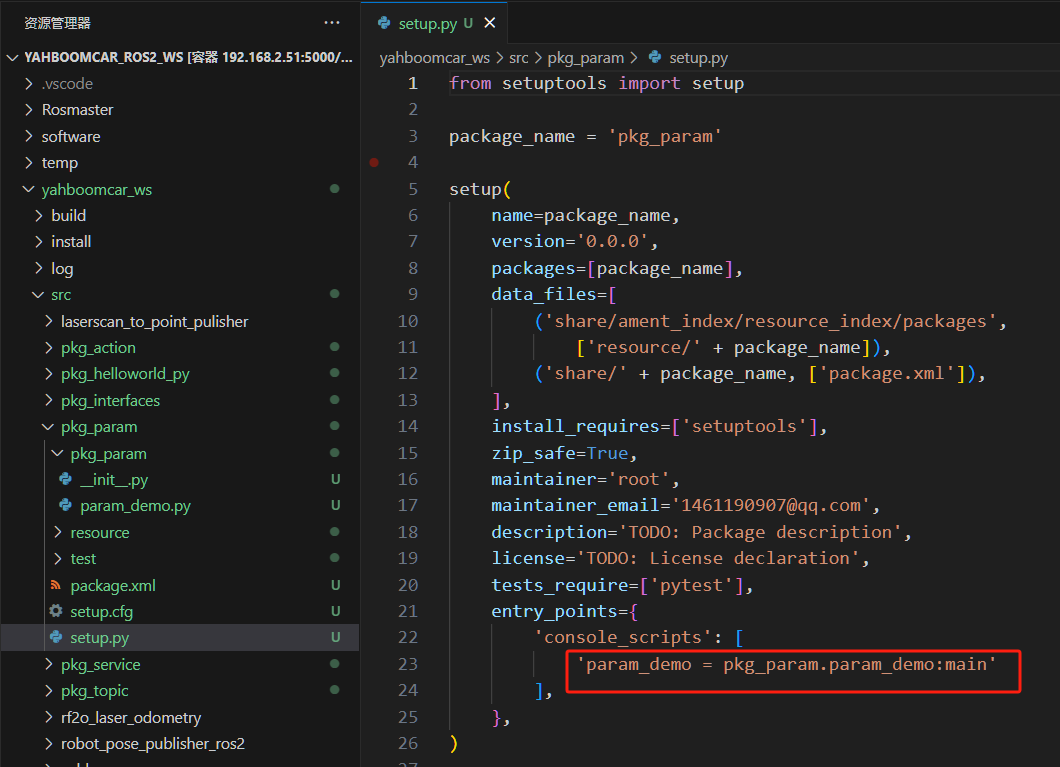
3.2 Code Implementation
Next, edit [param_demo.py] to implement the publisher functionality and add the following code:
xxxxxxxxxximport rclpy # ROS2 Python interface libraryfrom rclpy.node import Node # ROS2 Node Classclass ParameterNode(Node): def __init__(self, name): super().__init__(name) # ROS2 node parent class initialization self.timer = self.create_timer(2, self.timer_callback) # Create a timer (a period in seconds, a callback function that is executed at a fixed time) self.declare_parameter('robot_name', 'muto') # Create a parameter and set its default value def timer_callback(self): # Create a callback function that is executed periodically by the timer robot_name_param = self.get_parameter('robot_name').get_parameter_value().string_value # Read parameter values from the ROS2 system self.get_logger().info('Hello %s!' % robot_name_param) # Output log information and print the parameter values readdef main(args=None): # ROS2 node main entry main function rclpy.init(args=args) # ROS2 Python interface initialization node = ParameterNode("param_declare") # Create a ROS2 node object and initialize it rclpy.spin(node) # Loop waiting for ROS2 to exit node.destroy_node() # Destroy node object rclpy.shutdown() # Close the ROS2 Python interface
3.3. Compile the package
xxxxxxxxxxcolcon build --packages-select pkg_param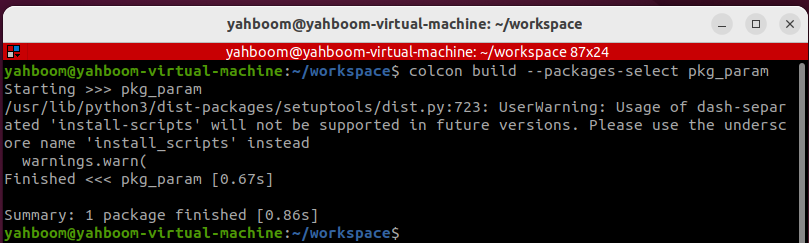
3.4. Run the program
- Refresh the environment variables first, then run the node.
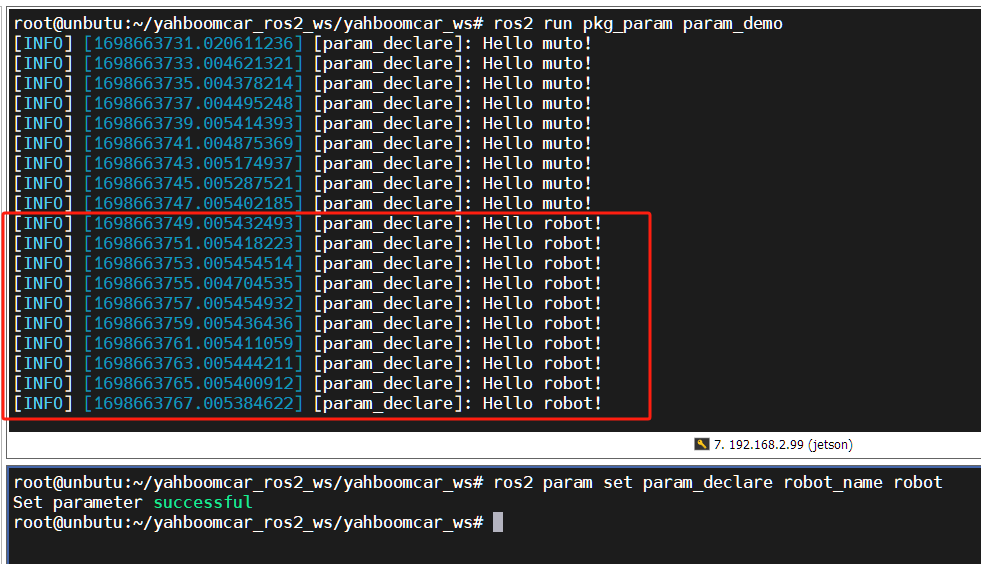
xxxxxxxxxxros2 run pkg_param param_demo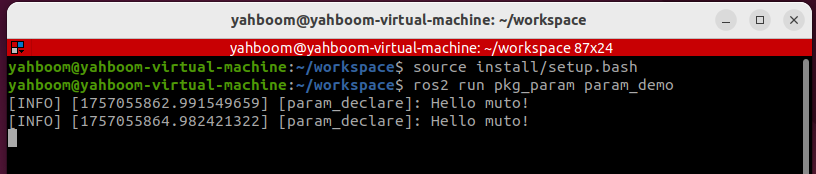
Open another terminal and set robot_name to robot:
xxxxxxxxxxros2 param set param_declare robot_name RobotYou can see the log information being printed in a loop in the terminal. "muto" represents the default parameter value for "robot_name." Changing this parameter via the command line will also change the value in the terminal.