Welcome to DOFBOT-JetsonNANO repository
2. CLI Usage
CLI Usage
Note: If using the docker container from the factory image, you don't need to rebuild the environment. The environment is already set up, you just need to enter the docker according to the previous tutorial and run the corresponding function commands to use it.
1. Download Source Code
⚠️ This step can be skipped if you are using the docker container from the factory image.
git clone https://github.com/ultralytics/ultralytics.git2. Use CLI for Prediction
CLI (Command-Line Interface) is a way for users to interact with computers or software programs. Users run programs or execute tasks by typing text commands, rather than clicking icons or buttons through a graphical user interface (GUI).
2.1. CLI Usage Syntax
xyolo TASK MODE ARGSWhere TASK (optional) is one of [detect, segment, classify, pose, obb] MODE (required) is one of [train, val, predict, export, track, benchmark] ARGS (optional) are any number of custom 'arg=value' pairs like 'imgsz=320' that override defaults.2.2. Image Prediction
Use yolo11n.pt to predict images that come with the ultralytics project: If the system cannot find the corresponding model file in the directory where the command is run, it will automatically download (if download fails, you can copy the model in yourself)
Enter the project folder:
xxxxxxxxxxcd ~/ultralytics/ultralyticsUse yolo11n.pt to detect images in the target folder and output results:
xxxxxxxxxx#Photo path can be customized to your own photoyolo predict model=yolo11n source='/root/ultralytics/ultralytics/assets/bus.jpg'
The appearance of the above image indicates successful prediction.
Effect Preview
yolo recognition output image location:
xxxxxxxxxx/root/ultralytics/ultralytics/runs/detect
Each time you run, the predict under this folder automatically increments by 1

2.3. Video Prediction
Use yolo11n.pt to predict videos in the ultralytics project (not videos that come with ultralytics): If the system cannot find the corresponding model file in the directory where the command is run, it will automatically download (if download fails, you can copy the model in yourself)
Enter the project folder:
xxxxxxxxxxcd ~/ultralytics/ultralyticsUse yolo11n.pt to detect videos in the target folder and output results:
xxxxxxxxxx#Video path can be customized to your own pathyolo predict model=yolo11n source='/root/ultralytics/ultralytics/videos/people_animals.mp4'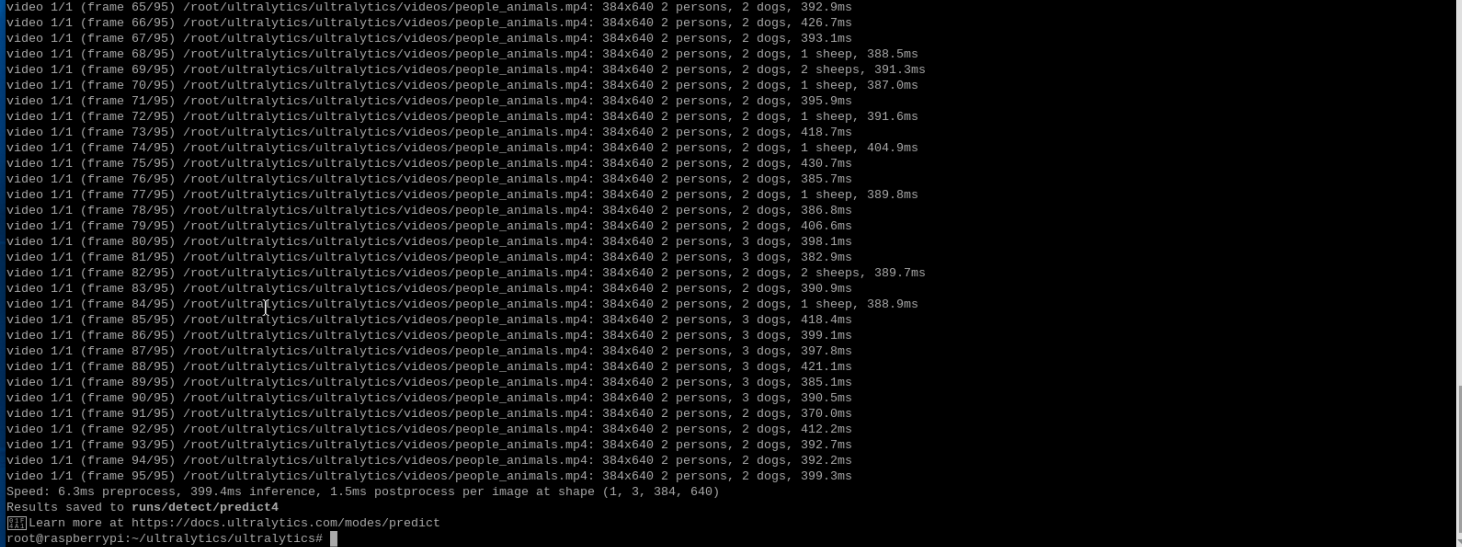
The appearance of the above image indicates successful prediction.
Effect Preview
yolo recognition output video location:
xxxxxxxxxx/root/ultralytics/ultralytics/runs/detect/
Each time you run, the predict under this folder automatically increments by 1
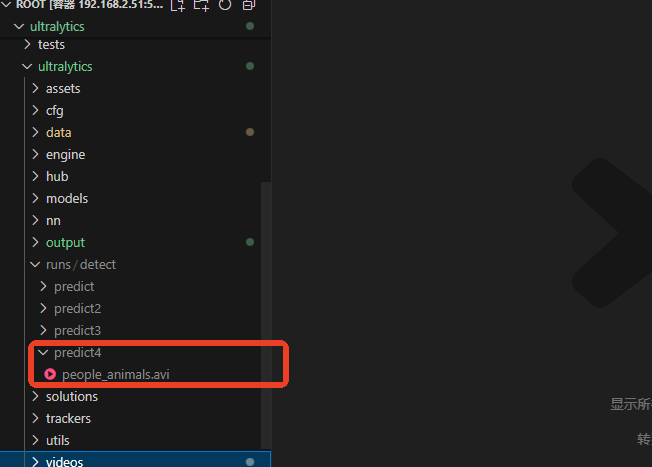
You can use ffmpeg to view videos, use the following command to install:
xxxxxxxxxxsudo apt updatesudo apt install ffmpeg -yPlay video:
xxxxxxxxxx#Need to go to the corresponding path, here is people_animals.avi in the predict4 foldercd /root/ultralytics/ultralytics/runs/detect/predict4/#Play videoffplay -x 640 -y 480 people_animals.avi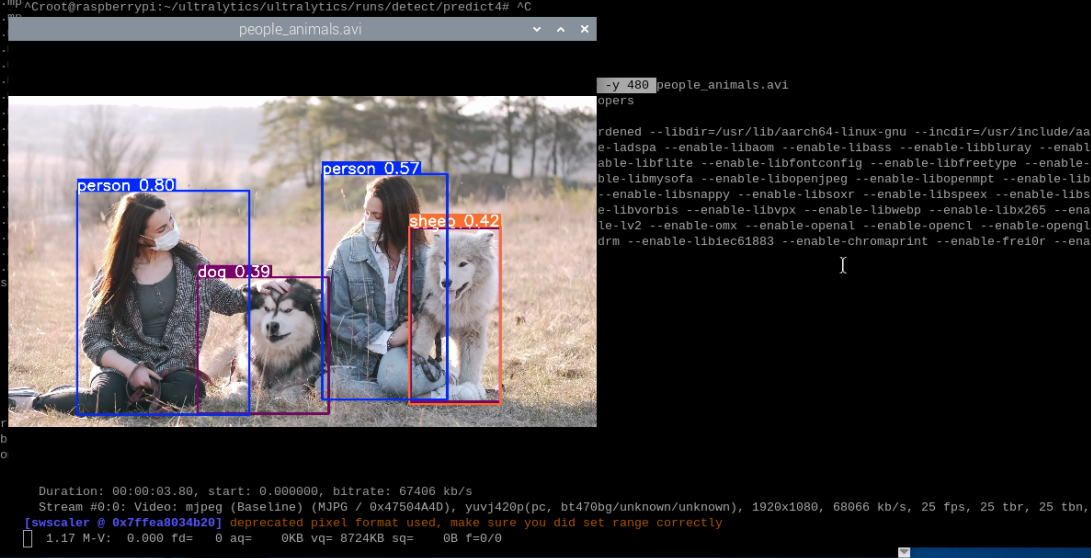
2.4. Real-time Prediction
⚠️ This function only supports USB cameras, depth cameras are not suitable for CLI
Use yolo11n.pt to predict USB camera feed. If the system cannot find the corresponding model file in the directory where the command is run, it will automatically download
Enter the project folder:
xxxxxxxxxxcd ~/ultralytics/ultralyticsUse yolo11n.onnx to detect camera feed and output results:
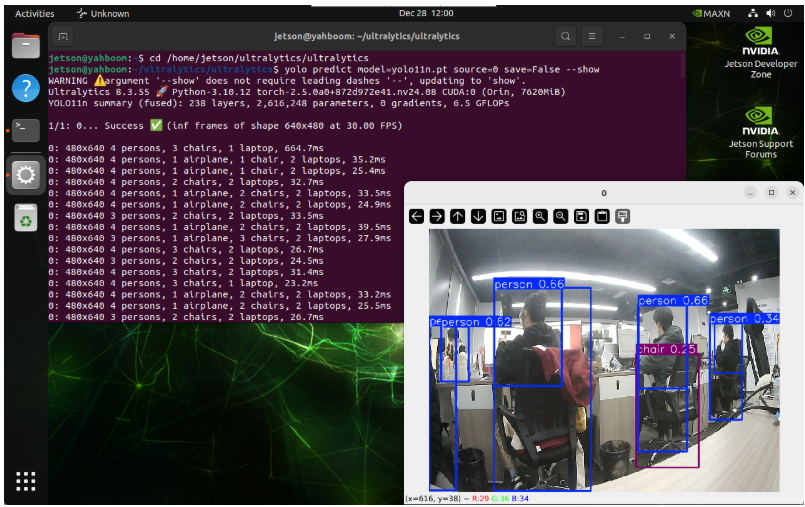
xxxxxxxxxxyolo predict model=yolo11n.onnx source=0 save=False show # Object detection# Instance segmentation: yolo predict model=yolo11n-seg.onnx source=0 save=False show# Image classification: yolo predict model=yolo11n-cls.onnx source=0 save=False show# Pose estimation: yolo predict model=yolo11n-pose.onnx source=0 save=False show# Oriented object detection: yolo predict model=yolo11n-obb.onnx source=0 save=False showClick on the terminal and press "Ctrl + C" shortcut key to terminate the program!
Parameter Description
model: Specify YOLO model
source: Specify recognition source: multiple cameras can switch numbers
save=False: Disable saving results
show: Real-time display
References
https://github.com/ultralytics/ultralytics
https://docs.ultralytics.com/usage/cli/