yahboom
HomeLearn
Solution
Blog
Online Store
About Us
EN/中文
ESP32 WiFi Camera Lite📖
1.ESP32 camera basic course
  • 1.Development environment
  • 2.Compile and use routine
  • 3.How to update firmware
2.Configure camera on PC
  • Configure camera on PC
3.View video on APP
  • View video on APP
4.Configure camera on MCU
IIC
  • Arduino
  • Microbit
  • STM32
  • MSPM0G3507
  • MSPM0G3519new
  • PICO
  • Raspberry Pi
  • Jetson
  • RDK X5
Serial Port
  • Arduino
  • Microbit
  • STM32
  • MSPM0G3507
  • MSPM0G3519new
  • PICO
  • Raspberry Pi
  • Jetson
  • RDK X5
5. APP remote control servo gimbal
  • 1. STM32 drives the servo gimbal
  • 2.Arduino drives the servo gimbal
  • 3.Pico
  • 4.MSPM0G3507 drives the servo gimbal
  • 5.MSPM0G3519 drives the servo gimbalnew
  • 6. Microbit drives the servo gimbal
  • 7. Raspberry Pi drives the servo gimbal
  • 8. Jetson drives the servo gimbal
  • 9.RDK X5 driving servo gimbal
6. Expansion tutorials
  • ESP32
  • Robot car
Download
  • RemoteCtrl_APP(iOS_Android)
  • 3D_Model_File
  • Code
  • Software_Tools
  • Module_fireware
  • Protocols_Hardware
Download ZIP

Welcome to ESP32 WiFi Camera Lite repository

2.Compile and use routine

Compile and use routine

1. Configure environment burning

Open the AI singleton source code provided by the document,
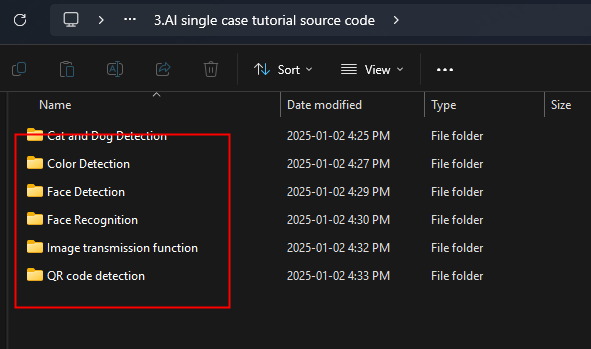
image-20250122101837311

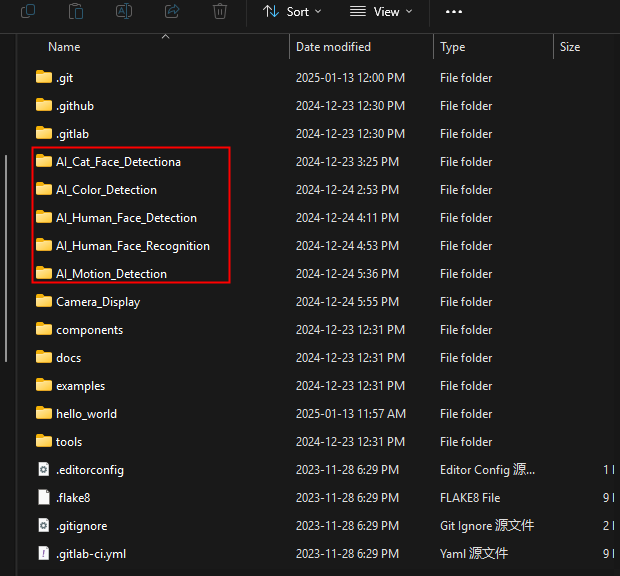
Put the above source code in the path of esp-ide,

image-20250113121516646

image-20250122101915448

In this way, we can modify the singleton code directly in this environment, or burn the singleton code.

For example, if we want to download cat and dog recognition, we click on the AI_Cat_Face_Detectiona folder to enter,
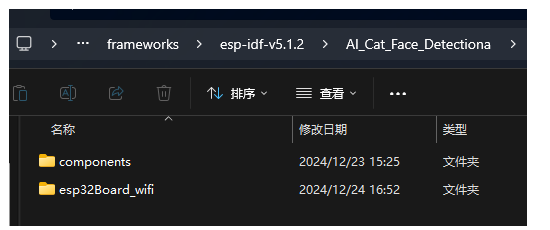
image-20250113121601143

Then click on the esp32Board_wifi folder,
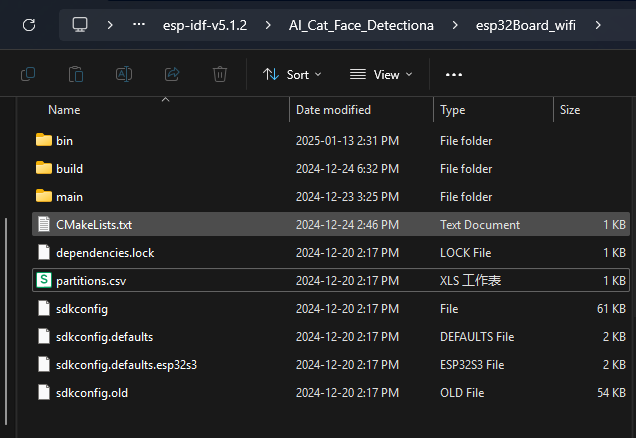
image-20250122101938350

In this path, you can directly compile the code and directly cd in the tool To the current path,


image-20250113121757051

image-20250113121803318

At this time, enter the command to compile

idf.py build

When this interface appears, the compilation is successful,
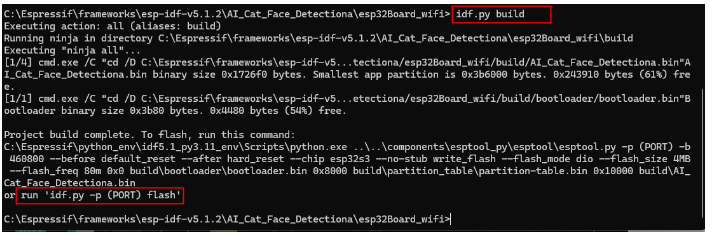
image-20250113121810894

If everything is normal, a .bin file will be generated after the compilation is completed.

Connect the device to the computer, and you can directly use the COM port to burn. Open the computer's device manager to check what port is recognized.
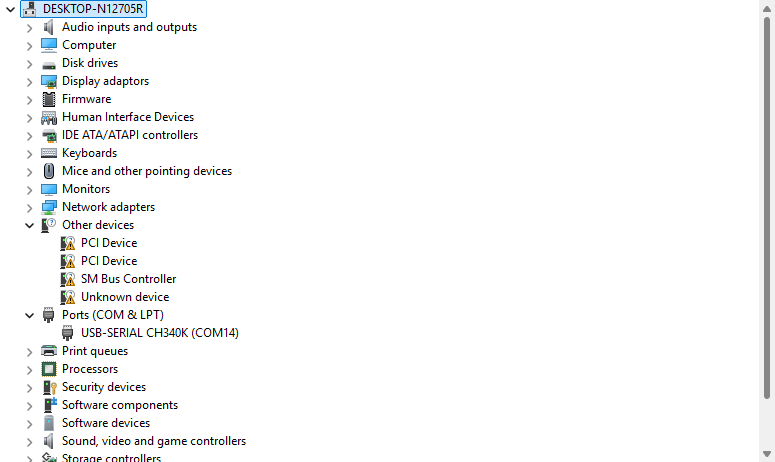
image-20250122101953068

In the terminal, enter the following command to write the program in.

xxxxxxxxxx
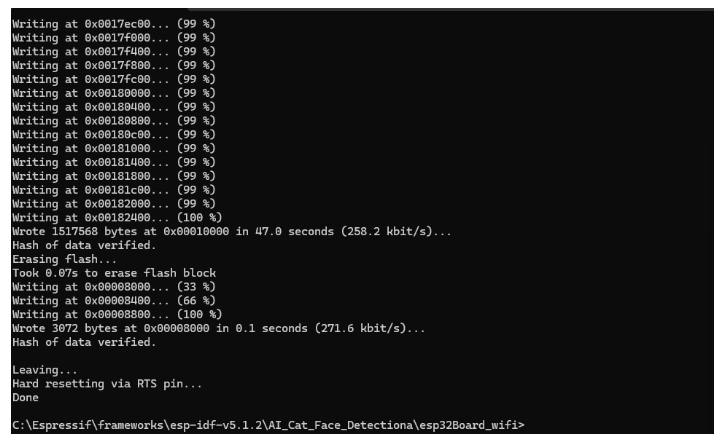
idf.py -p com14 flash

image-20250113121824308

If the above log appears, the download is successful.

2. Modify the code

If you want to modify the code for secondary development, you can open the main folder,
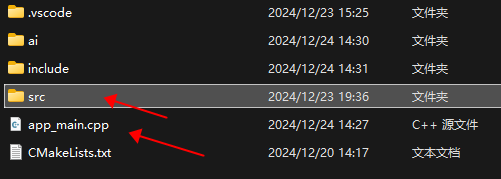
image-20250113121924512

The src folder and app_main.cpp are both programs that can be modified, one is equivalent to the main function, and the other is the source program called by the main function.
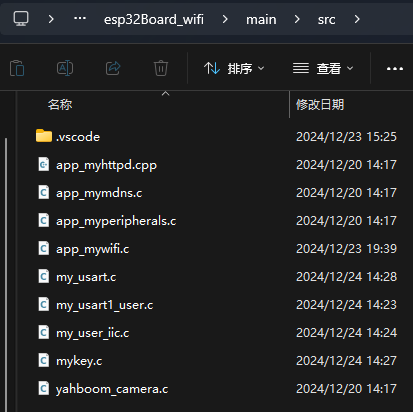
image-20250113122141057

After the modification, repeat the above compilation steps. Burn after compilation.


Development environment
How to update firmware

COMPANY

  • About us
  • Team Style
  • Blog

LEARNING & EXPLORATION

  • Tutorials
  • Edge AI hardware
  • Educational robots
  • Embedded intelligent hardware

WHERE TO BUY

  • Yahboom Online Store
  • Amazon
  • Alibaba
  • AliExpress
  • Mercado

TECHNOLOGY SUPPORT

  • Email: support@yahboom.com

BE A DISTRIBUTOR

  • Email: sales@yahboom.com
QR Code
QR Code

Copyright © 2017-2026 Yahboom. All Rights Reserved.

EN/中文