Welcome to ESP32 WiFi Camera Lite repository
Arduino
Cat and dog detection
Note: The esp32 camera needs to be burned with factory firmware. If you have not flashed the firmware after receiving the esp32 camera, it is not necessary. The factory default firmware, before using iic communication, you can use the serial port to configure the network for the esp32 camera, and iic is used for data reading
1. Experimental preparation
- One arduino board
- One esp32 camera
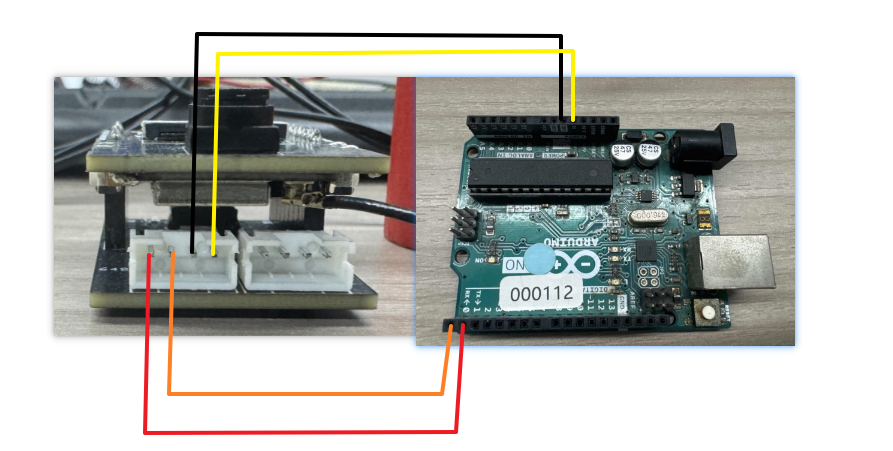
2. Wiring diagram
| ARDUINO | esp32 camera |
|---|---|
| P1 | RX |
| P0 | TX |
| GND | GND |
| 5V | 5V |
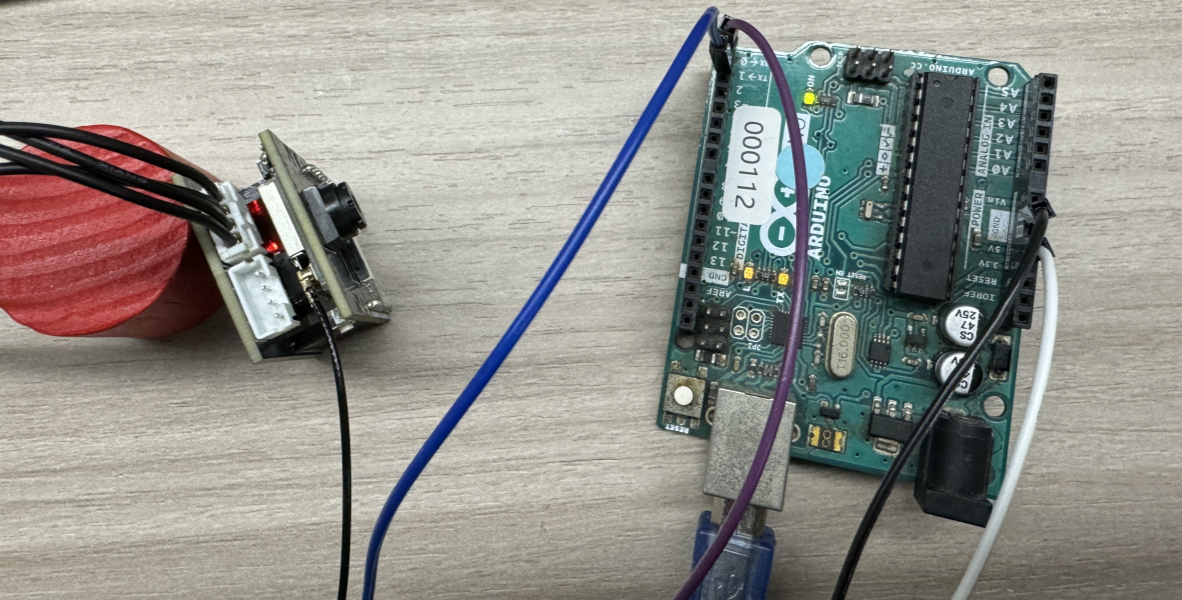
Actual wiring diagram:
3. Experimental steps and experimental results
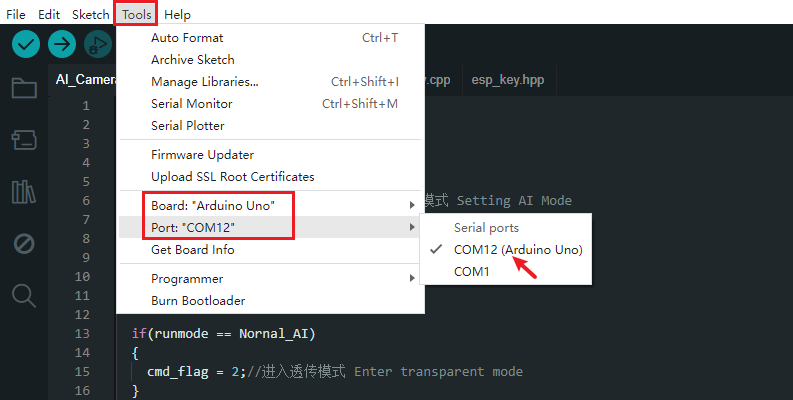
- Connect the Arduino device to the ArduinoIDE compilation platform. If you can see the serial port number, it is normal.
- You can modify the WiFi name and password you want to connect to, as well as the name of the hotspot in the esp32_wifi.cpp file
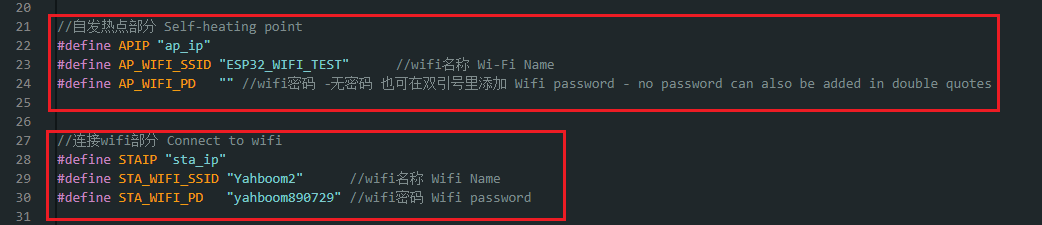
- In the .ino file, change it to the corresponding ai mode.

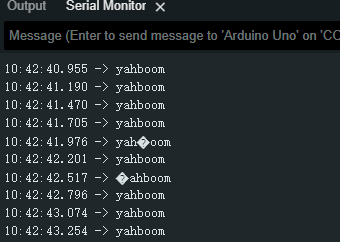
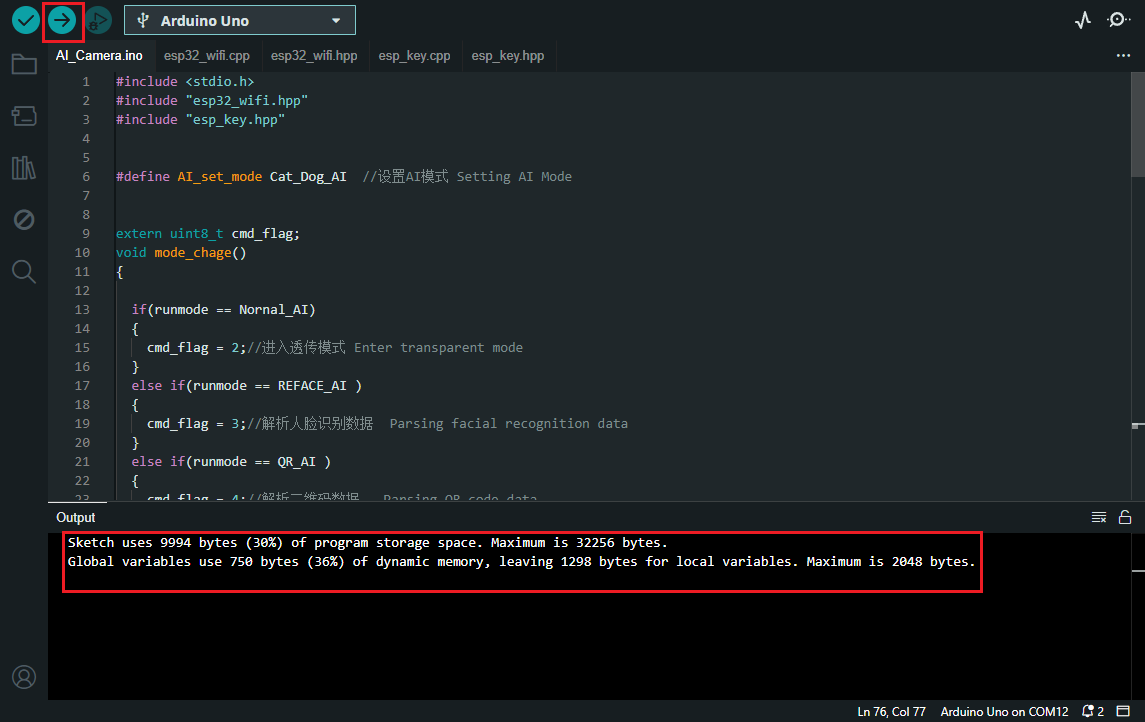
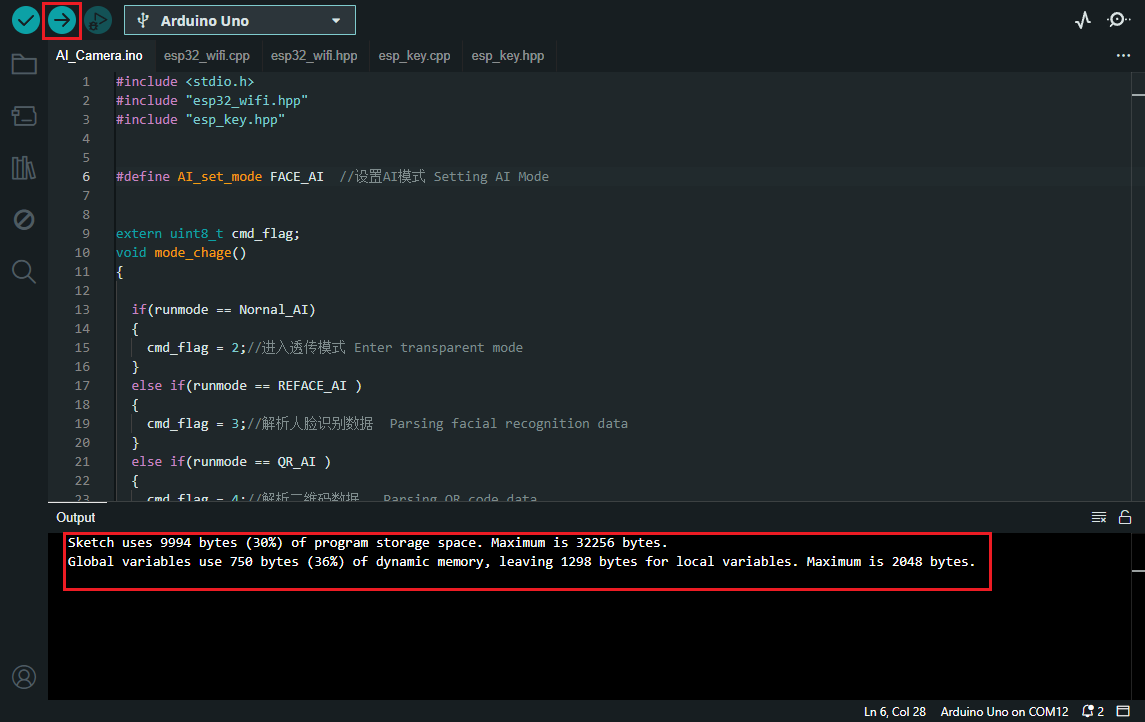
- Click Compile and Download to download the program to the uno motherboard. The following picture will appear if the download is successful
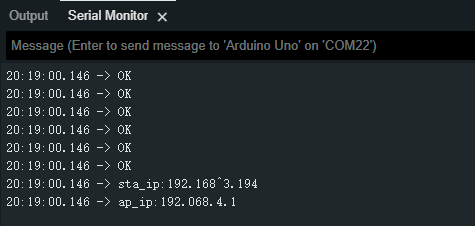
- Press the reset button on the uno and wait for a while to see the IP address and hotspot address of the network
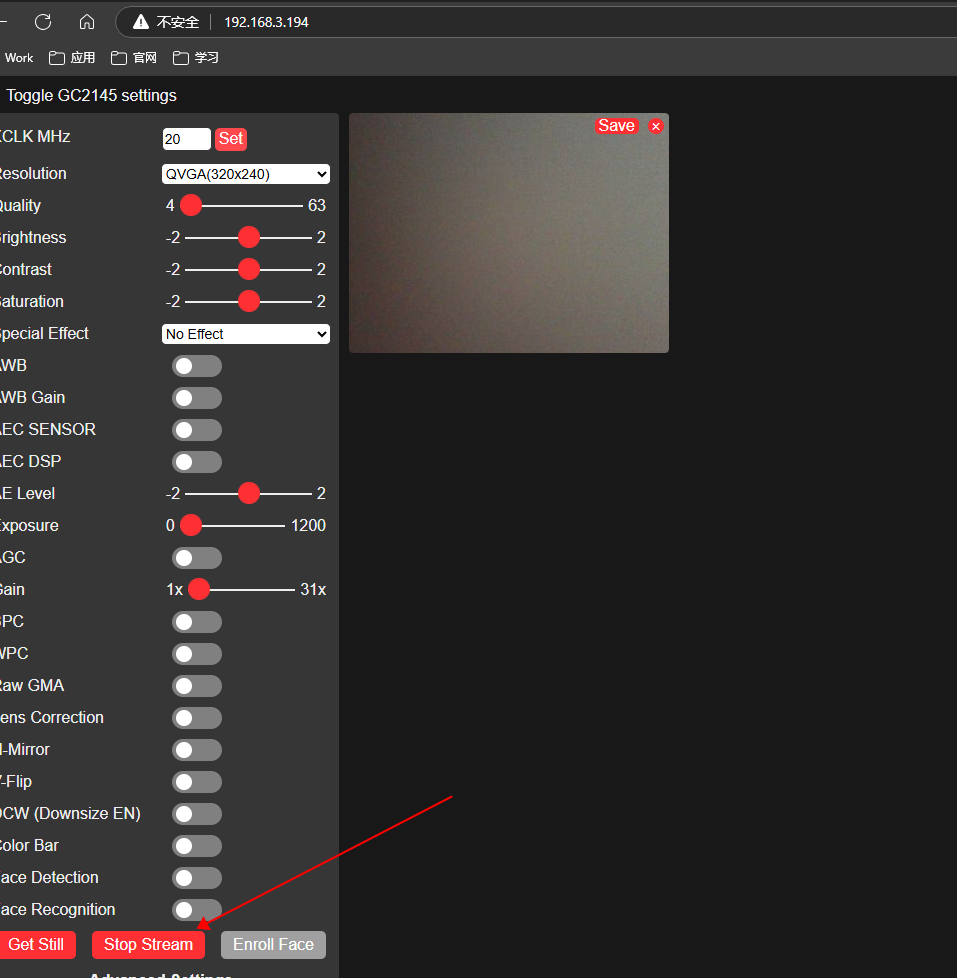
- You can view the camera screen on the web page according to the above two addresses. When using ap_ip, you need to connect to the hotspot of the esp32 camera. When using sta_ip, the computer needs to be in the same network. Enter the following through the browser 192.168.3.194 This access camera screen
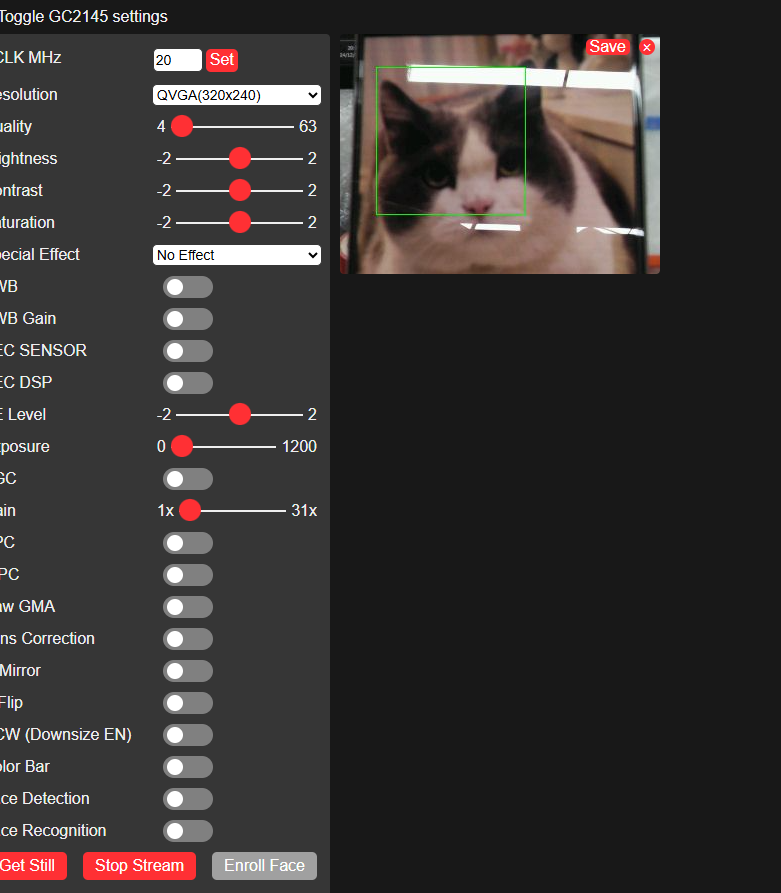
- Identify cats and dogs. If the recognition is successful, the current center coordinates will be printed out, and the cat image will be placed in front of the previous screen.
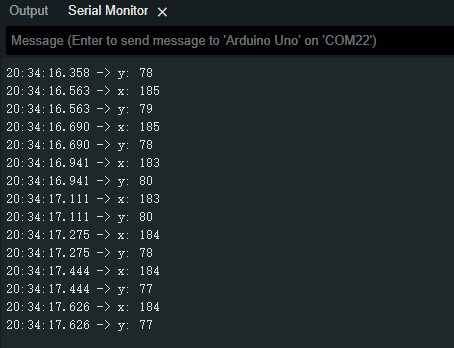
At the same time, the uno terminal will print out the current coordinate center.
Face recognition mode
When switching to face recognition mode,

Click Compile and Download, download the program to the uno motherboard, and the following picture will appear if the download is successful
Press the reset button on the uno, wait for a while and you can see the IP address of the network and the address of the hotspot
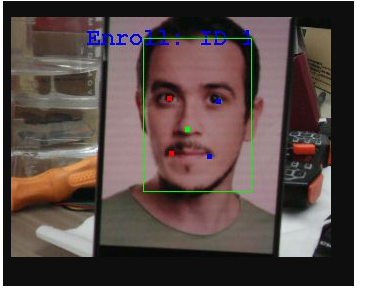
Recognize face. When you see a face, press the key button to record the face
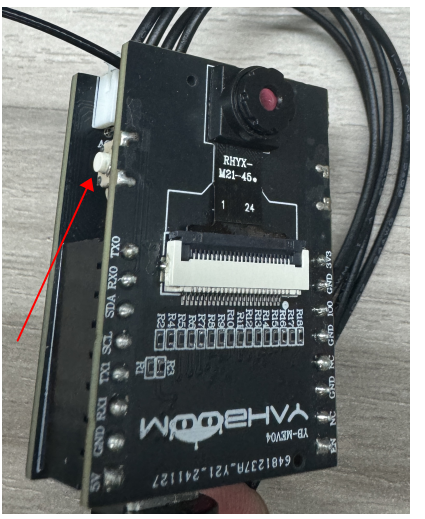
The following picture appears, which means the recording is successful, and the face 1 is recorded
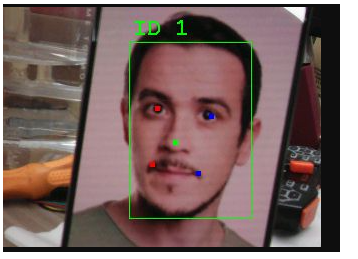
At this time, you can press and hold the button for two seconds, then release it and press the button again to recognize the current face
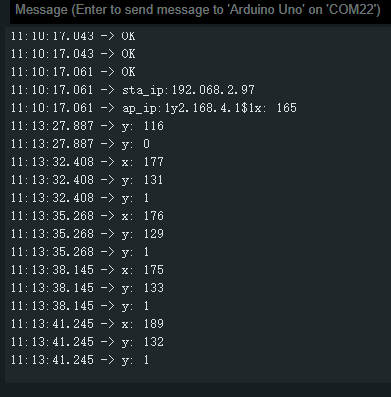
At the same time, the terminal will print out the current center coordinates and the recognized face.
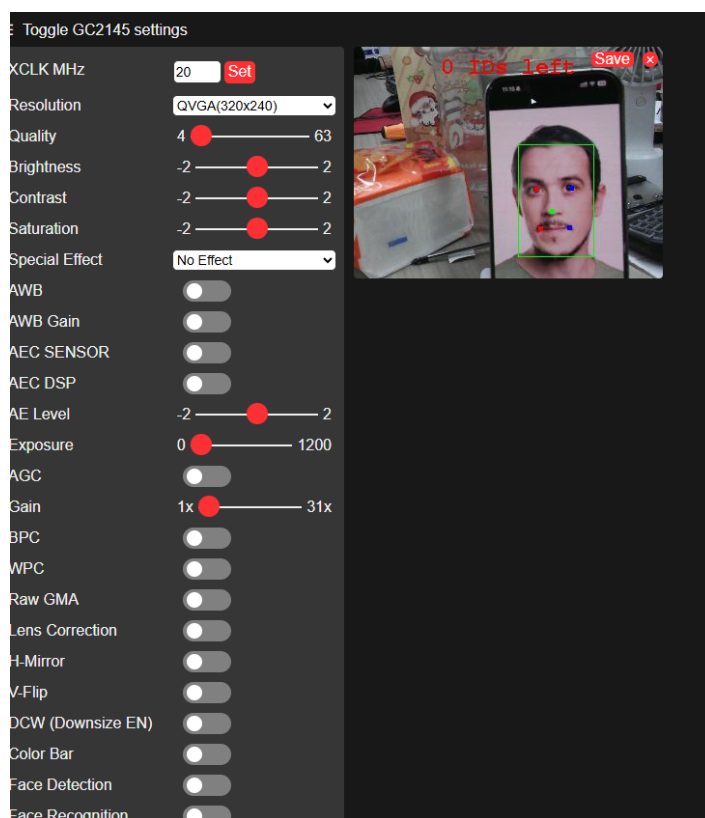
To delete a face, press and hold the button for two seconds again, release it and press it again to delete it.
Color detection mode
When switching to color detection mode,

Click Compile and Download, download the program to the uno motherboard, and the download will be successful. Now the picture below
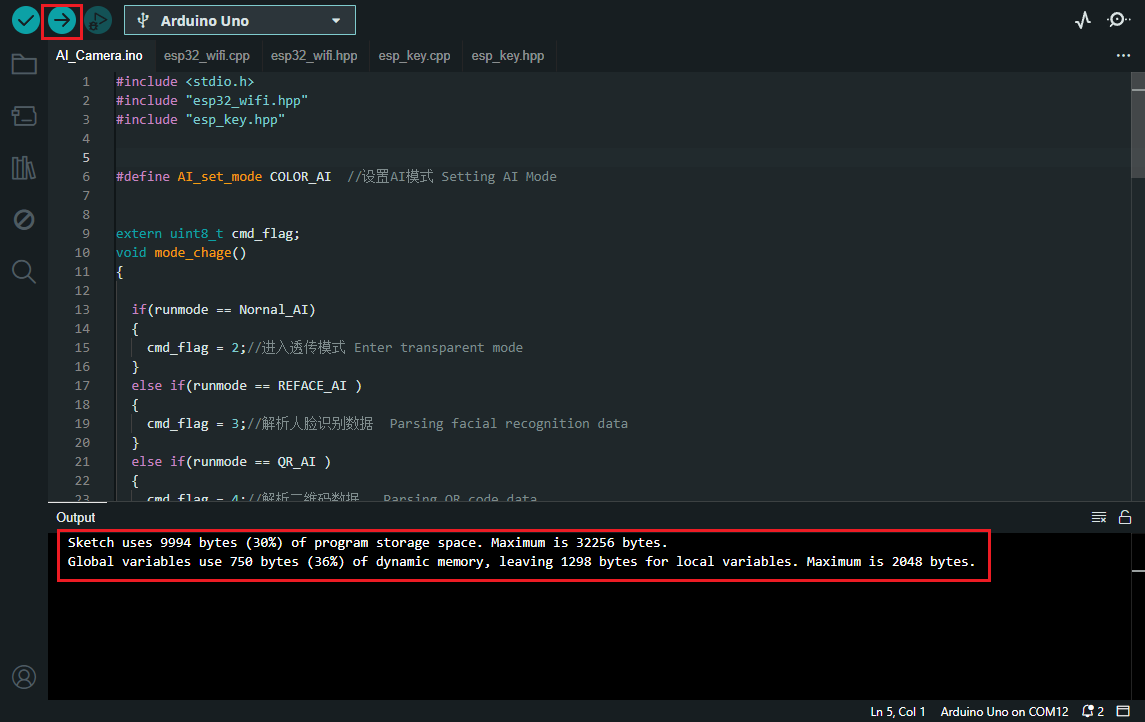
Press the reset button on the uno, wait for a while and you can see the IP address of the network and the address of the hotspot
Identify the color. Press the button and a box will appear. You can use this box to select the color you want to use.
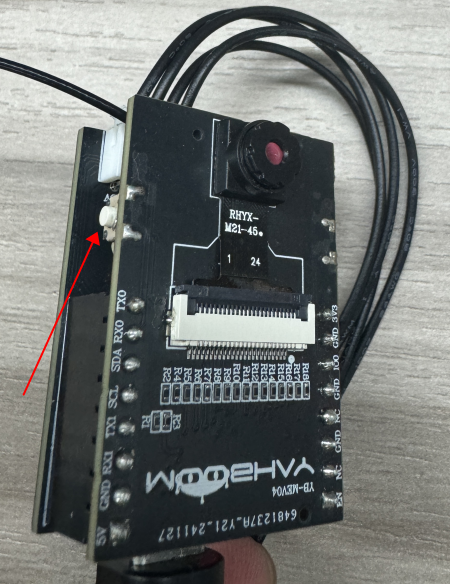
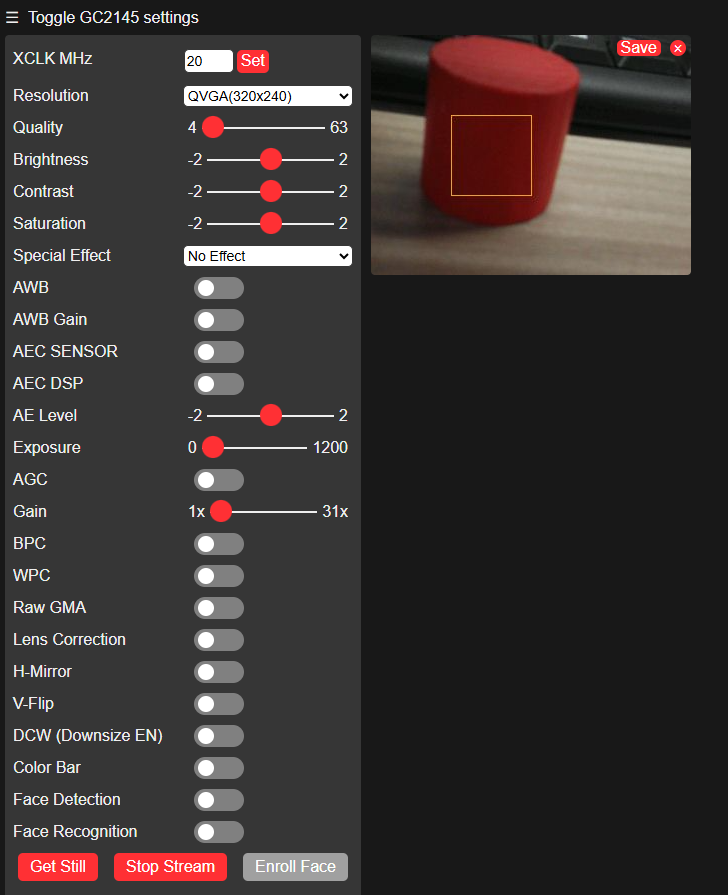
Press and hold the button for two seconds, release it and press it again to identify the color of the current frame selection, and a red frame will appear.
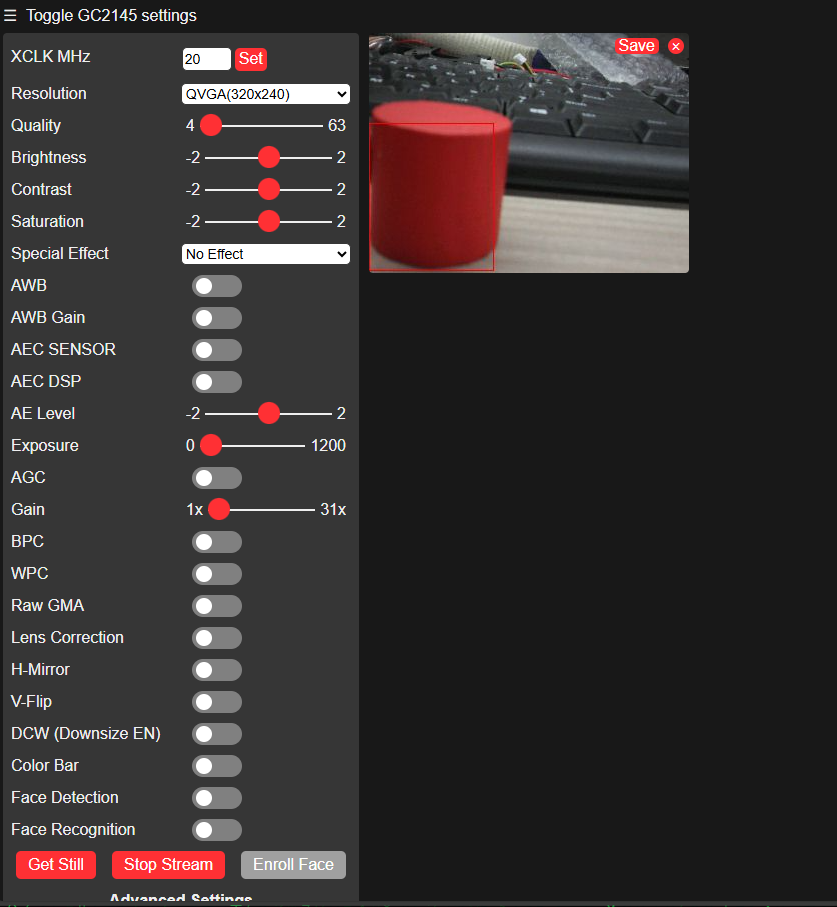
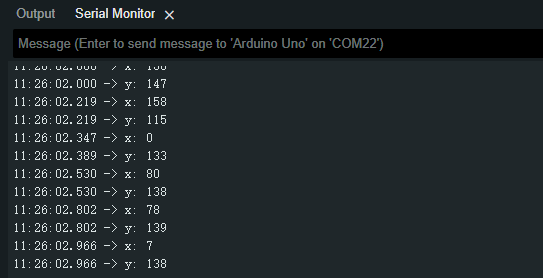
At the same time, the uno terminal will print out the current coordinate center.
QR code detection
When switching to QR code detection mode,

Click Compile and Download, download the program to the uno motherboard, and the following picture will appear if the download is successful
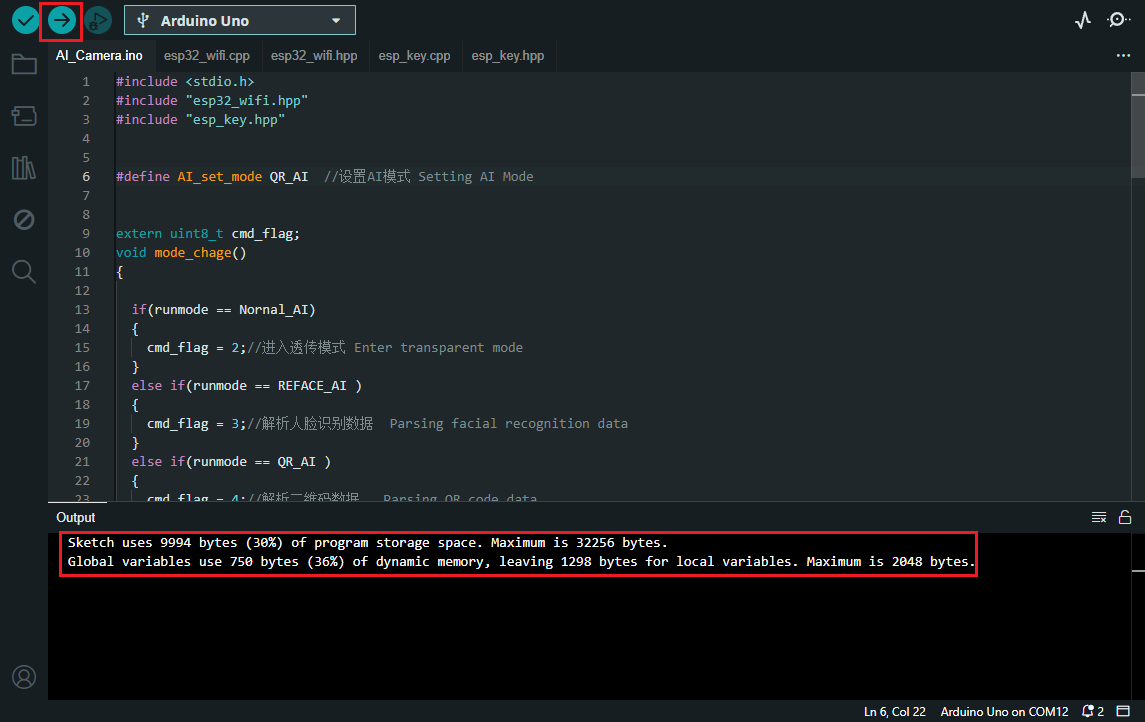
Press the reset button on the uno, wait for a while and you can see the IP address of the network and the address of the hotspot
Use the WeChat applet on your mobile phone to search for the QR code generator, and a QR code will be generated for the corresponding text and saved to the album. The following is the identification QR code.
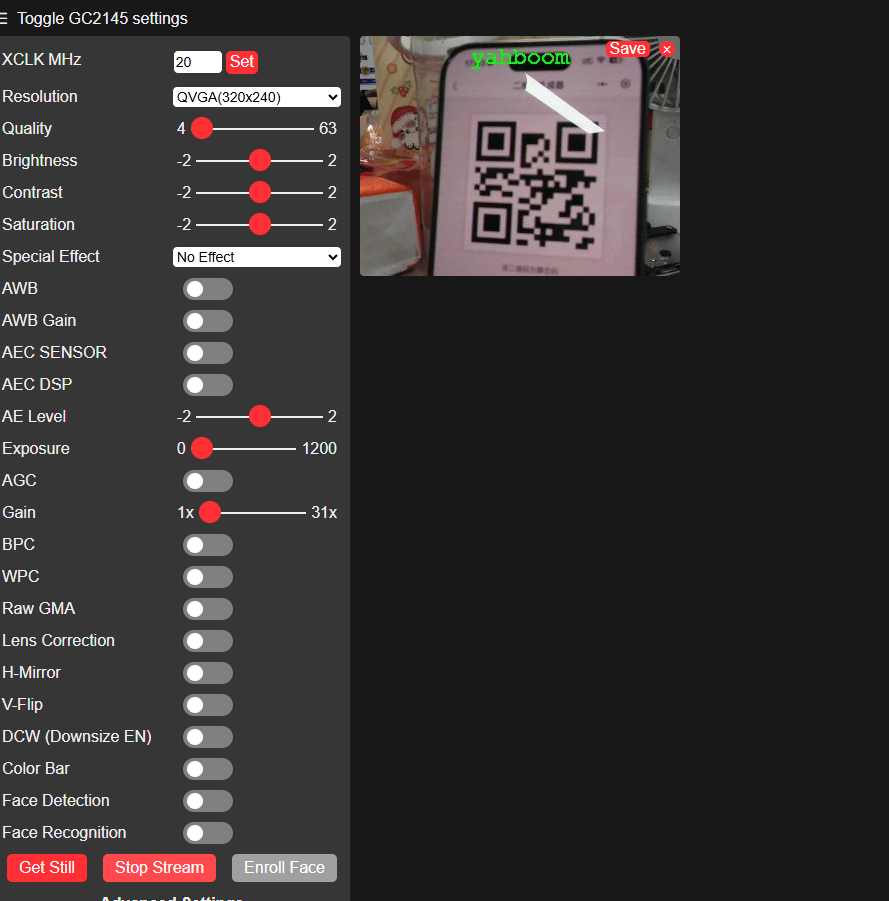
At the same time, the uno terminal will print out the recognized text.