Welcome to ESP32 WiFi Camera Lite repository
MSPM0G3507
MSPM0 configure camera
Note: esp32 camera needs to be burned with factory firmware. If you have not flashed the firmware after receiving the esp32 camera, it is not necessary. The factory default firmware, before using iic communication, you can use the serial port to configure the esp32 camera to the network, and iic is used for data reading
1. Experimental preparation
- mspm0g350 series microcontroller
- wifi camera
2. Wiring diagram
| mspm0g350 | esp32 camera |
|---|---|
| PA0 | SCL |
| PA1 | SDA |
| GND | GND |
| 5V | 5V |
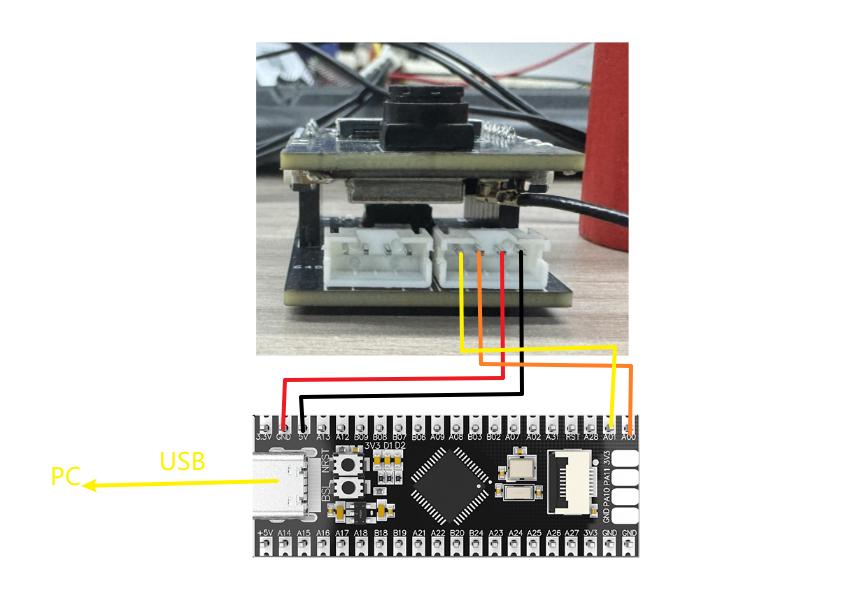
Physical connection diagram:
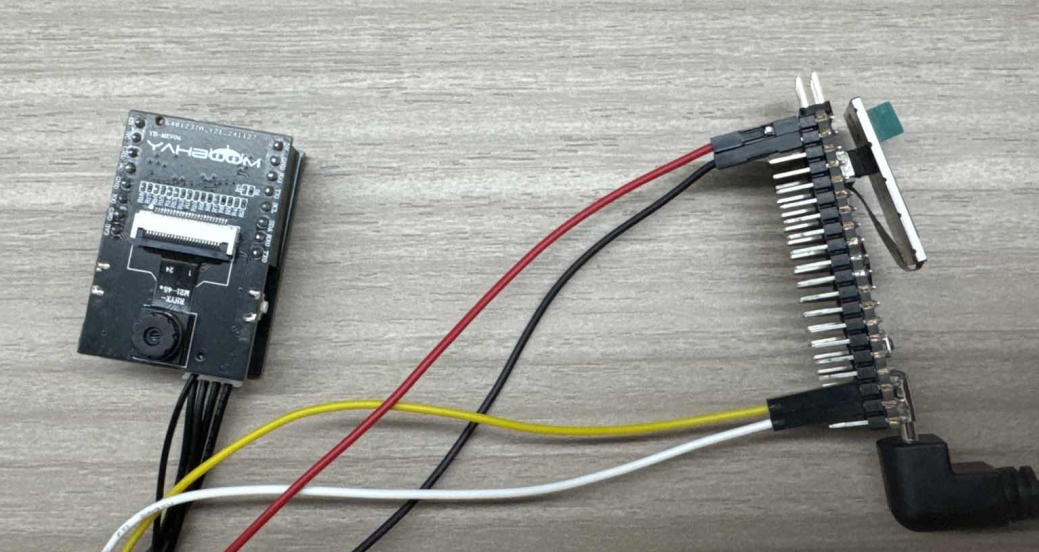
3. Experimental steps and experimental results
- Check whether the program runs normally
- In the main function, change to the corresponding ai mode.

- Download the program of this project to the mspm0 board
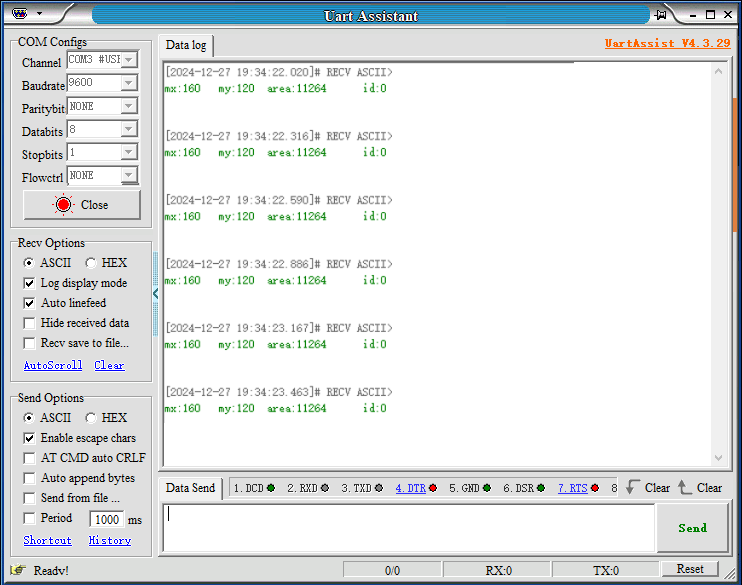
- Open the serial port assistant on the computer, open the computer to detect the serial port of mspm0, as shown below
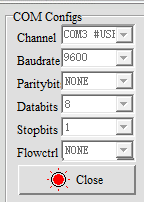
After pressing the reset button of mspm0, the serial port assistant will print out the corresponding information
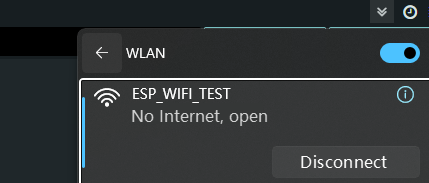
- Open the camera and connect to the hotspot released by esp32
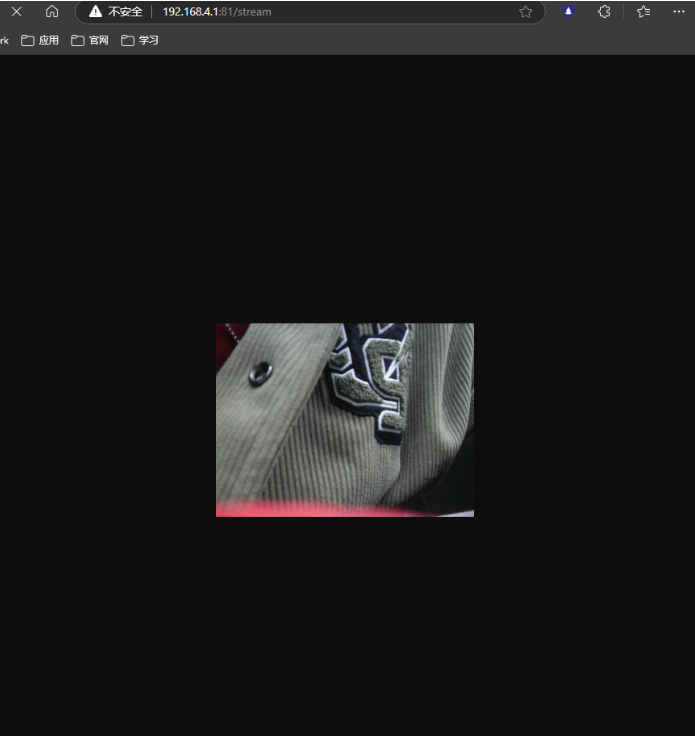
Then enter http://192.168.4.1:81/stream through the browser This accesses the camera screen
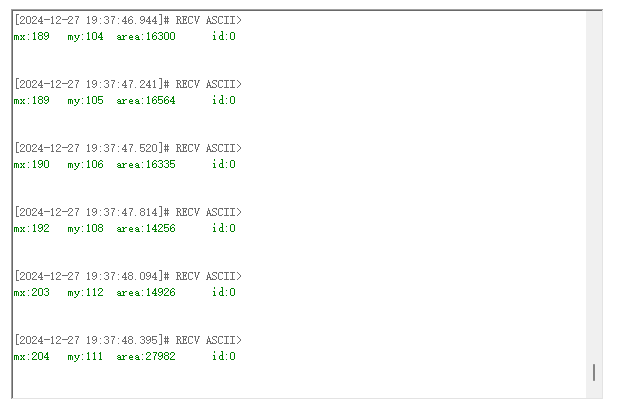
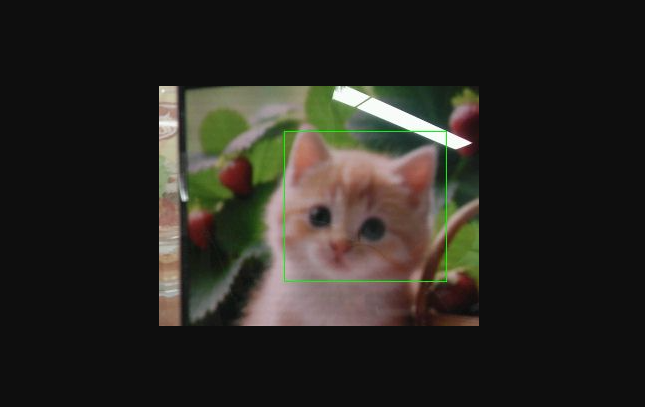
- Identify cats and dogs. If the recognition is successful, the current center coordinates will be printed out, and the cat image will be placed in front of the previous screen.
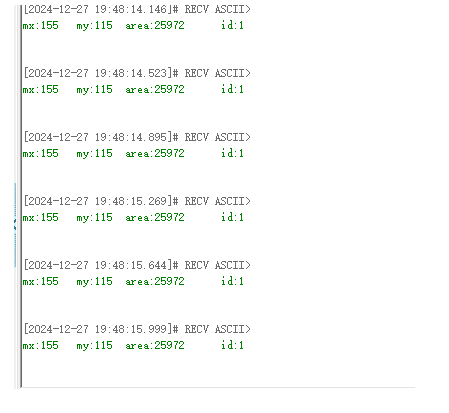
At the same time, the terminal will print out the current coordinates,
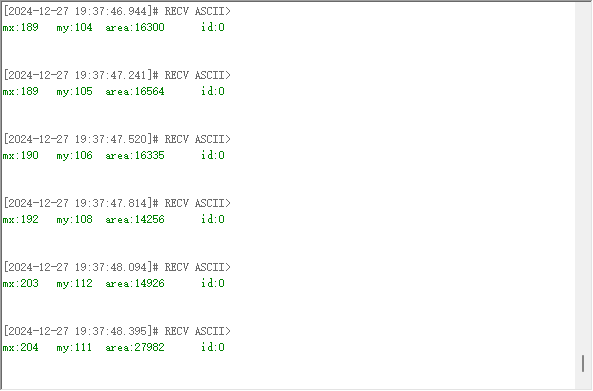
Face recognition mode
When switching to face recognition mode,
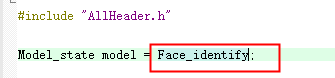
Compile and download to the mspm0 mainboard, open the serial port debugging assistant
After pressing the reset button of mspm0, the serial port assistant will print out the corresponding information
Recognize face. When you see a face, press the key button to record the face
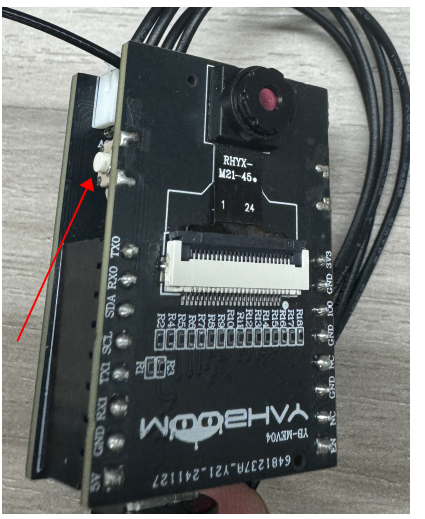
The following picture appears, which means the recording is successful, and the face 1 is recorded
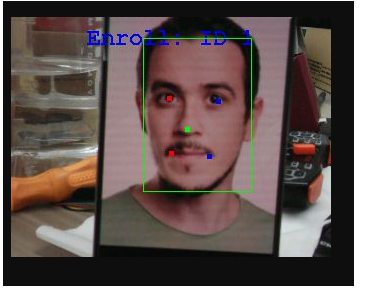
At this time, you can press and hold the button for two seconds, then release it and press the button again to recognize the current face
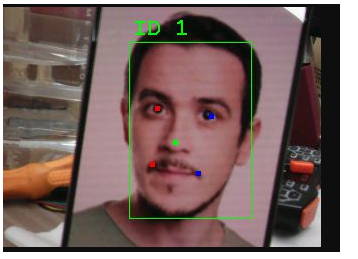
At the same time, the terminal will print out the current center coordinates and the recognized face.
Color detection mode
When switching to color detection mode,

Compile and download to the mspm0 motherboard, open the serial port debugging assistant
After pressing the reset button of mspm0, the serial port assistant will print out the corresponding information
identify the color. Press the button and a box will appear. You can use this box to select the color you want to use.
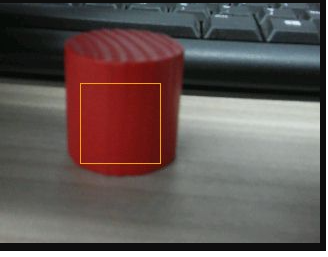
Press the button for two seconds, release it and press it again to identify the currently selected color. A red box will appear at the same time.
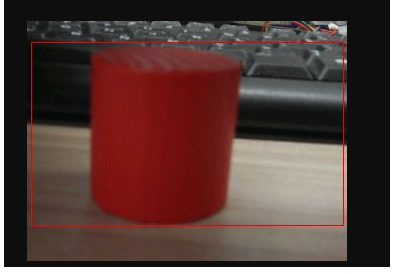
At the same time, the terminal will print out the current center coordinates.