Welcome to ESP32 WiFi Camera Lite repository
8. Jetson drives the servo gimbal
Jetson Nano remote control servo gimbal
Note: ESP32 camera needs to be burned with factory firmware. If you have not flashed the firmware after receiving the ESP32 camera, you do not need to do so. The factory default firmware is used
1. Experimental preparation
ESP32 camera
Jetson Nano development board
2-DOF gimbal
24-way servo driver board
USB to TTL
2. Wiring diagram
Note: Because Jetson Nano has only one serial port, an external USB to TTL converter is required. Because of insufficient voltage, ESP32 camera and 24-way servo driver board need additional power supply via type-c data cable
| Jetson Nano motherboard ----> USB to TTL | ESP32 camera |
|---|---|
| TX | RX |
| RX | TX |
| GND | GND |
| NC | 5V |
| Jetson Nano motherboard | 24-channel servo driver board |
|---|---|
| GPIO8 | RX |
| GPIO10 | TX |
| GND | GND |
| 5V | 5V |
| 24-channel servo driver board | Servo |
|---|---|
| s5 | Vertical servo |
| s6 | Horizontal servo |
Physical connection diagram:
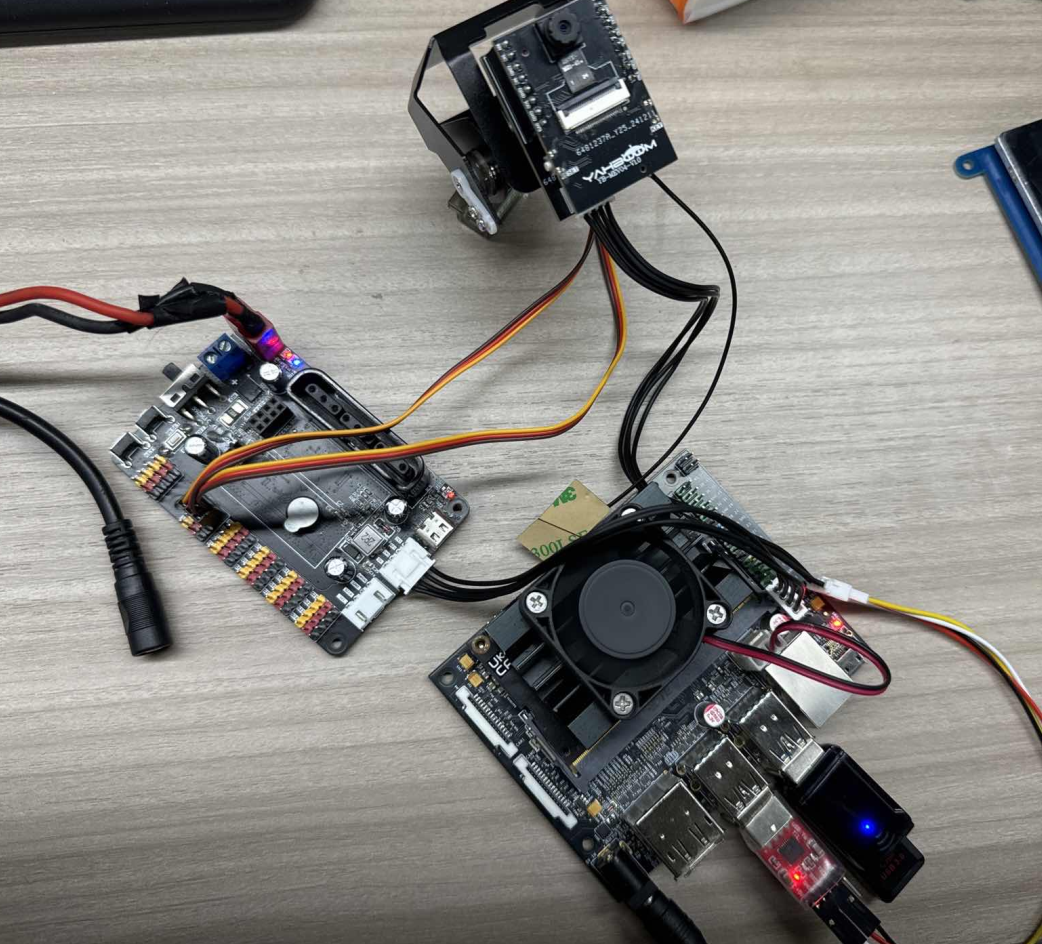
Pin diagram:

3. Experimental steps and results
Quick method: You can directly connect to the wifi opened by esp32. This experiment is named ESP32_WIFI_TEST. Then the IP address camera information of the mobile app is 192.169.4.1, and you can use the app to control the servo
Upload the provided program source code "nano_servo.py" file to your own x5 motherboard.
The official image of the nano motherboard needs to give serial port permissions every time it is turned on (note that this permission will also be closed after shutdown). Enter in the terminal,
xxxxxxxxxxsudo chmod 777 /dev/ttyTHS1sudo chmod 777 /dev/ttyACM0
Open the code just uploaded and modify it to the wifi name and password you want to connect to. The hotspot name can also be modified, as well as the corresponding wifi mode.

Run the program in the terminal, and the IP address of the current network connection and the address of the hotspot will be returned
xxxxxxxxxxpython3 nano_servo.py
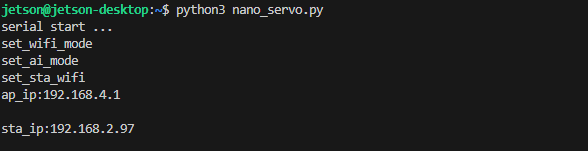
Use the app to control the movement of the car. After installing the "ESP32Cam" app, open it.
On the login page, set it according to the IP obtained by the serial port assistant. If the IP obtained by the serial port assistant is "192.168.2.50", then the configuration is as follows
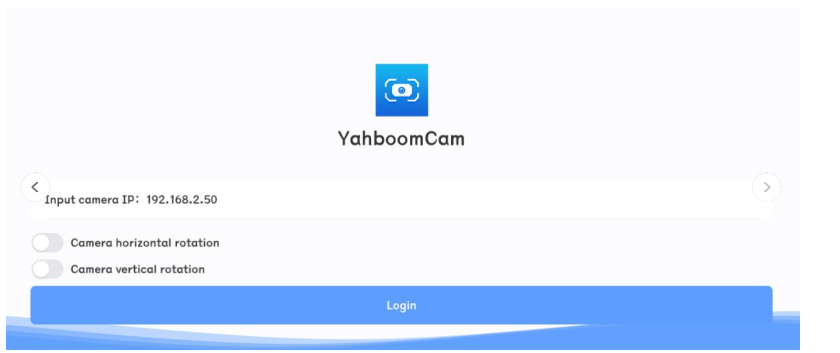
Then click login directly
(Optional) If you want to connect to the hotspot of the wifi camera, the IP address must be set to 192.168.4.1, as shown in the figure
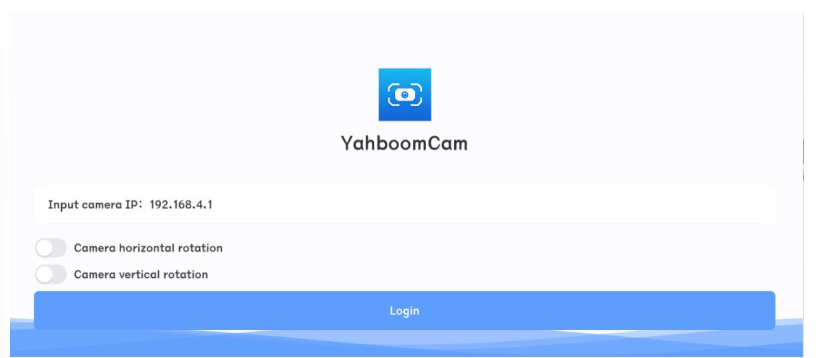
When the IP address is configured correctly and connected successfully, you can control the servo gimbal through the app console page
Horizontal screen
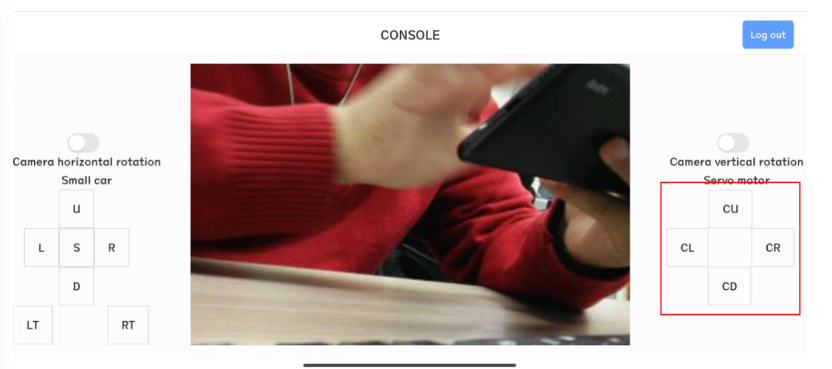
Note: Every time you restart the app, you need to click the exit button in the upper right corner, then exit and reconfigure the IP address information before logging in