Welcome to ROS-WiFi Camera Module repository
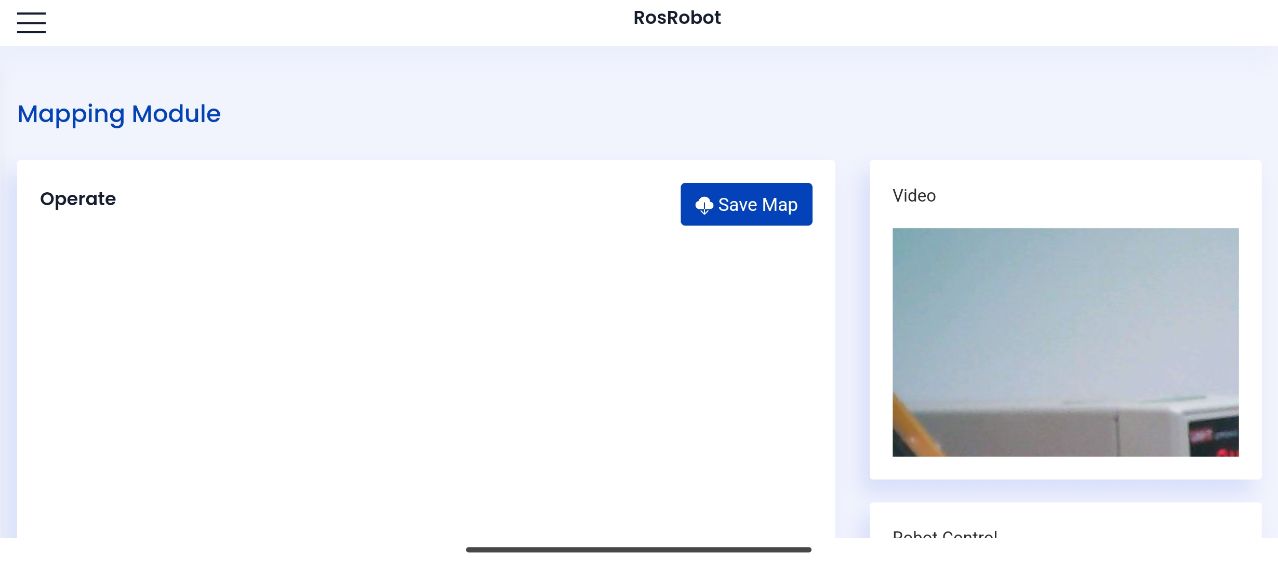
2. ROS Robot APP screen view
ROS Robot APP screen view
Note: The virtual machine, ROS image transmission module, and mobile app are located on the same local area network.
0、If not using the matching virtual machine (must read)
Skip this step directly using the matching virtual machine Operation steps: Open a new terminal and enter the following command
echo "export ROS_DOMAIN_ID=20" >> ~/.bashrc
You can see that this sentence has been added to the .bashrc file to keep the ROS2ID of the virtual machine and image transmission module on the same message segment

1、Program Function Description
Connect the ROS image transmission module to the agent, run the program, open the 【ROS Robot】 app downloaded from your phone, enter the IP address of the virtual machine, select ROS2, click connect to connect to the image transmission module, and view the camera's image in real time through the app.
2、Start and connect the proxy
Taking the supporting virtual machine as an example, enter the following command to start the agent (the agent can be started once without shutting down and does not need to be restarted),
xxxxxxxxxxdocker run -it --rm -v /dev:/dev -v /dev/shm:/dev/shm --privileged --net=host microros/micro-ros-agent:humble udp4 --port 9999 -v4The camera is connected to the proxy, and the connection is successful as shown in the following figure,
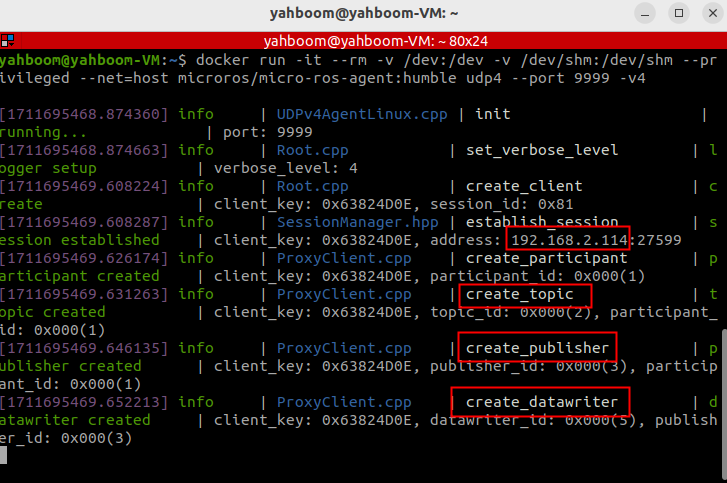
3、Start program
Start the APP command, terminal input,
xros2 launch yahboomcar_nav map_cartographer_app_launch.xml
ros2 run yahboom_esp32_camera sub_imgsuccess:
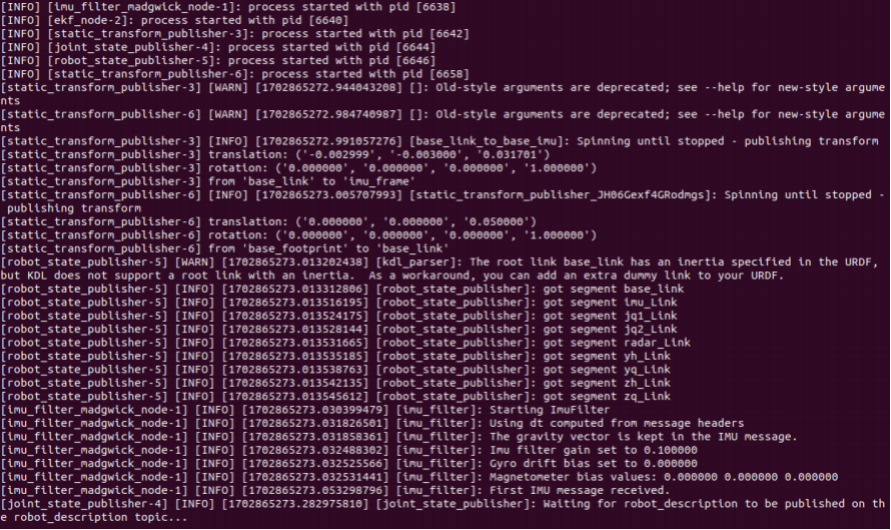
If this error occurs: the virtual machine can be restarted for repair, and not restarting will not affect the app's real-time viewing
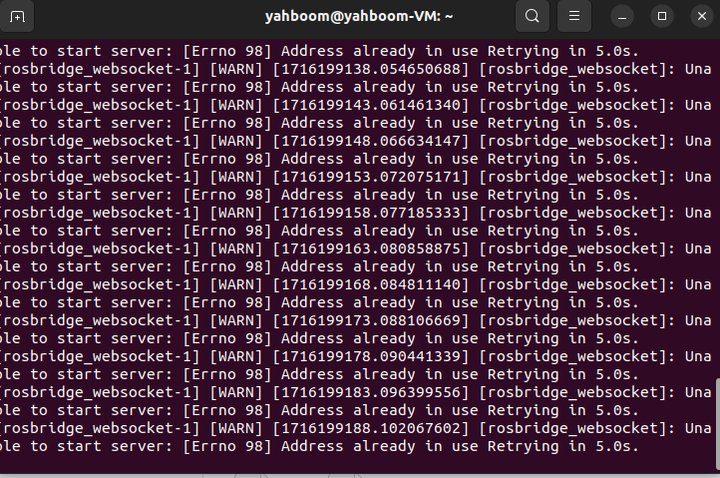
The mobile app displays as shown in the figure below. Enter the IP address of the virtual machine (which can be found in ifconfig), where [zh] represents Chinese and [en] represents English; Select ROS2, select /usb_cam/imageraw/compressed from the Video Tpoint below, and finally click [Connect]
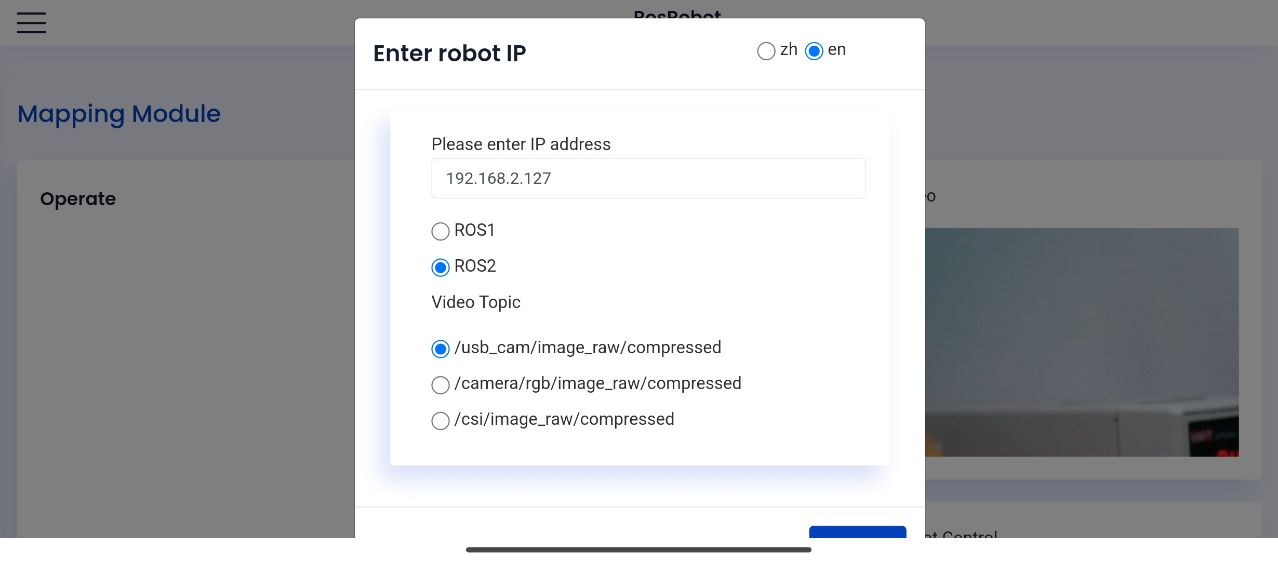
After successfully connecting, the display is as follows: