yahboom
HomeTutorialsProduct
Solution
Blog
Online Store
About Us
EN/中文
Store
Tiny:bit Pro📖
0.First Trial and Assemble
  • 1.0 Installation Video
  • 1.1 First Trial
1.Preparation before programming
  • 1.Online programming
  • 2.Offline programming
  • 3.Python Programming
  • 4.Import Tiny:bit library
  • 5.Tiny:bit MicroPython API
  • 6.How to download program
2.Lighting with Tiny bit
  • 3.1 LED light
  • 3.2 RGB Searching light
  • 3.3 RGB light exchange lighting
  • 3.4 LED light exchange lighting
  • 3.5 Breathing light
3.Singing withTiny bit
  • 4.1 Playing internal music
  • 4.2 Play Merry Christma with lights
4.Running with Tiny bit
  • 5.1 Advance
  • 5.2 CarRun
  • 5.3 Control speed
  • 5.4 Dancer
  • 5.5 Route plan
5.Playing with Tiny bit
  • 6.1 Measuring worker
  • 6.2 Distance control light
  • 6.3 Ultrasonic obstacle avoidanc
  • 6.4 Magic hand
  • 6.5 Radar detector
  • 6.6 Playing black paino
  • 6.7 Tracking
  • 6.8 Voice control light
  • 6.9 Coward
  • 6.10 Musical rhythm
  • 6.11 Listener
  • 6.12 Wobble when touch
  • 6.13 Spinning top
  • 6.14 Frog beating
  • 6.15 Adventure car
6.Interacting with Tiny bit
  • 7.1 IR Control
  • 7.2 Android bluetooth APP control
  • 7.3 iOS bluetooth APP control
  • 7.4 Handle remote control
7.MicroPython course
  • 1.Hello,World
  • 2.Display built-in image
  • 3.Display custom image
  • 4.Display custom animation
  • 5.Button game
  • 6.Play built-in music
  • 7.Car Headlights
  • 8.Drive Motor
  • 9.Tracking
  • 10.Sound sensor
  • 11.Ultrasonic
  • 12.IR control
  • 13.LED light
8.AI vision course
1. Preparation
  • 1. K210 module download code
  • 1.2 Parsing K210 protocol data
  • 1.3 microbit connection use
2. Basic course
  • 2.1 Color recognition
  • 2.2 Barcode recognition
  • 2.3 QR code recognition
  • 2.4 Machine code recognition
  • 2.5 Object recognition
  • 2.6 Learning and classification
  • 2.7 Mask warning
  • 2.8 Facial recognition
  • 2.9 Handwriting digit recognition
3. Tinybit course
  • 3.1 Color response
  • 3.2 Barcode recognition
  • 3.3 QR code recognition
  • 3.4 Object detection
  • 3.5 Signposting action
  • 3.6 Mask Testing
  • 3.7 Face Detection
  • 3.8 Handwritten digital control
  • 3.9 Color patrol
  • 3.10 Machine code following
  • 3.11 Color tracking
  • 3.12.1 K210 Identification Information and Adjust
  • 3.12.2 Autopilot
9.Charging and Battery
  • Charging and Battery
Download
  • APP(Android/iOS)
  • Code
  • Manual
  • Hardware Info
  • APP communication protocol
  • RoadSign File
  • MicroPython_Library
Download ZIP

Welcome to Tiny:bit Pro repository

6.12 Wobble when touch


1.Preparation

This course mainly uses the geomagnetic sensor that comes with micro:bit. In addition to detecting the strength of the earth's magnetic field, the geomagnetic sensor can also be used as an electronic compass to determine the direction.

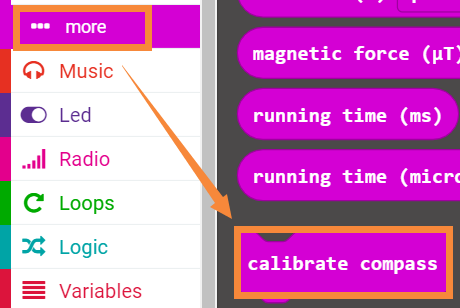
! ! ! Note: If you have an experiment with a geomagnetic sensor, we must calibrate compass because the local magnetic field is different at each location and has large effect on the results.

When the program download is complete, micro:bit will prompt calibration, the screen (LED dot matrix) prompts: “TILT TO FILL SCREEN”, then enters the calibration interface.

The calibration method : 

Tilt the micro:bit, make 5x5 dot matrix on the micro:bit board is all lit, as shown in the following figure:

Then a smile will appear on the micro:bit dot matrix to indicate that the calibration is complete.

image.png      image.png

Programming method:

Mode 1 online programming: First, we need to connect the micro:bit to the computer by USB cable. The computer will pop up a USB flash drive and click on the URL in the USB flash drive: http://microbit.org/ to enter the programming interface. Add the Yahboom package: https://github.com/YahboomTechnology/Tiny-bitLib to program.

Mode 2 offline programming: We need to open the offline programming software. After the installation is complete, enter the programming interface, click【New Project】, add Yahboom package: https://github.com/YahboomTechnology/Tiny-bitLib, you can program.

In the picture shown below, the ultrasonic module with red wire frame.

2.Learning goal

2-1. Learn how to use compass graphically program building blocks

2-2. The function is realized by programming: When the angle of the micro:bit compass id changed, the Tiny-bit will wobble and the buzzer will sound.

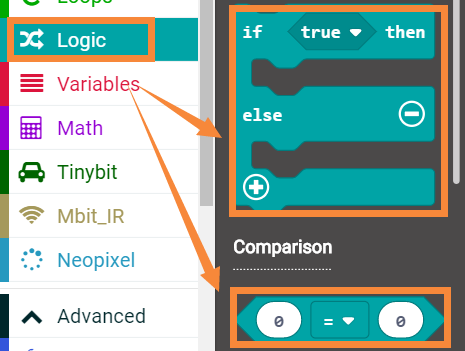
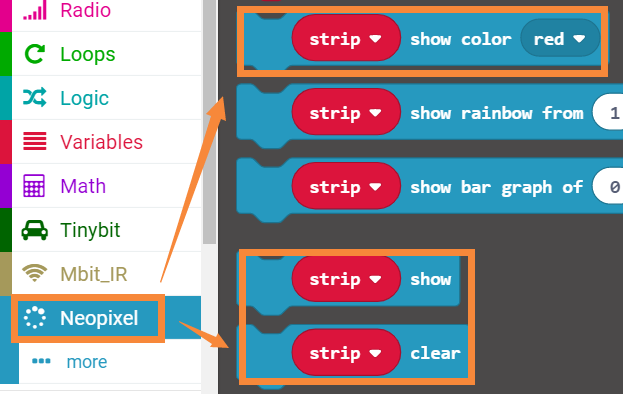
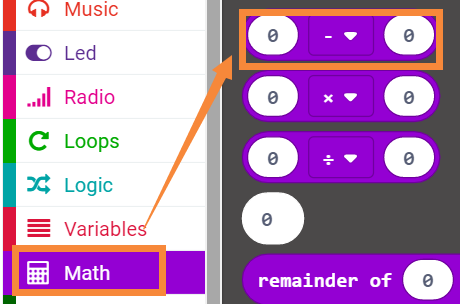
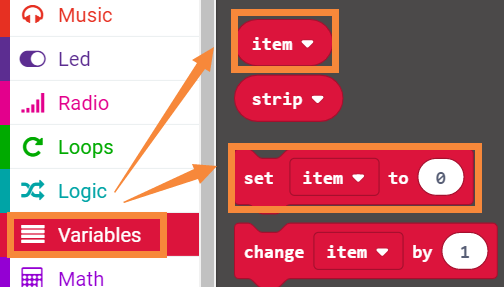
3.Search for block

The following is the location of the building blocks required for this programming.

image.png

image.png

image.png

image.png

image.png

image.png

image.png

image.png

image.png

4.Combine block

Please see microbit-Wobble-when-touch.hex for the program

5.Experimental phenomena

After the program is downloaded, open the power of robot car.

1. Complete the calibration of the compass according to the method in the 【preparation.】

2. After two seconds, the micro:bit dot matrix will display heart as shown in Figure 1. Tiny-bit will stand still.

3. When we gently push Tiny-bi by our hand (changing the angle of the current compass), the micro:bit dot matrix will display the pattern of the chess board, while lights become blue, as shown in Figure 2 below.  Tiny-bit will wobble for a while, then it will keep still. the micro:bit dot matrix will display heart  and the lights will go out, and the buzzer will make a sound.

image.pngimage.png


Listener
Spinning top

COMPANY

  • About us
  • Team Style
  • Blog

LEARNING & EXPLORATION

  • Tutorials
  • Edge AI hardware
  • Educational robots
  • Embedded intelligent hardware

WHERE TO BUY

  • Yahboom Online Store
  • Amazon
  • Alibaba
  • AliExpress
  • Mercado

TECHNOLOGY SUPPORT

  • Email: support@yahboom.com

BE A DISTRIBUTOR

  • Email: sales@yahboom.com
QR Code

Copyright © 2017-2026 Yahboom. All Rights Reserved.

EN/中文