Welcome to Tiny:bit Pro repository
2.2 Barcode recognition
2.2 Barcode recognition
2.2 Barcode recognition1. Learning Objectives2. Preparation for Class 3. Programming Methods4. Blocks 5. Code6. Download code7. Experimental phenomena
1. Learning Objectives
In this course. We will realize K210 vision module recognize barcodes. When recognized, the contents of the barcode are displayed on the Micro:bit board.
2. Preparation for Class
- Remove the TF card from the k210 vision module and insert it into the card reader.
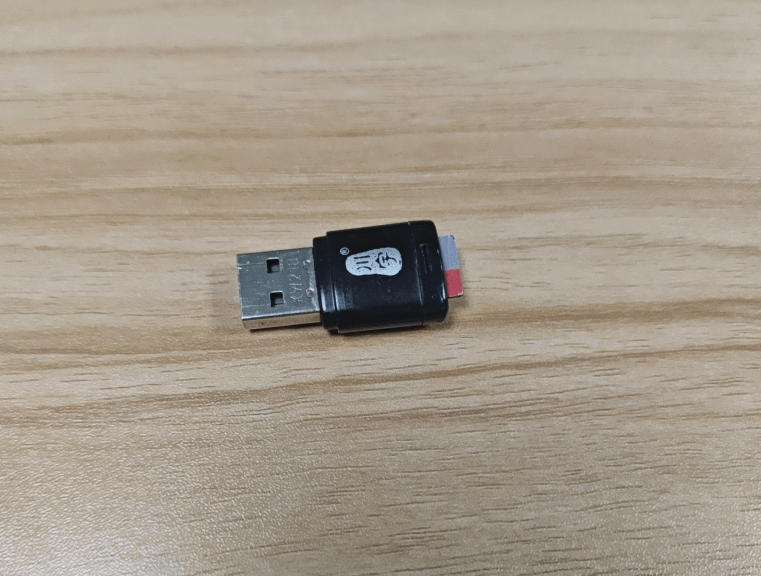
- Plug the card reader into the computer, and wait for the computer to recognize the USB disk.
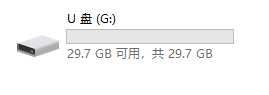
- Then, enter the TF card U disk. You will see following content.

- Go to the k210 folder, find the 2.2_3.2_find_barcodes.py file from the folder and copy it to the root directory.
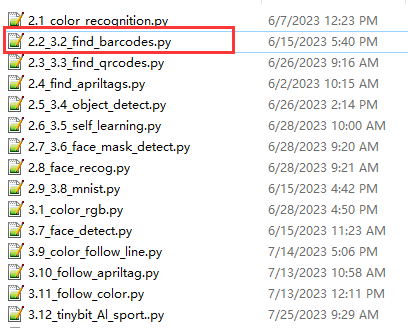
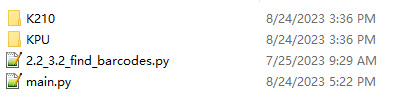
Delete the original main.py file.
Then, re-name the 2.2_3.2_find_barcodes.py file file as the main.py file.

- After re-name, pull out the card reader, remove the TF card and insert it back into the k210 vision module.
3. Programming Methods
Online programming: first copy this URL https://makecode.microbit. and enter the online programming interface.
Copy the package URL: https://github.com/YahboomTechnology/K210-Module.git to the input field, click confirm to add the package, after that you can use the blocks of K210 vision module software package.
4. Blocks
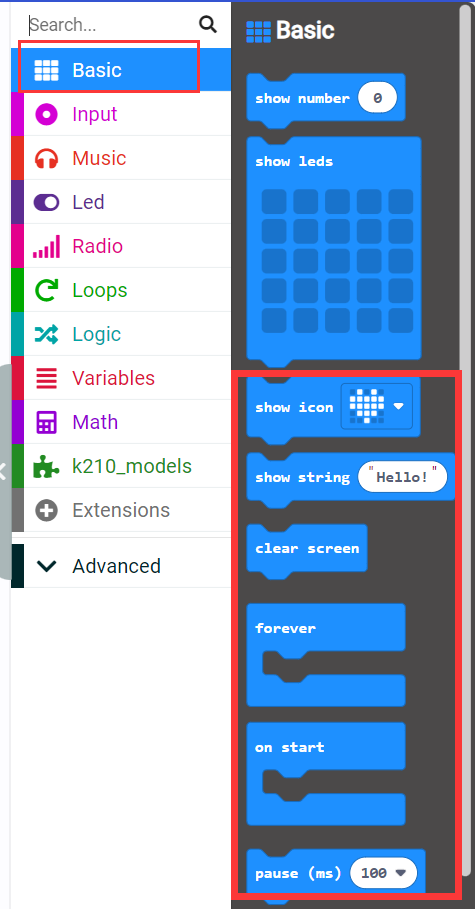
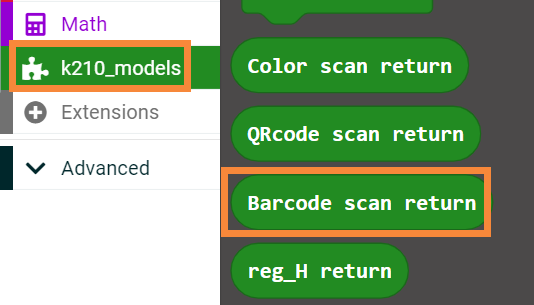
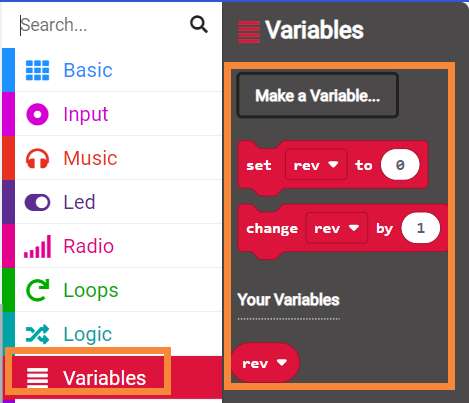
5. Code
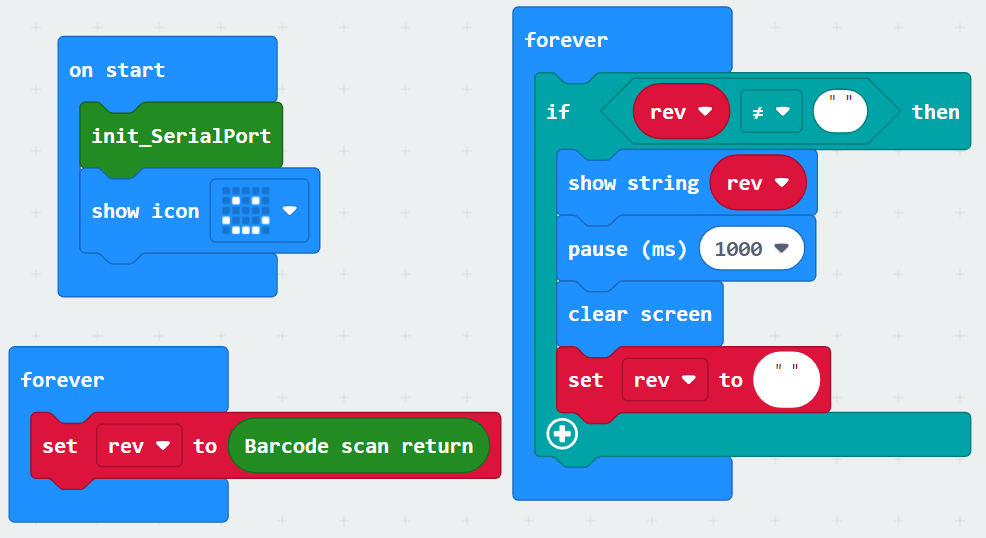
6. Download code
Connect the Micro:bit board to the computer via Micro USB cable, the computer will pop up a USB disk.
Then, select the microbit-barcode.hex file and right click to send it to the Micro:bit U disk.
Wait until sending is complete and unplug the Micro:bit USB cable. Plug the Micro:bit board into the car.
7. Experimental phenomena
After starting the car, wait for the screen to display the camera image.
After the camera screen appears, point the camera at the barcode that needs to be recognized.
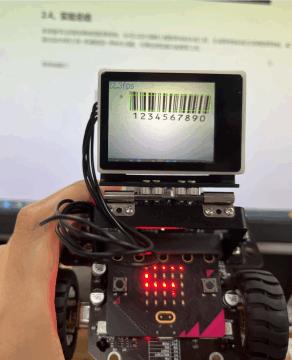
When the barcode is recognized, the contents of the barcode will be displayed on the Micro:bit board.
As shown below.
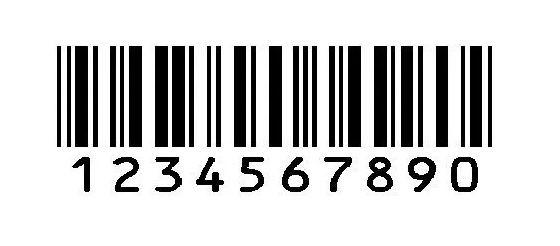
Barcode picture: