Welcome to Tiny:bit Pro repository
3.5 Signposting action
3.5 Signposting action
3.5 Signposting action1. Learning objectives2. Preparation for the class3. Programming Methods4. Blocks5. Code6. Download code7. Experimental phenomena
1. Learning objectives
The k210 vision module trains on forward, left and right turn road signs and then recognises them. Recognising different road signs, the cart carries out different actions
2. Preparation for the class
- Remove the TF card from the k210 vision module and insert it into the card reader.
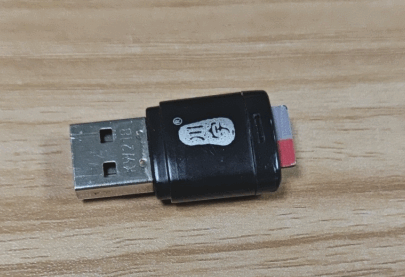
- Plug the card reader into the computer, and wait for the computer to recognize the USB disk.
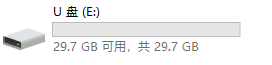
- Then, enter the TF card. You will see following content.

- Go to the k210 folder, find the 2.6_3.5_self_learning.py file from the folder and copy it to the root directory.
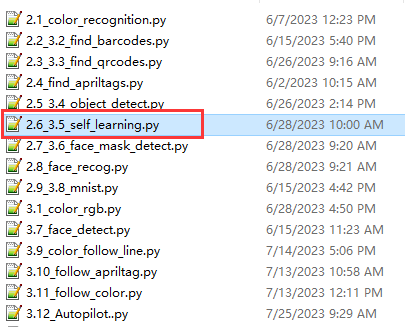
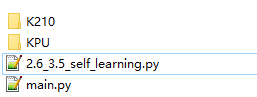
Delete the original main.py file.
Then, re-name the 2.6_3.5_self_learning.py file as the main.py file.
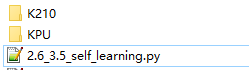
- After re-name, pull out the card reader, remove the TF card and insert it back into the k210 vision module.
3. Programming Methods
Online programming: first copy this URL https://makecode.microbit. and enter the online programming interface.
Click Extension, copy the package URL: https://github.com/YahboomTechnology/K210-Module.git to the input field, click Confirm to add package,
Click Extension again, copy the package URL: https://github.com/YahboomTechnology/Tiny-bitLib to the input field, click Confirm to add the package.
Finally you can use the K210 Vision Module package and Tinybit's building blocks.
4. Blocks
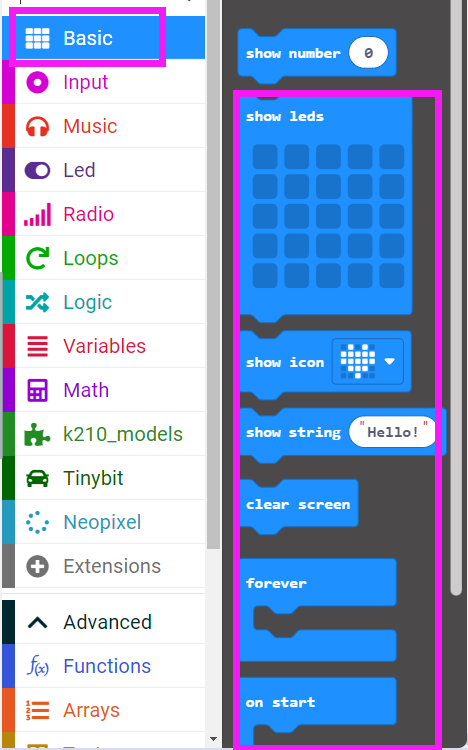
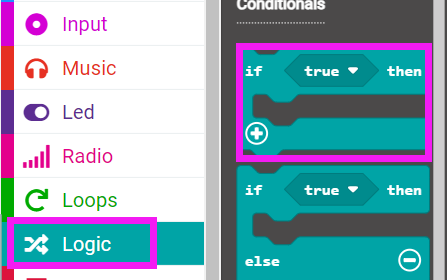
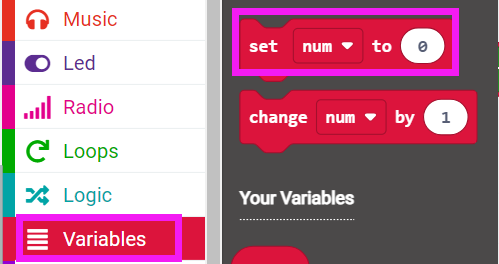
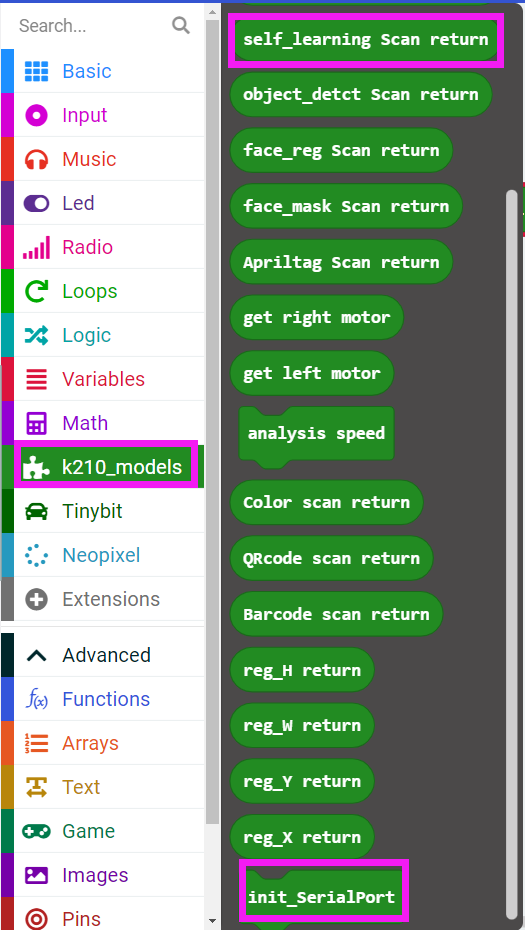
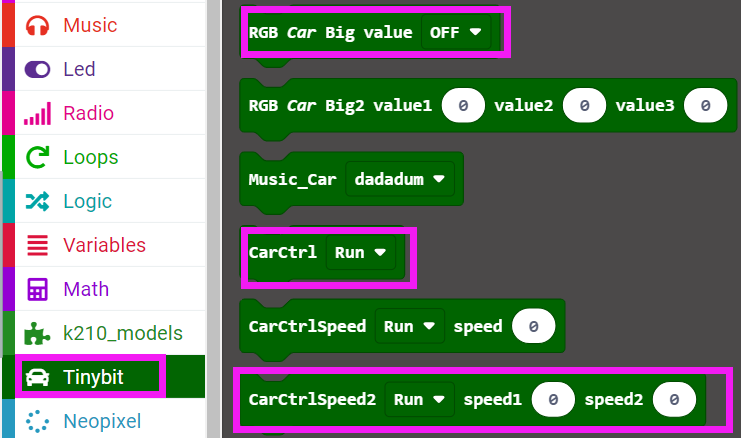
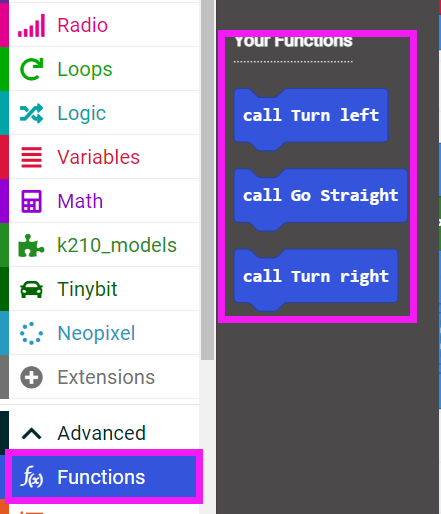
5. Code
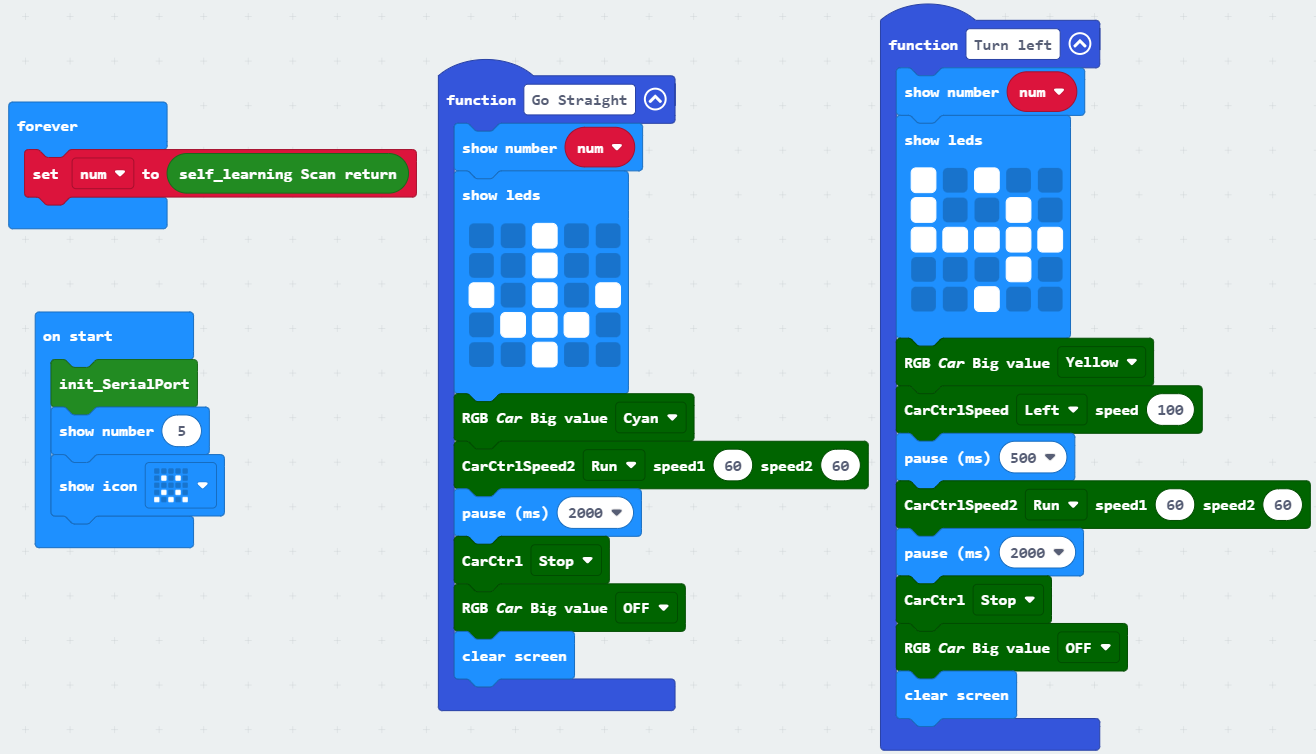
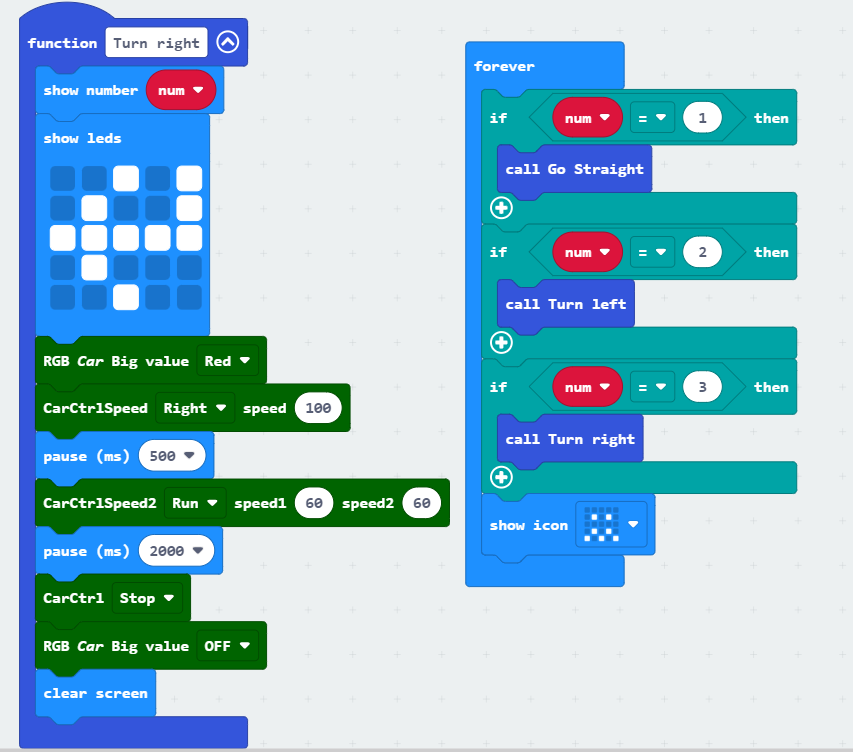
6. Download code
Connect the Micro:bit board to the computer via microusb cable, the computer will pop up a USB stick.
Then, select the k210_Road_sign_indicating_action.hex code and right click to send it to the Micro:bit U disk.
Wait until sending is complete and unplug the Micro:bit usb cable. Plug the Micro:bit board into the car.
7. Experimental phenomena
After starting the car, we can see that the dot matrix of the microbit displays the number 5, and then displays a confusing pattern. Wait for the screen to display Self Learning Demo.
Next, we need to find three different road sign and train three different road sign respectively.
Click K1 button in the upper right corner of K210 module to enter next step.
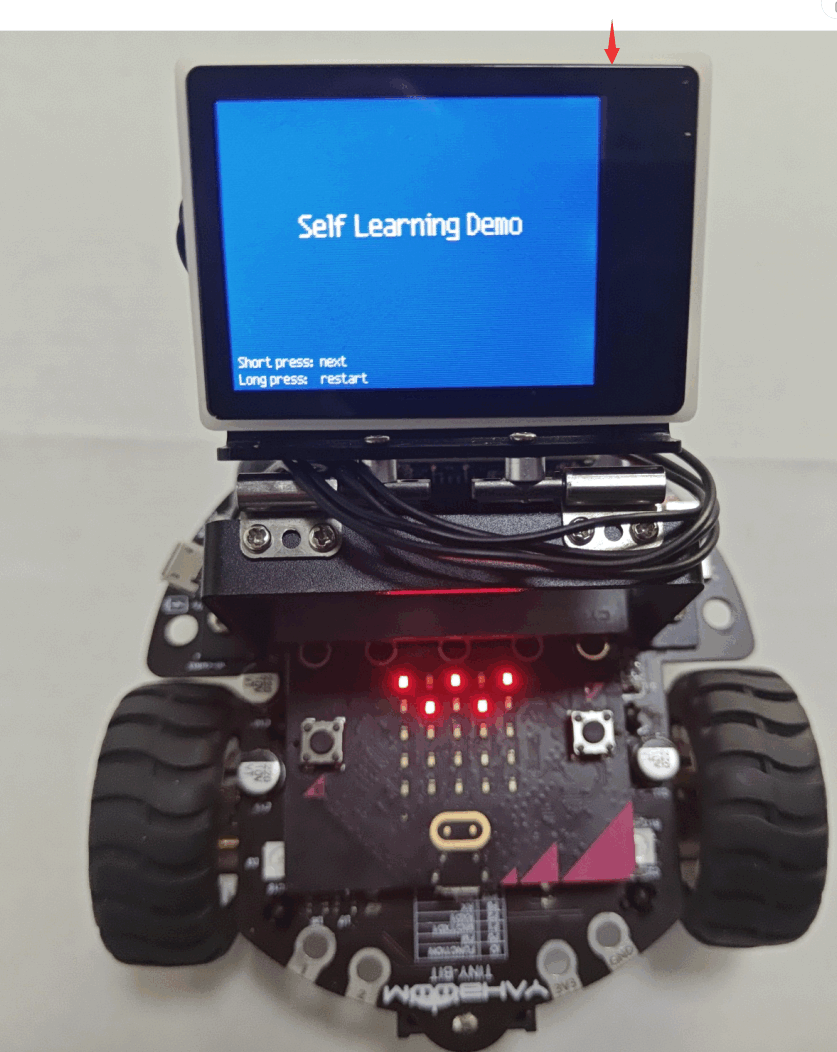
Start training the first straight road sign.
Press the K1 button in the upper right corner of K210 module to enter the next step and start collecting object picture materials.
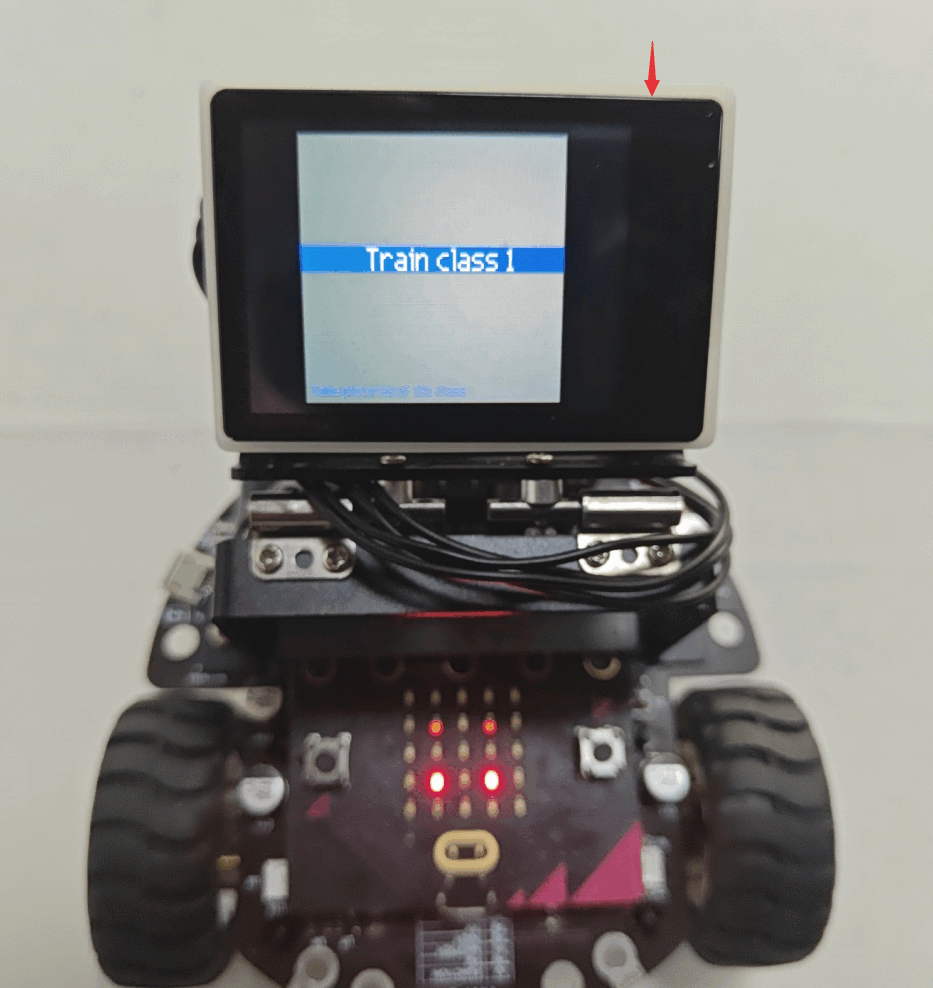
Put the first straight road sign to be recognized within the viewing range of the camera, and you can see Class 1: #P1 displayed in the lower left corner of the screen, Press the K1 button once to record the first material picture of the straight road sign.
Note: Class represents the serial number of the category, and P represents the serial number of the picture.
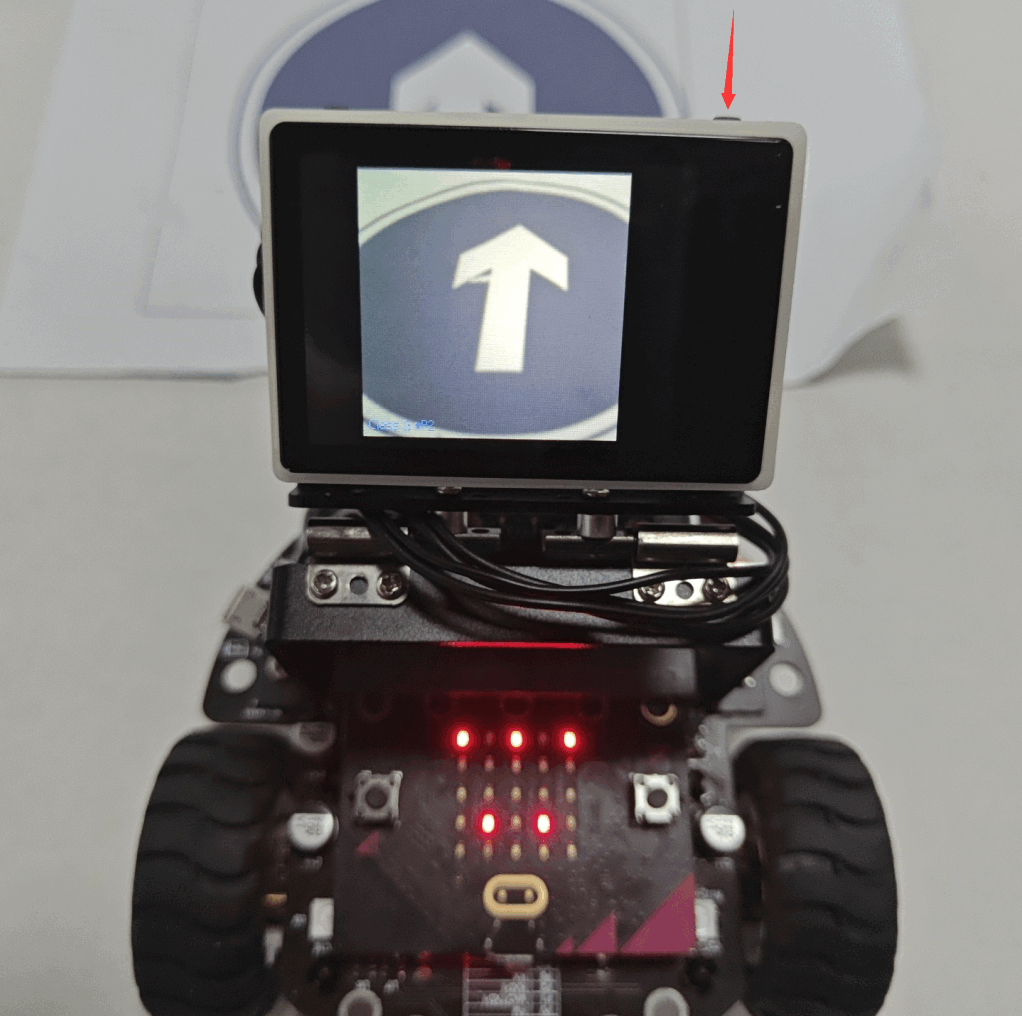
Shift the camera angle slightly and press the BOOT button again to capture the second material picture.
When five images have been captured, the straight ahead road sign capture is complete.
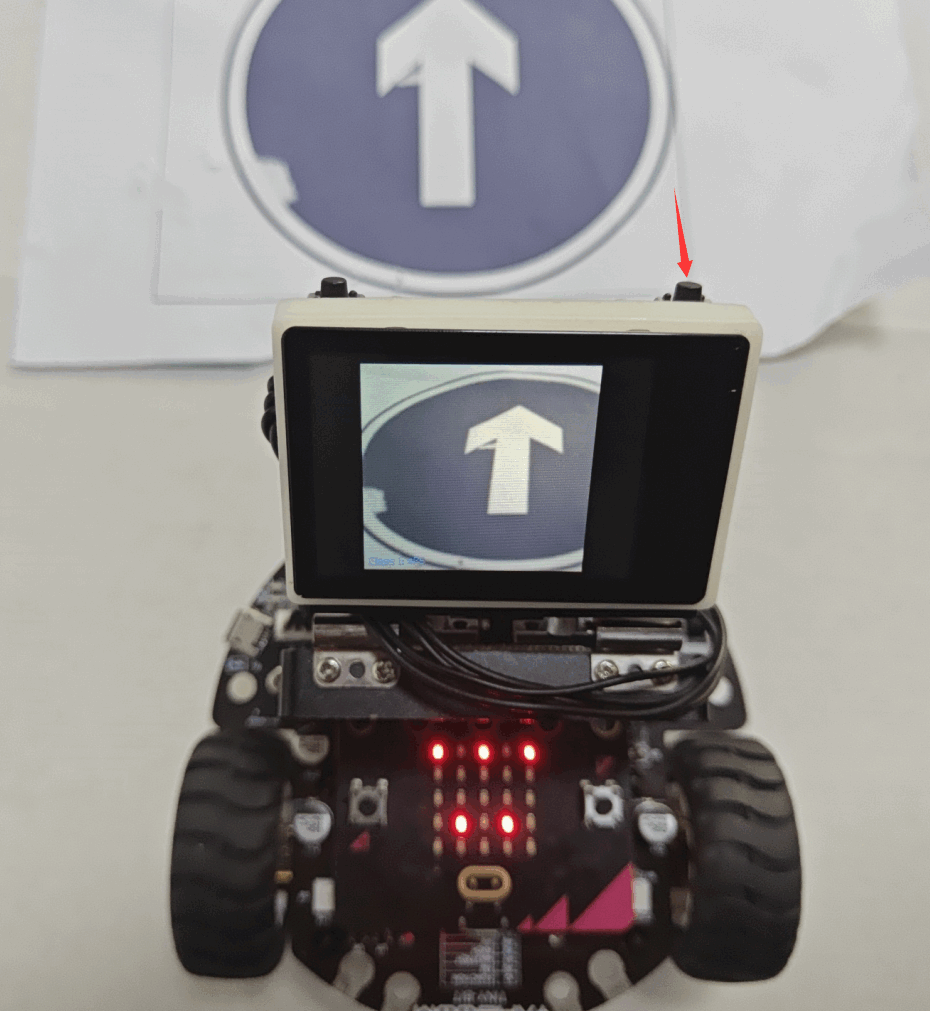
Next, enter the acquisition process of the left turn sign, press the BOOT key to start the acquisition of the material picture of the left turn sign, the steps are the same as the acquisition of the straight road sign.
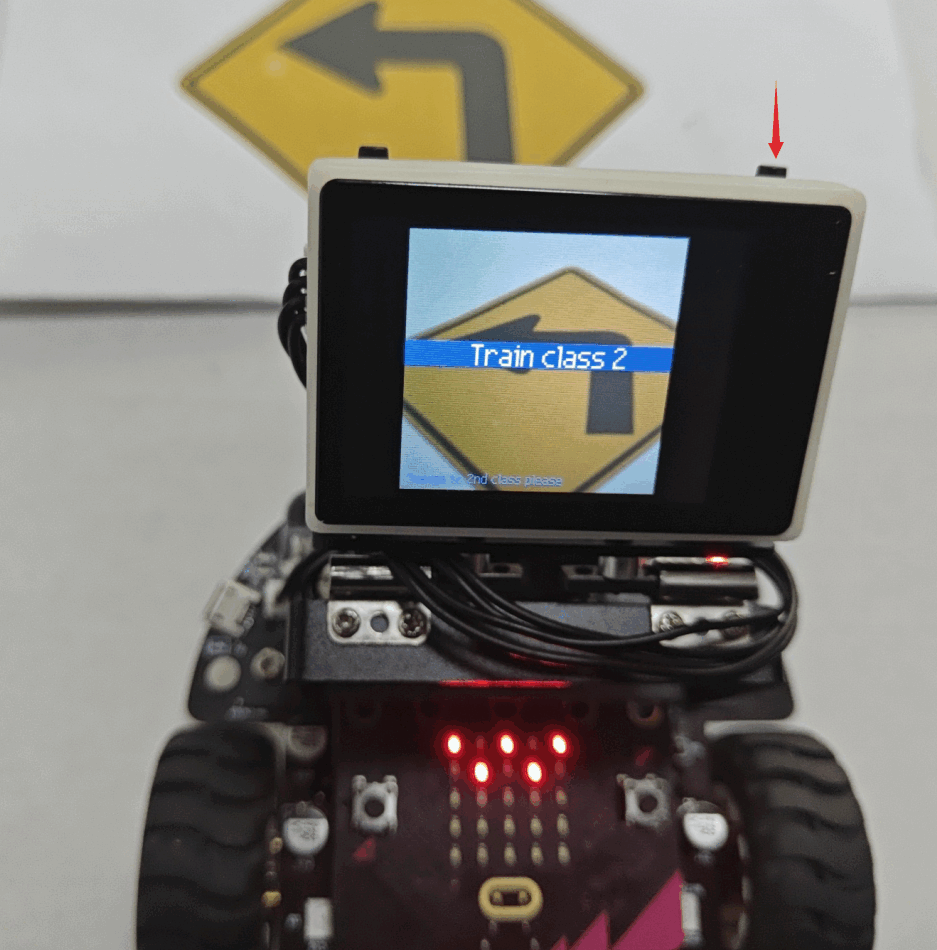
After the left turn signpost has collected five material images, go to the right turn signpost collection and collect five material images of the right turn signpost.
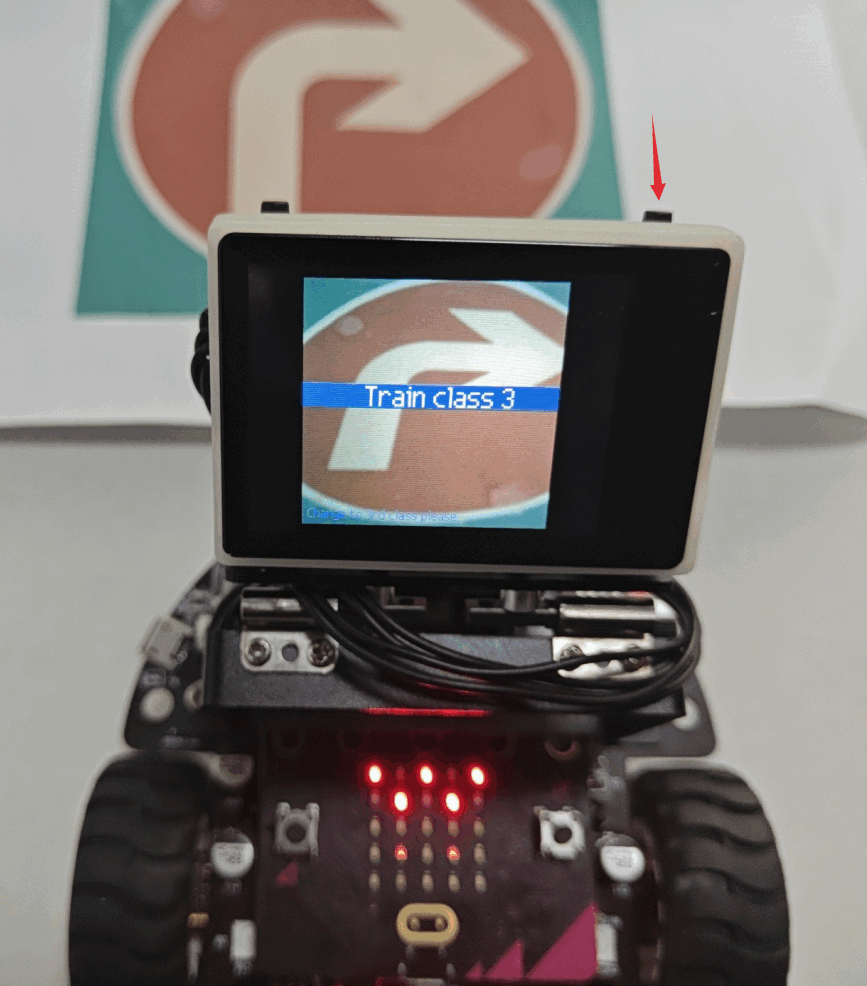
It automatically enters the classification state after finishing the collection. The display of Classificatiion in the middle of the screen indicates that it has entered the classification state, and the prompt disappears automatically by pressing the K1 button once more.
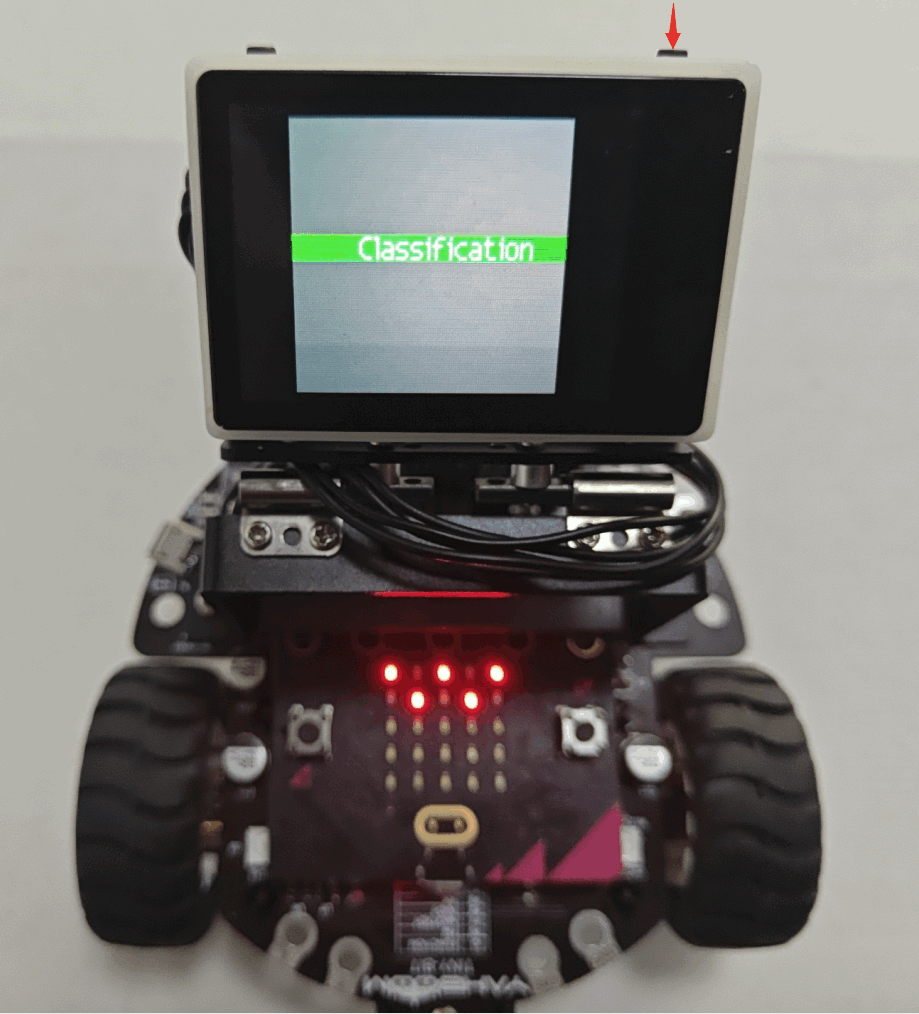
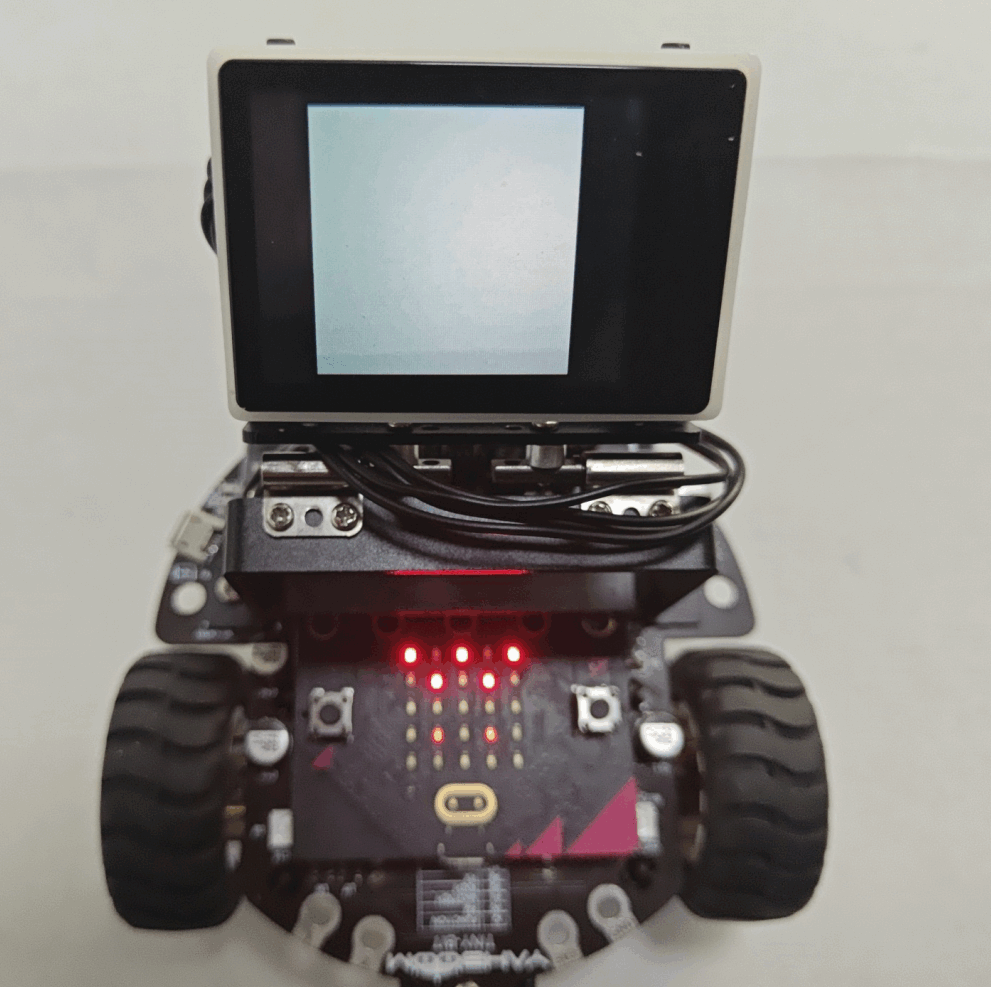
At this time, the camera will shoot one of the three road signs just trained, the lower left corner of the screen will display the corresponding category serial number and score, at this time, the led dot matrix of the microbit motherboard displays the category serial number and then displays the pattern of straight ahead, left turn and right turn.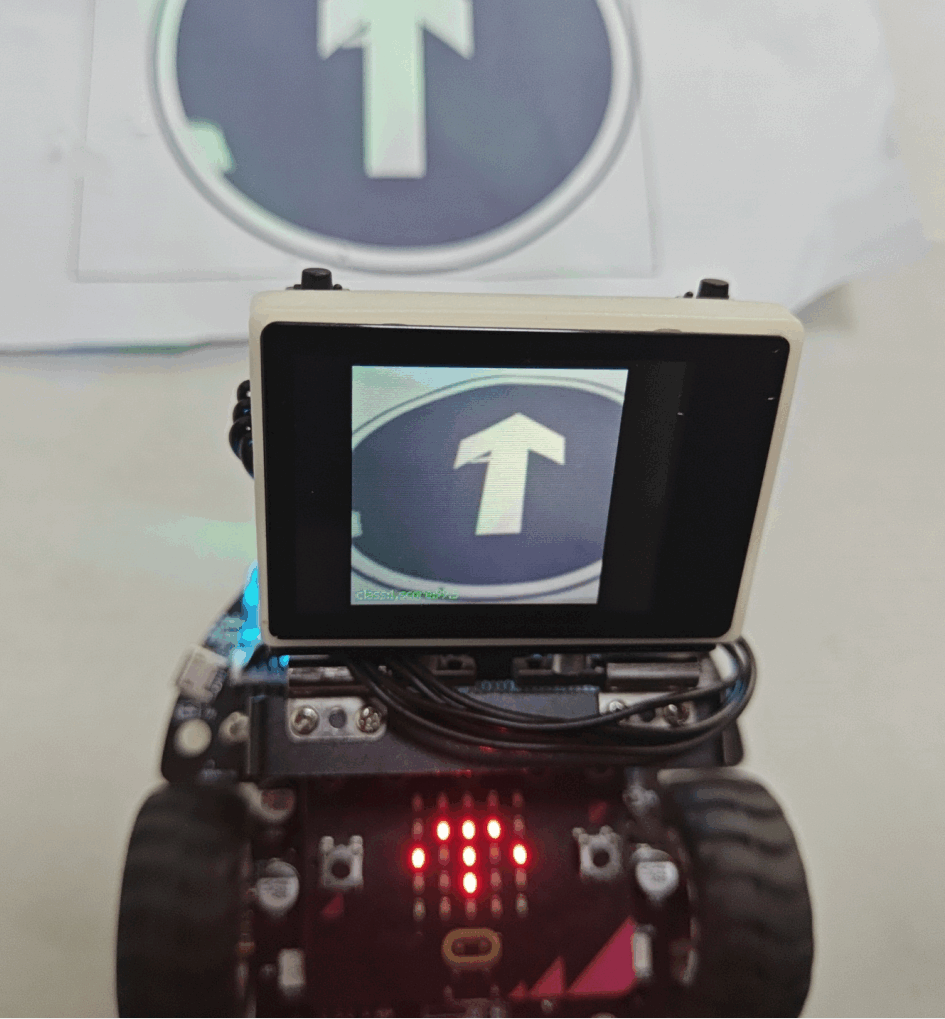
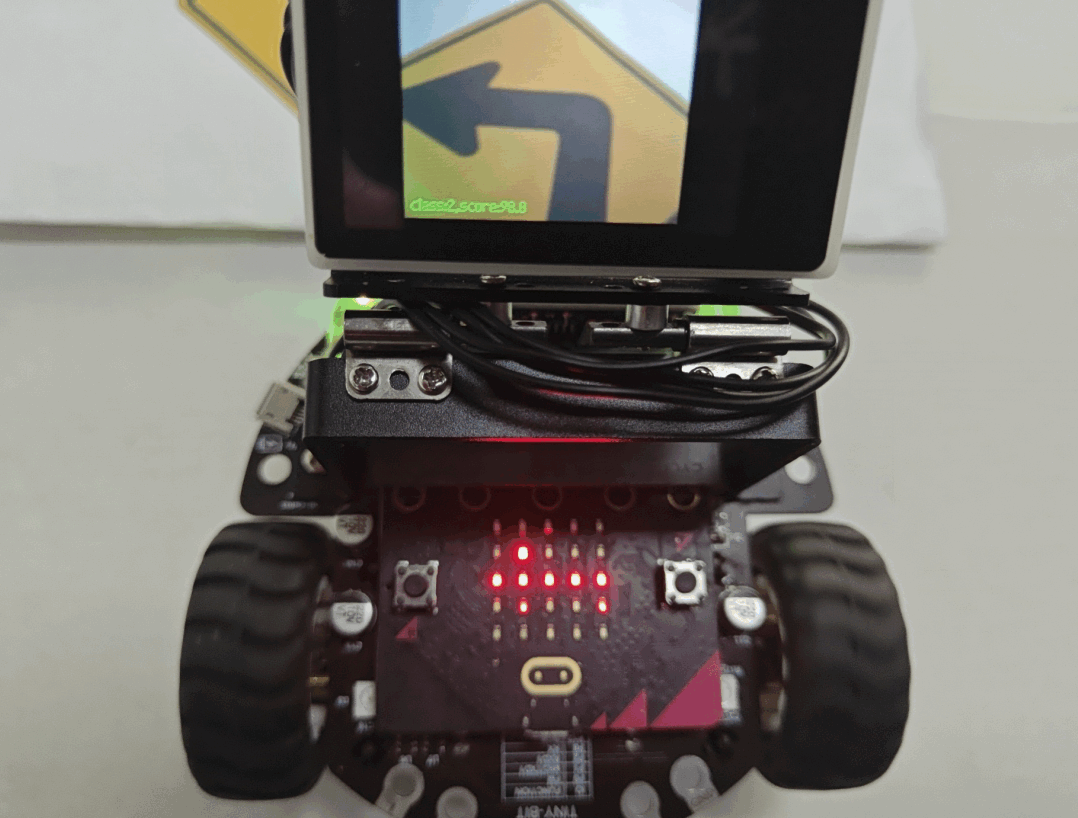
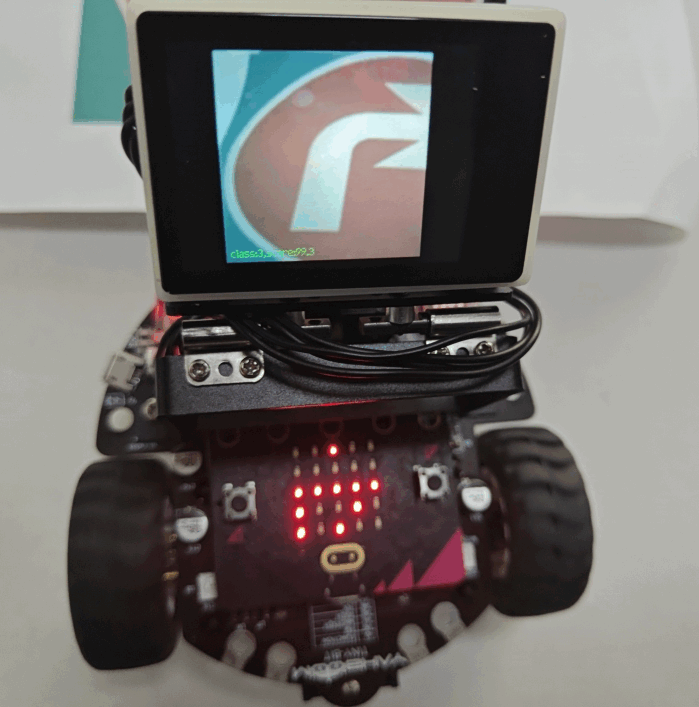
When the object is not recognised, the led dot matrix will display a confused pattern, which represents that the road sign is not recognised. If the recognition effect is not good, or the image acquisition is wrong, you can press the reset, or long press the K1 button to restart, and change more angles when acquiring.