yahboom
HomeLearn
Solution
Blog
Online Store
About Us
EN/中文
T-mini Plus LiDAR📖
01.Linux basic course
  • 1.Introduction to Linux system
  • 2.Ubuntu file system
  • 3.Ubuntu common commands
  • 4.Ubuntu common editors
  • 5.Ubuntu software operation commands
  • 6.Virtual machine installation
  • 7.SSH remote control
  • 8.VNC remote control
  • 9.Transfer files remotely
  • 10.Driver library and communication
  • 11.Static IP and hotspot mode
  • 12.Bind device ID
  • 13.Capacity expansion and resource allocation
  • 14.Update system software sources
  • 15.Set root user password
  • 16.sudo free password
  • 17.Connect to WiFi network
  • 18.View system version
  • 19.Customized service management
  • 20.Back up system image
02.ROS1 basic course
  • 1.ROS introduction
  • 2.ROS installation
  • 3.ROS common command tools
  • 4.ROS workspace
  • 5.ROS function package
  • 6.ROS node
  • 7.ROS topic publisher
  • 8.ROS topic subscribers
  • 9.ROS service client
  • 10.ROS service server
  • 11.ROS action client
  • 12.ROS action server
  • 13.ROS custom message reception
  • 14.ROS-launch file
  • 15.ROS-TF transformation
  • 16.ROS parameter service
  • 17.ROS-rviz use
  • 18.ROS-rqt tool usage
  • 19.Topic message recording and playback
  • 20.urdf model introduction
  • 21.gazebo introduction
  • 22.ROS distributed communication
03.ROS1 lidar course
  • 0.Instructions before use
  • 1.Preparation
  • 2.Handheld lidar mapping
  • 3.Lidar avoiding
  • 4.Lidar guard
  • 5.Lidar follow
  • 6.Lidar mapping
  • 7.rrt_exploration mapping algorithm
  • 8.Navigation
  • 9.APP Mapping and Navigation
  • 10.RTAB 3D mapping and navigation
04.ROS2 basic course
  • 1. Introduction to ROS2
  • 2.ROS2 install Humble
  • 3.ROS2 development environment
  • 4.ROS2 workspace
  • 5.ROS2 function package
  • 6.ROS2 node
  • 7.ROS2 topic communication
  • 8.ROS2 service communication
  • 9.ROS2 action communication
  • 10.ROS2 custom interface message
  • 11.ROS2 parameter service case
  • 12.ROS2 meta-function package
  • 13.ROS2 distributed communication
  • 14.ROS2 DDS
  • 15.ROS2 time related API
  • 16.ROS2 common command tools
  • 17.ROS2 rviz2 use
  • 18.ROS2 rqt toolbox
  • 19.ROS2 Launch startup file configuration
  • 20.ROS2 recording and playback tool
  • 21.ROS2 URDF model
  • 22.ROS2 Gazebo simulation platform
  • 23.ROS2 TF2 coordinate transformation
05.ROS2 lidar course
  • 0.ReadMe
  • 1.Preparation
  • 2.Handheld lidar mapping
  • 3.Lidar avoiding
  • 4.Lidar follow
  • 5.Lidar guard
  • 6.Lidar patrol
  • 7.gmapping mapping
  • 8.cartographer mapping
  • 9.Navigation and avoiding
  • 10.APP Mapping and Navigation
  • 11.RTAB 3D mapping and navigation
06.Raspberry Pi5 course
2.ROS1 lidar course
  • 0.Instructions before use
  • 1.Preparation
  • 2.Handheld lidar mapping
  • 3.Lidar avoiding
  • 4.Lidar guard
  • 5.Lidar follow
  • 6.Lidar mapping
  • 7.rrt_exploration mapping algorithm
  • 8.Navigation
  • 9.APP Mapping and Navigation
  • 10.RTAB 3D mapping and navigation
3.ROS2 lidar course
  • 0.ReadMe
  • 1.Preparation
  • 2.Handheld lidar mapping
  • 3.Lidar avoiding
  • 4.Lidar follow
  • 5.Lidar guard
  • 6.Lidar patrol
  • 7.gmapping mapping
  • 8.cartographer mapping
  • 9.Navigation and avoiding
  • 10.APP Mapping and Navigation
  • 11.RTAB 3D mapping and navigation
1.Docker course
  • 1. Overview and installation
  • 2. Common commands
  • 3. Docker images deeply understand and publish images
  • 4. Docker hardware interaction and data processing
  • 5. Enter the robot's docker container
Download
  • Code
  • VM_File
  • RPi5_SystemFile
  • Data Sheet
  • 3D_Model_File
  • PC_Software
  • ROS2_Basic_VM
Download ZIP

Welcome to T-mini Plus LiDAR repository

10.Driver library and communication

10.Driver library and communication

10.Driver library and communication1、Install serial port driver library2.Install robot driver library

1、Install serial port driver library

Since the robot and the underlying expansion board use serial port communication, the serial port driver library needs to be installed before it can be used. The Yahboom Muto system has already installed the serial port driver, so you can ignore the following steps.

The Ubuntu system has multiple serial libraries. Installation errors may cause the serial port to fail to communicate properly. Please follow the steps below to install the serial port driver library.

Open the terminal and enter the following command to install the serial port driver

sudo pip3 install pyserial

Check the version number of the serial port driver library

xxxxxxxxxx
pip3 list | grep pyserial

image-20230803182954492


2.Install robot driver library

The Yahboom Muto mirror system has already installed the latest robot driver library, so there is no need to reinstall it. You only need to install the robot driver library if you are not using a Yahboom image or if the driver library has updated content.

The following installation process takes Jetson Nano’s installation of the MutoLib driver library as an example:

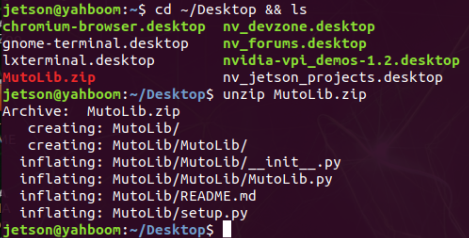
Transfer the driver library file to the system, taking transferring to the desktop as an example, and decompress it to obtain the corresponding MutoLib folder.

xxxxxxxxxx
cd ~/Desktop && ls
unzip MutoLib.zip

image-20230808122127591

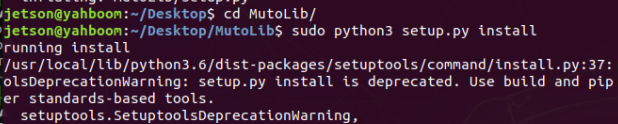
Start install drive library.

xxxxxxxxxx
cd MutoLib
sudo python3 setup.py install

image-20230808122641357

Check the version number after installation.

xxxxxxxxxx
pip3 list | grep MutoLib

image-20230808122838544

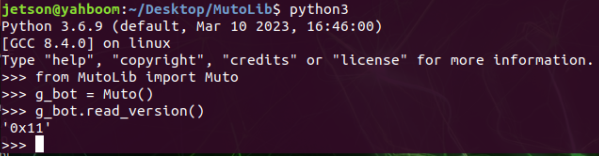
Test the underlying firmware version number of the read version.

xxxxxxxxxx
python3
from MutoLib import Muto
g_bot = Muto()
g_bot.read_version()

image-20230808123122109

Muto has two optional parameters Muto (port="/dev/myserial", debug=False).

The port parameter indicates the specified serial port device number.

By default, /dev/myserial has been specified. If the factory image is not used, it can be modified to / Device numbers such as dev/ttyUSB0; the parameter debug=True means printing debugging information, False means not printing debugging information.

Transfer files remotely
Static IP and hotspot mode

COMPANY

  • About us
  • Team Style
  • Blog

LEARNING & EXPLORATION

  • Tutorials
  • Edge AI hardware
  • Educational robots
  • Embedded intelligent hardware

WHERE TO BUY

  • Yahboom Online Store
  • Amazon
  • Alibaba
  • AliExpress
  • Mercado

TECHNOLOGY SUPPORT

  • Email: support@yahboom.com

BE A DISTRIBUTOR

  • Email: sales@yahboom.com
QR Code

Copyright © 2017-2026 Yahboom. All Rights Reserved.

EN/中文