yahboom
HomeLearn
Solution
Blog
Online Store
About Us
EN/中文
T-mini Plus LiDAR📖
01.Linux basic course
  • 1.Introduction to Linux system
  • 2.Ubuntu file system
  • 3.Ubuntu common commands
  • 4.Ubuntu common editors
  • 5.Ubuntu software operation commands
  • 6.Virtual machine installation
  • 7.SSH remote control
  • 8.VNC remote control
  • 9.Transfer files remotely
  • 10.Driver library and communication
  • 11.Static IP and hotspot mode
  • 12.Bind device ID
  • 13.Capacity expansion and resource allocation
  • 14.Update system software sources
  • 15.Set root user password
  • 16.sudo free password
  • 17.Connect to WiFi network
  • 18.View system version
  • 19.Customized service management
  • 20.Back up system image
02.ROS1 basic course
  • 1.ROS introduction
  • 2.ROS installation
  • 3.ROS common command tools
  • 4.ROS workspace
  • 5.ROS function package
  • 6.ROS node
  • 7.ROS topic publisher
  • 8.ROS topic subscribers
  • 9.ROS service client
  • 10.ROS service server
  • 11.ROS action client
  • 12.ROS action server
  • 13.ROS custom message reception
  • 14.ROS-launch file
  • 15.ROS-TF transformation
  • 16.ROS parameter service
  • 17.ROS-rviz use
  • 18.ROS-rqt tool usage
  • 19.Topic message recording and playback
  • 20.urdf model introduction
  • 21.gazebo introduction
  • 22.ROS distributed communication
03.ROS1 lidar course
  • 0.Instructions before use
  • 1.Preparation
  • 2.Handheld lidar mapping
  • 3.Lidar avoiding
  • 4.Lidar guard
  • 5.Lidar follow
  • 6.Lidar mapping
  • 7.rrt_exploration mapping algorithm
  • 8.Navigation
  • 9.APP Mapping and Navigation
  • 10.RTAB 3D mapping and navigation
04.ROS2 basic course
  • 1. Introduction to ROS2
  • 2.ROS2 install Humble
  • 3.ROS2 development environment
  • 4.ROS2 workspace
  • 5.ROS2 function package
  • 6.ROS2 node
  • 7.ROS2 topic communication
  • 8.ROS2 service communication
  • 9.ROS2 action communication
  • 10.ROS2 custom interface message
  • 11.ROS2 parameter service case
  • 12.ROS2 meta-function package
  • 13.ROS2 distributed communication
  • 14.ROS2 DDS
  • 15.ROS2 time related API
  • 16.ROS2 common command tools
  • 17.ROS2 rviz2 use
  • 18.ROS2 rqt toolbox
  • 19.ROS2 Launch startup file configuration
  • 20.ROS2 recording and playback tool
  • 21.ROS2 URDF model
  • 22.ROS2 Gazebo simulation platform
  • 23.ROS2 TF2 coordinate transformation
05.ROS2 lidar course
  • 0.ReadMe
  • 1.Preparation
  • 2.Handheld lidar mapping
  • 3.Lidar avoiding
  • 4.Lidar follow
  • 5.Lidar guard
  • 6.Lidar patrol
  • 7.gmapping mapping
  • 8.cartographer mapping
  • 9.Navigation and avoiding
  • 10.APP Mapping and Navigation
  • 11.RTAB 3D mapping and navigation
06.Raspberry Pi5 course
2.ROS1 lidar course
  • 0.Instructions before use
  • 1.Preparation
  • 2.Handheld lidar mapping
  • 3.Lidar avoiding
  • 4.Lidar guard
  • 5.Lidar follow
  • 6.Lidar mapping
  • 7.rrt_exploration mapping algorithm
  • 8.Navigation
  • 9.APP Mapping and Navigation
  • 10.RTAB 3D mapping and navigation
3.ROS2 lidar course
  • 0.ReadMe
  • 1.Preparation
  • 2.Handheld lidar mapping
  • 3.Lidar avoiding
  • 4.Lidar follow
  • 5.Lidar guard
  • 6.Lidar patrol
  • 7.gmapping mapping
  • 8.cartographer mapping
  • 9.Navigation and avoiding
  • 10.APP Mapping and Navigation
  • 11.RTAB 3D mapping and navigation
1.Docker course
  • 1. Overview and installation
  • 2. Common commands
  • 3. Docker images deeply understand and publish images
  • 4. Docker hardware interaction and data processing
  • 5. Enter the robot's docker container
Download
  • Code
  • VM_File
  • RPi5_SystemFile
  • Data Sheet
  • 3D_Model_File
  • PC_Software
  • ROS2_Basic_VM
Download ZIP

Welcome to T-mini Plus LiDAR repository

18.ROS-rqt tool usage

18.ROS-rqt tool usage

The ros desktop version provides some graphical interface tools for viewing data and debugging information. This course explains what commonly used rqt tools are and how to use them.

18.1 rqt_image_view

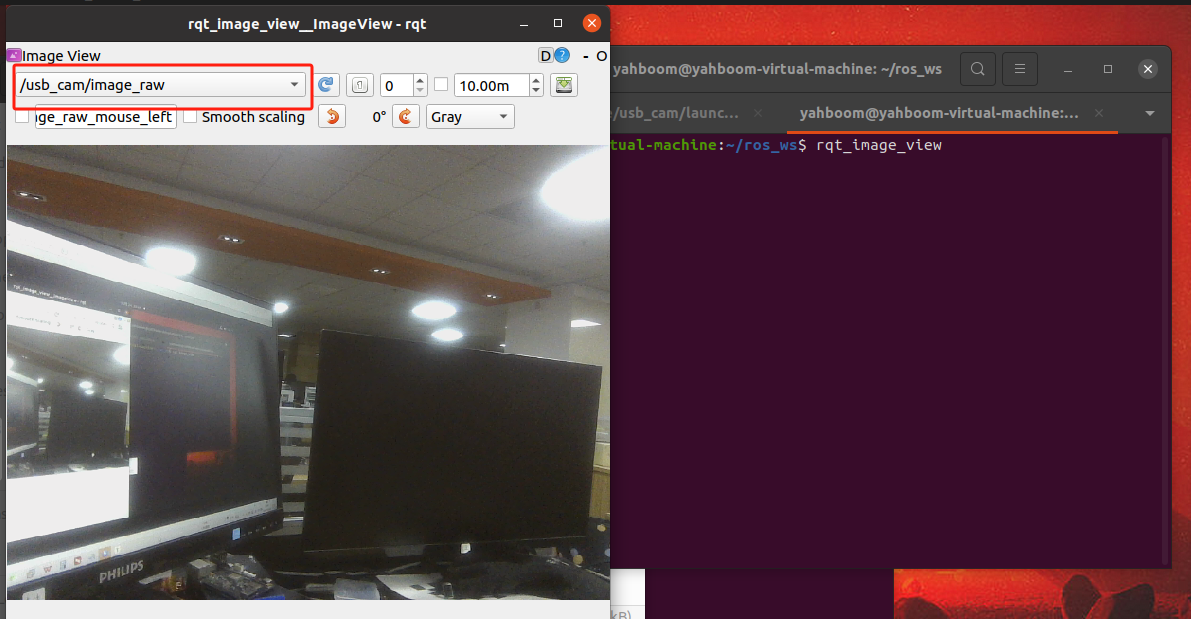
This tool is used to view image data. Enter rqt_image_view in the terminal to open the tool, and then select the image topic you want to view. For example, suppose you connect the camera to the motherboard/virtual machine, and then download and install the usb_cam function package. If you have not downloaded it, you can enter the following command:

sudo apt install ros-noetic-usb-cam -y

The noetic here is modified according to the ros version actually installed by the individual.

After the installation is completed and the camera is connected successfully, enter in the terminal,

xxxxxxxxxx
roslaunch usb_cam usb_cam-test.launch

Then, enter in another terminal,

xxxxxxxxxx
rqt_image_view

image-20231024204415932

As shown in the picture above, select the image topic in the upper left corner. Under normal operation of the camera, the image data can be transmitted and then displayed in the rqt_image_view interface.

18.2 rqt_graph

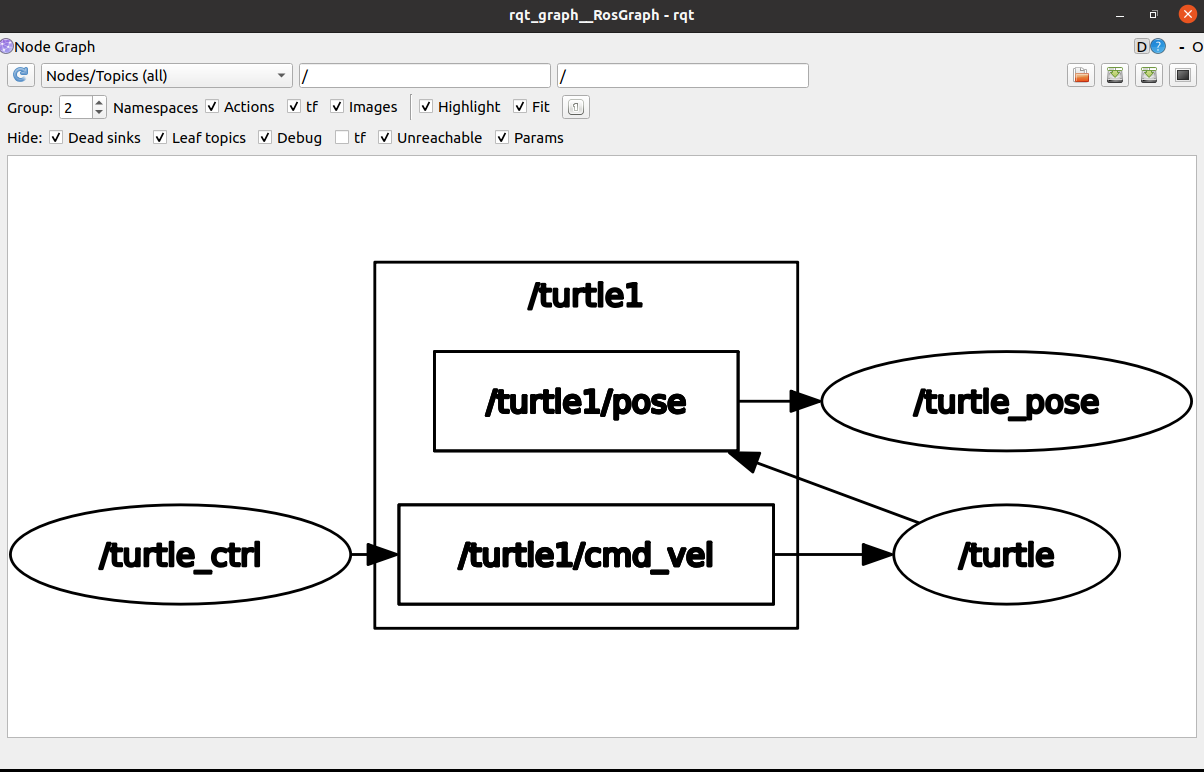
This tool allows us to clearly see which nodes are started and what the topic communication between nodes is like. Enter rqt_graph in the terminal to open this tool. for example. Let's run the listen_turtle_pose.launch file written in the previous launch file lesson to see what the topic communication between the nodes is like. Enter the terminal.

xxxxxxxxxx
roslaunch learn_launch listen_turtle_pose.launch

After running successfully, open another terminal and enter,

xxxxxxxxxx
rqt_graph

image-20231024205527696

Select Node/Topics(all) in the upper left corner to display all current node and topic information. The oval box is the node, and the rectangular box is the topic.

18.3 rqt_reconfigure

When debugging a program, we often hope to be able to dynamically adjust parameters in real time without having to change a parameter and run the program once.The rqt_reconfigure dynamic parameter adjuster provided by ros can be used by typing in the terminal and rosrun rqt_reconfigure rqt_reconfigure. After starting, select the node on the left and click, and then modify the parameters. Take the following as an example for reference.
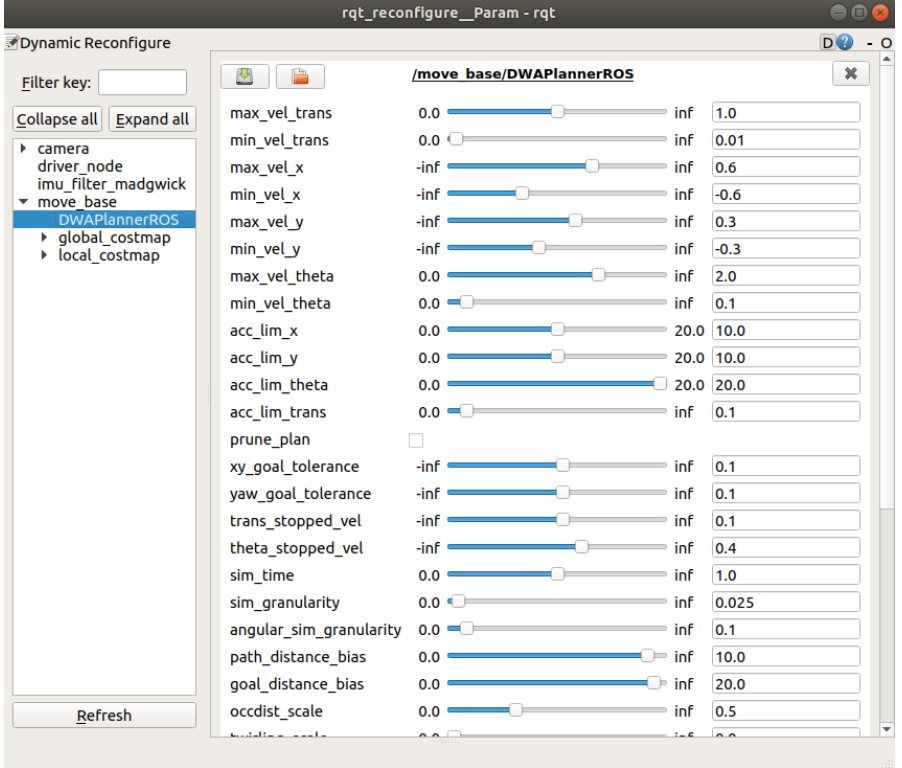
image-20231024211754403


ROS-rviz use
Topic message recording and playback

COMPANY

  • About us
  • Team Style
  • Blog

LEARNING & EXPLORATION

  • Tutorials
  • Edge AI hardware
  • Educational robots
  • Embedded intelligent hardware

WHERE TO BUY

  • Yahboom Online Store
  • Amazon
  • Alibaba
  • AliExpress
  • Mercado

TECHNOLOGY SUPPORT

  • Email: support@yahboom.com

BE A DISTRIBUTOR

  • Email: sales@yahboom.com
QR Code
QR Code

Copyright © 2017-2026 Yahboom. All Rights Reserved.

EN/中文