Welcome to T-mini Plus LiDAR repository
8.ROS topic subscribers
8.ROS topic subscribers
The previous section introduced how to write a publisher node program in ros. This section introduces how to write a subscriber program.
8.1 Create a subscriber
The general creation steps are as follows:
- Initialize ROS nodes
- Create handle
- Subscribe to the topics you need
- Wait in a loop for topic messages, and enter the callback function after receiving the message
- Complete message processing in the callback function
The callback function is an important part of the subscriber. It processes the subscribed message, then parses the message data, and determines how to proceed with the subsequent program based on the parsed message data.
8.2 C++ version
8.2.1 Writing source code
In the src folder of the function package learn_topic, create a C++ file (the file suffix is .cpp), name it turtle_pose_subscriber.cpp, and paste the following content into turtle_pose_subscriber.cpp,
/*Create a small turtle to receive the current pose information*/// After receiving the message, you will enter the message callback function, which will process the received data.void turtle_poseCallback(const turtlesim::Pose::ConstPtr& msg){ // Print received messages ROS_INFO("Turtle pose: x:%0.3f, y:%0.3f", msg->x, msg->y);}int main(int argc, char **argv){ ros::init(argc, argv, "turtle_pose_subscriber");// Initialize ROS node ros::NodeHandle n;//Here is create handle // Create a subscriber. The topic of subscription is the topic of /turtle1/pose. poseCallback is the callback function. ros::Subscriber pose_sub = n.subscribe("/turtle1/pose", 10,turtle_poseCallback); ros::spin(); // Loop waiting for callback function return 0;}8.2.2 Modify CMakelist.txt file
Configure in CMakelist.txt, under the build area, add the following content,
xxxxxxxxxxadd_executable(turtle_pose_subscriber src/turtle_pose_subscriber.cpp)target_link_libraries(turtle_pose_subscriber ${catkin_LIBRARIES})add_executable shows that the generated executable program file is turtle_pose_subscriber, and the compiled source code is turtle_pose_subscriber.cpp in the src directory.
target_link_libraries specifies the libraries that need to be linked when compiling and generating an executable file.
8.2.3 Compile
Terminal input,
xxxxxxxxxxcd ~/ros_wscatkin_make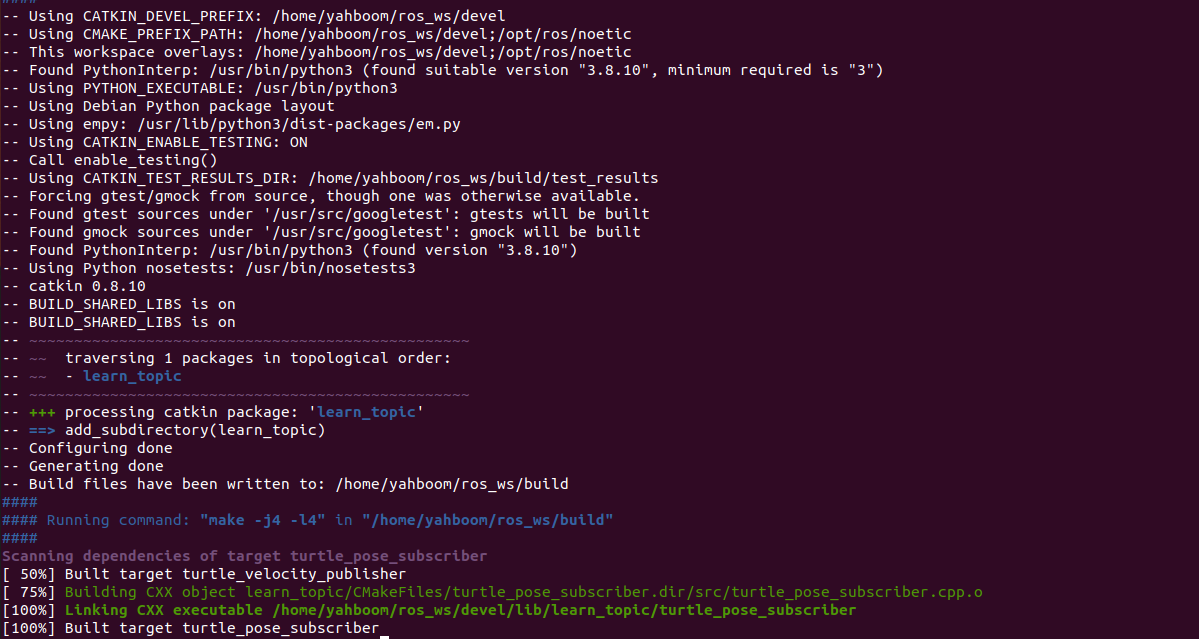
After the compilation is passed, you need to re-source the current environment variables to find or update the program. Enter in the terminal.
xxxxxxxxxxcd ~/ros_wssource devel/setup.bash8.2.4 Running the program
Run roscore
xxxxxxxxxxroscore
Run the little turtle node
xxxxxxxxxxrosrun turtlesim turtlesim_node
Run the turtle speed control node
xxxxxxxxxxrosrun turtlesim turtle_teleop_key
Run the subscriber node to continuously receive the pose data sent by the little turtle.
xxxxxxxxxxrosrun learn_topic turtle_pose_subscriber
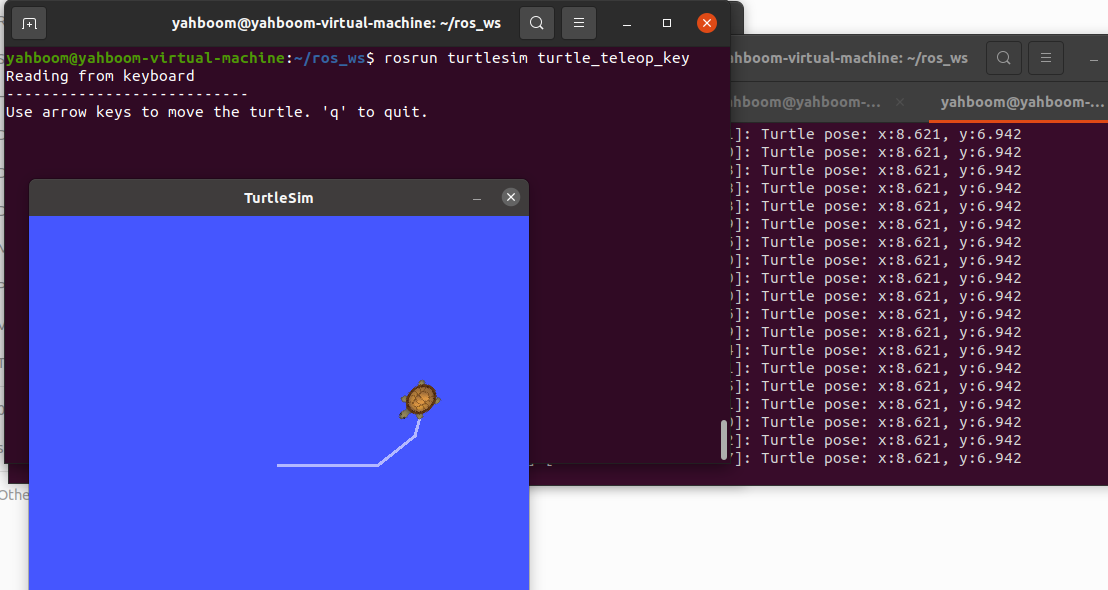
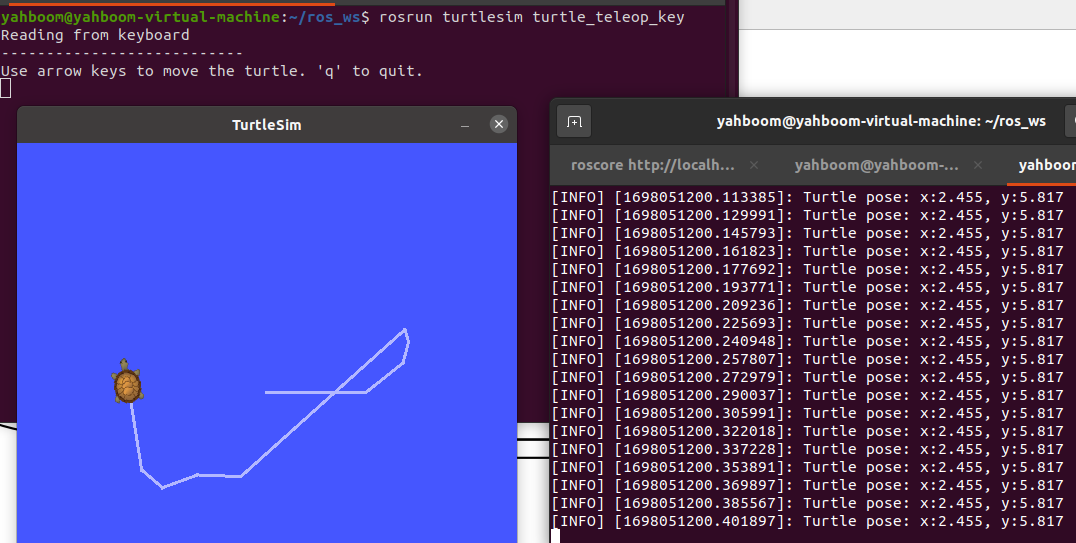
After all programs are running, click on the terminal running the turtle speed control node and press [up, down, left, and right] on the keyboard to control the movement of the turtle. The terminal running the subscriber will print the xy coordinate value of the turtle to the terminal in real time.As shown below,
We can use the rqt_graph tool to view the communication between nodes and terminal input.
xxxxxxxxxxrqt_graph
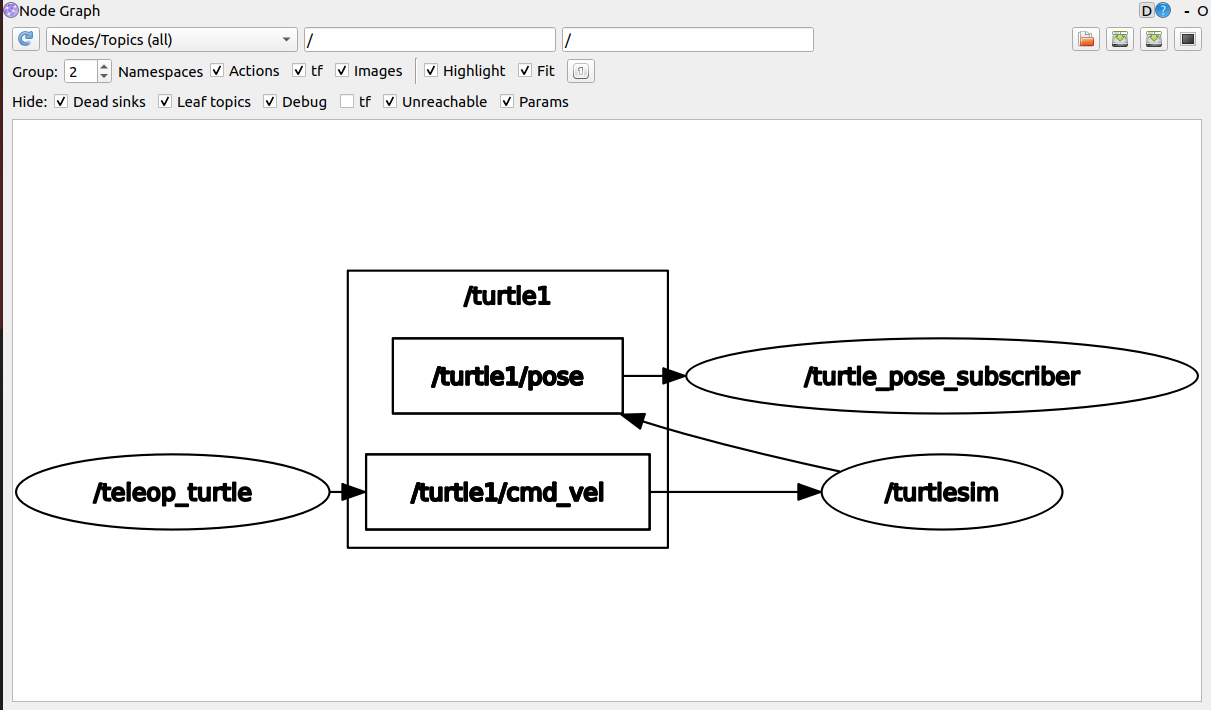
The inside of the ellipse represents the node name, the inside of the rectangle represents the topic name, and the arrow represents the direction of topic message transmission. The subscriber node program turtle_pose_subscriber we wrote is subscribed to the topic message of /turtle1/pose.This is consistent with the code ros::Subscriber pose_sub = n.subscribe("/turtle1/pose", 10, turtle_poseCallback);, and then in the callback function, print the data, the code is as follows,
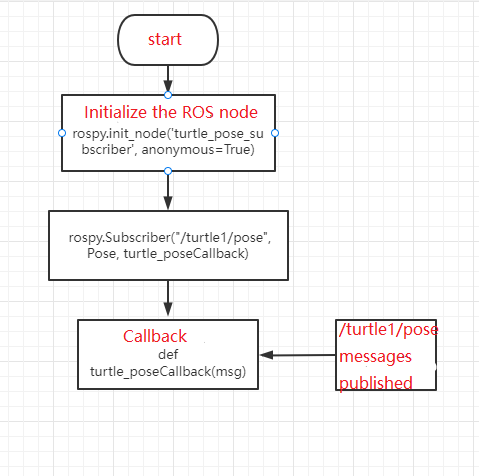
xxxxxxxxxxvoid turtle_poseCallback(const turtlesim::Pose::ConstPtr& msg){ // Print received messages ROS_INFO("Turtle pose: x:%0.3f, y:%0.3f", msg->x, msg->y);}8.2.5 Program flow chart

8.3 Python version
8.3.1 Writing source code
Create a new python file (file suffix .py) in the scripts folder under the function package learn_topic, name it turtle_pose_subscriber.py, copy and paste the following program code into the turtle_pose_subscriber.py file,
xxxxxxxxxx#!/usr/bin/env python# -*- coding: utf-8 -*-import rospyfrom turtlesim.msg import Posedef poseCallback(msg): rospy.loginfo("Turtle pose: x:%0.3f, y:%0.3f", msg.x, msg.y)def turtle_pose_subscriber(): rospy.init_node('turtle_pose_subscriber', anonymous=True)# ROS node initialization # Create a Subscriber, subscribe to the topic named /turtle1/pose, and register the callback function poseCallback rospy.Subscriber("/turtle1/pose", Pose, poseCallback) rospy.spin()# Loop waiting for callback functionif __name__ == '__main__': turtle_pose_subscriber()The python program does not need to be compiled, but it needs to add executable permissions and enter it in the terminal.
xxxxxxxxxxcd ~/ros_ws/src/learn_topic/scriptssudo chmod a+x turtle_pose_subscriber.py8.3.2 Run
Open roscore,
xxxxxxxxxxroscore
Run the little turtle node,
xxxxxxxxxxrosrun turtlesim turtlesim_node
Run the turtle speed control node,
xxxxxxxxxxrosrun turtlesim turtle_teleop_key
Run the subscriber node and continue to receive the pose data sent by the little turtle.
xxxxxxxxxxrosrun learn_topic turtle_pose_subscriber.pyAfter all programs are running, click on the terminal running the turtle speed control node and press [up, down, left, and right] on the keyboard to control the movement of the turtle. The terminal running the subscriber will print the xy coordinate value of the turtle to the terminal in real time.As shown below,
8.3.3 Program flow chart