yahboom
HomeTutorialsProduct
Solution
Blog
Online Store
About Us
EN/中文
Store
DOFBOT Pro📖
1. Get started quickly
  • 0.Unboxing introduction video
  • 1. First Trial
  • 2. Analysis of common problems
  • 3. Calibration offset
  • 4. Jetpack old system upgraded to SUPER system
  • 5. Precautions for DIY Robotic Arm
  • 6. Jetson Nano Version – Must Read
  • 7.Robotic arm gripping anomaly solutions
2. Assembly course
  • 1. Installation video
  • 2. Calibrate the Robotic Arm
  • 3. Install the map
3. Remote control course
  • 1. Mobile APP control
  • 2. USB handle control
  • 3. PC web page programming
4. Preparation
  • 1. Manage APP control services
  • 2. Manage JupyterLab services
  • 3. Manage OLED services
  • 4. Modifying ROS_DOMAIN_ID for Multi-Machine
5. 2D visual tracking course
  • 1. Color block positioning
  • 2. Color block tracking
  • 3. Face positioning
  • 4. Face tracking
  • 5. Label code positioning
  • 6. Label code tracking
6. 2D visual grabbing course
  • 1. Identify grab color block
  • 2. Catch game
  • 3. Color sorting
  • 4. Color stacking
  • 5. Label code sorting
  • 6. Label code stacking
  • 7. Identify gesture grab color block
  • 8. Gesture stacking
  • 9.1 Single garbage sorting(Jetson-Nano)
  • 9.2 Single garbage sorting(Orin)
  • 10.1 Garbage sorting(Jetson-Nano)
  • 10.2 Garbage sorting(Orin)
  • 11. Tracking game
7. 2D Mediapipe course
  • 1. Hand detection
  • 2. Posture detection
  • 3. Overall detection
  • 4. Facial Detection
  • 5. Face Detection
  • 6. Face effects
  • 7. 3D Object Recognition
  • 8. Paintbrush
  • 9. Finger control
  • 10. Gesture Recognition
  • 11. Gesture control robotic arm action group
  • 12. Arm posture control robotic arm
  • 13. Palm Targeting
  • 14.1 Robotic arm tracks the palm(Jetson-Nano)
  • 14.2 Robotic arm tracks the palm(Orin)
  • 15. Fingertip trajectory recognition
  • 16. Fingertip trajectory control robotic arm
  • 17. Gesture Grasp and Release Objects
  • 18. Finger Control Robot Arm
8. AI Large Model Voice Module (Must Read)new
  • 1. Introduction to AI Large Model Voice Module
  • 2. Flash the firmware (Must read)
  • 3. Modify the wake-up word and command word
9. 2D Voice Control Course
  • 1.Simple Voice Control
  • 2.Smart Voice Control
  • 3.Voice Action Control
  • 4.Memory Learning Mode
  • 5.Color Recognition with Voice Broadcast
  • 6.Color Recognition and Grasping with Voice Broadcast
  • 7.Color Recognition and Sorting with Voice Broadcast
  • 8.Voice Recognition Target Tracking
  • 9.Voice Control Stacking
  • 10.Voice Control Color Sorting
  • 11.1 Garbage Recognition with Voice Broadcast(Jetson Nano)
  • 11.2 Garbage Recognition with Voice Broadcast(Orin)
  • 12.1 Garbage Sorting with Voice Broadcast(Jetson Nano)
  • 12.2 Garbage Sorting with Voice Broadcast(Orin)
10. 3D Depth Camera Course
  • 1. Dabai_DCW2 camera
  • 2. Deep Pseudo-Color Image
  • 3. Depth camera ranging
  • 4. Color block volume measurement
11. 3D Robotic Arm Control and Inverse Kinematics
  • 1. Robotic arm ROS control
  • 2. Inverse solution
12. 3D Sorting and Grasping Course
  • 1. AprilTag ID sorting
  • 2. AprilTag abnormal height sorting
  • 3. MediaPipe Gesture-AprilTag ID sorting
  • 4. MediaPipe Gesture-AprilTag height sorting
  • 5. MediaPipe Gesture-AprilTag distance sorting
  • 6. Block color sorting
  • 7. Block abnormal height sorting
  • 8. Block different shape sorting
  • 9. Block shape abnormal height sorting
  • 10. Yolov11 garbage sorting(Orin)
13. 3D Tracking and Grasping Course
  • 1. AprilTag Tracking and Grasping
  • 2. Color Block Tracking and Grasping
  • 3. KCF Object Tracking and Grasping
14. 3D Voice Control for Grasping Course (Sorting & Tracking)
  • 1. Voice Control AprilTag ID Sorting
  • 2. Voice Control Remove Height Abnormal AprilTag
  • 3. Voice Control Tracking and Grasping AprilTag
  • 4. Voice Control Color Block Sorting
  • 5. Voice Control Remove Height Abnormal Color Block
  • 6. Voice Control Tracking and Grasping Color Block
  • 7. Voice Control Yolov11 Garbage Recognition Sorting
  • 8. Voice Control Object Tracking and Grasping
15. AI Model Basicsnew
  • 1.AI large model types and principles
  • 2.RAG retrieval enhancement and model training samples
  • 3.Embodied intelligent robot system architecture
  • 4.Embodied intelligent functions core source code
16. AI Model Developmentnew
  • 1.Register a model service provider account
  • 2. Configure API-KEY
  • 3. Introduction to Dify
  • 4. Basic Dify Features
  • 5. Deploy the RAG knowledge base
  • 6. AI Large Model Development - chatbot
  • 7. RAG knowledge base + chatbot
  • 8. AI agent workflow
17. AI Model – Text Versionnew
  • 1. Semantic understand instruction following
  • 2. Multimodal visual understand
  • 3. Text Large Model + robotic arm control
  • 4. Multimodal Large Model+video understanding
  • 5. Multimodal Large Model+robotic arm gripping
  • 6. Multimodal Large Model+robotic arm tracking
  • 7. Multimodal Large Model+robotic arm sorting
  • 8. Multimodal Large Model+robotic arm handling
  • 9. Multimodal Large Model+Color Blocks Back In Place
  • 10. Multimodal Large Model + Intent Prediction + Robotic Arm Gripping
  • 11. Text Large Model + YOLOv11 + Intelligent Garbage Classification
18. AI Model – Voice Versionnew
  • 1. Semantic understand instruction following
  • 2. Multimodal visual understand
  • 3. Text Large Model + robotic arm control
  • 4. Multimodal Large Model+video understanding
  • 5. Multimodal Large Model+robotic arm gripping
  • 6. Multimodal Large Model+robotic arm tracking
  • 7. Multimodal Large Model+robotic arm sorting
  • 8. Multimodal Large Model+robotic arm handling
  • 9. Multimodal Large Model+Color Blocks Back In Place
  • 10. Multimodal Large Model + Intent Prediction + Robotic Arm Gripping
  • 11. Text Large Model + YOLOv11 + Intelligent Garbage Classification
19. AI Model – Fun Applicationsnew
  • 1.AI Butler-Intent Inference
  • 2.AI Encyclopedia-Arithmetic Master
  • 3.AI Encyclopedia-You asked I Pointed
  • 4.AI Encyclopedia-Nutritional Analysis
  • 5.AI Encyclopedia-Problem Solving Expert
  • 6.AI Encyclopedia-English Spelling
  • 7.AI Butler-Garbage Sorting
  • 8.AI Top Chef
20. MoveIt Course
  • 1. MoveIt Configuration
  • 2. MoveIt Usage
  • 3. MoveIt Drive Real Robot
  • 4. MoveIt Random Movement
  • 5. MoveIt Forward Kinematics Design
  • 6. MoveIt Inverse Kinematics Design
  • 7. MoveIt Cartesian Path
  • 8. MoveIt Scene Design
  • 9. MoveIt Trajectory Planning
  • 10. MoveIt Collision Detection
21. YOLOv11 Development Course (ORIN)
  • 1. YOLO Environment Setup
  • 2. CLI Usage
  • 3. Object Detection
  • 4. Instance Segmentation
  • 5. Pose Estimation
  • 6. Image Classification
  • 7. Oriented Bounding Boxes Object Detection
  • 8. Model Conversion
  • 9. Dataset Annotation
  • 10. Model Training_Conversion
  • 11. Model Prediction
22. YOLOv11 Development Course (Jetson Nano)
  • 1. YOLO Environment Setup
  • 2. CLI Usage
  • 3. Object Detection
  • 4. Instance Segmentation
  • 5. Pose Estimation
  • 6. Image Classification
  • 7. Oriented Bounding Boxes Object Detection
  • 8. Model Conversion
  • 9. Model Prediction
23. Linux Operating System
  • 1.Introduction to Linux system
  • 2.Ubuntu file system
  • 3.Ubuntu common commands
  • 4.Ubuntu common editors
  • 5.Ubuntu software operation commands
  • 6.Virtual machine installation
  • 7.SSH remote control
  • 8.VNC remote control
  • 9.Transfer files remotely
  • 10.Driver library and communication
  • 11.Static IP and hotspot mode
  • 12.Bind device ID
  • 13.Capacity expansion and resource allocation
  • 14.Update system software sources
  • 15.Set root user password
  • 16.sudo free password
  • 17.Connect to WiFi network
  • 18.View system version
  • 19.Customized service management
  • 20.Back up system image
24. Basic Control Course
  • 1. Control RGB Light
  • 2. Control Buzzer
  • 3. Control Single Servo
  • 4. Read Servo Angle
  • 5. Control All Servos
  • 6. DOFBOT Up Down Left Right Movement
  • 7.DOFBOT dancing
  • 8. DOFBOT Memory Actions
  • 9. DOFBOT Grab Blocks
  • 10. Porter
  • 11. Stack Blocks
  • 12. Two DOFBOT Synchronized Actions
25. Jetson Board Basic Course
  • 1. Jetson board Introduction
  • 2. Write system image
  • 3. Re-write system image
  • 4. System startup
  • 5. System and desktop introduction
  • 6. System expansion
  • 7. Network Configuration
  • 8. SSH remote login and file transfer
  • 9. VNC Remote Login
  • 10. System backup
  • 11. Increased swap space
  • 12. Use of Jtop
26. GPIO Hardware Control Course
Jetson Nano
  • 1.GPIO library API usage
  • 2. Hardware library configuration
  • 3. Pin reading function
  • 4. Pin level output control
  • 5. Control LED
  • 6. External device serial communication
  • 7.I2C communication
Jetson Orin Nano_NX
  • 1.GPIO description
  • 2.GPIO library installation
  • 3.GPIO reading
  • 4.GPIO output
  • 5.Serial communication
  • 6.I2C communication
27. OpenCV Course
  • 1. Introduction to Open Source CV
  • 2. Image reading and display
  • 3. Image writing
  • 4. Image quality
  • 5. Pixel Operation
  • 6. Image zoom
  • 7. Picture cut
  • 8. Picture pan
  • 9. Picture mirroring
  • 10. Affine transformation
  • 11. Picture rotation
  • 12. Perspective transformation
  • 13. Grayscale processing
  • 14. Binary image
  • 15. Edge green detection
  • 16. Line segment drawing
  • 17. Rectangular circle drawing
  • 18. Text and picture drawing
28. Visual Basics Course
  • 1. Camera display
  • 2. Color Calibration
  • 3. Color recognition
  • 4. Face Detection
  • 5.1 Garbage Identification(Jetson-Nano)
  • 5.2 Garbage Identification(Orin)
  • 6.1 Object Recognition(Jetson-Nano)
  • 6.2 Object Recognition(Orin)
  • 7. Label code recognition
  • 8.PID algorithm basics
29. ROS2 Basic Course
  • 1.Introduction to ROS2
  • 2.ROS2 install Humble
  • 3.ROS2 development environment
  • 4.ROS2 workspace
  • 5.ROS2 function package
  • 6.ROS2 node
  • 7.ROS2 Topic Communication
  • 8.ROS2 service communication
  • 9.ROS2 action communication
  • 10.ROS2 custom interface message
  • 11.ROS2 parameter service case
  • 12.ROS2 meta-function package
  • 13.ROS2 distributed communication
  • 14.ROS2 DDS
  • 15.ROS2 time related API
  • 16.ROS2 common command tools
  • 17.ROS2 rviz2 use
  • 18.ROS2 rqt toolbox
  • 19.ROS2 Launch startup file configuration
  • 20.ROS2 recording and playback tool
  • 21.ROS2 URDF model
  • 22.ROS2 Gazebo simulation platform
  • 23.ROS2 TF2 coordinate transformation
30. Visual Advanced Course
  • 1.QR code
  • 2.Human pose estimation
  • 3.Target Detection
  • 4.AR vision
  • 5.ROS+Opencv basics
  • 6.AR QR code
  • 7.Face recognition
  • 8.harris corner detection
  • 9.Target tracking algorithm
  • 10.Contour moment
  • 11.Polygon outline
  • 12.Discrete fourier transform algorithm
  • 13.Edge detection algorithm
  • 14.Face detection algorithm
  • 15.Optical flow detection algorithm
  • 16.Contour detection
  • 17.General contour detection
  • 18.Feature point tracking
  • 19.HLS color filtering
  • 20.Hough circle detection
  • 21.Hough linear detection
  • 22.HSV color filtering
  • 23.LK optical flow algorithm
  • 24.detection algorithm
  • 25.Phase dependent displacement detection
  • 26.Image pyramid sampling algorithm
  • 27.RGB color filtering
  • 28.Clear background detection algorithm
  • 29.Simplified optical flow algorithm
  • 30.Simple filter
  • 31.Threshold image processing
  • 32.Watershed segmentation algorithm
31. Jupyter Lab Usage Course
  • 1. Read the document before operation
  • 2. Jupyter lab environment construction tutorial
  • 3. Basic tutorial of Jupyter lab
  • 4. Jupyter widgets configuration tutorial
  • 5. Getting Started Tutorial for JupyterWidgets Controls
Download
  • APP(Android/iOS)
  • SystemFile_OrinNANOSUPER
  • SystemFile_OrinNXSUPER
  • SystemFile_NANO4GB_SUB
  • VM_File
  • Code
  • Instruction_Manual
  • Hardware_Info
  • 3D_Model_File
  • ROS2_Basic_VM
  • Tools
Download ZIP

Welcome to DOFBOT Pro repository

9. Dataset Annotation

Dataset Annotation

Dataset Annotation1. Dataset Collection1.1. Image Extraction1.2. Dataset Path2. Label Studio Usage2.1. Label Studio Installation2.2. Label Studio Startup2.2.1. Shared Folder Permissions2.2.2. Start Label Studio2.2.3. Access Label StudioHost MachineSame Local NetworkFirst Time Use3. Dataset Annotation3.1. Create Project3.2. Project Name3.3. Import Training Set3.4. Label Settings3.5. Dataset Annotation3.6. Export Dataset3.7. Dataset Directory Structure3.8. Dataset Configuration FileReferences

For recognizing specific objects or improving object recognition accuracy, users need to train their own models. Dataset collection and annotation are indispensable parts of this process.

1. Dataset Collection

Description: For recognition in specific scenarios, users can use cameras to record videos of objects from various angles, then extract frames from the videos as training sets.

1.1. Image Extraction

Provide a simple example: Extract one frame every 15 frames from video as dataset

​x
import cv2
import os
​
# Path to the input video file
video_file = '/home/jetson/ultralytics/ultralytics/data/yahboom_data/orange_video/orange.mkv'
​
# Path to the output folder to save the frames
output_folder = '/home/jetson/ultralytics/ultralytics/data/yahboom_data/orange_pic'
​
# Check if the output folder exists, if not, create it
if not os.path.exists(output_folder):
    os.makedirs(output_folder)
​
# Open the video file using OpenCV
cap = cv2.VideoCapture(video_file)
​
# Get the total number of frames in the video
total_frames = int(cap.get(cv2.CAP_PROP_FRAME_COUNT))
​
# Get the frames per second (fps) of the video
fps = cap.get(cv2.CAP_PROP_FPS)
​
# Frame counter to keep track of the current frame number
frame_number = 0
​
# Define the interval for extracting frames (every 15th frame)
frame_interval = 15
​
# Initialize a new counter for saved frames (starting from 1)
saved_frame_number = 1
​
while True:
    ret, frame = cap.read()
    
    # If the frame is not successfully read, exit the loop
    if not ret:
        break
​
    # Save every 15th frame
    if frame_number % frame_interval == 0:
        # Format the frame number starting from 1 (e.g., 1.png, 2.png)
        image_name = f'{saved_frame_number}.png'
        image_path = os.path.join(output_folder, image_name)
​
        # Save the current frame as a PNG image
        cv2.imwrite(image_path, frame)
        print(f'Saving frame {frame_number}/{total_frames} as {image_name}')
​
        # Increment the saved frame counter
        saved_frame_number += 1
​
    # Increment the frame counter for the video
    frame_number += 1
​
# Release the video capture object
cap.release()
​
# Print message when processing is complete
print("Video processing complete! Every 15th frame saved as an image!")

1.2. Dataset Path

Example video: /home/jetson/ultralytics/ultralytics/data/yahboom_data/orange_video

Example images: /home/jetson/ultralytics/ultralytics/data/yahboom_data/orange_pic

2. Label Studio Usage

Label Studio is an open-source data annotation platform for data annotation and annotation task management, supporting various types of data input and annotation formats.

2.1. Label Studio Installation

xxxxxxxxxx
docker pull heartexlabs/label-studio:latest
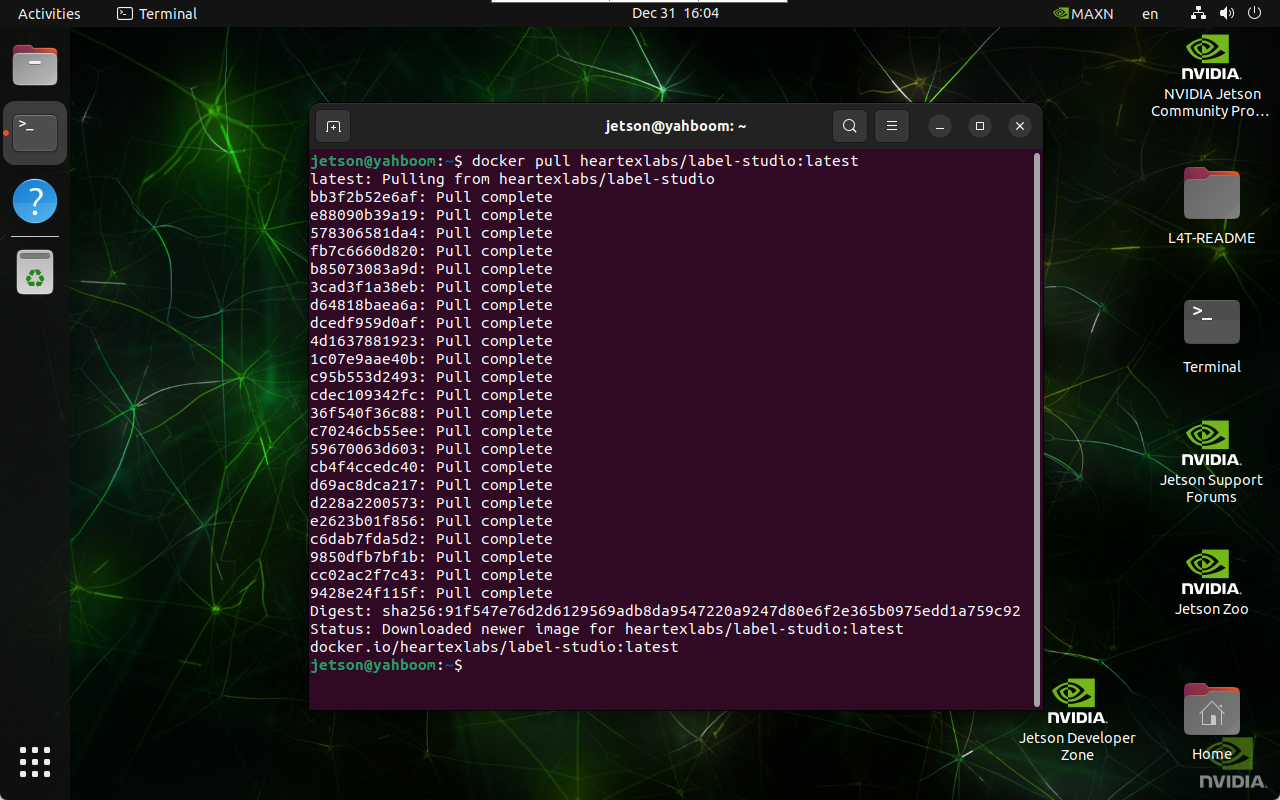
image-20241231160415366

2.2. Label Studio Startup

2.2.1. Shared Folder Permissions

Share the prepared dataset to the corresponding folder in Label Studio:

xxxxxxxxxx
sudo chmod 777 /home/jetson/ultralytics/ultralytics/data/

2.2.2. Start Label Studio

xxxxxxxxxx
sudo docker run -it -p 8080:8080 -v /home/jetson/ultralytics/ultralytics/data:/label-studio/data heartexlabs/label-studio:latest label-studio --log-level DEBUG
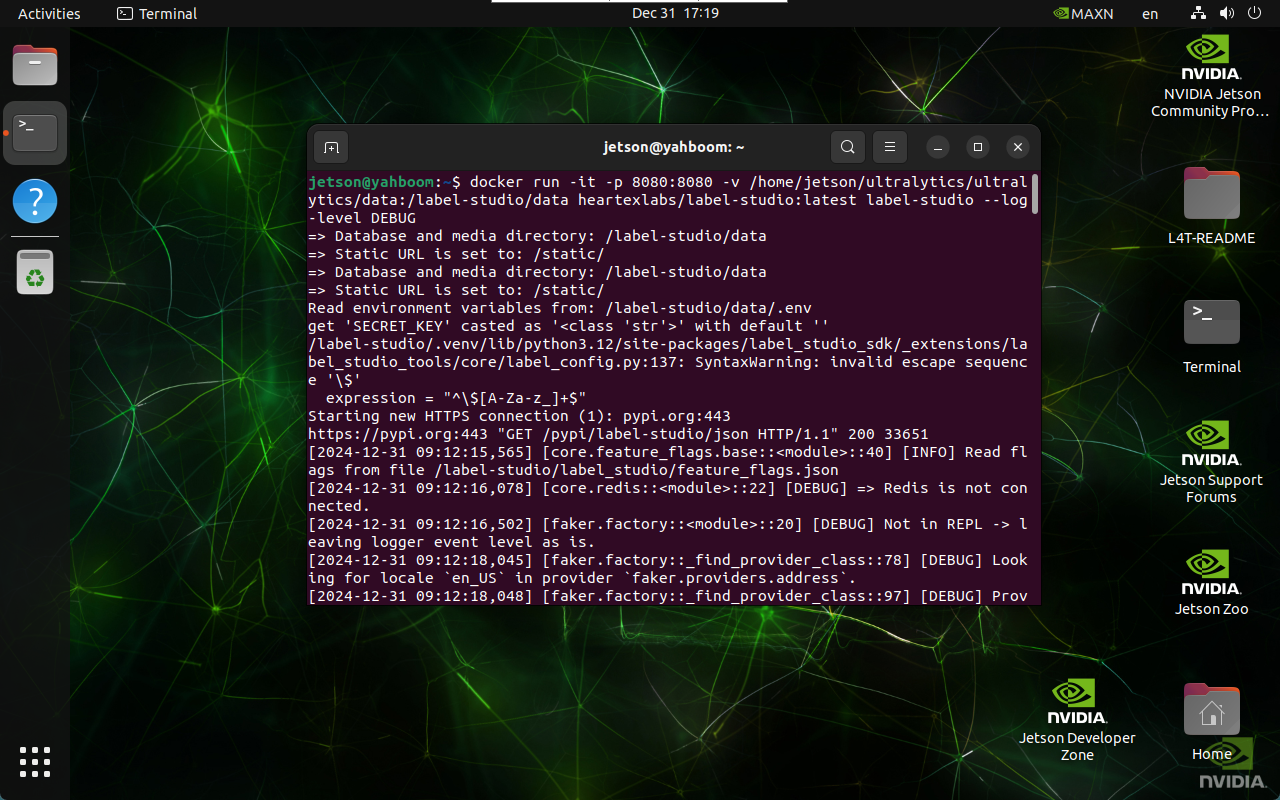
image-20241231172007621

2.2.3. Access Label Studio

Host Machine

Jetson Orin series development board access method, first-time access requires entering username and password

xxxxxxxxxx
http://localhost:8080/

image-20241231172119675

Same Local Network

Devices on the same local network can access via board IP:8080

xxxxxxxxxx
http://board_IP:8080/ # Example: http://192.168.2.114:8080/
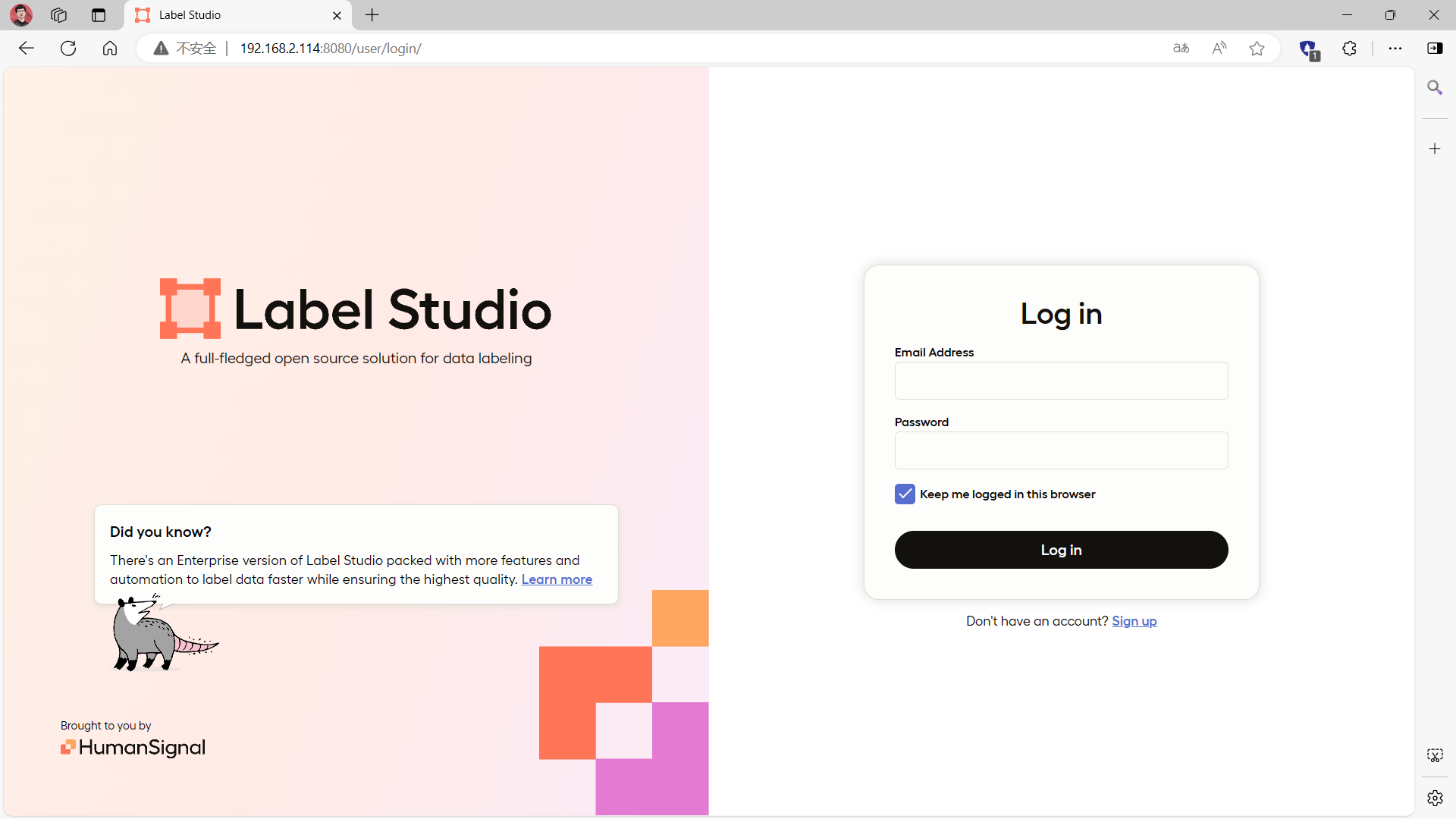
image-20241231172358672

First Time Use

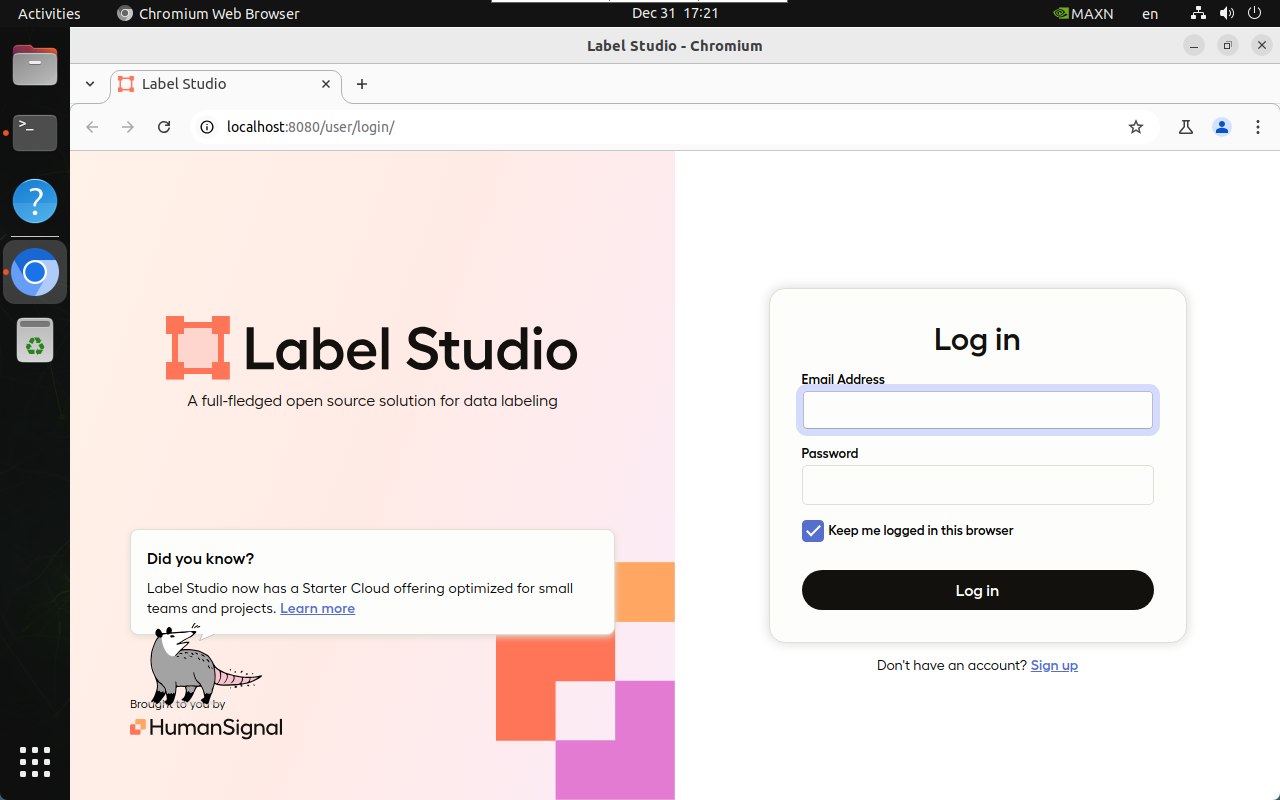
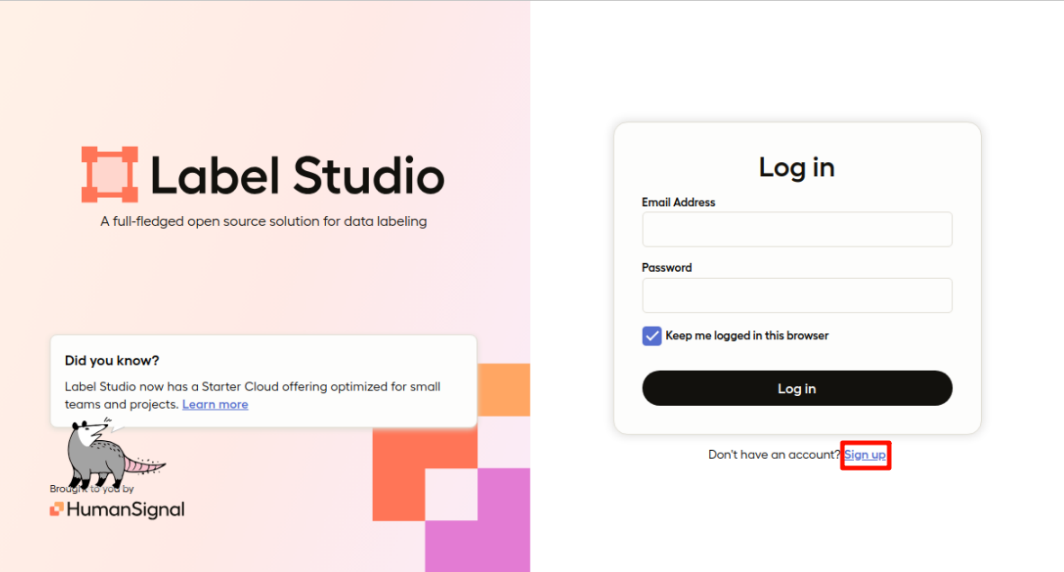
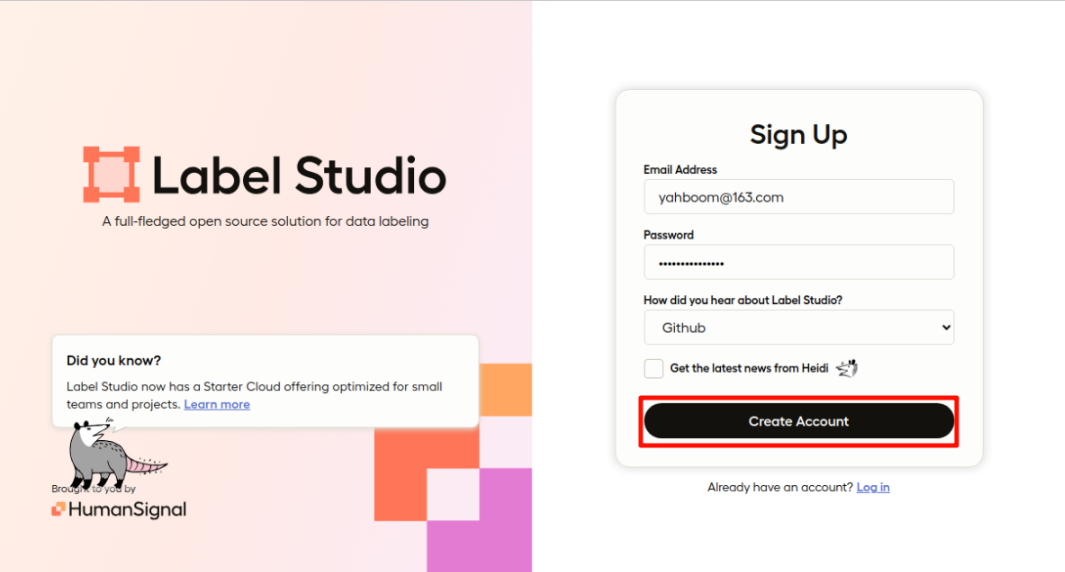
First-time use requires user registration and login. Factory default account information (account information is fictional):

xxxxxxxxxx
Account: yahboom@163.com
Password: yahboom@163.com

image-20241231173648480

image-20241231173626233

After registration is complete, the website will automatically log in:
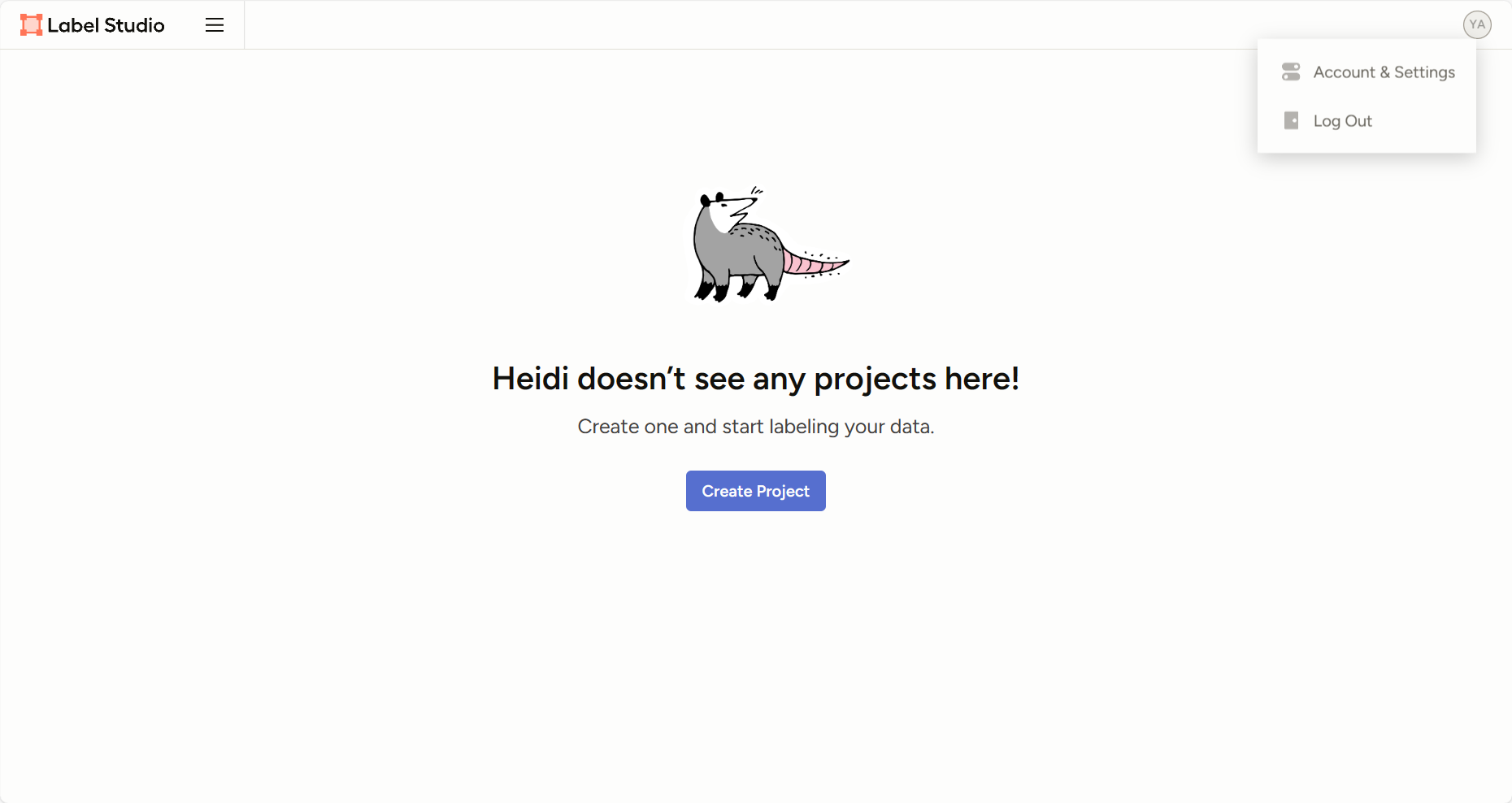
image-20241231173724692

3. Dataset Annotation

The demonstration dataset is on the board, so access Label Studio on the board.

3.1. Create Project
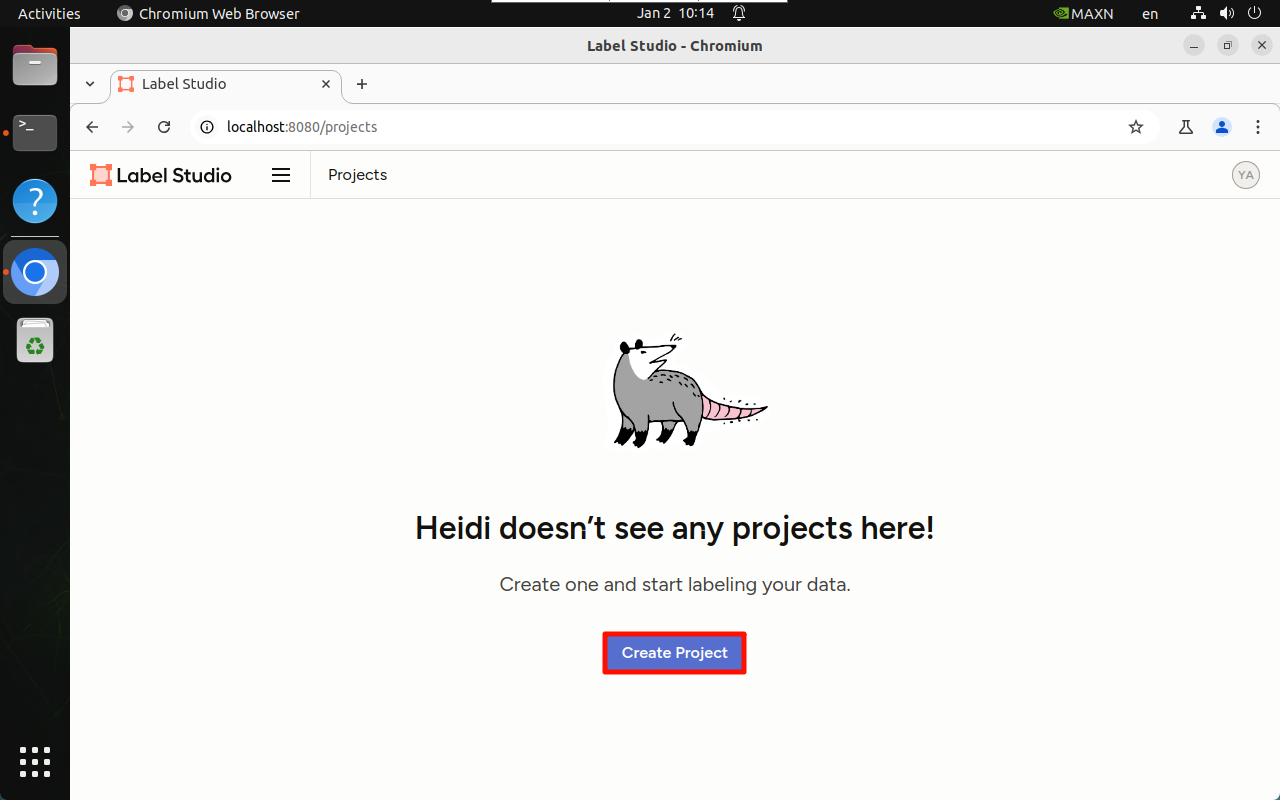
image-20250102101422924

3.2. Project Name

The project name can be named arbitrarily, name it according to your training set:
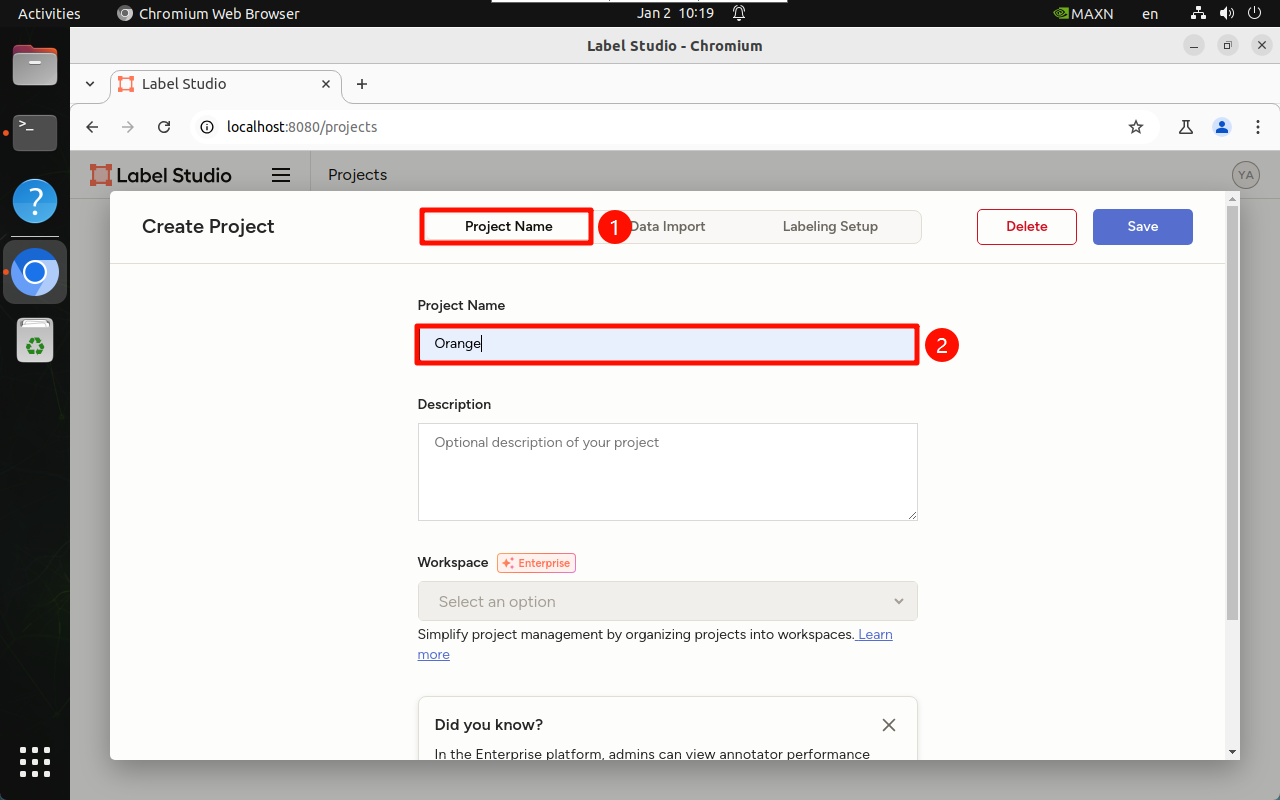
image-20250102101957666

3.3. Import Training Set

Manually import the prepared dataset: Cannot import too many images at once, it is recommended to select 50-100 images each time, then import multiple times
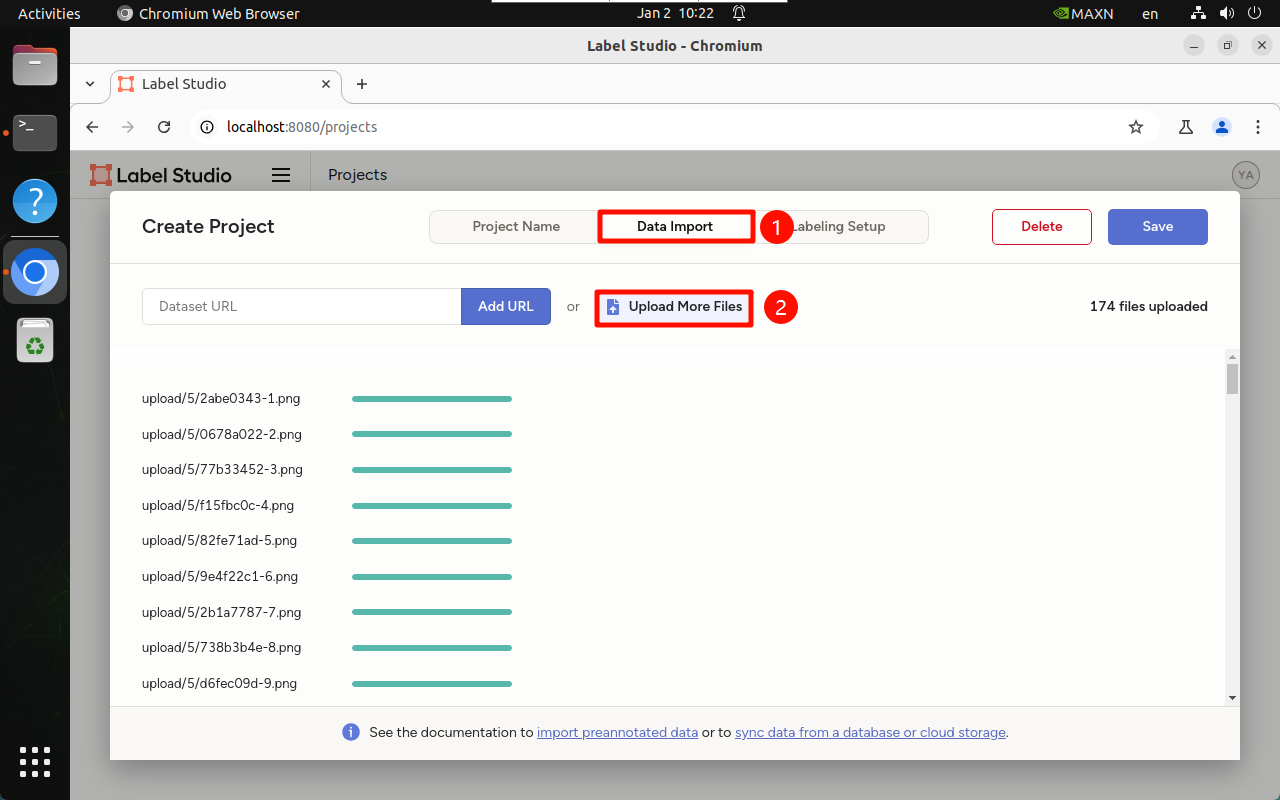
image-20250102102239968

3.4. Label Settings

We are demonstrating orange recognition, so select "Object Detection"
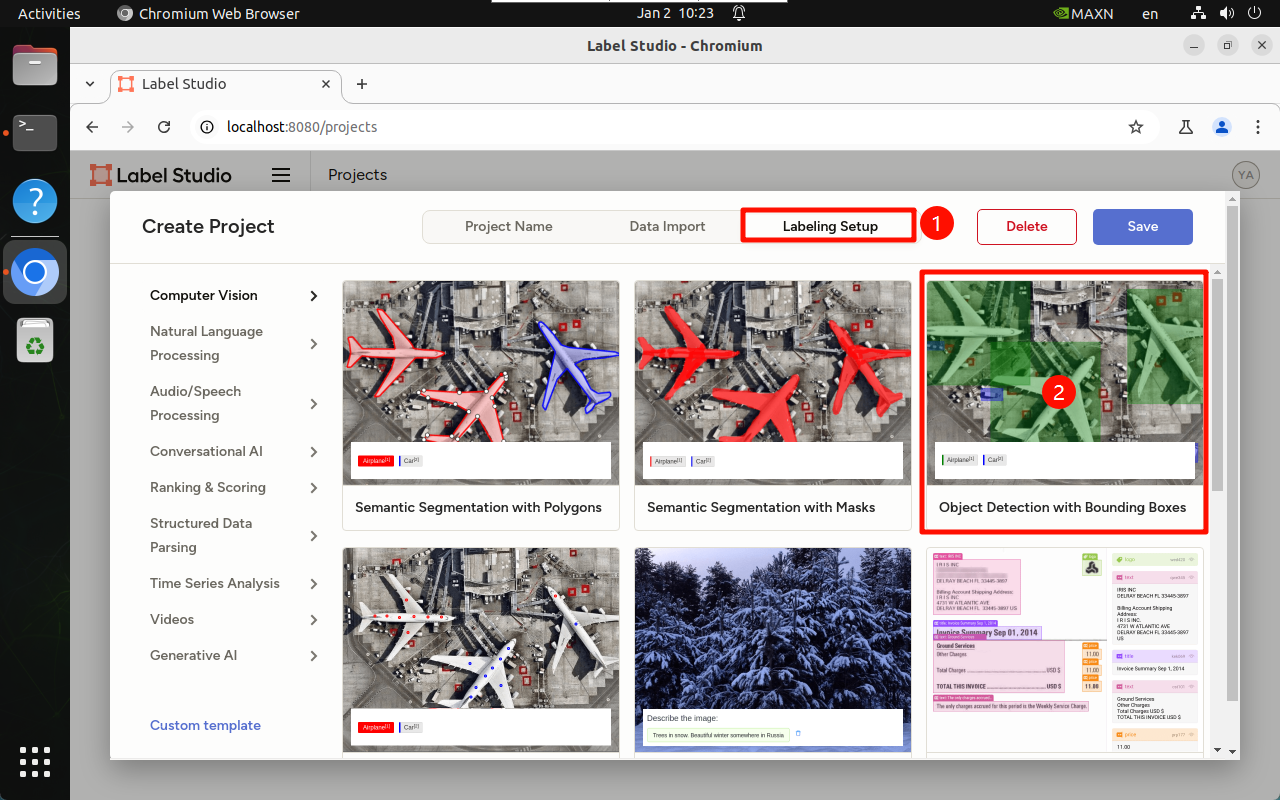
image-20250102102330629

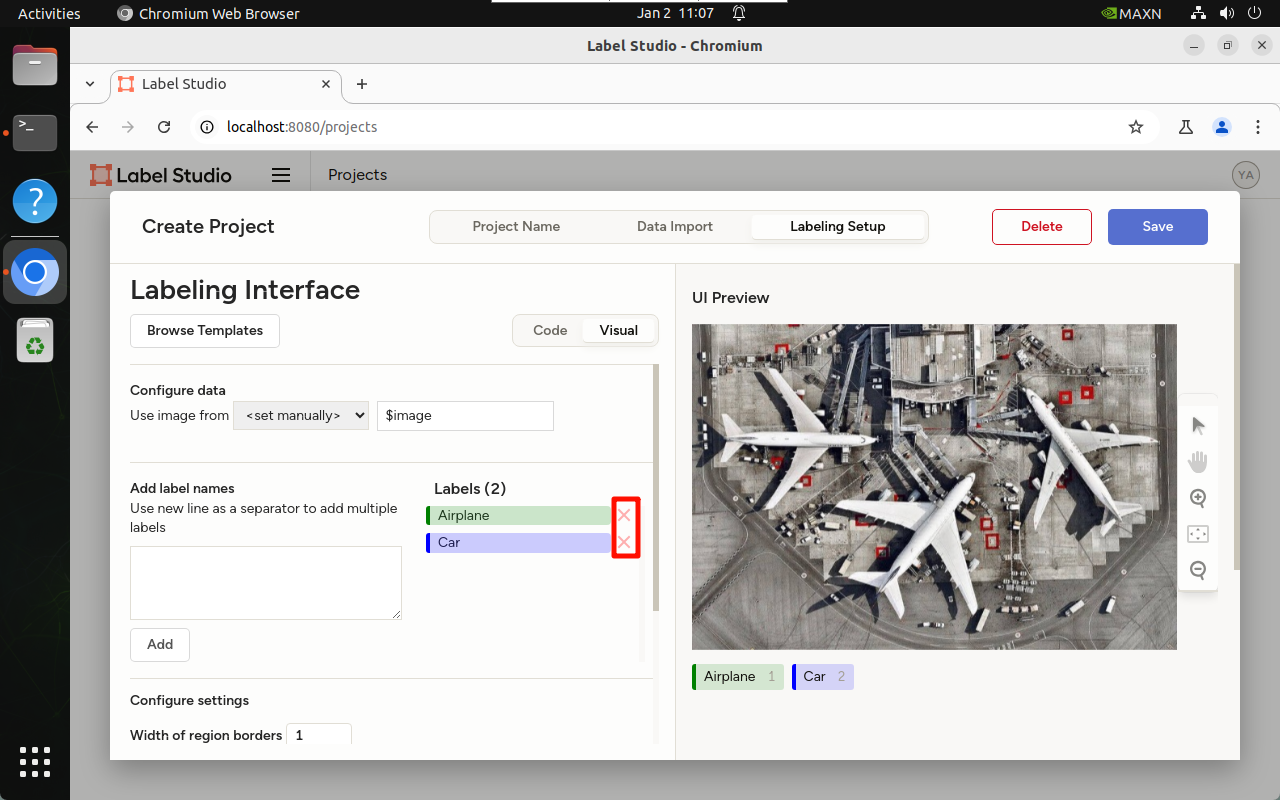
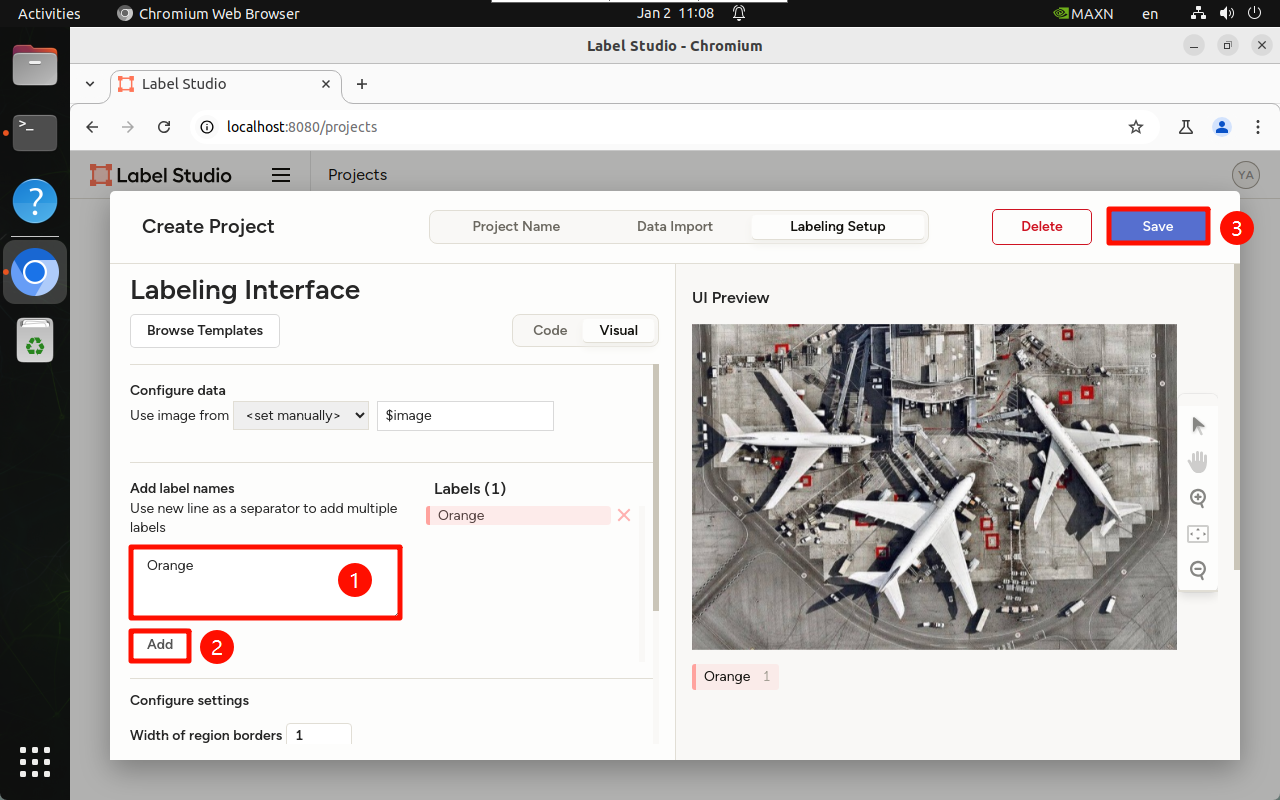
Delete built-in labels:

image-20250102110751207

Add new labels:

image-20250102110916438

3.5. Dataset Annotation

Click "Annotate All Tasks":
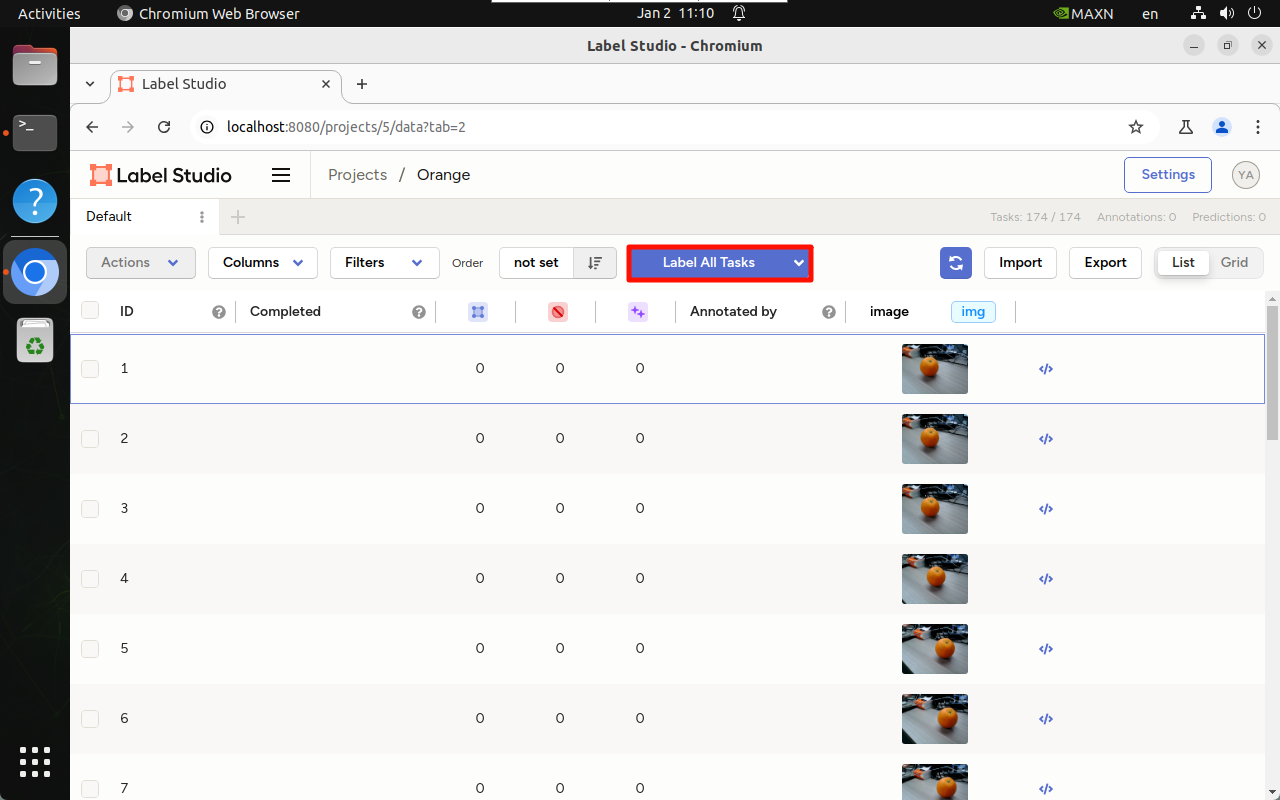
image-20250102111059058

Annotation steps: First click the label "Orange" then use the mouse to select the corresponding orange in the image, after completion click "Submit" to proceed to the next annotation
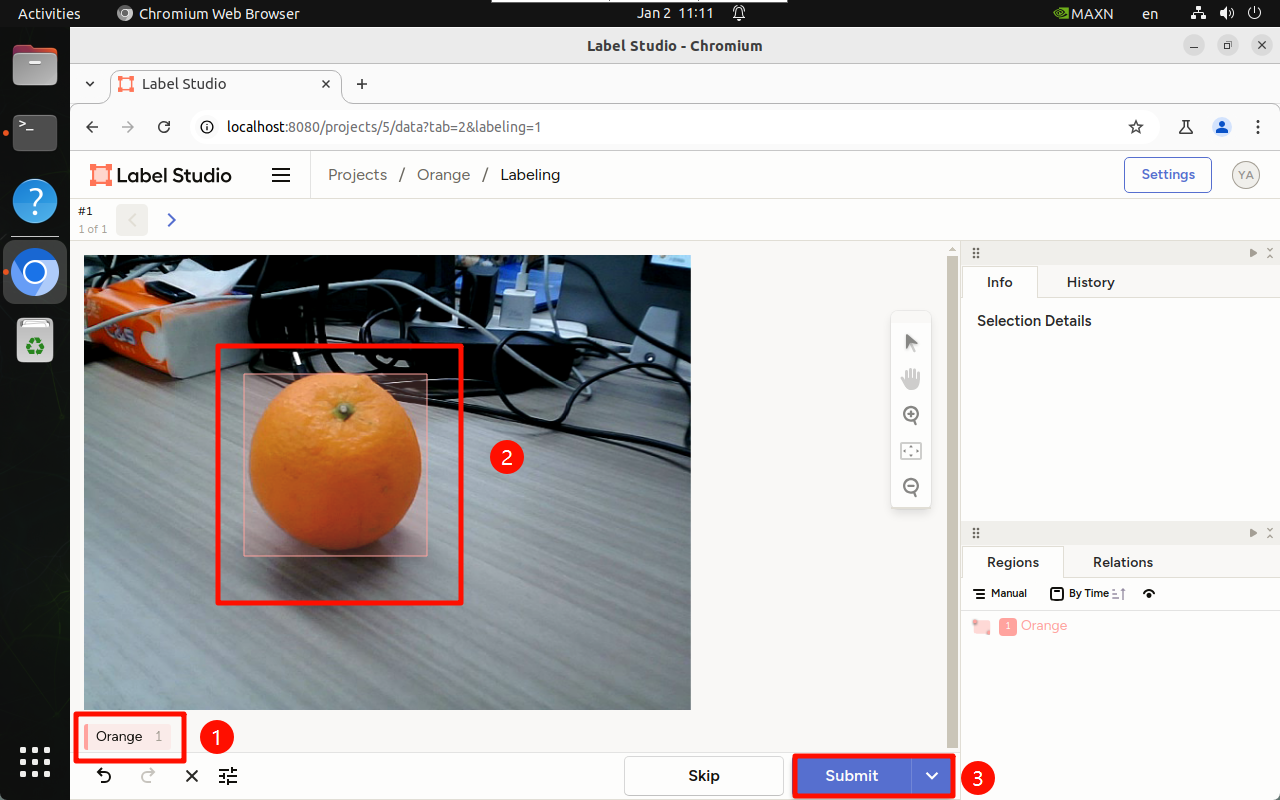
image-20250102111243857

If the selected object is not a complete orange, you can click on the selected box to readjust the position of each edge: image-20250102112923490
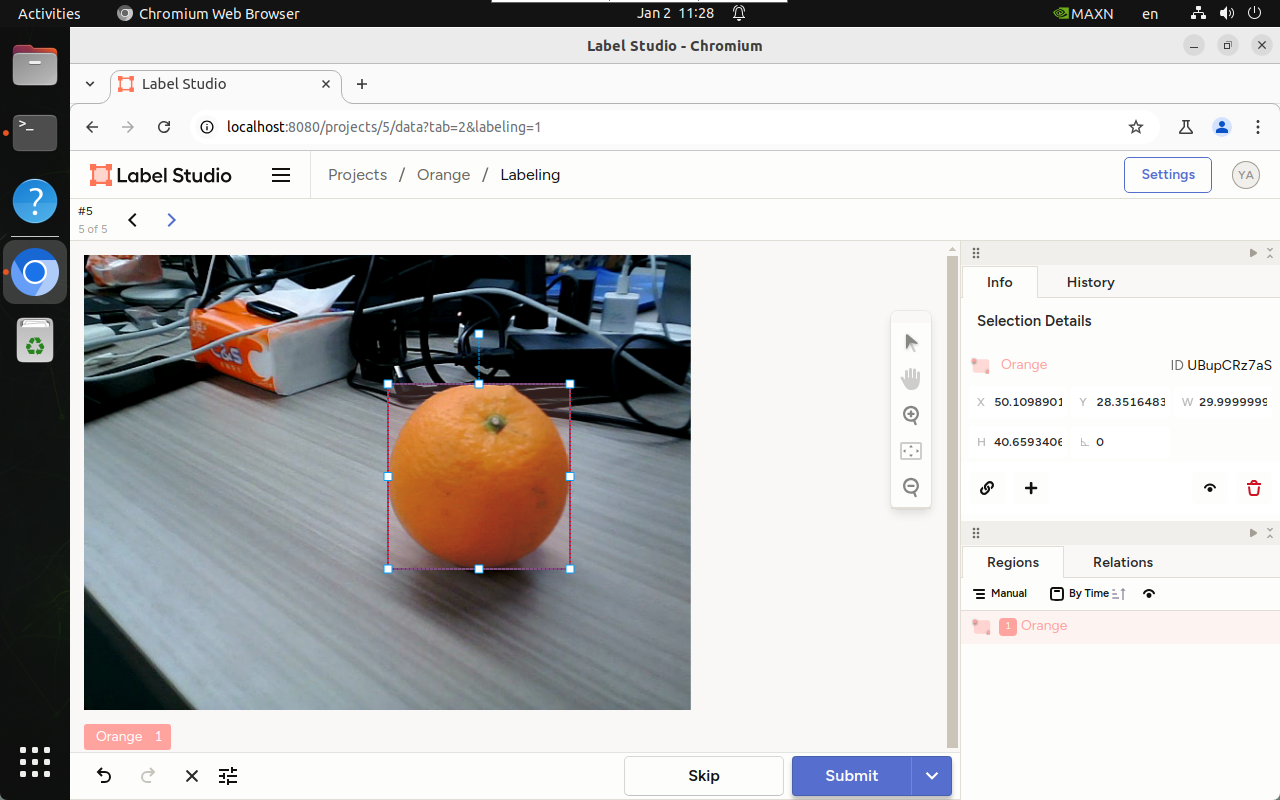
3.6. Export Dataset

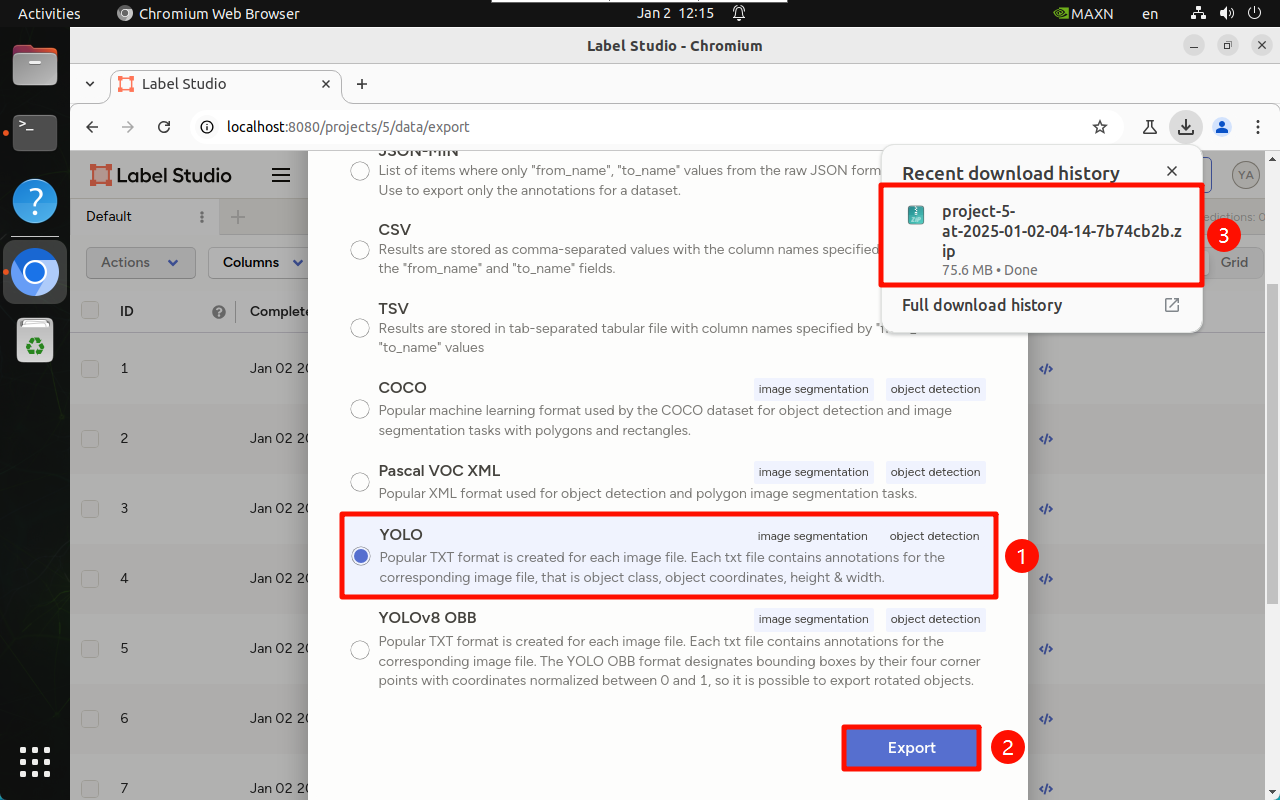
Select YOLO format for export, the browser will automatically download a compressed package
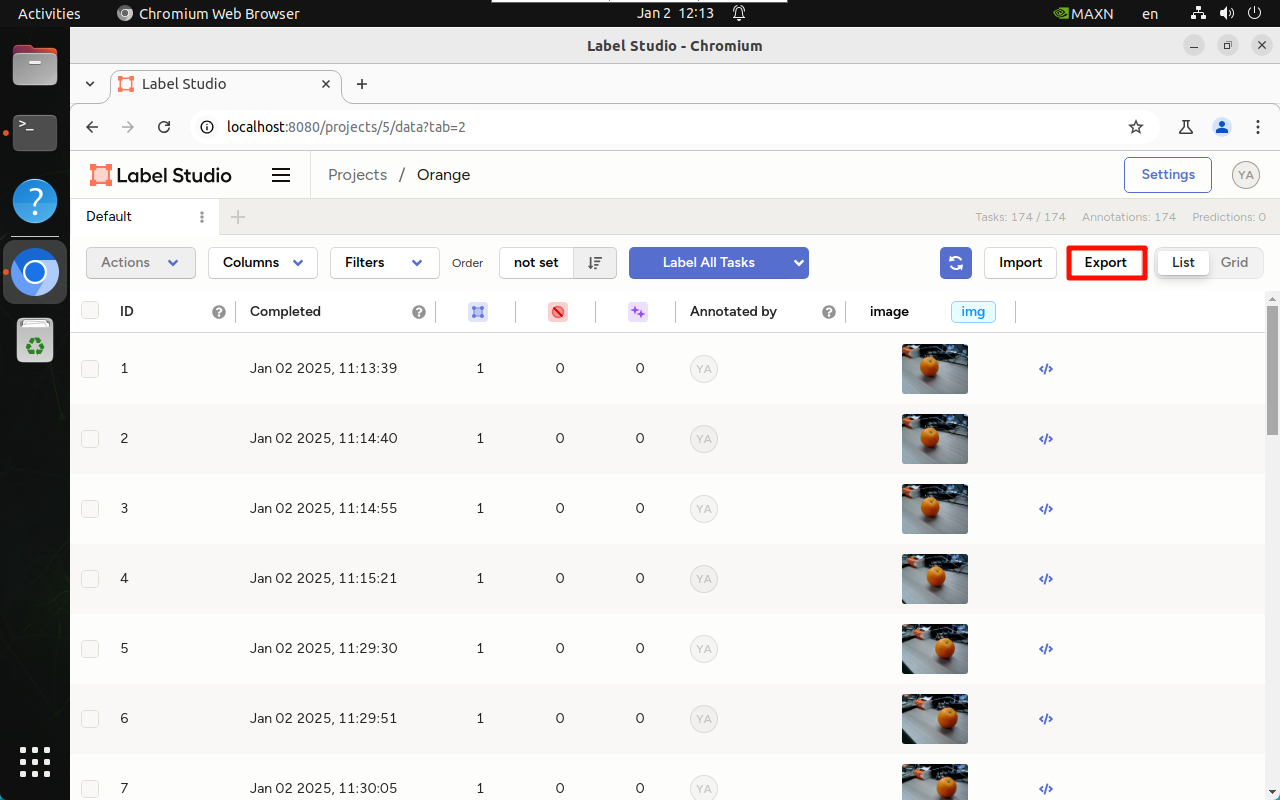
image-20250102121400695

image-20250102121600423

3.7. Dataset Directory Structure

The directory structure corresponding to the compressed package exported by Label Studio:

xxxxxxxxxx
.
├── images
├── labels
├── classes.txt
└── notes.json

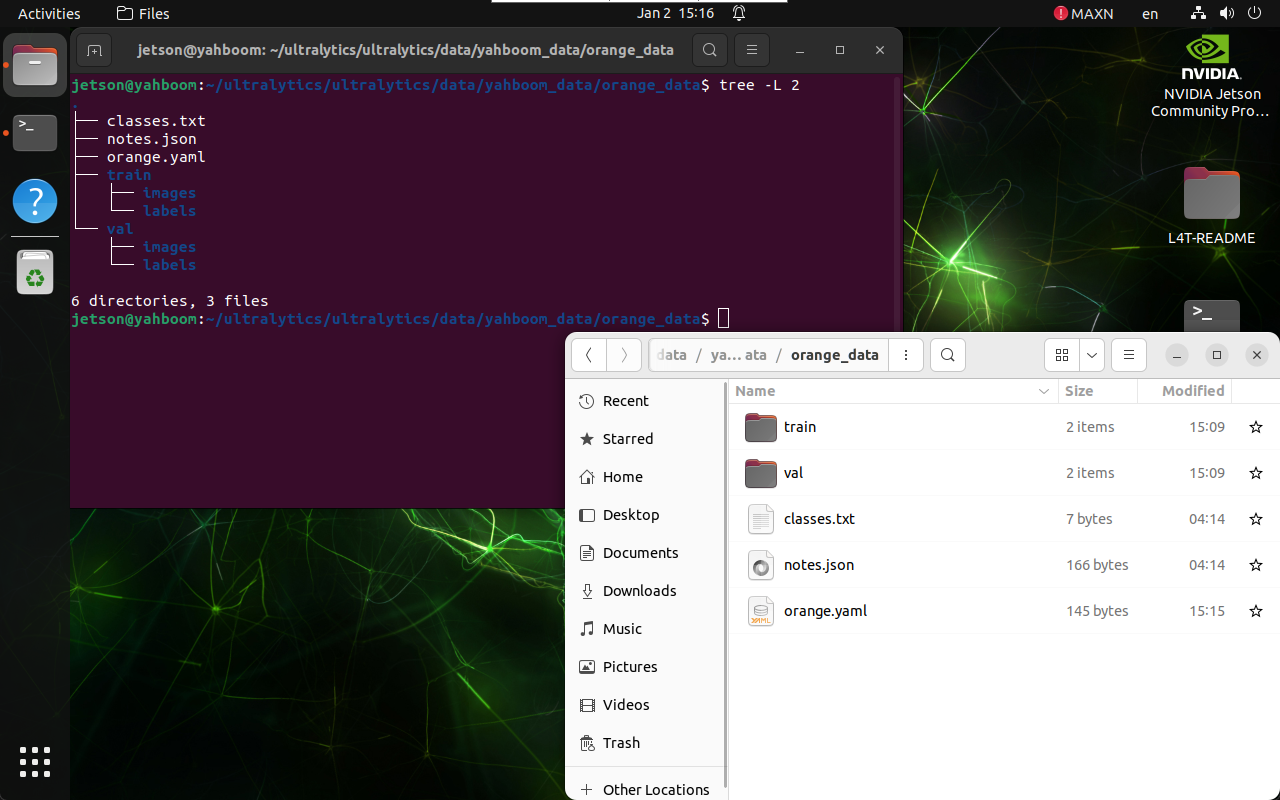
We need to separate the images and labels exported by Label Studio into train (training set) and val (validation set), with a ratio of approximately 8:2: The images and labels in both train and val need to have corresponding names.

xxxxxxxxxx
.
├── classes.txt
├── notes.json
├── train
│   ├── images
│   └── labels
└── val
    ├── images
    └── labels

3.8. Dataset Configuration File

Contains paths to training and validation sets, as well as the number and names of classes.

xxxxxxxxxx
path: /home/jetson/ultralytics/ultralytics/data/yahboom_data/orange_data
train: train/images
val: val/images
​
nc: 1
​
# Classes
names:
  0: Orange

image-20250102151603883

References

https://github.com/HumanSignal/label-studio

Model Conversion
Model Training_Conversion

COMPANY

  • About us
  • Team Style
  • Blog

LEARNING & EXPLORATION

  • Tutorials
  • Edge AI hardware
  • Educational robots
  • Embedded intelligent hardware

WHERE TO BUY

  • Yahboom Online Store
  • Amazon
  • Alibaba
  • AliExpress
  • Mercado

TECHNOLOGY SUPPORT

  • Email: support@yahboom.com

BE A DISTRIBUTOR

  • Email: sales@yahboom.com
QR Code

Copyright © 2017-2026 Yahboom. All Rights Reserved.

EN/中文