Welcome to DOFBOT Pro repository
6.1 Object Recognition(Jetson-Nano)
Object Recognition(Jetson-Nano)
By using OpenCV to call YOLOv4-tiny for object recognition and detection, the names of most objects can be identified.
Note:
- Before starting the program, please follow the [Assembly and Installation Tutorial] -> [Install Map] tutorial to correctly install the map before proceeding.
- This example runs on the host machine; simply open a web browser and enter the IP address:8888
1. Code path
- Code path
~/dofbot_ws/src/dofbot_basic_visual/scripts/06.Object_Recognition/06.Object_Recognition.ipynb
2.File Configuration
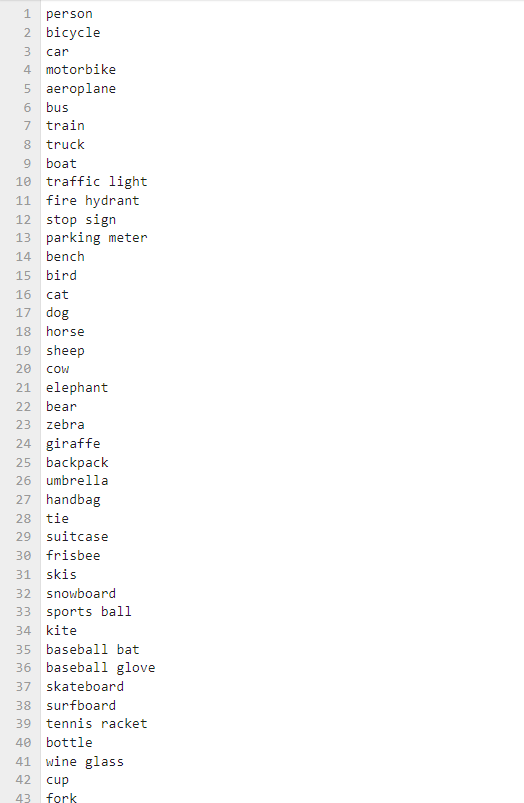
First, we need to import the yolov4-tiny network model structure cfg file, the network weights file, and the COCO dataset classification names txt file. (Here, we directly use the official YOLOv4 dataset and model.)
3. Object Detection
3.1 Building the Model Network Structure
First, we use the cv2.dnn.readNet() function to construct the CSPDarknet53 network structure, passing in the model structure cfg file and the network weights file. OpenCV provides several methods for image classification, detection, and segmentation for its neural network modules, automatically performing preprocessing and post-processing of input images. Here, we use the object detection module cv2.dnn_DetectionModel(), passing in the network model.
xself.net = cv2.dnn.readNet('yolov4-tiny.cfg', 'yolov4-tiny.weights')self.model = cv2.dnn_DetectionModel(self.net)3.2 Target Detection Methods
xxxxxxxxxxclassids, scores, bboxes = self.model.detect(image, confThreshold, numsThreshold)Parameters:
frame: The input image
confThreshold: The confidence threshold used to filter the bounding boxes; the minimum confidence score for object detection.
numsThreshold: A custom threshold for non-maximum suppression.
Return Value:
classIds: Class index
confidences: Confidence score; the probability that a bounding box belongs to a certain class.
boxes: Bounding box information: top-left corner coordinates (x, y), width and height of the box (w, h).
3.3 Setting Model Input Parameters
xxxxxxxxxxself.model.setInputParams(size=(320,320), scale=1/255)size indicates how large the input image will be scaled. A larger size results in better detection performance, but slower detection speed. scale indicates the scaling factor for pixel values.
4. Main Code
Importing various libraries and model files
xxxxxxxxxx#!/usr/bin/env python# coding: utf-8import Arm_Libimport cv2 as cvimport threadingfrom time import sleepimport ipywidgets as widgetsfrom IPython.display import displayfrom Object_recognition import Object_recognition_identifyObject recognition function
xxxxxxxxxxdef detect_image(self, image): classids, scores, bboxes = self.model.detect(image, 0.5, 0.3) for class_id, self.score, bbox in zip(classids, scores, bboxes): self.x, self.y, self.w, self.h = bbox self.class_name = self.classes[class_id] cv2.rectangle(image, (self.x,self.y), (self.x+self.w,self.y+self.h), (255,255,0), 2) cv2.putText(image, self.class_name, (self.x,self.y+self.h+20), cv2.FONT_HERSHEY_COMPLEX, 1, (0,255,0), 2) cv2.putText(image, str(int(self.score*100))+'%', (self.x,self.y-5), cv2.FONT_HERSHEY_COMPLEX, 1, (0,255,255), 2) return imageList of object names:
main thread
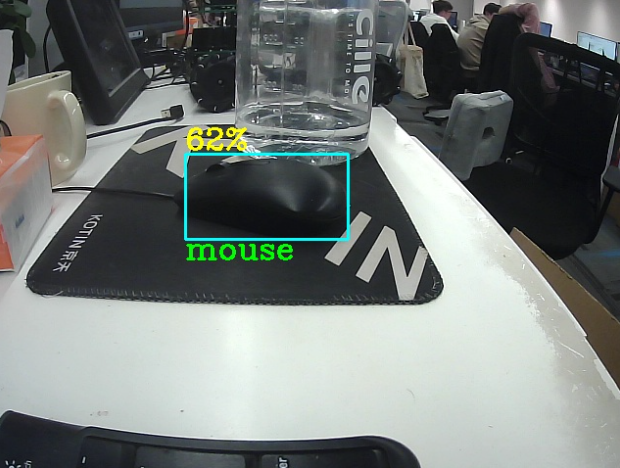
xxxxxxxxxxdef camera(): # 打开摄像头 Open camera capture = cv.VideoCapture(0) while capture.isOpened(): try: _, img = capture.read() img = cv.resize(img, (640, 480)) img = ob_re.detect_image(img) if model == 'Exit': cv.destroyAllWindows() capture.release() break imgbox.value = cv.imencode('.jpg', img)[1].tobytes() except KeyboardInterrupt:capture.release()Click the "Run the whole program" button on the JupyterLab toolbar, then scroll to the bottom to see the camera component displayed.

At this point, placing a recognizable object into the camera's view will allow it to be framed and its name displayed.

If you need to exit the program, please click the "Exit" button.