Welcome to IMU Sensor Module repository
For Jetson
Viewing IMU Data with Jetson
Viewing IMU Data with Jetson1. Connecting the Device2. Viewing Device Status3. Installing Driver Libraries3.1 Download the Python driver library file3.2 Transferring files3.3 Installing Driver Libraries4. View IMU data5. Precautions
1. Connecting the Device
This tutorial uses Jetson Nano B01 as an example.
Connect the IMU attitude sensor to the host's USB port using a Type-C cable.

2. Viewing Device Status
View Device ID
xxxxxxxxxxlsusb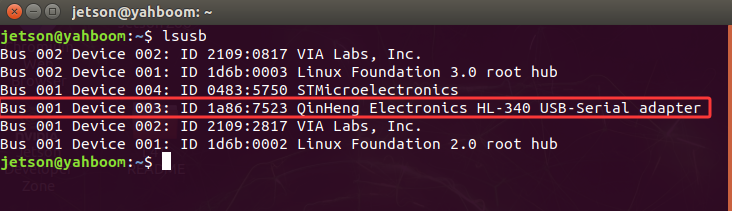
View Device Number
xxxxxxxxxxll /dev/ttyU*
3. Installing Driver Libraries
3.1 Download the Python driver library file
The latest version of the driver library, named YbImuLib.zip, is provided in the data folder.

3.2 Transferring files
Drag the compressed driver library file onto the Jetson desktop using WinSCP software.
The driver library file can be deleted after successful installation.
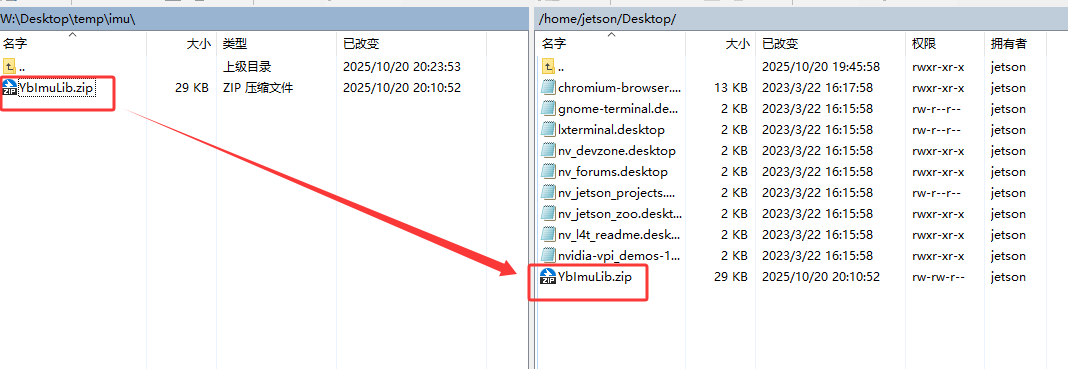
If you are unfamiliar with using WinSCP to transfer files, please refer to the following webpage for detailed WinSCP installation and operation instructions:
File Transfer (Jetson Nano 4 GB)
3.3 Installing Driver Libraries
Open the terminal on your Jetson Nano and enter the following command to extract the files.
Access the desktop and check if the file exists; the target file is highlighted in the red box.
xxxxxxxxxx cd ~/Desktop && ls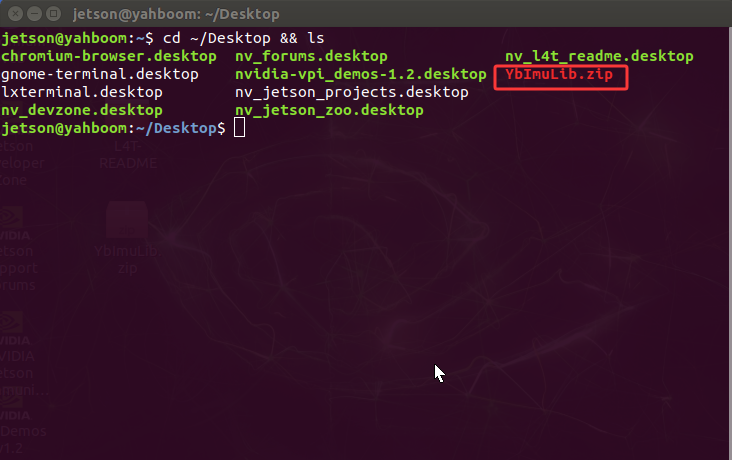
Unzip the file
xxxxxxxxxxunzip YbImuLib.zip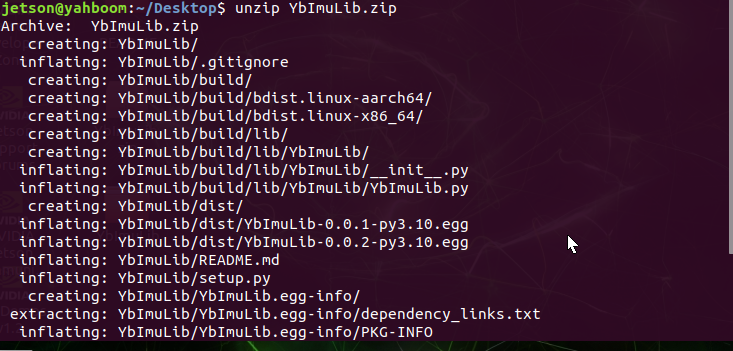
Enter the driver library folder
xxxxxxxxxxcd YbImuLibRun the installation command. If you see the version number displayed at the end, the installation was successful. This command will overwrite any previously installed Rosmaster_Lib driver library.
xxxxxxxxxxsudo python3 setup.py install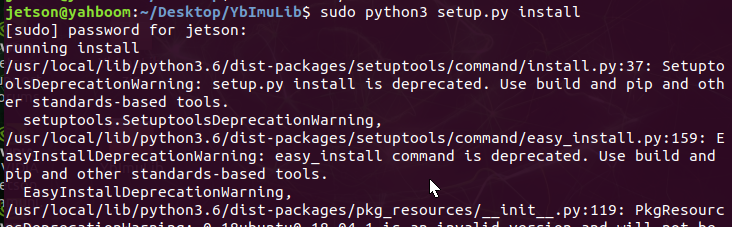
Install required libraries
xxxxxxxxxxsudo pip3 install pyserialsudo pip3 install smbus24. View IMU data
Refer to the 3.2 File Transfer operation, use WinSCP to transfer the YbImu_ReadData_Serial.py file to the Jetson, and then run the command
xxxxxxxxxxpython3 YbImu_ReadData_Serial.py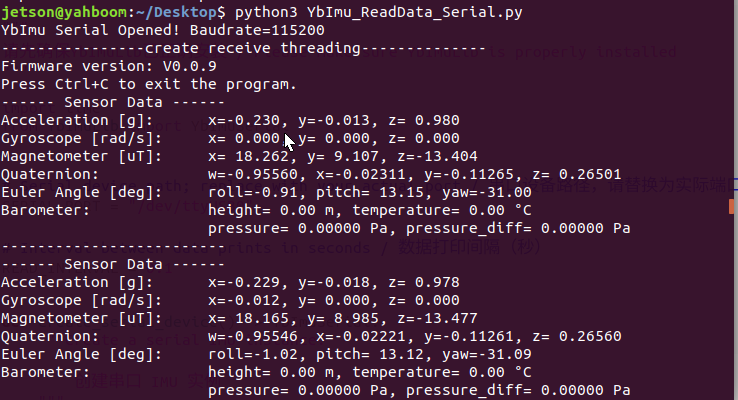
Note: The above data reads are for the 9-axis IMU. Data from the 6-axis IMU is not available for the magnetometer and barometer, and data from the 9-axis IMU is not available for the barometer.
5. Precautions
If the device ID can be found on the Orin series motherboard, but the device number cannot be found, you can refer to the following commands to install the ch34x driver:
sudo apt remove brlttygit clone https://github.com/clhchan/CH341SER.gitcd CH341SERmake -j6sudo make installsudo modprobe ch34x