Welcome to ROS Robot Expansion Board repository
16.ROS parameter service
16.ROS parameter service
The parameter server is where the node stores parameters. You can modify the parameters to achieve the function of debugging the program. In the ros system, the tool for parameter servers is rosparam. This lesson explains how to use the rosparam command.
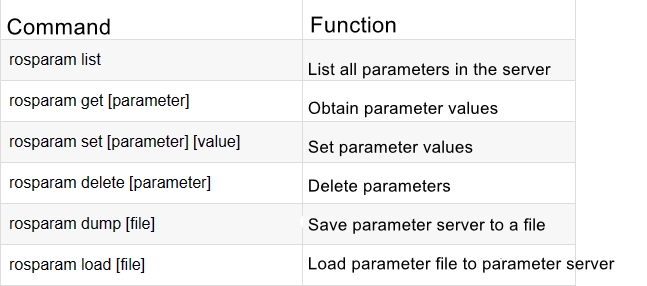
Among them, parameter represents the actual parameter, and file represents the actual file.
16.1 rosparam list
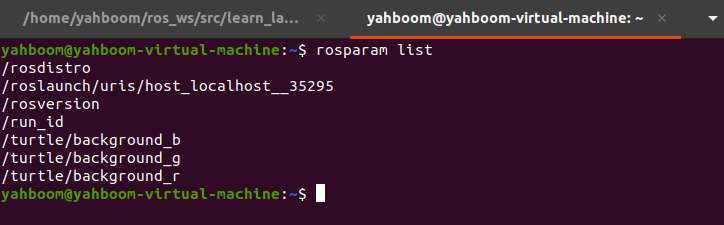
This command is used to list all the parameters in the parameter server of the currently running ros node. For example, we run the node of the little turtle, and then use this command to see what parameters there are and run the terminal.
roslaunch learn_launch turtle_node.launchAfter running successfully, enter rosparam list in another terminal to query the parameters.
xxxxxxxxxxrosparam list
16.2 rosparam get [parameter]
This command is to get the parameter value of a certain parameter. You can query it by typing rosparam get on the terminal. Then use the little turtle program above to query the value of /turtle/background_b. Enter the terminal.
xxxxxxxxxxrosparam get /turtle/background_b

16.3 rosparam set [parameter] [value]
This command is to set the parameter value of a certain parameter. You can set the parameter value by typing rosparam set in the terminal. Then follow the little turtle program above and set /turtle/background_b to 0 to see the effect. Terminal input,
xxxxxxxxxxrosparam set /turtle/background_b 0
It is found that the background of the little turtle has not changed after input. That is because this parameter does not support dynamic adjustment. We can use the above command rosparam get to obtain it again and enter it in the terminal.
xxxxxxxxxxrosparam get /turtle/background_b

As shown in the figure above, the query found that the parameter value of /turtle/background_b has been changed to 0.
16.4 rosparam delete [parameter]
This command is used to delete a certain parameter. Enter rosparam delete parameter to be deleted in the terminal to delete the parameter. Then use the little turtle program above to delete the /turtle/background_b parameter and enter in the terminal.
xxxxxxxxxxrosparam delete /turtle/background_b
Then, enter rosparam list to check whether there is still /turtle/background_b after deletion.
xxxxxxxxxxrosparam list
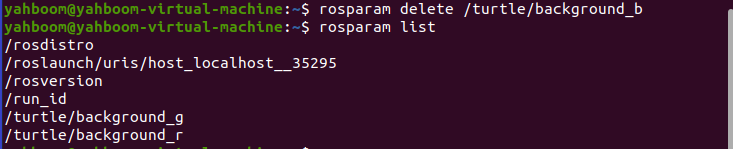
The query revealed that the /turtle/background_b parameter no longer exists.
16.5 rosparam dump [file]
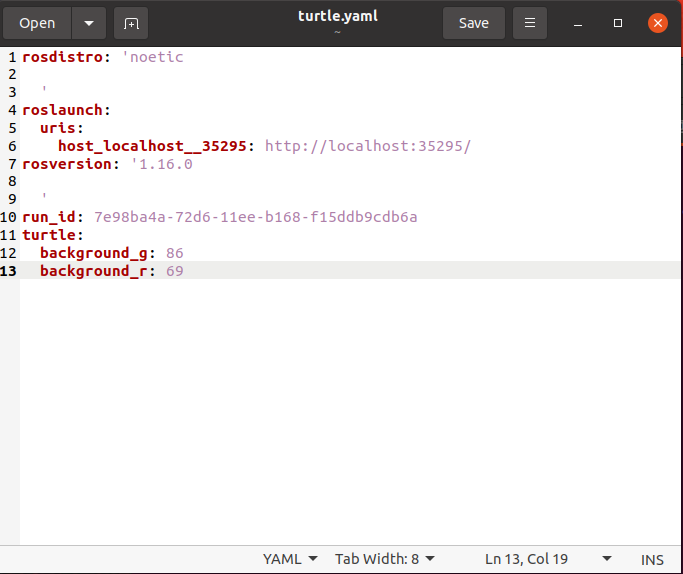
This command is used to export all parameter values of the current ros parameter service table and save them to a file. Enter rosparam dump save parameter file in the terminal to export to the specified file.Then use the little turtle program above to export the parameters to turtle.yaml in the terminal directory and input it into the terminal.
xxxxxxxxxxrosparam dump turtle.yaml
In the terminal directory, you can see a turtle.yaml file. Double-click it to open it, as shown in the figure below.
16.6 rosparam load [file]
This command can load the parameter table file to the parameter server to realize the function of modifying multiple parameters at the same time. Enter rosparam load parameter table file name in the terminal,We have just exported a turtle.yaml parameter table, copy and modify the contents, name it turtle_changed.yaml, and change the background_g and background_r values in it to 0 and 255.
xrosdistro'noetic
'roslaunch uris host_localhost__35295http//localhost35295/rosversion'1.16.0
'run_id7e98ba4a-72d6-11ee-b168-f15ddb9cdb6aturtle background_g0 background_r255Exit after saving, then open the terminal in the directory where the parameter table file is located and enter,
xxxxxxxxxxrosparam load turtle_changed.yaml
Then, we enter the parameter query command to query the values of background_g and background_r,
xxxxxxxxxxrosparam get /turtle/background_grosparam get /turtle/background_r

From the query, we found that the values set in our parameter table are indeed consistent.
16.7 Launch file loading param
We mentioned the concept of param parameters in the course [14. ros-launch file]. In the launch file, you can also pass in this yaml to set parameters. Generally, we will create a new param folder under the launch folder to store the parameter table file, so we create a folder under the learn_launch folder and name it param.
xxxxxxxxxxcd ~/ros_ws/src/learn_launchmkdir paramThen, in the param folder, create a new file named background_rgb.yaml, which is used to set the background board of the little turtle. Copy the following content to background_rgb.yaml,
xxxxxxxxxxbackground_b0background_g100background_r255Pay attention to the colon: there is a space after it. The background_b, background_g, and background_r here correspond to the parameters of the little turtle. Save and exit. Create a new launch file in the launch folder and name it turtle_param_set.launch. Copy the following content into it. ,
xxxxxxxxxx<launch> <node pkg="turtlesim" type="turtlesim_node" name="turtle"> <rosparam file="$(find learn_launch)/param/background_rgb.yaml" command="load"/> </node> </launch>Enter the following command in the terminal to run the launch file:
xxxxxxxxxxroslaunch learn_launch turtle_param_set.launch
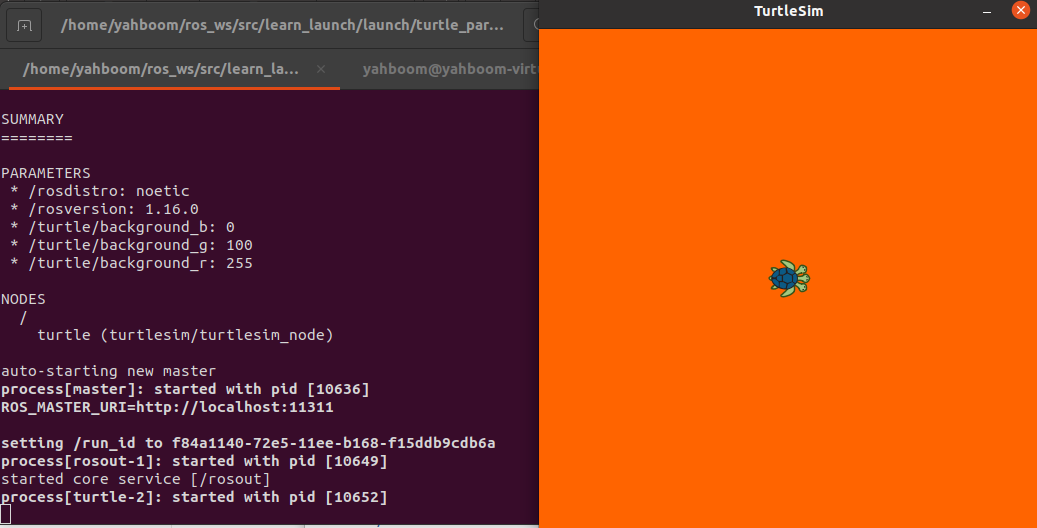
After successful operation, as shown in the picture above, the terminal will also print out the values of background_b, background_g, and background_r, which are consistent with those in the parameter table, indicating that the loading is successful, and the background of the little turtle has also been changed from the default blue to the color shown in the picture . In the launch file, the code for loading the parameter table is as follows:
xxxxxxxxxx<rosparam file="$(find pkg_name)/param/file_name.yaml" command="load"/>
Among them, pkg_name is the name of the function package, file_name.yaml represents the name of the parameter table file, and the default parameter table file is placed in the param folder under the function package folder. Combined with the cases, the corresponding result is,
xxxxxxxxxx<rosparam file="$(find learn_launch)/param/background_rgb.yaml" command="load"/>