Welcome to ROS Robot Expansion Board repository
2. Turn off the self-starting large program at startup
2. Turn off the self-starting large program at startup
2. Turn off the self-starting large program at startup2.1. What is a large program that starts automatically after booting2.2 Temporarily close large programs2.3. Permanently close large programs2.4 Set the startup program2.5 Temporarily start a large program
This course is for when you need to close the car APP remote control process when using the ROSMASTER car system image. If you purchase the expansion board separately and do not use the Yahboom ROSMASTER car system image, you do not need to read this tutorial.
2.1. What is a large program that starts automatically after booting
In order to easily experience the APP function of the car, a program has been added to the system. This program integrates the control functions and gameplay of the APP, so it is called a "big program", and when the motherboard system is turned on, this program will automatically start, so called Do "boot automatically start large program".
The large program that starts automatically after booting is only for the convenience of experiencing the functions of the mobile phone APP. In actual development, the large program needs to be closed, otherwise it will occupy the device and cause unpredictable errors. Therefore, before developing the program, please manually close the self-starting large program when it is turned on.
There are two ways to close the self-starting large program at startup. One is to close it only once, and it will start automatically the next time it is turned on, which is called a temporary shutdown. Open is called permanently closed.
Factory default user name: sunrise password: sunrise
2.2 Temporarily close large programs
If there is a 7-inch touch screen or a display screen and a mouse and keyboard, log in to the desktop after connecting.
If there is no display screen, mouse and keyboard, please use the computer in the same local area network to open the VNC Viewer software and log in to the desktop remotely to enter the desktop.
For detailed operation of VNC remote login mode, please refer to the following webpage, the configuration content has been configured, and directly skip to step 6 to connect.
user name:sunrise password:sunrise
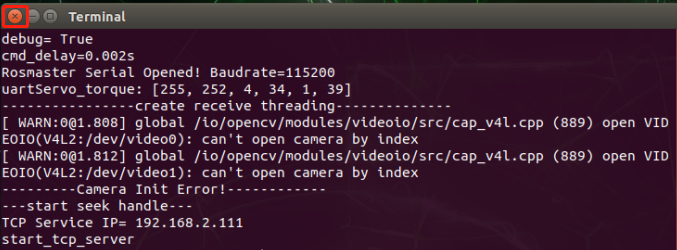
After entering the desktop, you can see that there is a terminal, click the X symbol in the upper left corner to close the terminal to close the large program. Sometimes it may be prompted that closing the terminal will close the running program, and you can choose to confirm to close.
2.3. Permanently close large programs
First, close the running large program in the way of temporary shutdown.
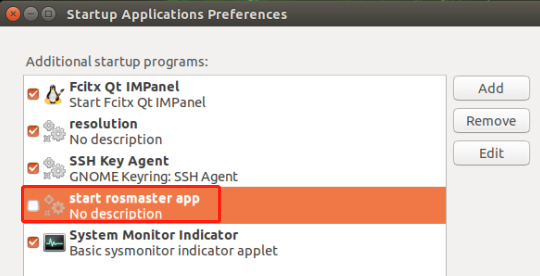
Open the application of the Ubuntu system, search for Startup Applications, remove the check mark in front of start_rosmaster_app, as shown in the figure below, you can permanently close the big program.
2.4 Set the startup program
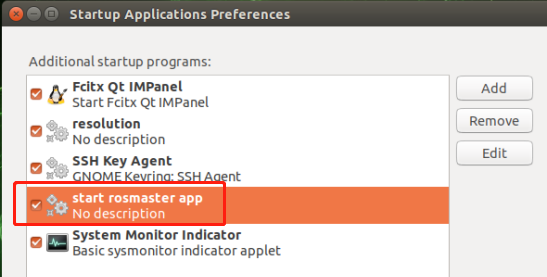
Open the application of the Ubuntu system, search for Startup Applications, and tick the box in front of start_rosmaster_app, as shown in the following figure, the next time the system is powered on, the large program will be automatically started.
2.5 Temporarily start a large program
If you need to manually exercise the large program, please open Ubuntu's terminal first, and then enter the following command:
sudo python3 /home/sunrise/Rosmaster/rosmaster/rosmaster_main.py