yahboom
HomeLearn
Solution
Blog
Online Store
About Us
EN/中文
Roboduino V2📖
0.Instruction manual
  • Instruction manual
1.Get started quickly
  • 01.Assembly of the Car
  • 02.Remote Control Car
  • 03.Common Problem Analysis
  • 04. Lithium Battery Pack and Charger Usage Guidelines
  • 05. Important Notes (Read Before Starting)
2.Environment Construction
  • 01.Serial port driver installation
  • 02.Arduino IDE Installation
  • 03.Arduino IDE usage
  • 04.Using third-party libraries
  • 05.Program compilation and upload
3.Basic car course
  • 01.RGB Control
  • 02.Serial Print
  • 03.KEY Read
  • 04.Buzzer control
  • 05.Logo Breath
  • 06.Servos Control
  • 07.Motor Control
  • 08.Ultrasonic Ranging
  • 09.Track Print
  • 10.Infrared Remote Print
  • 11.WIFI Camera
4.Advanced car course
  • 01.RGB Breath
  • 02.Play Music
  • 03.KEY Control RGB
  • 04.KEY Control Buzzer
  • 05.Serial Parse Data
  • 06.Parse Data Control Motor
  • 07.Parse Data Control RGB
  • 08.Parse Data Control Buzzer
  • 09.Parse Data Control Servo
5.Car motion control
  • 00.Mecanum wheel motion principle
  • 01.Car Vertical Movement
  • 02.Car Diagonal Movement
  • 03.Car Sideways Movement
  • 04.Car Rotational Movement
  • 05.Car Patrol
6.Comprehensive gameplay of car
  • 01.Car tracking
  • 02.Car Obstacle Avoid
  • 03.Car Follow Hand
  • 04.Car tracking Avoid
  • 05.Car Infrared Remote
  • 06.WiFi Control Car
  • 07.IR WiFi Control Car
7.AI vision course
  • 1. Cat(dog) detection
  • 2. Color recognition
  • 3. QR code instructions
  • 4. Person Recognition
  • 5. Face Detection
  • 6. Color Follows
  • 7. Face following
8.Expand peripherals
  • 01.Digital Tube Display
  • 02.Color Recognition
Download
  • Code
  • Library
  • Hardware manual
  • Software
  • 3D Model
  • Instruction Manual
Download ZIP

Welcome to Roboduino V2 repository

01.Serial port driver installation

Serial port driver installation

Serial port driver installationDevice connectionDriver verificationDriver not installedInstall the driverHardware detection

The main purpose of the tutorial is to let users install the CH340 driver and find the corresponding serial port number of Arduino Uno.

xxxxxxxxxx
The latest version of Windows system will automatically search for and install the driver. The purpose of our driver installation tutorial is to provide users whose system does not automatically update the driver

Device connection

Use Type-B data cable to connect the computer and Arduino Uno. The Arduino Uno may not recognize the serial port device for the first time. We need to install the CH340 driver!

xxxxxxxxxx
The latest version of Arduino IDE will automatically ask whether to install the driver when it is used for the first time!
If it still cannot be correctly identified according to this tutorial, we can continue to follow the tutorial, because the Arduino IDE will ask the user whether to install the driver when it is installed for the first time. Checking the installation driver can also solve the problem that Arduino UNO is not correctly identified

Driver verification

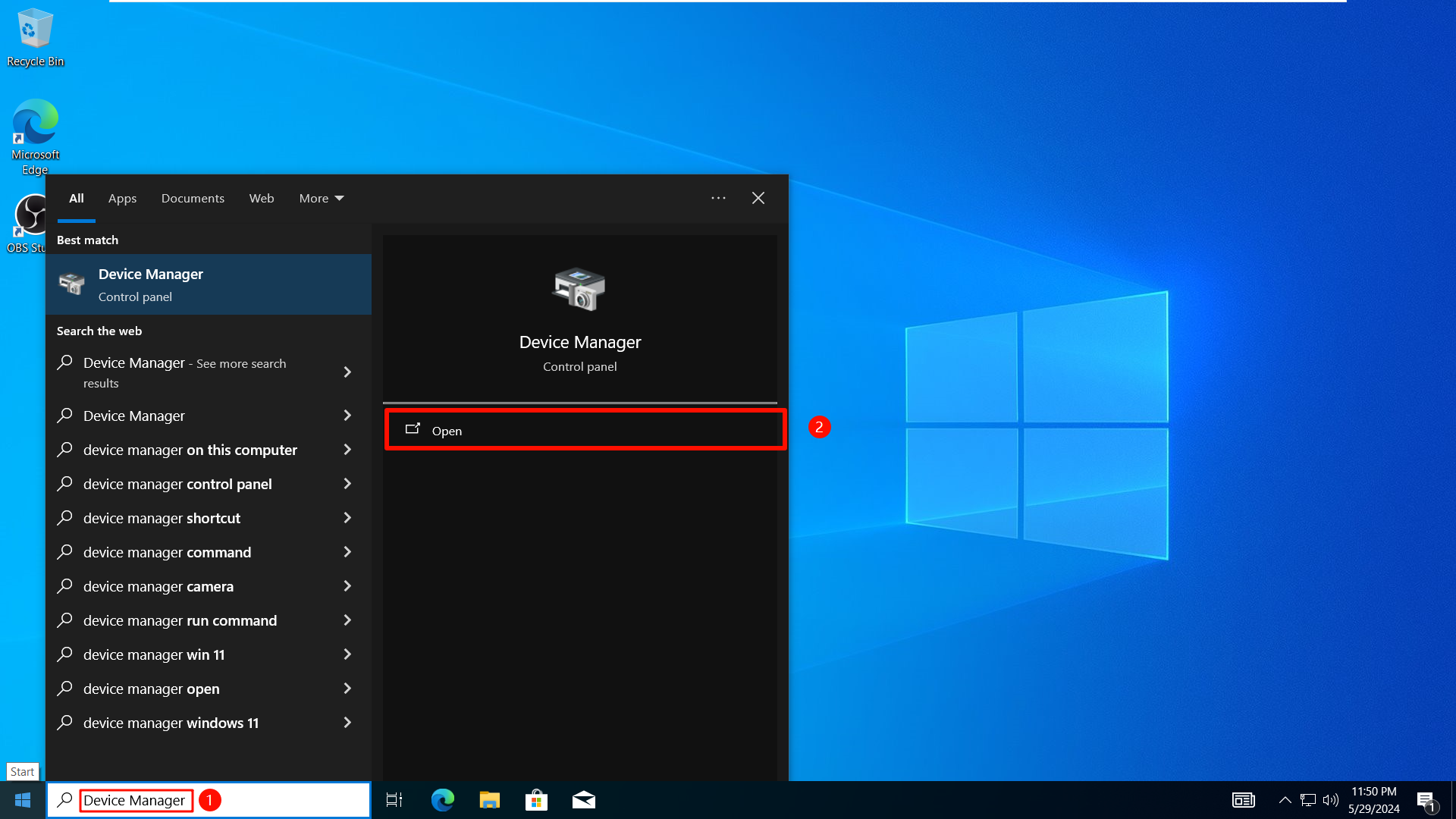
We can check whether the system has correctly identified Arduino UNO from the system's built-in device manager.

  • Open the Device Manager

image-20240612190516767

Driver not installed

If the CH340 driver is not installed, the system device manager will display an exclamation mark on the left icon of the new device!
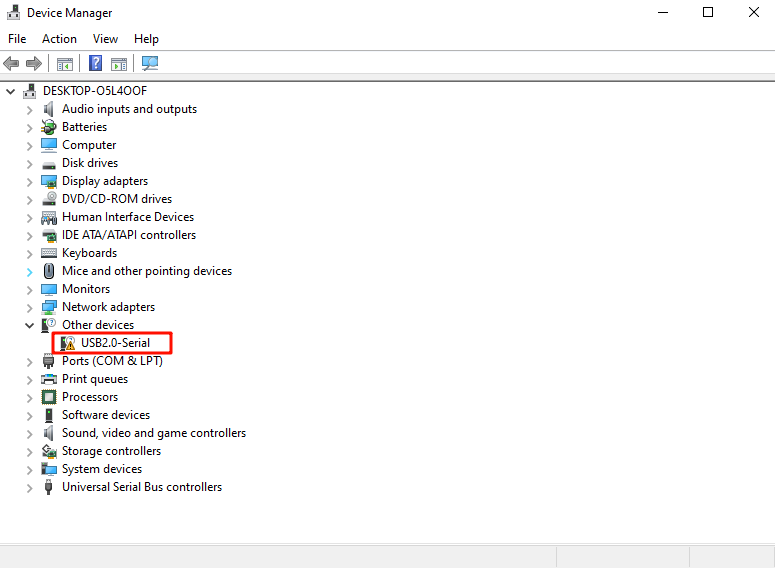
image-20240612190525348

Install the driver

  • Administrator

Unzip and open CH341SER.EXE in [Software Resources: Software] as an administrator.
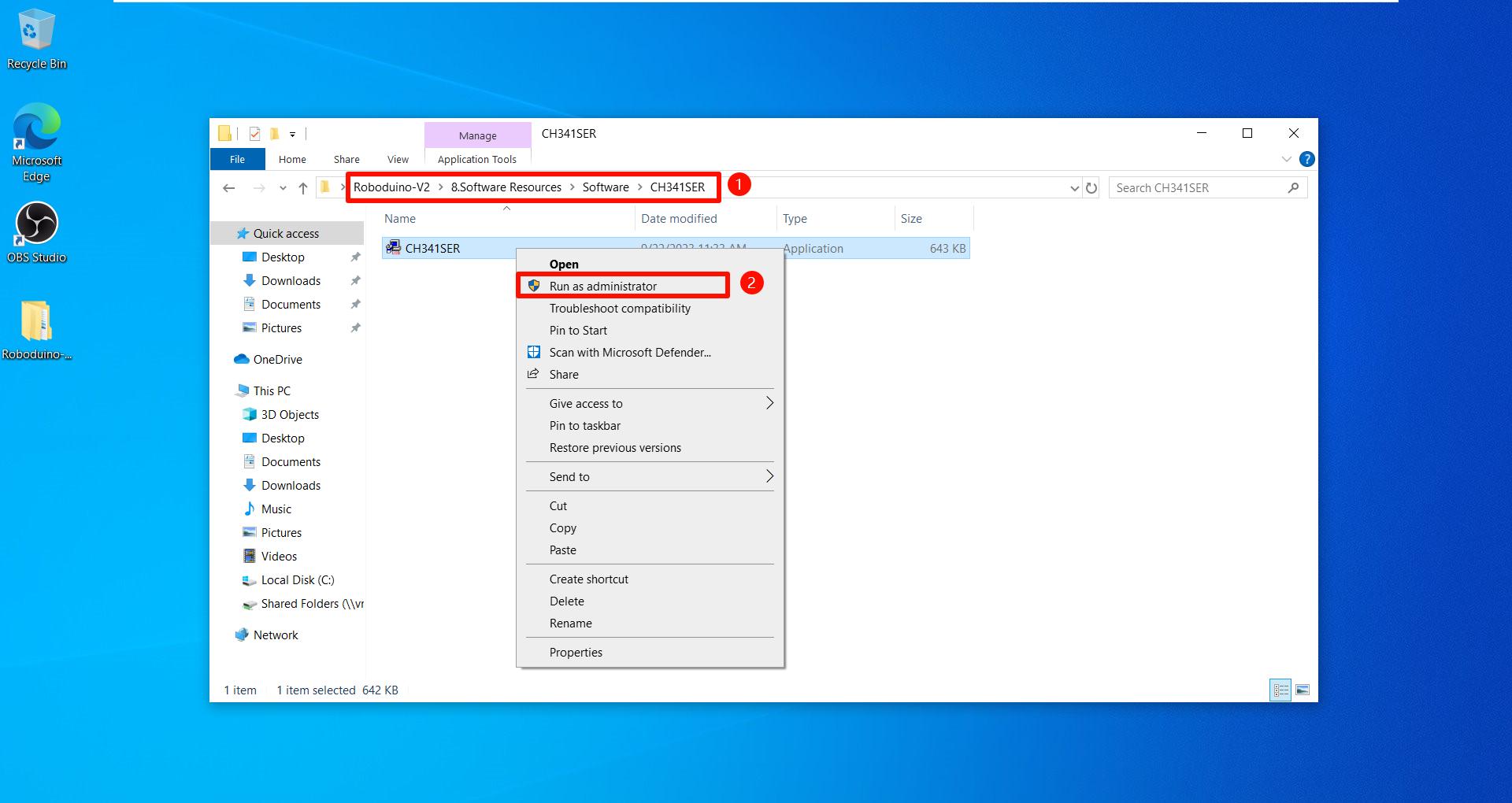
image-20240612190543258

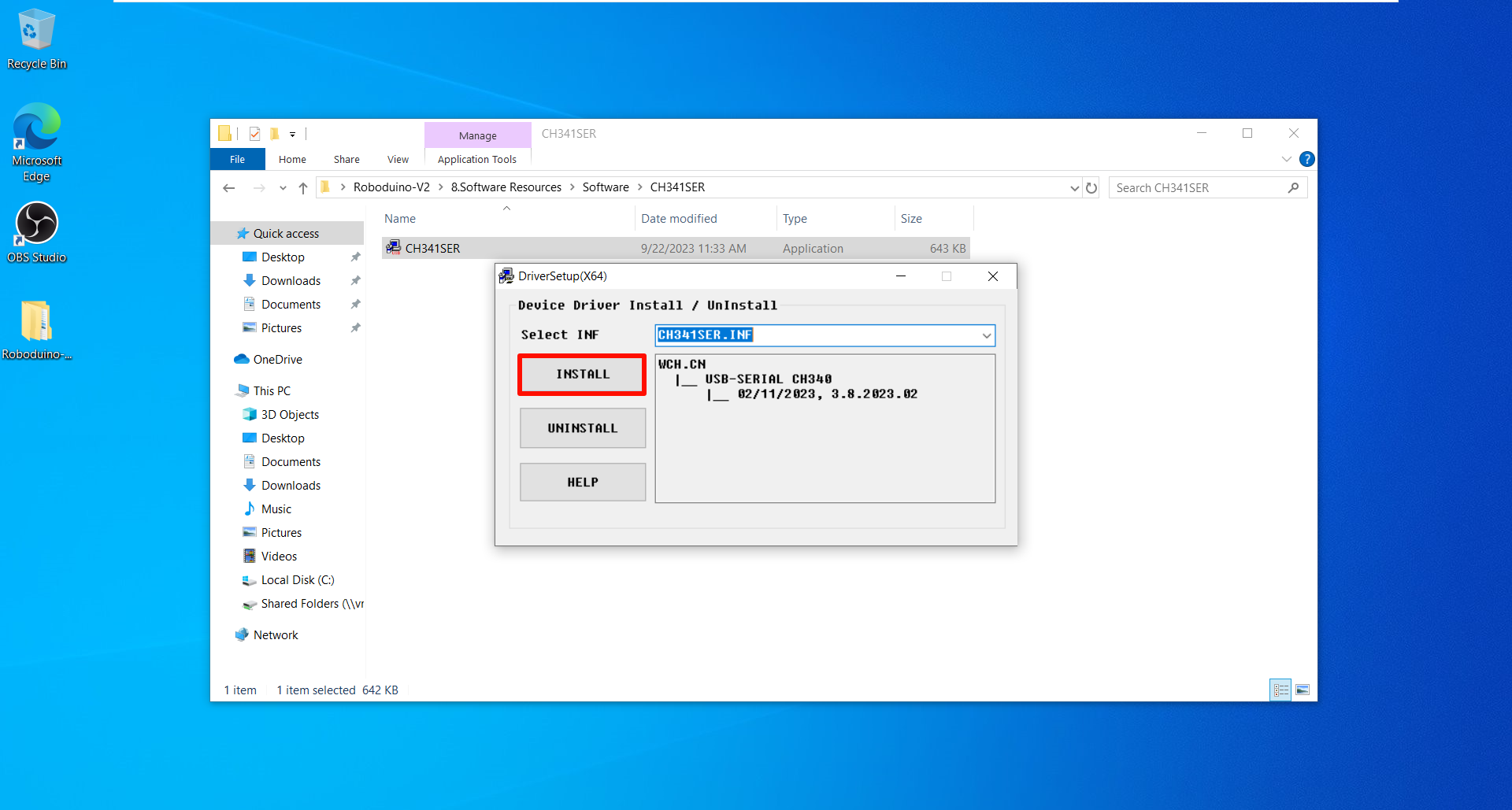
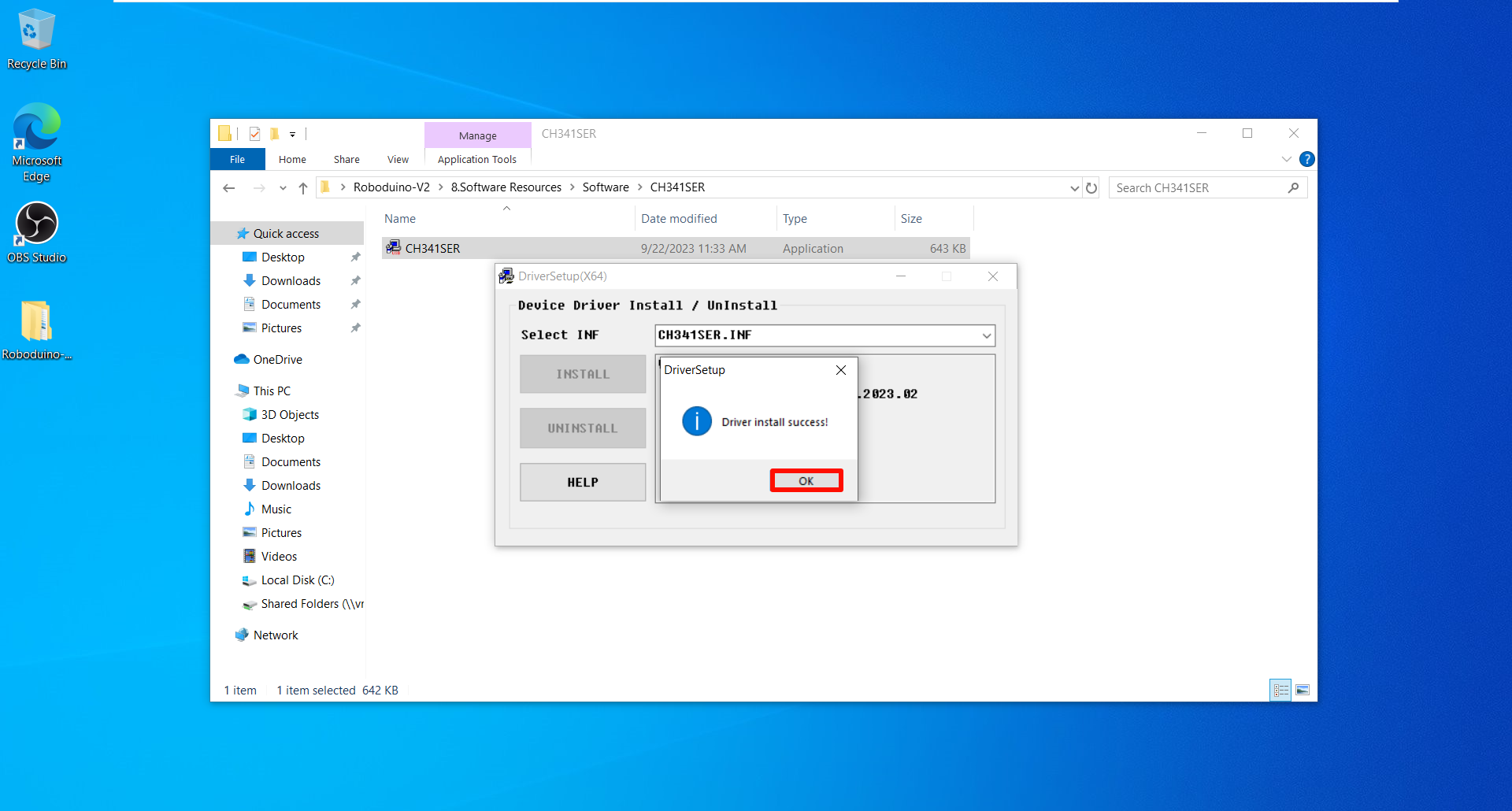
  • Installation

image-20240612190551303

image-20240612190559311

  • Effect

Reopen the device manager to see if the CH340 device can be recognized normally.
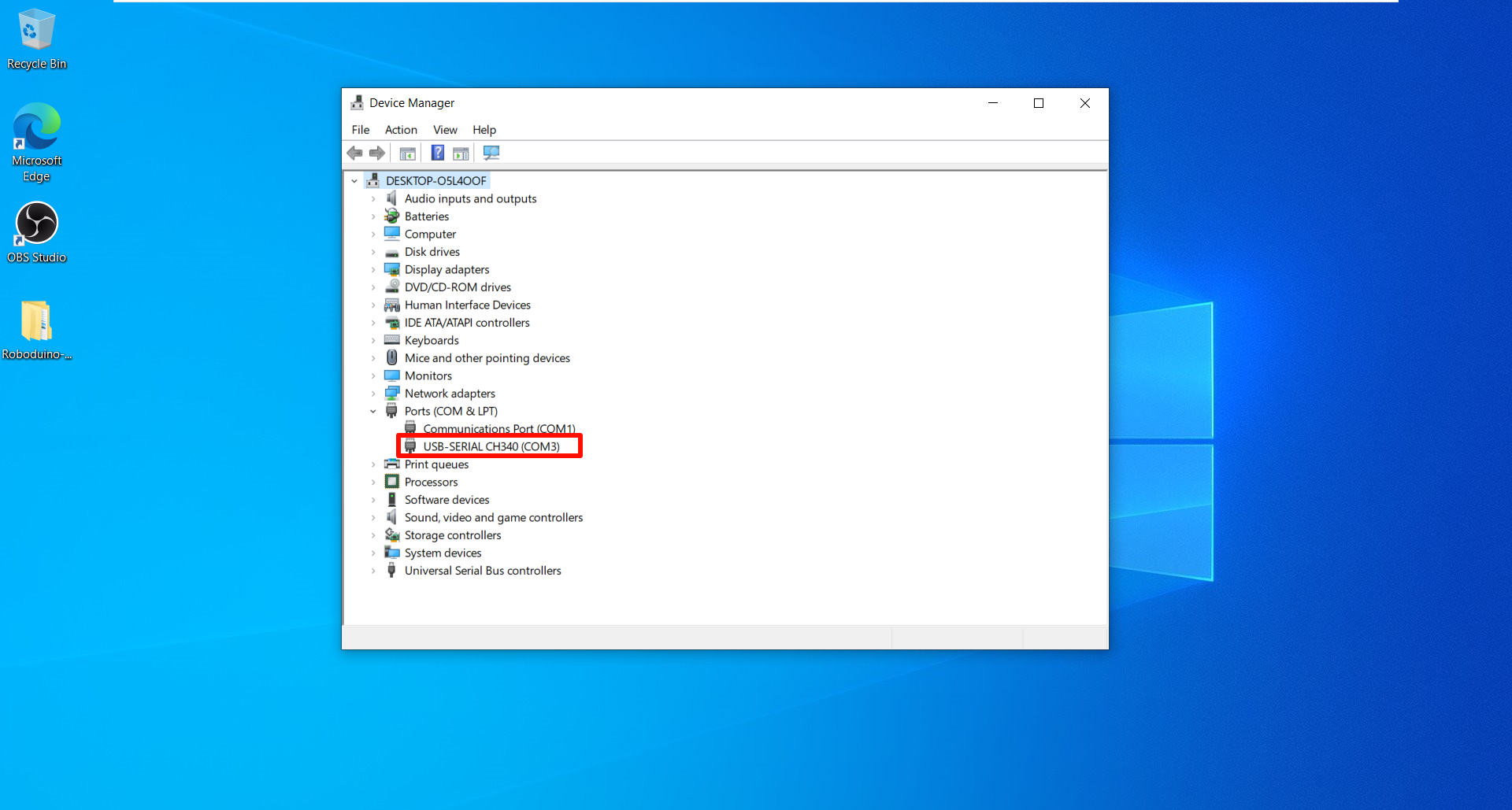
image-20240612190608691

xxxxxxxxxx
If there is no response after installing the driver, you can restart the system and then connect to Arduino UNO

Hardware detection

We can stay in the device manager interface. If we find that when the computer is connected to the Arduino development board, the device manager interface will not refresh or new devices will appear, indicating that there is a hardware problem.

Hardware problems generally come from three sources: computer interface, data cable and Arduino development board. You need to troubleshoot the problem yourself!

You can troubleshoot the source of the problem by changing the computer, data cable and Arduino development board.
Important Notes (Read Before Starting)
Arduino IDE Installation

COMPANY

  • About us
  • Team Style
  • Blog

LEARNING & EXPLORATION

  • Tutorials
  • Edge AI hardware
  • Educational robots
  • Embedded intelligent hardware

WHERE TO BUY

  • Yahboom Online Store
  • Amazon
  • Alibaba
  • AliExpress
  • Mercado

TECHNOLOGY SUPPORT

  • Email: support@yahboom.com

BE A DISTRIBUTOR

  • Email: sales@yahboom.com
QR Code

Copyright © 2017-2026 Yahboom. All Rights Reserved.

EN/中文