Welcome to K210 Module repository
1.Lighting the RGB light experiment
1 Light up the RGB light experiment
1 Light up the RGB light experiment1.1 Experiment Objectives1.2 Experiment process1.3 Experimental results1.4 Conclusion of the experiment
1.1 Experiment Objectives
In this lesson, you will learn about microPython's functions for controlling RGB lights.
The reference code path for this experiment is CanMV03-Hardwarergb.py
1.2 Experiment process
The factory firmware of the module has integrated the RGB control module. If you have downloaded other firmware, please burn it back to the factory firmware before experimenting.
Import ybrgb from modules.
xfrom modules import ybrgbimport time
Create a ybrgb object called RGB
xxxxxxxxxxRGB = ybrgb()
Set the RGB color, where the parameter r controls the red light switch, the parameter g controls the green light switch, and the parameter b controls the blue light switch. Input 0 means off, input 1 means on.
xxxxxxxxxxRGB.set(r, g, b)
Create a while loop to make the RGB light switch colors every 0.5 seconds.
xxxxxxxxxxwhile True:RGB.set(1, 0, 0)time.sleep(.5)RGB.set(0, 1, 0)time.sleep(.5)RGB.set(0, 0, 1)time.sleep(.5)RGB.set(1, 1, 1)time.sleep(.5)RGB.set(0, 0, 0)time.sleep(.5)
1.3 Experimental results
Connect the K210 module to the computer through the microUSB data cable, CanMV IDE click the connect button, after the connection is completed click the Run button to run the routine code. You can also download the code as main.py and run it in the K210 module.
The RGB light can be seen to switch one color every 0.5 seconds, following the steps of red, green, blue, white, and off.
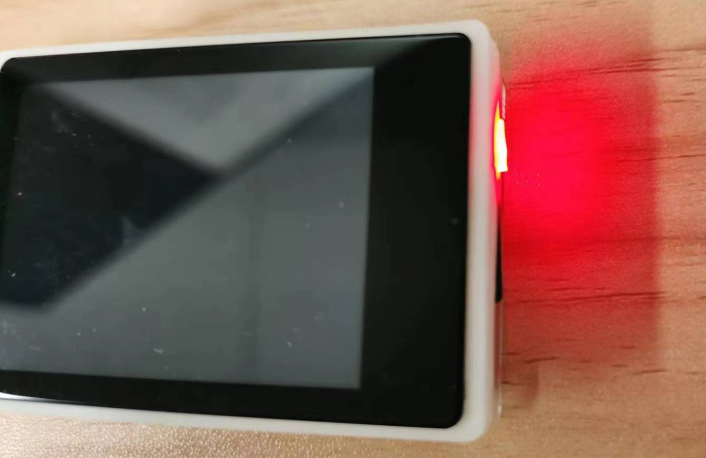
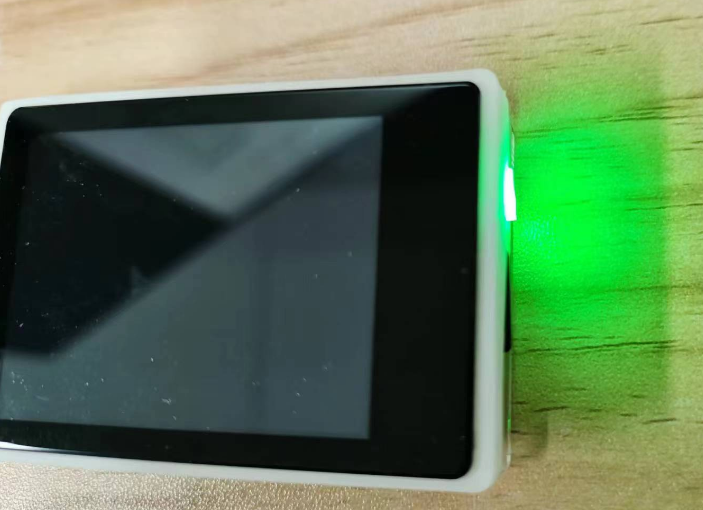
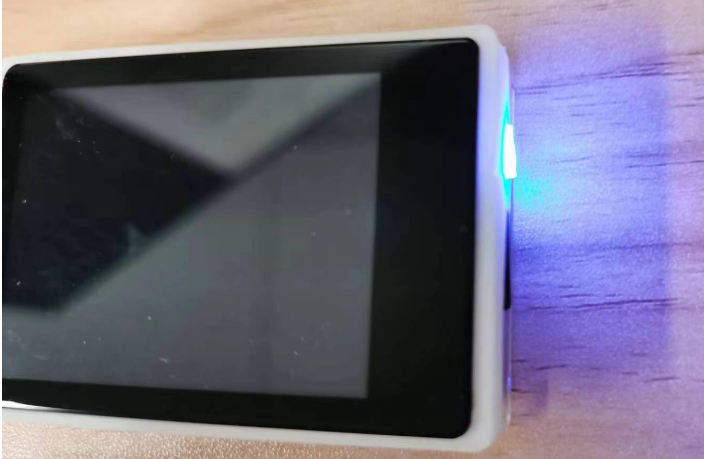
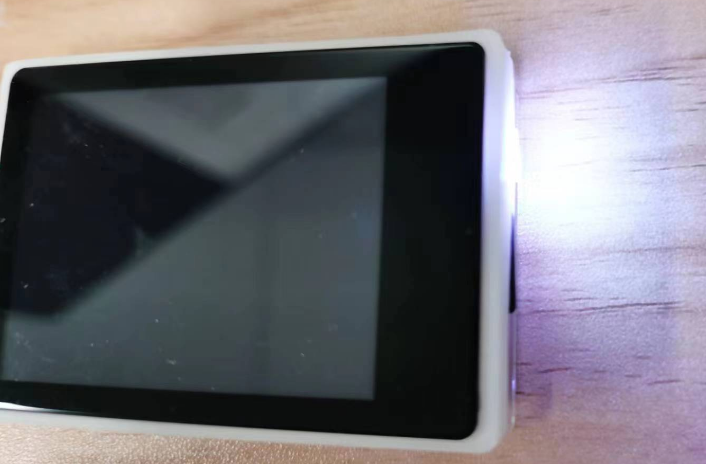
1.4 Conclusion of the experiment
Using CanMV IDE, with the MicroPython syntax written in the factory firmware, it is very easy to control the RGB lamp, and it is not necessary to know the principle. It is really convenient to show the effect of color switching through a few lines of code.