Welcome to K210 Module repository
2.Key features of the experiment
2 key features of the experiment
2 key features of the experiment 2.1 the experimental goals 2.2 experimental procedure 2.3 experimental results2.4 the experiments are summarized
2.1 the experimental goals
This lesson is mainly for learning to read key state functions.
The present experiments the reference code path is: CanMV\03-Hardware\key.py
2.2 experimental procedure
Module factory firmware has been integrated KEY module, if you download the other firmware, please burn back to the factory firmware and then perform the experiment.
Through the modules import ybkey。
from modules import ybkeyimport time
Create ybkey object, and the name of the KEY
xxxxxxxxxxKEY = ybkey()
Read the key K1 is pressed, it returns 0 indicates the release status, return 1 shows the pressed state.
xxxxxxxxxxstate = KEY. is_press()
Create a while loop, every 100 milliseconds to read the button status, and print debug information.
xxxxxxxxxxwhile True:state = KEY. is_press()print("key press:", state)time. sleep_ms(100)
2.3 experimental results
The K210 module via the microUSB cable is connected to the computer, CanMV IDE click on the Connect button, the code as main. py downloaded to the K210 module on the run. Since CanMV IDE currently there is a bug, can not detect the BOOT keys, so you can only download the main. py restarted after a reset operation of the program, before you can use the button functions.
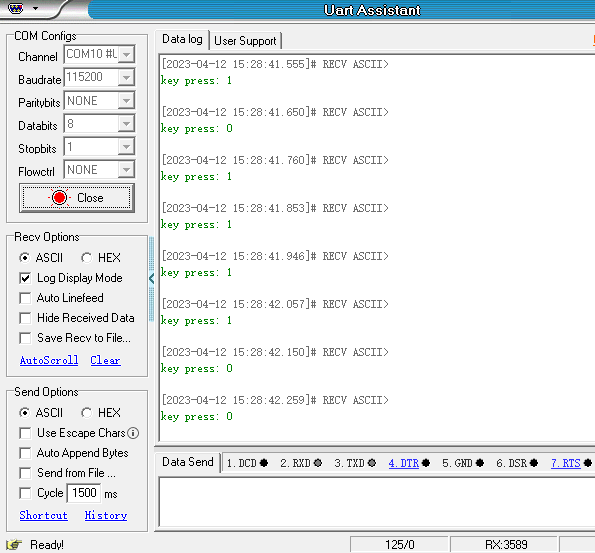
Open the serial port Assistant, you can see the cycle print debugging information when the key K1 is pressed, the print key press: 1. When release the button, K1, print key press: 0 to.
2.4 the experiments are summarized
Use CanMV IDE, with the factory firmware write a good MicroPython syntax, so that the read key K1 is very easy, does not need to know which of the principles, by a simple few lines of code can be read to the key K1 of the state, really convenient.