yahboom
HomeLearn
Solution
Blog
Online Store
About Us
EN/中文
PALMSLAM📖
1. Product Introduction
  • 0.Get started
  • 1. Learning route
  • 2. Frequently Questions
  • 3. Control panel introduction
  • 4. Introduction to LiDAR
  • 5. Robot charging and battery considerations
  • 6.Unboxing and reviewing
2. Assembly video
  • Installation Video
3. Basic configuration
  • 0. Get started quickly
  • 1. Write the firmware
  • 2. Virtual machine installation and startup system
  • 3. Expansion board configuration parameters
  • 4. How to choose the alarm level and radar model
  • 5. Connection Agent
4. LiDAR course
  • 0. Enter the same docker terminal
  • 1. Robot information release
  • 2. Robot URDF model
  • 3. Basic distance measurement function
  • 4. SLAM Gmapping
  • 5. SLAM Cartographer
  • 6. APP mapping
5. Linux operating system
  • 1.Introduction to Linux system
  • 2.Ubuntu file system
  • 3.Ubuntu common commands
  • 4.Ubuntu common editors
  • 5.Ubuntu software operation commands
  • 6.Virtual machine installation
  • 7.SSH remote control
  • 8.VNC remote control
  • 9.Transfer files remotely
  • 10.Driver library and communication
  • 11.Static IP and hotspot mode
  • 12.Bind device ID
  • 13.Capacity expansion and resource allocation
  • 14.Update system software sources
  • 15.Set root user password
  • 16.sudo free password
  • 17.Connect to WiFi network
  • 18.View system version
  • 19.Customized service management
  • 20.Back up system image
6. ROS2 Basic Course
  • 1.Introduction to ROS2
  • 2.ROS2 install Humble
  • 3.ROS2 development environment
  • 4.ROS2 workspace
  • 5.ROS2 function package
  • 6.ROS2 node
  • 7.ROS2 topic communication
  • 8.ROS2 service communication
  • 9.ROS2 action communication
  • 10.ROS2 custom interface message
  • 11.ROS2 parameter service case
  • 12.ROS2 meta-function package
  • 13.ROS2 distributed communication
  • 14.ROS2 DDS
  • 15.ROS2 time related API
  • 16.ROS2 common command tools
  • 17.ROS2 rviz2 use
  • 18.ROS2 rqt toolbox
  • 19.ROS2 Launch startup file configuration
  • 20.ROS2 recording and playback tool
  • 21.ROS2 URDF model
  • 22.ROS2 Gazebo simulation platform
  • 23.ROS2 TF2 coordinate transformation
Download
  • System_File
  • VM_File
  • Code
  • Software_Tool
  • Hareware_Info
  • 3D_Model_File
  • Instruction_Manual
  • ROS2_Basic_VM
Download ZIP

Welcome to PALMSLAM repository

2. Virtual machine installation and startup system

Virtual machine installation and system startup

Virtual machine installation and system startup1. Install virtual machine software2. Start the virtual machine system3. System username and password4. Check the IP address of the virtual machine

1. Install virtual machine software

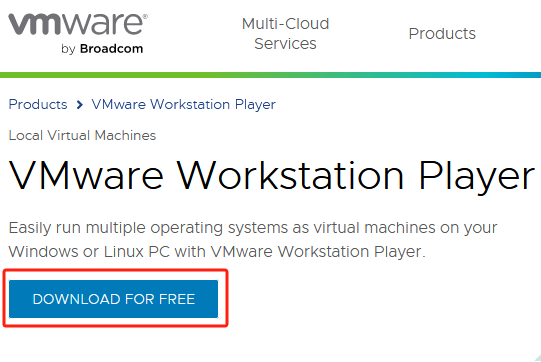
Open the browser, enter the following URL to enter the VMware Player virtual machine software download page, and click Download

https://www.vmware.com/products/workstation-player.html
img

img

img

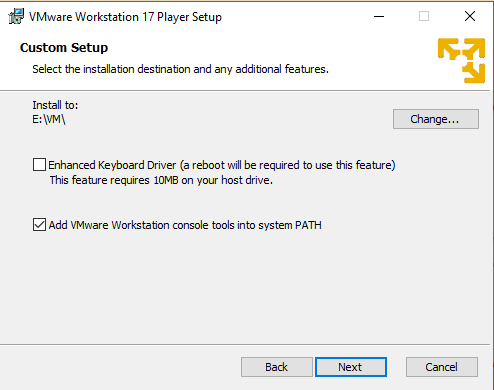
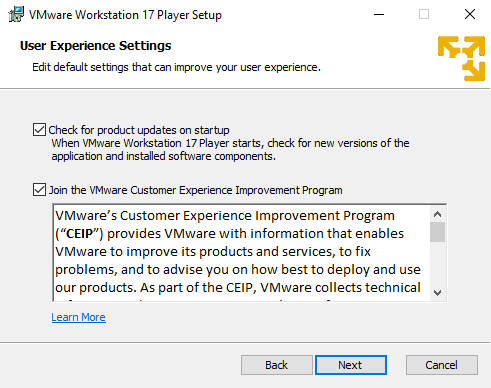
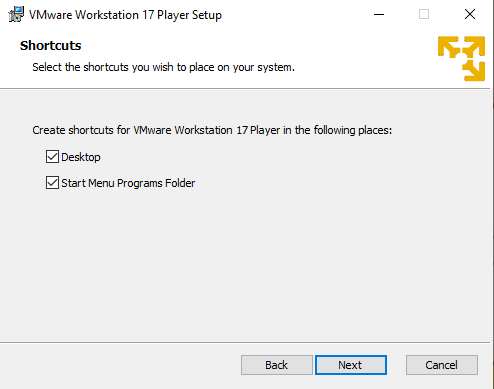
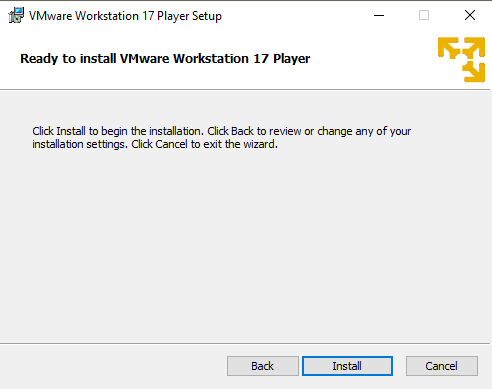
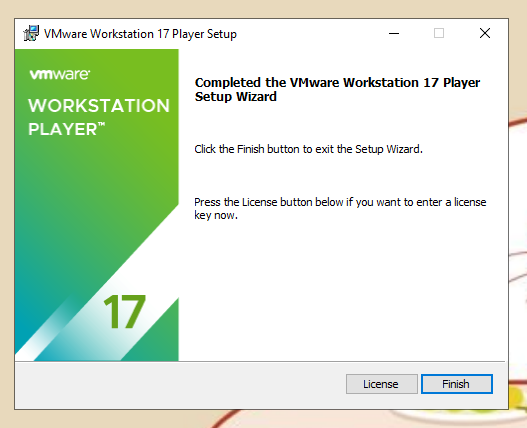
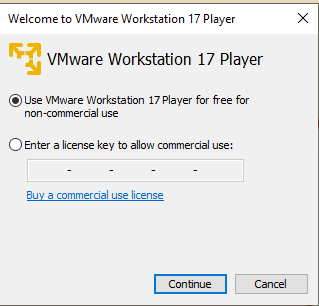
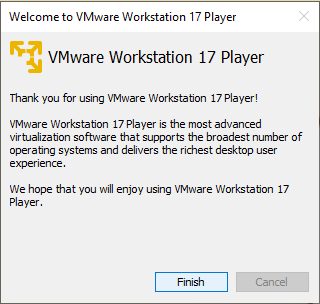
Double-click to run the VMware virtual machine compressed package file, and then install the virtual machine software according to the prompts.
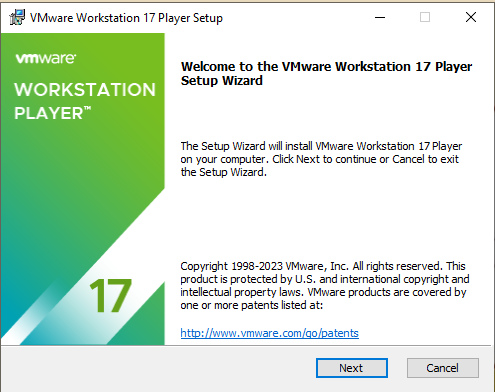
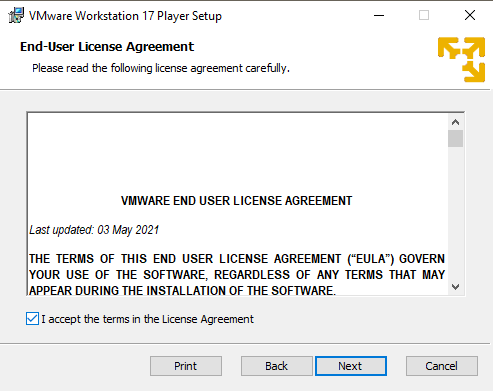
image-20240106153534916

image-20240106153550503

image-20240106153622063

image-20240106153637103

image-20240106153651119

imag e-20240106153703358

image-20240106153901183

Double click to open

image-20240106153948757

image-20240106153926933

image-20240106154005732

2. Start the virtual machine system

Use the virtual machine software to open the virtual machine system file in the data.
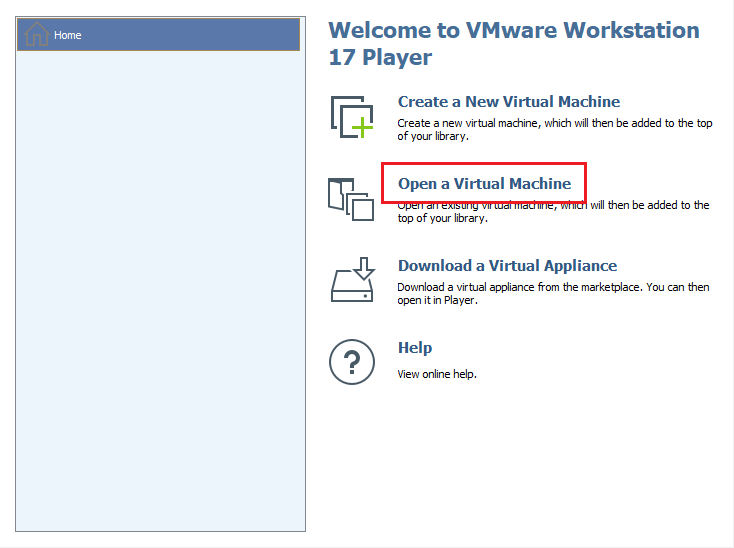
image-20240109113640569

Find the unzipped virtual machine file path and select the Ubuntu22.04.vmx file.
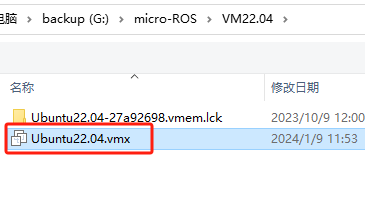
image-20240109115438822

Select the virtual machine name and click Play virtual machine.
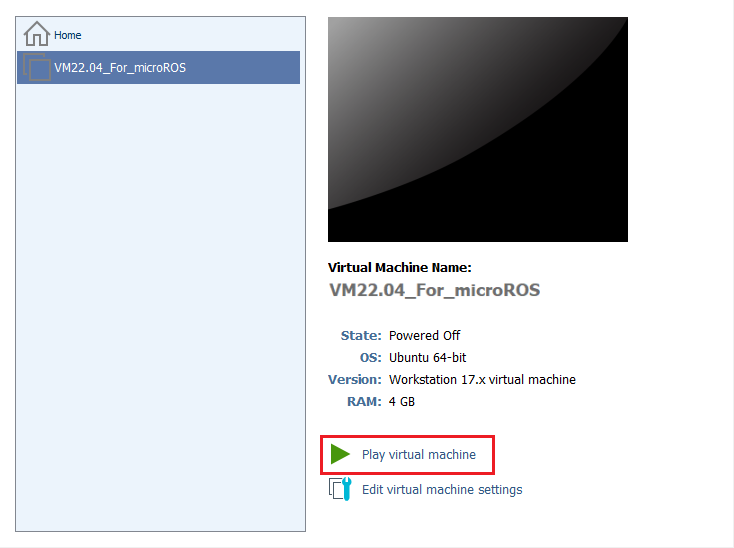
image-20240109115800497

If it is the first time to open the virtual machine, the following window will be prompted, click 'I have copied the virtual machine'.
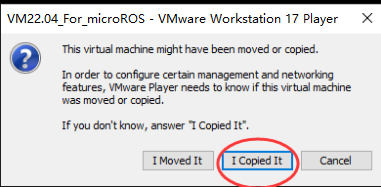
image-20240109120313628

Then wait for the virtual machine to start.

3. System username and password

The virtual machine system of the product is Ubuntu 22.04, and the username and password are as follows:

Username: yahboom

Password: yahboom

Root password: yahboom

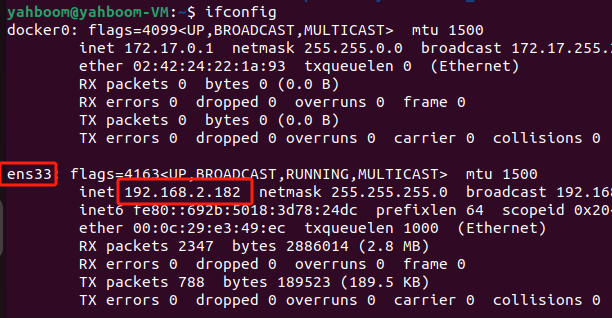
4. Check the IP address of the virtual machine

Open the system terminal and enter the command to query the IP address. Usually, inet under ens33 is the IP address of the current virtual machine.

xxxxxxxxxx
ifconfig

image-20240109120600014

Write the firmware
Expansion board configuration parameters

COMPANY

  • About us
  • Team Style
  • Blog

LEARNING & EXPLORATION

  • Tutorials
  • Edge AI hardware
  • Educational robots
  • Embedded intelligent hardware

WHERE TO BUY

  • Yahboom Online Store
  • Amazon
  • Alibaba
  • AliExpress
  • Mercado

TECHNOLOGY SUPPORT

  • Email: support@yahboom.com

BE A DISTRIBUTOR

  • Email: sales@yahboom.com
QR Code
QR Code

Copyright © 2017-2026 Yahboom. All Rights Reserved.

EN/中文