Welcome to RDK X3 Board repository
3. Using serial port
Using serial port
1. Code path
RDK X3 enables UART3 on 40pin by default, physical pins 8 and 10, IO voltage 3.3V.
RDK Ultra enables UART2 on 40pin by default, physical pins 8 and 10, IO voltage 3.3V.
Please refer to /app/40pin_samples/test_serial.py for details on how to use the serial port.
2. Loopback test
Connect TXD and RXD in hardware.
Then, run the test program to perform write and read operations. The expected result is that the read data is exactly the same as the written data.
Hardware Hookup
Connect TXD and RXD together directly through the jumper cap.
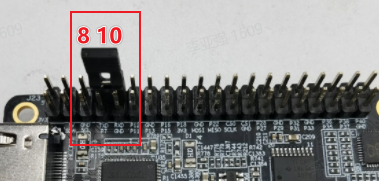
Test process
Run
python3 /app/40pin_samples/test_serial.pySelect the bus number and chip select number from the printed serial port device (/dev/ttyS0 is the system debug port. It is not recommended to test it unless you fully understand its function).
For example, select test
/dev/ttyS3, press Enter to confirm, and enter the baud rate parameter.
x
List of enabled UART:/dev/ttyS0 /dev/ttyS1 /dev/ttyS3 /dev/ttyUSB0
Please input the serial port device name to be tested: /dev/ttyS3Please input the baud rate(9600,19200,38400,57600,115200,921600):921600Serial<id=0x7f819dcac0, open=True>(port='/dev/ttyS3', baudrate=921600, bytesize=8, parity='N', stopbits=1, timeout=1, xonxoff=False, rtscts=False, dsrdtr=False)- When the program runs correctly, it will continue to print
Send: AA55andRecv: AA55:
xxxxxxxxxxStarting demo now! Press CTRL+C to exitSend: AA55Recv: AA55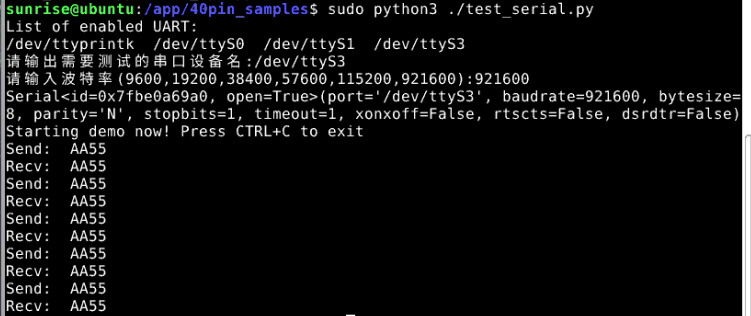
3. Test code
x
#!/usr/bin/env python3
import sysimport osimport time
# Import Python serial port libraryimport serialimport serial.tools.list_ports
def serialTest(): print("List of enabled UART:") os.system('ls /dev/tty[a-zA-Z]*') uart_dev= input("Please input the name of the serial port device to be tested:")
baudrate = input("Please enter the baud rate(9600,19200,38400,57600,115200,921600):") try: ser = serial.Serial(uart_dev, int(baudrate), timeout=1) # 1s timeout except Exception as e: print("open serial failed!\n")
print(ser)
print("Starting demo now! Press CTRL+C to exit")
while True: test_data = "AA55" write_num = ser.write(test_data.encode('UTF-8')) print("Send: ", test_data)
received_data = ser.read(write_num).decode('UTF-8') print("Recv: ", received_data)
time.sleep(1)
ser.close() return 0
if __name__ == '__main__': if serialTest() != 0: print("Serial test failed!") else: print("Serial test success!")