Welcome to RDK X3 Board repository
1.3 SD expansion
System Disk Expansion
Note: The factory image system is compressed to make it convenient for users to download and use SD cards of different capacities. If you find that the disk space does not match the actual capacity of the SD card, you can follow this tutorial to expand it.
The factory image uses an older version of the official RDK system, which mounts the root filesystem as read-only by default. Therefore, you cannot directly expand the partition using GParted within the system. However, you can use the srpi-config tool provided by the RDK official team.
srpi-config
srpi-config is a general configuration management tool provided by the RDK system. It can be launched in a terminal or desktop environment to adjust network settings, system behavior, peripheral interfaces, performance parameters, and localization options. In this tutorial, we will mainly use its "Expand Filesystem" feature in the advanced menu to expand the root filesystem to the entire storage space, thus achieving storage expansion for the RDK system.
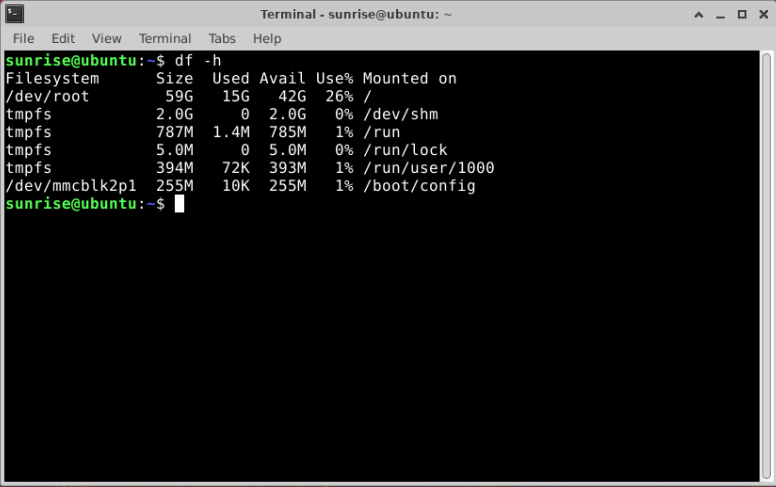
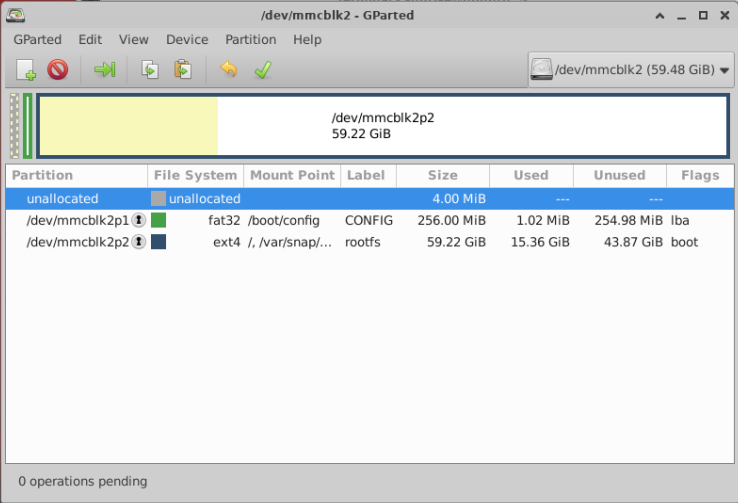
Before you start, you can use df -h or GParted (graphical) to check the disk usage of the currently mounted and active filesystems.
If GParted is not installed, you can install it with the command
sudo apt install gpartedand launch it withsudo gparted.
Open srpi-config
- Open from the command line
srpi-config is a system configuration tool. To open it, type the following command in the terminal:
sudo srpi-config
sudois a command for privilege escalation. It is necessary here to gain root permissions for configuration management, as the defaultsunriseaccount does not have permission to modify system files.
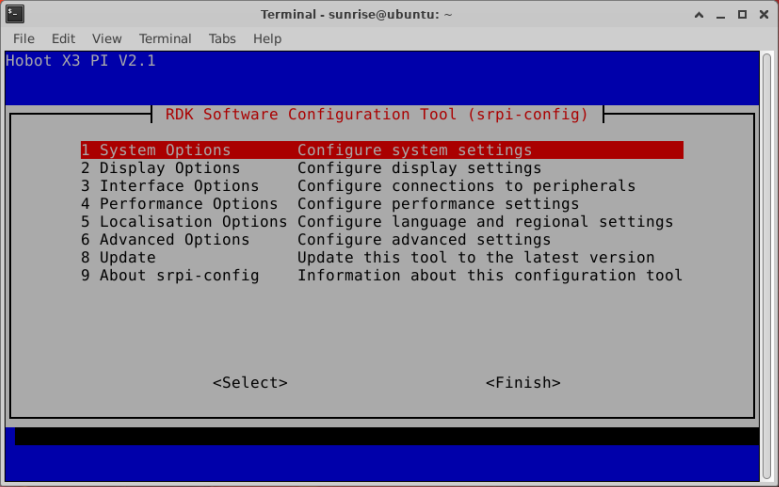
Open from the desktop
If you are using a desktop environment, you can find and launch the
RDK Configurationapplication from the menu. This will open the same configuration terminal as shown in the image above.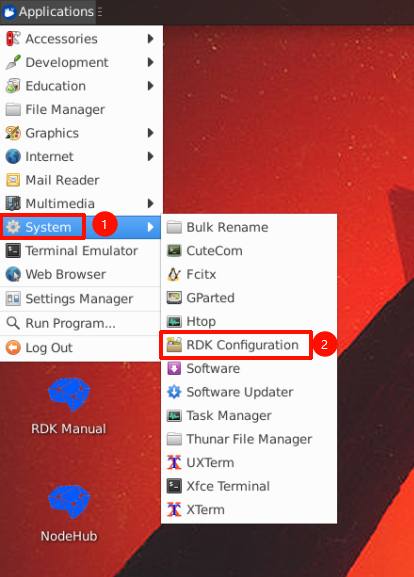
Disk Expansion
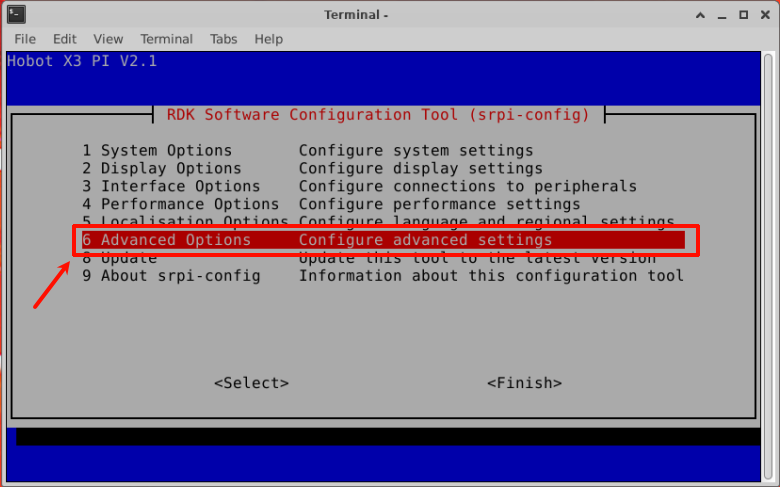
Advanced options allow you to configure settings for disk expansion, network proxy, etc. Select Advanced Options and press Enter.
Select Expand Filesystem again and press Enter to complete the one-click expansion. This option will expand the installation to fill the entire TF card, providing more space for the filesystem.
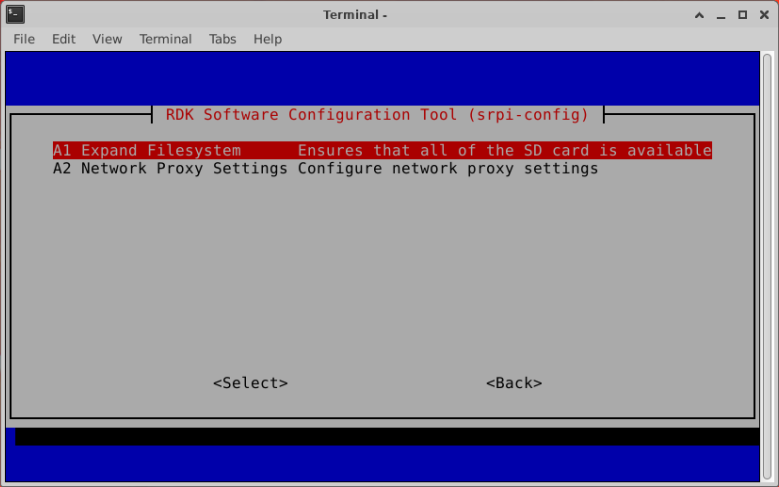
Press Enter to select OK.
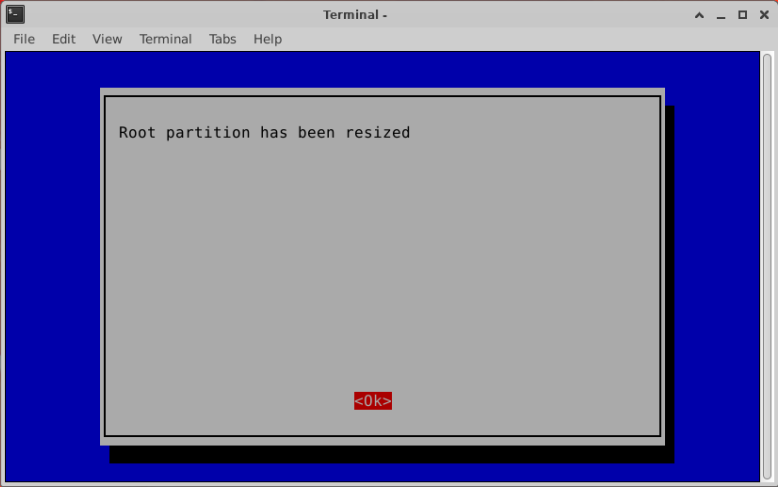
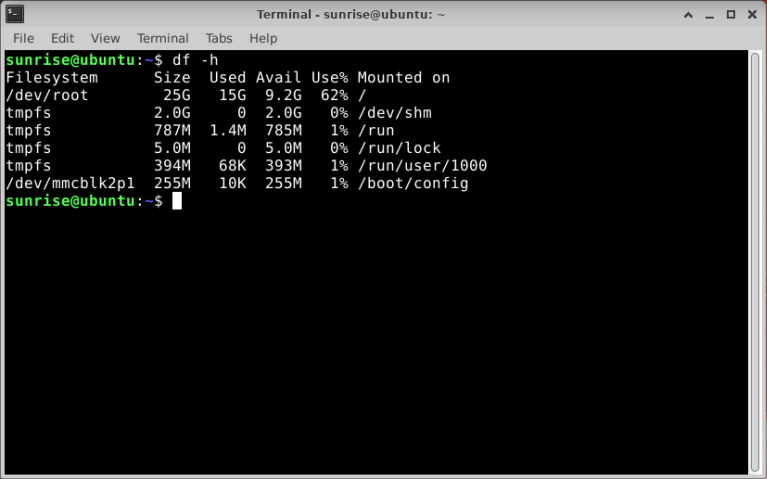
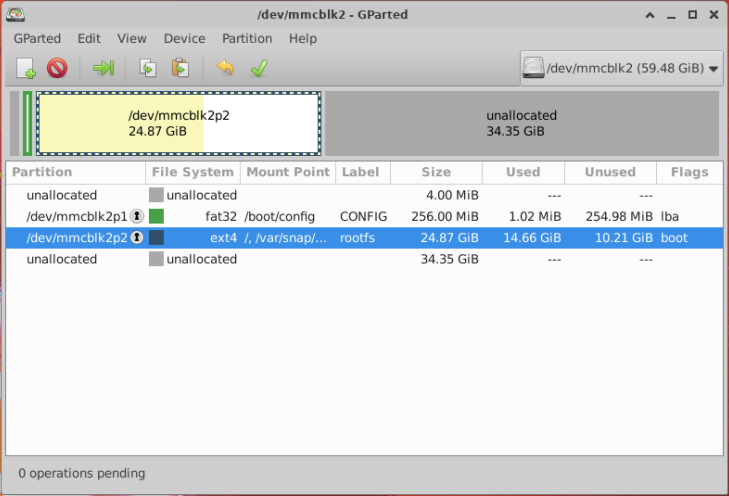
The expansion is now complete. You can use df -h or GParted to check. As you can see, the root filesystem has now been extended to the entire storage space.