yahboom
HomeTutorialsProduct
Solution
Blog
Online Store
About Us
EN/中文
Store
JetCobot📖
1.Introduction to the Jetcobot
  • 0.Unboxing
  • 1 Version Configuration Instructions
  • 2. Power adapter usage specifications
  • 3. Common Problems and Solutions
  • 4. First-time use instructions
  • 5. Get started
  • 6. Open and close the virtual desktop
2.Assembly and assembly tutorial
  • Installation Video
3.Linux operating system
  • 1.Introduction to Linux system
  • 2.Ubuntu file system
  • 3.Ubuntu common commands
  • 4.Ubuntu common editors
  • 5.Ubuntu software operation commands
  • 6.Virtual machine installation
  • 7.SSH remote control
  • 8.VNC remote control
  • 9.Transfer files remotely
  • 10.Driver library and communication
  • 11.Static IP and hotspot mode
  • 12.Bind device ID
  • 13.Capacity expansion and resource allocation
  • 14.Update system software sources
  • 15.Set root user password
  • 16.sudo free password
  • 17.Connect to WiFi network
  • 18.View system version
  • 19.Customized service management
  • 20.Back up system image
4.Jupyter Lab Basic Course
  • 1. Read the document before operation
  • 2. JupyterLab environment construction tutorial
  • 3. JupyterLab Basic Usage Tutorial
  • 4. JupyterWidgets Configuration Tutorial
  • 5. Getting Started Tutorial for JupyterWidgets Controls
5.Basic courses of main control board
  • 1. Introduction to the main control board
  • 2. Burn the system image
  • 3. Re-read the burned image
  • 4. System startup
  • 5. System and desktop introduction
  • 6. System expansion
  • 7. Network Configuration
  • 8. SSH remote login and file transfer
  • 9. VNC Remote Login
  • 10. System backup
  • 11. Increased swap space
  • 12. Use of Jtop
6.GPIO hardware control course
  • 1.GPIO library API usage
  • 2. Hardware library configuration
  • 3. Pin reading function
  • 4. Pin level output control
  • 5. Control LED
  • 6. External device serial communication
  • 7.I2C communication
7.Jetson-inference vision course
  • 1. Install Jetcam (optional)
  • 2. Install TensorFlow (optional)
  • 3. Jetson-inference environment construction (optional)
  • 4. Hello AI World
  • 5. Image Classification Reasoning
  • 6. Object Detection Reasoning
  • 7. Semantic Segmentation
8.Opencv basic course
  • 1. Introduction to Open Source CV
  • 2. Image reading and display
  • 3. Image writing
  • 4. Image quality
  • 5. Pixel Operation
  • 6. Image zoom
  • 7. Picture cut
  • 8. Picture pan
  • 9. Picture mirroring
  • 10. Affine transformation
  • 11. Picture rotation
  • 12. Perspective transformation
  • 13. Grayscale processing
  • 14. Binary image
  • 15. Edge green detection
  • 16. Line segment drawing
  • 17. Rectangular circle drawing
  • 18. Text and picture drawing
9.ROS Basic Course
  • 1.ROS introduction
  • 2.ROS installation
  • 3.ROS common command tools
  • 4.ROS workspace
  • 5.ROS function package
  • 6.ROS node
  • 7.ROS topic publisher
  • 8.ROS topic subscribers
  • 9.ROS service client
  • 10.ROS service server
  • 11.ROS action client
  • 12.ROS action server
  • 13.ROS custom message reception
  • 14.ROS-launch file
  • 15.ROS-TF transformation
  • 16.ROS parameter service
  • 17.ROS-rviz use
  • 18.ROS-rqt tool usage
  • 19.Topic message recording and playback
  • 20.urdf model introduction
  • 21.gazebo introduction
  • 22.ROS distributed communication
10.ROS+OpenCV course
  • 1.QR code
  • 2.Human pose estimation
  • 3.Target Detection
  • 4.AR vision
  • 5.AR QR code
  • 6.ROS+Opencv basics
  • 7.Face recognition
  • 8.harris corner detection
  • 9.Target tracking algorithm
  • 10.Contour moment
  • 11.Polygon outline
  • 12.Discrete fourier transform algorithm
  • 13.Edge detection algorithm
  • 14.Face detection algorithm
  • 15.Optical flow detection algorithm
  • 16.Contour detection
  • 17.General contour detection
  • 18.Feature point tracking
  • 19.HLS color filtering
  • 20.Hough circle detection
  • 21.Hough linear detection
  • 22.HSV color filtering
  • 23.LK optical flow algorithm
  • 24.Detection algorithm
  • 25.Phase dependent displacement detection
  • 26.Image pyramid sampling algorithm
  • 27.RGB color filtering
  • 28.Clear background detection algorithm
  • 29.Simplified optical flow algorithm
  • 30.Simple filter
  • 31.Threshold image processing
  • 32.Watershed segmentation algorithm
11.Robotic arm control course
  • 1.Send data
  • 2.Read data
  • 3.Control robotic arm joint angle
  • 4.Control coordinates of robotic arm end
  • 5.Control robotic arm posture
  • 6.Handle control robotic arm
  • 7.Calibrate robotic arm joint
  • 8.Calibrate robotic arm gripper
12.AI visual basic ourse
  • 1.Camera driver
  • 2.Block color calibration
  • 3.Color recognition
  • 4.Face detection
  • 5.Gesture recognition
  • 6.Model training
  • 7.Garbage recognition
13.Mediapipe course
  • 1.Hand detection
  • 2.Posture detection
  • 3.Overall detection
  • 4.Face detection
  • 5.Face recognition
  • 6.Face effects
  • 7.3D object recognition
  • 8.Brush
  • 9.Finger control
  • 10.Gesture recognition
14.AI visual tracking course
  • 1.PID algorithm basics
  • 2.Color block positioning
  • 3.Color block tracking
  • 4.Face positioning
  • 5.Face tracking
  • 6.Fingertip trajectory recognition
  • 7.Mediapipe gesture control robotic arm action group
  • 8.Mediapipe arm posture control robotic arm
  • 9.Mediapipe palm arm target positioning
  • 10.Mediapipe palm recognition and tracking control robotic arm
  • 11.Apriltag tag code recognition
  • 12.Apriltag tag code tracking
  • 13.KCF object tracking
15.AI visual grabbing course
  • 1.Gesture recognition stacking blocks
  • 2.Color recognition grab blocks
  • 3.Apriltag recognition grabbing blocks
  • 4.Catch game
  • 5.Color sorting
  • 6.Color stacking
  • 7.apriltag sorting
  • 8.apriltag stacking
  • 9.Garbage sorting
  • 10.Garbage stacking
  • 11.Color interaction
16.URDF Model course
  • 1.URDF model of the robotic arm
  • 2.URDF model controls the real robotic arm
17.Kinesiology advanced course
  • 1.Movelt configuration
  • 2.MoveIt control the real machine
  • 3.Moves randomly
  • 4.Movelt kinematic design
  • 5.Movelt cartesian path
  • 6.Movelt collision detection
  • 7.Movelt scene design
18.Jetson Orin SUPER -Introduction to the Jetcobotnew
  • 1. Version Configuration Instructionsnew
  • 2. Power adapter usage specificationsnew
  • 3. Common Problems and Solutionsnew
  • 4. First-time use instructionsnew
  • 5. Get startednew
  • 6. Open and close the virtual desktopnew
19.Jetson Orin SUPER -Assembly and assembly tutorial
  • Installation Videonew
20.Jetson Orin SUPER -Linux operating systemnew
  • 1.Introduction to Linux systemnew
  • 2.Ubuntu file systemnew
  • 3.Ubuntu common commandsnew
  • 4.Ubuntu common editorsnew
  • 5.Ubuntu software operation commandsnew
  • 6.Virtual machine installationnew
  • 7.SSH remote controlnew
  • 8.VNC remote controlnew
  • 9.Transfer files remotelynew
  • 10.Driver library and communicationnew
  • 11.Static IP and hotspot modenew
  • 12.Bind device IDnew
  • 13.Capacity expansion and resource allocationnew
  • 14.Update system software sourcesnew
  • 15.Set root user passwordnew
  • 16.sudo free passwordnew
  • 17.Connect to WiFi networknew
  • 18.View system versionnew
  • 19.Customized service managementnew
  • 20.Back up system imagenew
21.Jetson Orin SUPER -Jupyter Lab Basic Course
  • 1. Read the document before operationnew
  • 2. JupyterLab environment construction tutorialnew
  • 3. JupyterLab Basic Usage Tutorialnew
  • 4. JupyterWidgets Configuration Tutorialnew
  • 5. Getting Started Tutorial for JupyterWidgets Controlsnew
22.Jetson Orin SUPER -Basic motherboard usage course
  • 1. Motherboard Introductionnew
  • 2. Restore the factory image systemnew
  • 3. System startupnew
  • 4. System and desktop introductionnew
  • 5.VNC Remote Controlnew
  • 6. System expansionnew
  • 7. Network Configurationnew
  • 8.SSH remote loginnew
  • 9. Remote file transfernew
  • 10. Chinese input methodnew
  • 11. Use of Jtop toolnew
  • 12. Swap space expansionnew
  • 13.Backup SSD systemnew
  • 14.Jetpack old system upgraded to SUPER system
23.Jetson Orin SUPER -GPIO hardware control course
  • 1.GPIO library API usagenew
  • 2.Hardware library configurationnew
  • 3.Pin reading functionnew
  • 4.Pin level output controlnew
  • 5.Control LEDnew
  • 6.External device serial communicationnew
  • 7.I2C communicationnew
24.Jetson Orin SUPER -YOLO11 development
  • 01.YOLO environment constructionnew
  • 02.CLI usenew
  • 03.Object detection
  • 04.Instance segmentationnew
  • 05.Pose estimationnew
  • 06.Image classificationnew
  • 07.Oriented object detectionnew
  • 08.Model conversionnew
  • 09.Dataset annotationnew
  • 10.Model training conversionnew
  • 11.Model predictionnew
25.Jetson Orin SUPER -OpenCV course
  • 1. Introduction to Open Source CVnew
  • 2. Image reading and displaynew
  • 3. Image writingnew
  • 4. Image qualitynew
  • 5. Pixel Operationnew
  • 6. Image zoomnew
  • 7. Picture cutnew
  • 8. Picture pannew
  • 9. Picture mirroringnew
  • 10. Affine transformationnew
  • 11. Picture rotationnew
  • 12. Perspective transformationnew
  • 13. Grayscale processingnew
  • 14. Binary imagenew
  • 15. Edge green detectionnew
  • 16. Line segment drawingnew
  • 17. Rectangular circle drawingnew
  • 18. Text and picture drawingnew
26.Jetson Orin SUPER -ROS2 basic course
  • 1. Introduction to ROS2new
  • 2.ROS2 install Humblenew
  • 3.ROS2 development environmentnew
  • 4.ROS2 workspacenew
  • 5.ROS2 function packagenew
  • 6.ROS2 nodenew
  • 7.ROS2 topic communicationnew
  • 8.ROS2 service communicationnew
  • 9.ROS2 action communicationnew
  • 10.ROS2 custom interface messagenew
  • 11.ROS2 parameter service casenew
  • 12.ROS2 meta-function packagenew
  • 13.ROS2 distributed communicationnew
  • 14.ROS2 DDSnew
  • 15.ROS2 time related APInew
  • 16.ROS2 common command toolsnew
  • 17.ROS2 rviz2 usenew
  • 18.ROS2 rqt toolboxnew
  • 19.ROS2 Launch startup file configurationnew
  • 20.ROS2 recording and playback toolnew
  • 21.ROS2 URDF modelnew
  • 22.ROS2 Gazebo simulation platformnew
  • 23.ROS2 TF2 coordinate transformationnew
27.Jetson Orin SUPER -Advanced vision course
  • 1.QR codenew
  • 2.Human pose estimationnew
  • 3.Target Detectionnew
  • 4.AR visionnew
  • 5.ROS+Opencv Basicsnew
28.Jetson Orin SUPER -Robotic Arm Control Course
  • 1. Sending Datanew
  • 2. Read datanew
  • 3. Control the joint angle of the robotic armnew
  • 4. Control the coordinates of the end of the robot armnew
  • 5. Control the posture of the robotic armnew
  • 6.Handle remote control robotic armnew
  • 7. Calibrate the robot arm jointsnew
  • 8. Calibrate the robot grippernew
29.Jetson Orin SUPER -AI Vision Basic Course
  • 1. Camera drivernew
  • 2. Color threshold adjustment and color block calibrationnew
  • 3. Color recognitionnew
  • 4. Face Detectionnew
  • 5. Gesture Recognitionnew
  • 6. Garbage Identificationnew
30.Jetson Orin SUPER -Mediapipe Development Course
  • 1. Hand detectionnew
  • 2. Posture detectionnew
  • 3. Overall detectionnew
  • 4.FaceMeshnew
  • 5. Face Detectionnew
  • 6. Face effectsnew
  • 7. 3D Object Recognitionnew
  • 8. Brushnew
  • 9. Finger controlnew
  • 10. Gesture Recognitionnew
31.Jetson Orin SUPER -AI visual tracking course
  • 1.PID algorithm basicsnew
  • 2. Color block positioning experimentnew
  • 3. Color block tracking experimentnew
  • 4. Face location experimentnew
  • 5. Face tracking experimentnew
  • 6. Fingertip trajectory recognitionnew
  • 7.Mediapipe gesture control robotic arm action groupnew
  • 8.Mediapipe arm posture control robotic armnew
  • 9. Mediapipe palm arm target positioningnew
  • 10. Mediapipe identifies and tracks your palm to control the robotic armnew
  • 11. Apriltag label code recognitionnew
  • 12. Apriltag label code trackingnew
  • 13.KCF Object Trackingnew
32.Jetson Orin SUPER -AI Visual Capture Course
  • 1. Gesture recognition stacking blocksnew
  • 2. Color recognition grab blocksnew
  • 3. Apriltag recognition and grabbing building blocksnew
  • 4.Catch gamenew
  • 5. Color sortingnew
  • 6. Color stackingnew
  • 7. Apriltag sortingnew
  • 8. Apriltag stackingnew
  • 9. Garbage sortingnew
  • 10. Garbage dumpnew
  • 11.Color interactionnew
33.Jetson Orin SUPER -Robotic Arm URDF Model Course
  • 1. Robotic arm URDF modelnew
  • 2. URDF model controls the real robot armnew
34.Jetson Orin SUPER -Moveit advanced kinematics course
  • 1.Movelt Configurationnew
  • 2. Use of MoveItnew
  • 3. MoveIt drives the real machinenew
  • 4. MoveIt Random Movenew
  • 5.Movelt positive kinematics designnew
  • 6.Movelt inverse kinematics designnew
  • 7.Movelt Cartesian pathnew
  • 8.Movelt scene designnew
  • 9.Movelt Collision Detectionnew
35.FAQnew
  • 1.Using your own Jetson board, JetCobot cannot start normally
Download
  • Instruction_Manual
  • SystemFile_for_NANO4GB
  • SystemFile_For_OrinNANO
  • SystemFile_For_OrinNX
  • VM_File
  • Code
  • 3D Model File
  • Jetson_Boot_USB.tar.gz
  • ROS2_Basic_VM
Download ZIP

Welcome to JetCobot repository

8.ROS topic subscribers

8.ROS topic subscribers

The previous section introduced how to write a publisher node program in ros. This section introduces how to write a subscriber program.

8.1 Create a subscriber

The general creation steps are as follows:

  • Initialize ROS nodes
  • Create handle
  • Subscribe to the topics you need
  • Wait in a loop for topic messages, and enter the callback function after receiving the message
  • Complete message processing in the callback function

The callback function is an important part of the subscriber. It processes the subscribed message, then parses the message data, and determines how to proceed with the subsequent program based on the parsed message data.

8.2 C++ version

8.2.1 Writing source code

In the src folder of the function package learn_topic, create a C++ file (the file suffix is .cpp), name it turtle_pose_subscriber.cpp, and paste the following content into turtle_pose_subscriber.cpp,

/*Create a small turtle to receive the current pose information*/
#include <ros/ros.h>
#include "turtlesim/Pose.h"
// After receiving the message, you will enter the message callback function, which will process the received data.
void turtle_poseCallback(const turtlesim::Pose::ConstPtr& msg)
{
    // Print received messages
    ROS_INFO("Turtle pose: x:%0.3f, y:%0.3f", msg->x, msg->y);
}
int main(int argc, char **argv)
{
    ros::init(argc, argv, "turtle_pose_subscriber");// Initialize ROS node
    ros::NodeHandle n;//Here is create handle
    // Create a subscriber. The topic of subscription is the topic of /turtle1/pose. poseCallback is the callback function.
    ros::Subscriber pose_sub = n.subscribe("/turtle1/pose", 10,turtle_poseCallback);
    ros::spin(); // Loop waiting for callback function
    return 0;
}

8.2.2 Modify CMakelist.txt file

Configure in CMakelist.txt, under the build area, add the following content,

xxxxxxxxxx
add_executable(turtle_pose_subscriber src/turtle_pose_subscriber.cpp)
target_link_libraries(turtle_pose_subscriber ${catkin_LIBRARIES})

add_executable shows that the generated executable program file is turtle_pose_subscriber, and the compiled source code is turtle_pose_subscriber.cpp in the src directory.

target_link_libraries specifies the libraries that need to be linked when compiling and generating an executable file.

8.2.3 Compile

Terminal input,

xxxxxxxxxx
cd ~/ros_ws
catkin_make

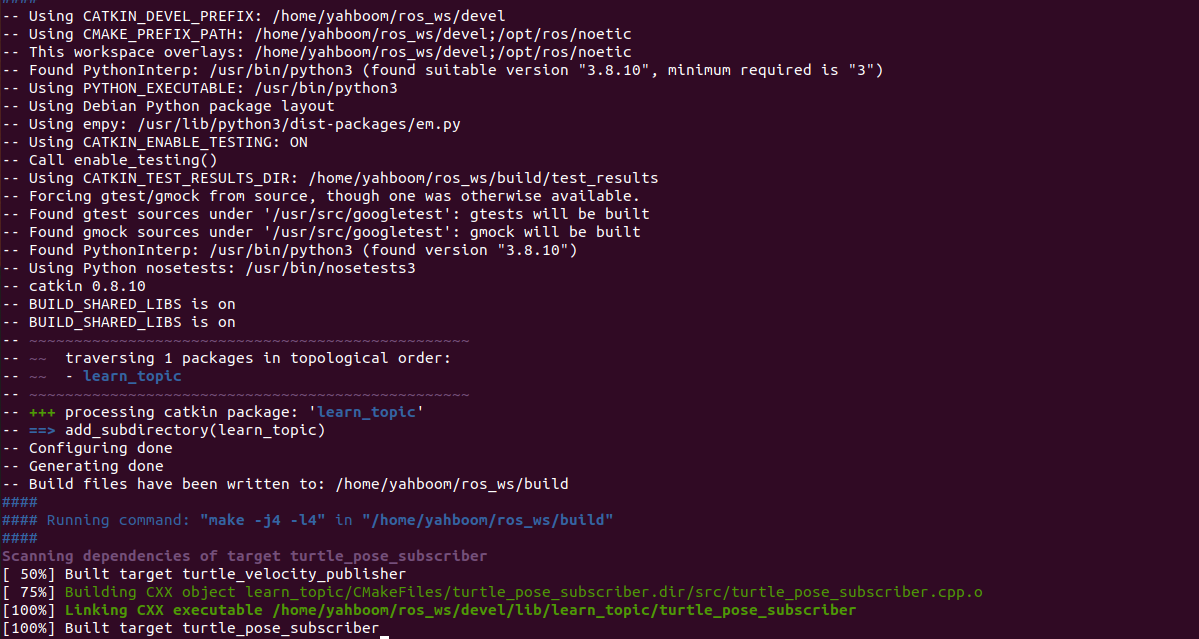
image-20231023163058208

After the compilation is passed, you need to re-source the current environment variables to find or update the program. Enter in the terminal.

xxxxxxxxxx
cd ~/ros_ws
source devel/setup.bash

8.2.4 Running the program

Run roscore

xxxxxxxxxx
roscore

Run the little turtle node

xxxxxxxxxx
rosrun turtlesim turtlesim_node

Run the turtle speed control node

xxxxxxxxxx
rosrun turtlesim turtle_teleop_key

Run the subscriber node to continuously receive the pose data sent by the little turtle.

xxxxxxxxxx
rosrun learn_topic turtle_pose_subscriber

After all programs are running, click on the terminal running the turtle speed control node and press [up, down, left, and right] on the keyboard to control the movement of the turtle. The terminal running the subscriber will print the xy coordinate value of the turtle to the terminal in real time.As shown below,
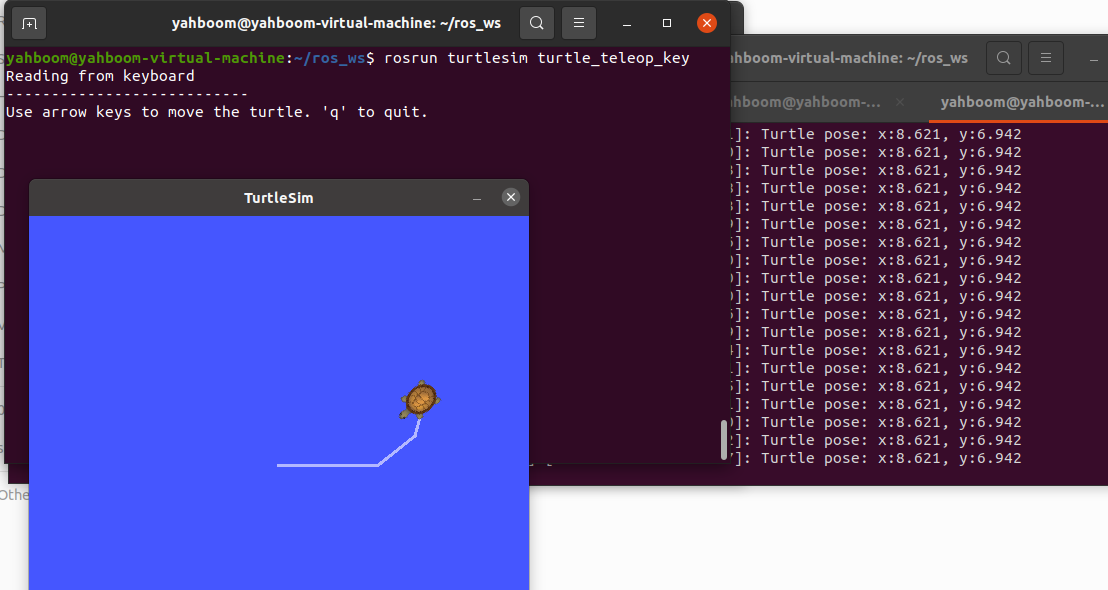
image-20231023163258938

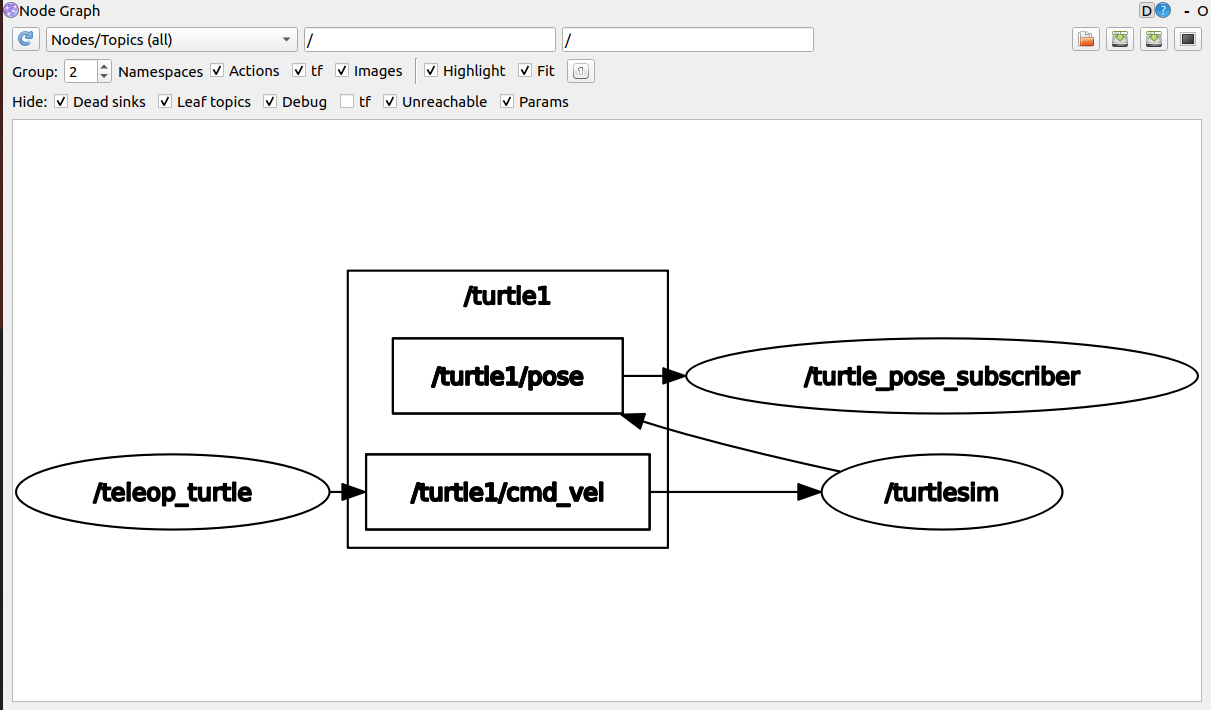
We can use the rqt_graph tool to view the communication between nodes and terminal input.

xxxxxxxxxx
rqt_graph

image-20231023163655762

The inside of the ellipse represents the node name, the inside of the rectangle represents the topic name, and the arrow represents the direction of topic message transmission. The subscriber node program turtle_pose_subscriber we wrote is subscribed to the topic message of /turtle1/pose.This is consistent with the code ros::Subscriber pose_sub = n.subscribe("/turtle1/pose", 10, turtle_poseCallback);, and then in the callback function, print the data, the code is as follows,

xxxxxxxxxx
void turtle_poseCallback(const turtlesim::Pose::ConstPtr& msg)
{
    // Print received messages
    ROS_INFO("Turtle pose: x:%0.3f, y:%0.3f", msg->x, msg->y);
}

8.2.5 Program flow chart

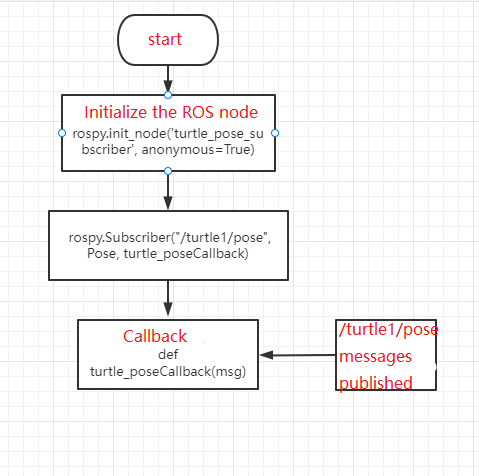
image-20231023164512450

8.3 Python version

8.3.1 Writing source code

Create a new python file (file suffix .py) in the scripts folder under the function package learn_topic, name it turtle_pose_subscriber.py, copy and paste the following program code into the turtle_pose_subscriber.py file,

xxxxxxxxxx
#!/usr/bin/env python
# -*- coding: utf-8 -*-
import rospy
from turtlesim.msg import Pose
def poseCallback(msg):
    rospy.loginfo("Turtle pose: x:%0.3f, y:%0.3f", msg.x, msg.y)
def turtle_pose_subscriber():
    rospy.init_node('turtle_pose_subscriber', anonymous=True)# ROS node initialization
    # Create a Subscriber, subscribe to the topic named /turtle1/pose, and register the callback function poseCallback
    rospy.Subscriber("/turtle1/pose", Pose, poseCallback)
    rospy.spin()# Loop waiting for callback function
if __name__ == '__main__':
    turtle_pose_subscriber()

The python program does not need to be compiled, but it needs to add executable permissions and enter it in the terminal.

xxxxxxxxxx
cd ~/ros_ws/src/learn_topic/scripts
sudo chmod a+x turtle_pose_subscriber.py

8.3.2 Run

Open roscore,

xxxxxxxxxx
roscore

Run the little turtle node,

xxxxxxxxxx
rosrun turtlesim turtlesim_node

Run the turtle speed control node,

xxxxxxxxxx
rosrun turtlesim turtle_teleop_key

Run the subscriber node and continue to receive the pose data sent by the little turtle.

xxxxxxxxxx
rosrun learn_topic turtle_pose_subscriber.py

After all programs are running, click on the terminal running the turtle speed control node and press [up, down, left, and right] on the keyboard to control the movement of the turtle. The terminal running the subscriber will print the xy coordinate value of the turtle to the terminal in real time.As shown below,
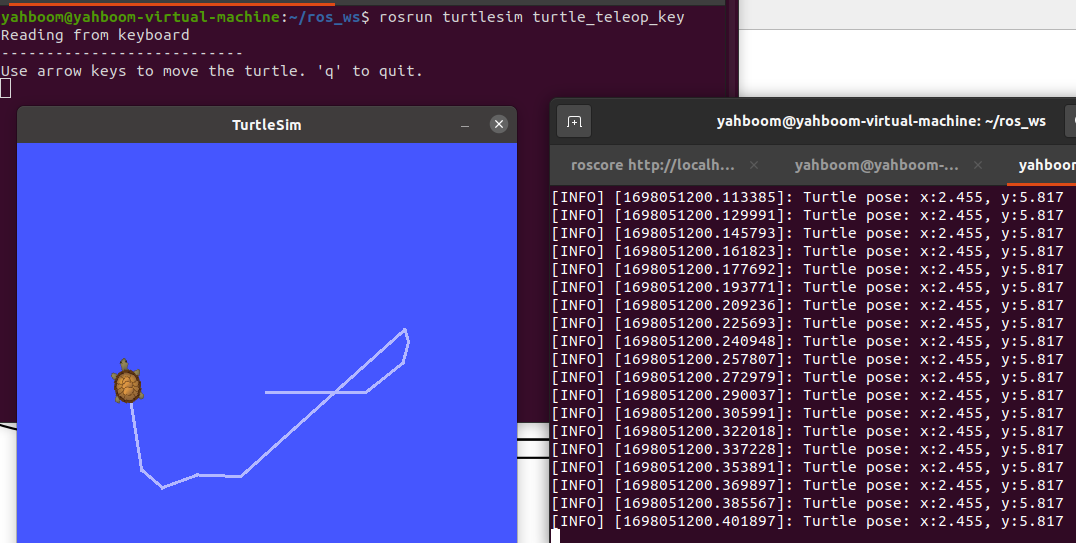
image-20231023165328965

8.3.3 Program flow chart

image-20231023165516756

ROS topic publisher
ROS service client

COMPANY

  • About us
  • Team Style
  • Blog

LEARNING & EXPLORATION

  • Tutorials
  • Edge AI hardware
  • Educational robots
  • Embedded intelligent hardware

WHERE TO BUY

  • Yahboom Online Store
  • Amazon
  • Alibaba
  • AliExpress
  • Mercado

TECHNOLOGY SUPPORT

  • Email: support@yahboom.com

BE A DISTRIBUTOR

  • Email: sales@yahboom.com
QR Code

Copyright © 2017-2026 Yahboom. All Rights Reserved.

EN/中文