Welcome to JetCobot repository
18.Feature point tracking
18、Feature point tracking
18.1、Use
Source code launch file path:~/jetcobot_ws/src/opencv_apps/launch
Step 1: Start the camera
xxxxxxxxxxroslaunch jetcobot_visual opencv_apps.launch img_flip:=false
img_flip parameter: whether the image needs to be flipped horizontally, the default is false.
Step 2: Start the corner detection function of Opencv_apps
xxxxxxxxxxroslaunch opencv_apps goodfeature_track.launch # Feature point tracking
Each functional case will have a parameter [debug_view], Boolean type, whether to use Opencv to display images, which is displayed by default.
If no display is required, set it to [False], for example
xxxxxxxxxxroslaunch opencv_apps contour_moments.launch debug_view:=False
However, after starting in this way, some cases cannot be displayed in other ways, because in the source code, some [debug_view] is set to [False], which will turn off image processing.
18.2、Display method
rqt_image_view
Enter the following command and select the corresponding topic
xxxxxxxxxxrqt_image_view
opencv
The system displays it by default and no processing is required.
18.3、Effect display
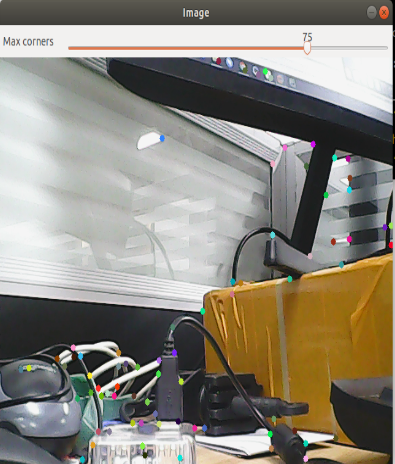
You can see an adjustable window appearing on the screen, and object feature points appearing at the same time.