Welcome to RDK S600 Developer Kit repository
3.Multimodal visual localization application
6. Multimodal Text-to-Image Application
6. Multimodal Text-to-Image Application1. Concept Introduction1.1 What is Text-to-Image?Core Principles2. Code AnalysisKey Code1. Tool Layer Entry (largemodel/utils/tools_manager.py)2. Model Interface Layer Dispatch (largemodel/utils/large_model_interface.py)Code Analysis3. Practical Operations3.1 Configuring Online LLM3.2 Startup and Testing
The online text-to-image function currently only supports the Tongyi Wanxiang platform. Users who cannot obtain the Tongyi Wanxiang platform API can use the local offline fastsdcpu text-to-image solution.
1. Concept Introduction
1.1 What is Text-to-Image?
Text-to-Image is an artificial intelligence technology that automatically generates corresponding images through text descriptions. Simply input a piece of text (for example, "a Shiba Inu wearing sunglasses surfing on the beach"), and the AI model will generate an image matching the description based on semantic understanding, without requiring any drawing or design skills.
Core Principles
- Language Understanding: AI first parses your text, identifying keywords (such as "Shiba Inu", "sunglasses", "beach").
- Image Generation: Based on training with massive image data, AI converts text into visual elements and combines them into a reasonable scene.
- Style Adaptation: You can specify a style (realistic, cartoon, watercolor, etc.), and AI will adjust the generation effect accordingly.
2. Code Analysis
Key Code
1. Tool Layer Entry (largemodel/utils/tools_manager.py)
This function defines the complete execution flow of the generate_image tool.
x# From largemodel/utils/tools_manager.pyclass ToolsManager: # ... def generate_image(self, args): """ Generate image from text prompt and save to local file. """ self.node.get_logger().info(f"Executing generate_image() tool with args: {args}") try: prompt = args.get("prompt") if isinstance(args, dict) else args if not prompt: self.node.get_logger().error("Missing 'prompt' argument for generate_image.") return {'status': 'failed', 'error': 'Missing prompt argument'} # 1. Call the text-to-image service to get the result. api_result = self.node.model_client.text_to_image(prompt) # 2. Check if the API call was successful and get the URL. if not isinstance(api_result, dict) or api_result.get('status') != 'success': error_msg = api_result.get('error', 'Failed to generate image from API') self.node.get_logger().error(f"Image generation API failed: {error_msg}") return {'status': 'failed', 'error': error_msg} image_urls = api_result.get("image_urls", []) if not image_urls: self.node.get_logger().error("API returned success but no image URLs found.") return {'status': 'failed', 'error': 'No image URLs in API response'} # 3. Download and save the image. saved_paths = [] image_dir = os.path.join(self.node.pkg_path, "resources_file", "generated_images") os.makedirs(image_dir, exist_ok=True) for i, url in enumerate(image_urls): try: # Create a filename. safe_prompt = re.sub(r'[\\/*?:"<>|]', "", prompt)[:50] timestamp = datetime.now().strftime("%Y%m%d_%H%M%S") filename = f"{safe_prompt}_{timestamp}_{i+1}.png" save_path = os.path.join(image_dir, filename) # Download image from URL. urlretrieve(url, save_path) self.node.get_logger().info(f"Image successfully downloaded and saved to: {save_path}") saved_paths.append(save_path) # Immediately display the first successfully downloaded image. if len(saved_paths) == 1: try: generated_image = cv2.imread(save_path) if generated_image is not None: cv2.imshow("Generated Image", generated_image) cv2.waitKey(1) except Exception as display_error: self.node.get_logger().error(f"Failed to display image {save_path}: {display_error}") except Exception as download_error: self.node.get_logger().error(f"Failed to download image from {url}: {download_error}") continue # If one image fails to download, continue with the next one. if not saved_paths: return {'status': 'failed', 'error': 'Image generation succeeded, but all downloads failed.'} # 4. Return a success result containing the local path. return { 'status': 'success', 'image_urls': image_urls, 'saved_paths': saved_paths, 'message': f"Successfully generated and saved {len(saved_paths)} image(s)." } except Exception as e: self.node.get_logger().error(f"Failed to execute generate_image tool: {e}") return {'status': 'failed', 'error': f'generate_image tool execution failed: {str(e)}'}2. Model Interface Layer Dispatch (largemodel/utils/large_model_interface.py)
The functions in this file are responsible for actual interaction with external APIs based on configuration.
xxxxxxxxxx# From largemodel/utils/large_model_interface.pyclass model_interface: # ... def generate_image(self, prompt, width=1024, height=1024, n=1): """Text-to-image function interface, supporting multiple platforms.""" if self.llm_platform == 'tongyi': return self._tongyi_generate_image(prompt, width, height, n) elif self.llm_platform == 'ollama': return self._ollama_generate_image_fallback(prompt, width, height, n) else: return {'status': 'failed', 'error': f'The current platform ({self.llm_platform}) does not support text-to-image generation. Currently only Tongyi and Ollama platforms are supported.'} def _tongyi_generate_image(self, prompt, width=1024, height=1024, n=1): """Tongyi Qianwen text-to-image implementation.""" if not self.client: return "Tongyi client is not initialized." try: # Use dashscope SDK for text-to-image call import dashscope dashscope.api_key = self.tongyi_api_key # Call text-to-image API response = dashscope.ImageSynthesis.call( model=self.tongyi_media_model, prompt=prompt, n=n, size=f'{width}*{height}' ) if response.status_code == 200: # Return the generated image URLs image_urls = [item['url'] for item in response.output['results']] return {'image_urls': image_urls, 'status': 'success'} else: return {'error': response.message, 'status': 'failed'} except Exception as e: return {'error': str(e), 'status': 'failed'} def text_to_image(self, prompt, width=1024, height=1024, n=1): """Independent text-to-image interface, specifically for generating images.""" # Directly call the generate_image method return self.generate_image(prompt, width, height, n)Code Analysis
The implementation of this function involves two main layers: the tool layer handles business processes, and the model interface layer handles interaction with external APIs.
Model Interface Layer (
large_model_interface.py):- The
generate_imagefunction selects the corresponding platform implementation based on the configuredself.llm_platformparameter. - If the platform is
'tongyi', it delegates the task to the_tongyi_generate_imagefunction. For other platforms, it returns an error. - The
_tongyi_generate_imagefunction encapsulates the API call. It uses Alibaba Cloud'sdashscopeSDK to send parameters such aspromptto the Tongyi Wanxiang service. After a successful request, it parses the image URLs from the API response and returns these URLs.
- The
Tool Layer (
tools_manager.py):- The
generate_imagefunction executes the complete business process. - It first calls the model interface layer's
text_to_imagemethod to obtain a list of image URLs. - After getting the URL list, it iterates through the list, using the
urlretrievefunction to download each image and save them to the localresources_file/generated_imagesdirectory. - Finally, it returns all successfully saved local file paths as the final result to the caller.
- The
In summary, the entire process is: ToolsManager receives the task -> model_interface selects and calls the cloud service API based on configuration -> Cloud service returns image URLs -> model_interface returns URLs to ToolsManager -> ToolsManager downloads and saves images -> ToolsManager returns local paths.
3. Practical Operations
3.1 Configuring Online LLM
First obtain an API Key from any of the platforms in the previous tutorials
Then update the key in the configuration file, open the model interface configuration file
large_model_interface.yaml:xxxxxxxxxxvim ~/yahboom_ws/install/largemodel/share/largemodel/config/large_model_interface.yamlEnter your API Key: Find the corresponding section and paste the API Key you just copied. Online text-to-image currently only supports Tongyi Wanxiang.
xxxxxxxxxx# large_model_interface.yaml## Tongyi Qianwenqianwen_api_key"sk-xxxxxxxxxxxxxxxxxxxxxxxxxxxxxxxx" # Paste your Keytongyi_media_model"flux-schnell" # Tongyi Qianwen text-to-image modelOpen the main configuration file
yahboom.yaml:xxxxxxxxxxvim ~/yahboom_ws/install/largemodel/share/largemodel/config/yahboom.yamlSelect the online platform to use: Change the
llm_platformparameter to the platform name you want to use.xxxxxxxxxx# yahboom.yamlmodel_serviceros__parameters# ...llm_platform'tongyi' #Online text-to-image currently only supports Tongyi Wanxiang, so select tongyi
3.2 Startup and Testing
Start the
largemodelmain program and enable text interaction mode:xxxxxxxxxxros2 launch largemodel largemodel_control.launch.py text_chat_mode:=trueSend text commands: Open another terminal again and run the following command:
xxxxxxxxxxros2 run text_chat text_chatThen you can start typing your question.
Test:
- Type your question in the terminal and press Enter. For example:
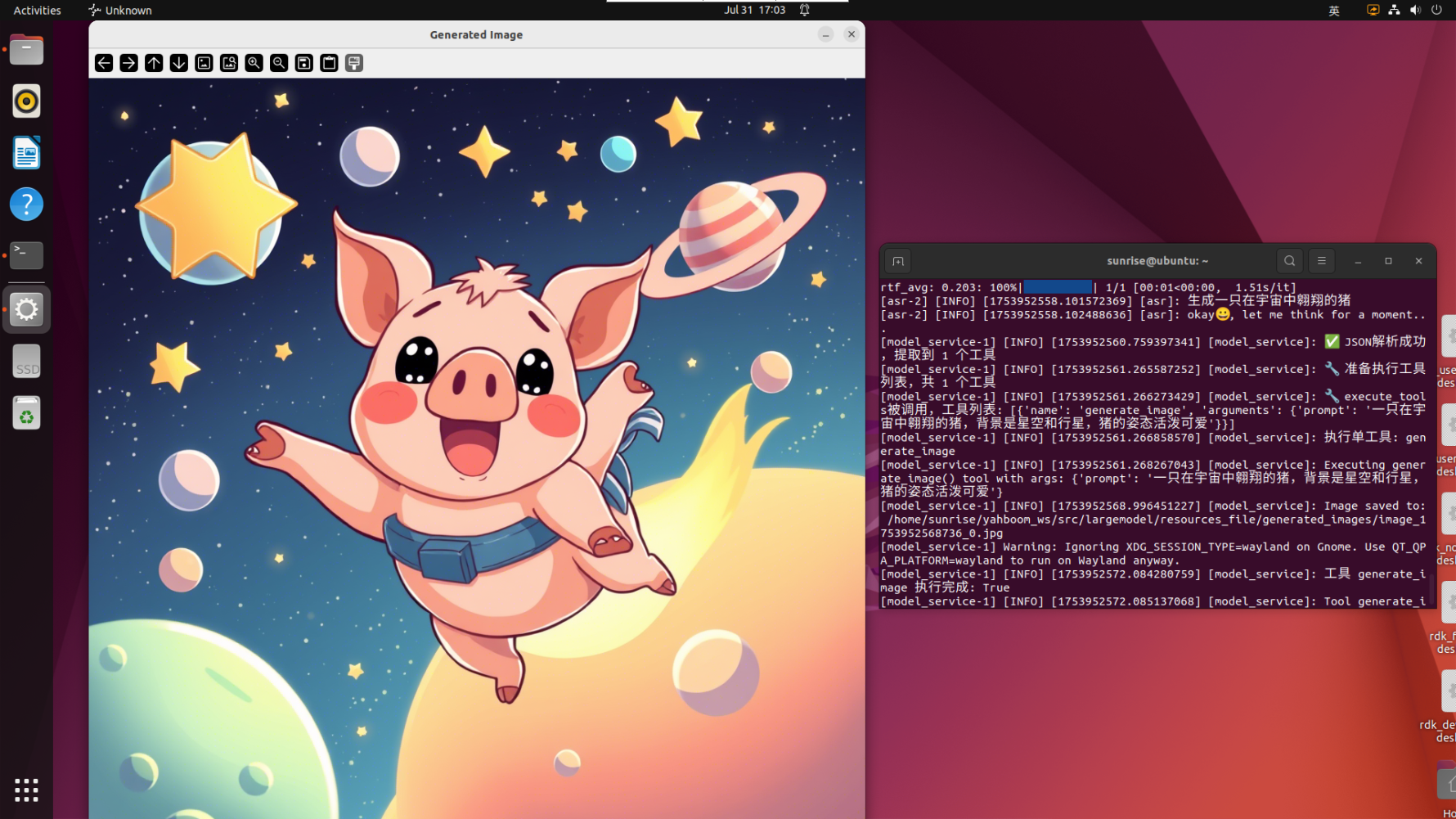
Generate a pig flying in space - Observe the terminal output, wait a moment, and you will see the newly generated image pop up.
- Type your question in the terminal and press Enter. For example: