Welcome to RDK S600 Developer Kit repository
4. OpenClaw WebChat Interaction
OpenClaw WebChat Interaction
OpenClaw WebChat InteractionAccess Directly in VNCAccess from Other Hosts on the LAN1. Modify OpenClaw's Configuration File to Allow Other Devices on the LAN to Access OpenClaw2. Start Gateway3. Get Access Token4. Establish SSH Tunnel and Access on PC
Access Directly in VNC
First, connect to the host terminal and enter:
openclaw gateway
Next, we need to get the openclaw access token. In another terminal, enter:
xxxxxxxxxxopenclaw dashboard
This command displays the token once. Alternatively, you can find the ~/.openclaw/openclaw.json file. Your token will be configured in this file.
We connect to the board's system via VNC, then open a browser and enter the link provided in the dashboard.
Access from Other Hosts on the LAN
Common issue note: Please use the latest version of Edge or Chrome browser. Other browsers may report a 4008 error.
1. Modify OpenClaw's Configuration File to Allow Other Devices on the LAN to Access OpenClaw
xxxxxxxxxxopenclaw configHere we make selections as shown in the figure below (arrow keys to select, Enter to confirm):
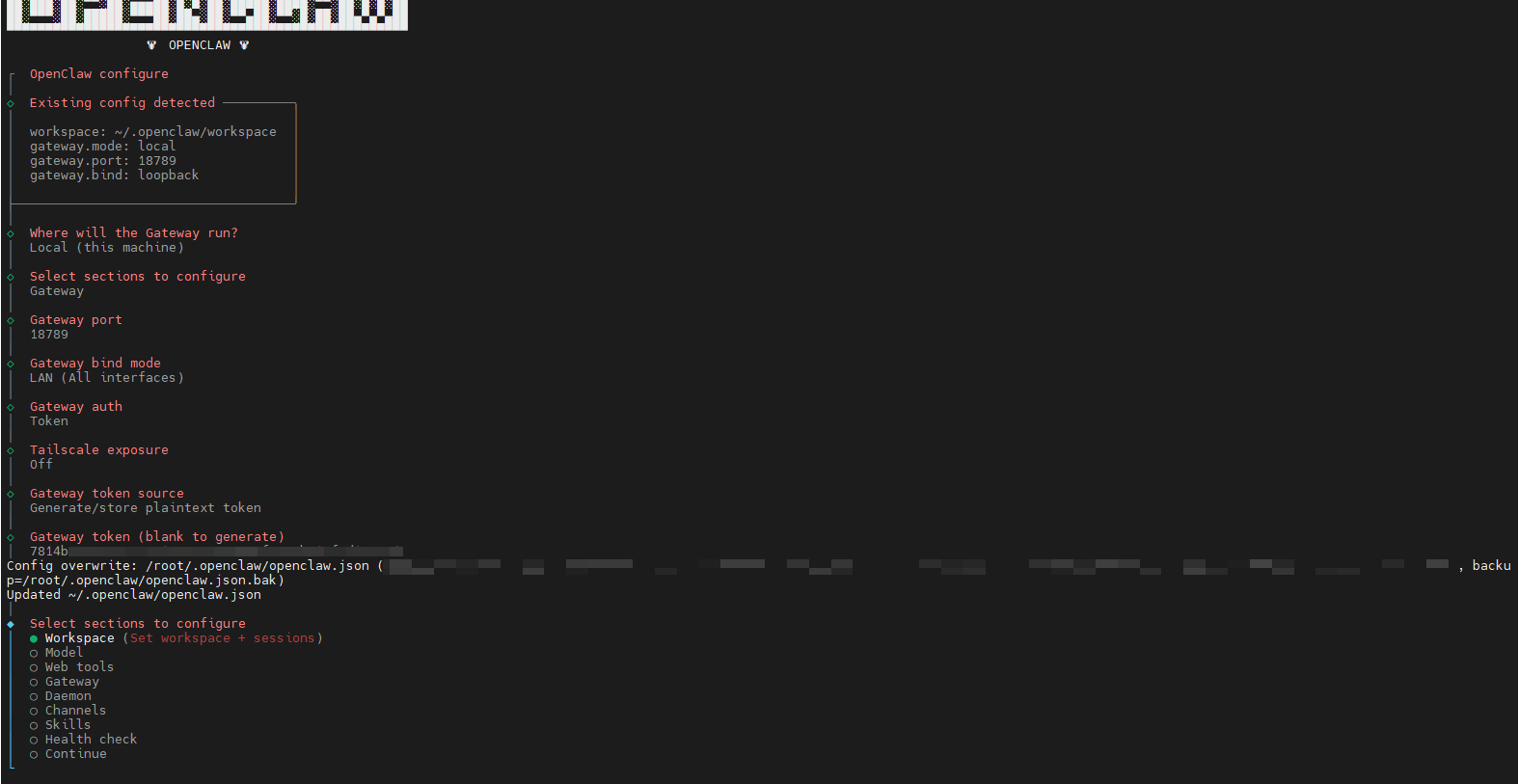
Except for the Token field which can be different from ours, everything else should be the same. The key point is the Gateway bind mode item. We need to set it to LAN to allow other devices on our local network to access our OpenClaw.
Finally, we select Continue to confirm and press Enter. Configuration is complete!

2. Start Gateway
After completing configuration, we first start the OpenClaw Gateway. Let's open another terminal and enter:
xxxxxxxxxxopenclaw gateway
3. Get Access Token
This Token is the one generated in our configuration. If you didn't record it, you can use:
xxxxxxxxxxopenclaw dashboard
This command displays the token once. Alternatively, you can find the ~/.openclaw/openclaw.json file. Your token will be configured in this file.
4. Establish SSH Tunnel and Access on PC
On a PC in the same local network, configure the environment to connect to RDK.
We open the Cmd terminal on the computer (taking Windows PC as an example: press Win+R to wake up the quick RUN tool, enter cmd, then press Enter).
In the console, enter:
xxxxxxxxxxssh -L 18789:127.0.0.1:18789 sunrise@<sunrise-ip-address>Note: Replace <sunrise-ip-address> with the actual IP address of your RDK board.
After pressing Enter here, you need to enter a password (default: sunrise).
We open the PC's browser and enter the IP+token string in the address bar.