yahboom
HomeLearn
Solution
Blog
Online Store
About Us
EN/中文
RDK S600 Developer Kit📖
1.RDK S600 board introduction
  • 1.1 RDK S600 board introduction
  • 1.2 System Flashing
  • 1.3 Hardware Interface Description
  • 1.4 Accessory Installation
  • 1.5 Camera Expansion Board
  • 1.6 MCU Interface Expansion Board
  • 1.7 Precautions for Using the 15.6-inch Screen
  • 1.8 System Boot Modes
2.RDK S600 basic course
  • 2.1 Network Configuration
  • 2.2 Remote Login
  • 2.3 System Update
  • 2.4 Boot Auto-Start Configuration
  • 2.5 RDK Exclusive Command Usage
  • 2.6 Linux Command Usage
  • 2.7 Examples of GPIO Read and Write Operations
  • 2.8 Using the USB Camera
  • 2.9 Solid-state mounting
  • 2.10 SSD expansionnew
3.TogetheROS.Bot Vision Applications
  • 1. About TogetheROS. Bot
  • 2. System Installation
  • 3. Object Detection(YOLO)
  • 4. Image Classification(mobilenetv2)
  • 5. Image Segmentation(mobilenet_unet)
  • 6. Perception Algorithm(BEV)
  • 7. Human Detection and Tracking (Ultralytics YOLO Pose)
4. Offline AI Large Model Development
Offline large model (Text Interaction)
  • 1. AI large model environment deployment
  • 2. Install large model dialogue platform
  • 3. Meta AI Llama 3.2 model
  • 4. Alibaba Cloud Qwen3 model
  • 5. Microsoft Phi-4 mini model
  • 6. DeepSeek - DeepSeek-R1 model
  • 7. Alibaba Cloud Qwen2.5vl Visual Multimodal Large Model
  • 8. Google Gemma3 Visual Multimodal Large Model
  • 9. Lava Visual Multimodal Large Model
  • 10. MiniCPM-V Visual Multimodal Large Model
  • 11. Multimodal visual understand application
  • 12. Multimodal text image application
  • 13. Multimodal visual localization application
  • 14. Multimodal table scanning application
  • 15. Multimodal Autonomous Agent Applications
Offline large model (Voice Interaction)
  • 0. Voice Interaction Hardware Connection (Must Read)
  • 1. Offline speech-to-text (ASR)
  • 2. Offline Text-to-Speech (TTS)
  • 3. AI large model voice interaction
  • 4. Multimodal visual understanding voice interaction
  • 5. Multimodal Text-to-Image application
  • 6. Multimodal video analytics application
  • 7. Multimodal visual localization application
  • 8. Multimodal table scanning application
  • 9. Multimodal autonomous agent application
  • 10. AI Large Model Offline Voice Assistant
5. Online AI Large Model Development
Online large model (Text Interaction)
  • 1.OpenRouter large model API aggregation platform
  • 2.Multimodal visual understand application
  • 3.Multimodal visual localization application
  • 4.Multimodal table scanning application
  • 5.Multimodal autonomous proxy application
Online large model (Voice Interaction)
  • 0.Voice interaction hardware connection (ReadMe)
  • 1.Online speech to text (ASR)
  • 2.Online text to speech (TTS)
  • 3.AI large model voice interaction
  • 4.Multimodal visual understand speech interaction
  • 5.Multimodal visual localization application
  • 6.Multimodal table scanning application
  • 7.Multimodal autonomous proxy application
  • 8.AI large model online voice assistant
6.YOLO26 tutorials
  • 01.YOLO26 environment
  • 02.CLI use
  • 03.Object detection
  • 04.Instance segmentation
  • 05.Pose estimation
  • 06.Image classification
  • 07.Oriented object detection
  • 08.Model conversion
  • 09.Dataset annotation
  • 10.Model training - conversion
  • 11.Model prediction
7.OpenClaw Advanced Development
  • 1. OpenClaw Deployment
  • 2. OpenClaw and WhatsApp Plugin Application
  • 3. OpenClaw TUI Interaction
  • 4. OpenClaw WebChat Interaction
  • 5. OpenClaw Gate Gateway Operation Manual
  • 6. OpenClaw Plugin Function Introduction
  • 7. OpenClaw Tools Introduction
  • 8. OpenClaw ClawHub Introduction (skill Installation)
  • 9.OpenClaw Application - File Management
  • 10.OpenClaw Application - Browser Control
  • 11.OpenClaw Application - Camera
  • 12.OpenClaw Application - Script Execution
  • 13.OpenClaw Application - AI Programming (Peripheral & GPIO Control)
  • 14. OpenClaw Application - Dedicated AI Assistant
  • 15. OpenClaw Configure Web Search Capability
8.ROS2 basic course
  • 1.Introduction to ROS2
  • 2.ROS2 install Jazzy
  • 3.ROS2 development environment
  • 4.ROS2 workspace
  • 5.ROS2 function package
  • 6.ROS2 node
  • 7.ROS2 topic communication
  • 8.ROS2 service communication
  • 9.ROS2 action communication
  • 10.ROS2 custom interface message
  • 11.ROS2 parameter service case
  • 12.ROS2 meta-function package
  • 13.ROS2 distributed communication
  • 14.ROS2 DDS
  • 15.ROS2 time related API
  • 16.ROS2 common command tools
  • 17.ROS2 rviz2 use
  • 18.ROS2 rqt toolbox
  • 19.ROS2 Launch startup file configuration
  • 20.ROS2 recording and playback tool
  • 21.ROS2 URDF model
  • 22.ROS2 Gazebo simulation platform
  • 23.ROS2 TF2 coordinate transformation
Download
  • System_File
  • Code
  • 3D_Model_File
  • Tools_Software
Download ZIP

Welcome to RDK S600 Developer Kit repository

11.Model prediction

Model Prediction

Model Prediction1. CLI Usage2. Python Usage2.1 USB CameraResult Preview2.2 CSI CameraResult Preview

1. CLI Usage

CLI currently only supports calling USB cameras. For CSI camera users, you can directly modify the previous Python code to call the ncnn model!

xxxxxxxxxx
cd /home/sunrise/ultralytics26/data/yahboom_data/orange_data/runs/detect/train/weights
yolo predict model='best_ncnn_model' source=0 save=False show   # For multiple cameras, change the number after source
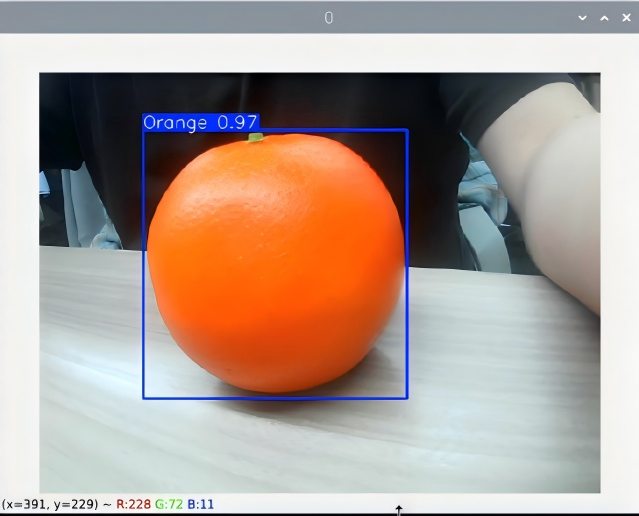
image-20260311181113683

2. Python Usage

Use Python to call USB camera and CSI camera to recognize oranges.

2.1 USB Camera

Use best_ncnn_model to predict camera feed:

xxxxxxxxxx
cd /home/sunrise/ultralytics26/yahboom_demo

Run code: Click the preview screen, press q key to terminate the program!

xxxxxxxxxx
python3 06.orange_camera_usb.py
Result Preview

yolo recognition output video location: /home/sunrise/ultralytics26/output/
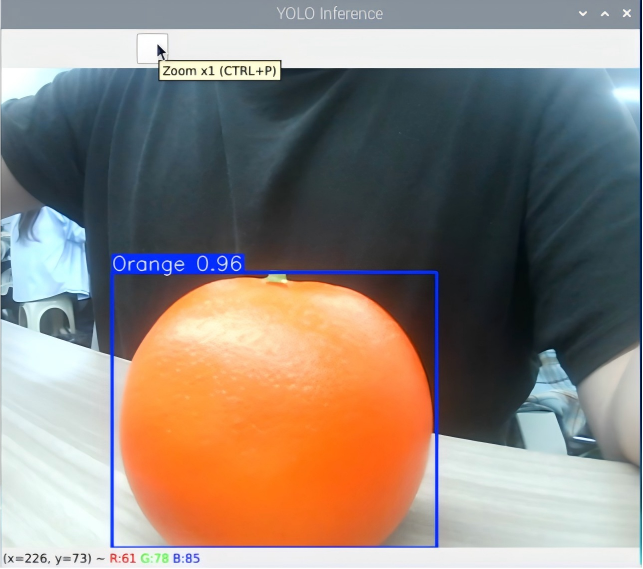
image-20260311181245125

Example code:

xxxxxxxxxx
import cv2
from ultralytics import YOLO

# Load the YOLO model
# model = YOLO("/home/sunrise/ultralytics26/data/yahboom_data/orange_data/runs/detect/train/weights/best.pt")
model = YOLO("/home/sunrise/ultralytics26/data/yahboom_data/orange_data/runs/detect/train/weights/best_ncnn_model")

# Open the cammera
cap = cv2.VideoCapture(0)
cap.set(6, cv2.VideoWriter.fourcc('M', 'J', 'P', 'G'))
cap.set(cv2.CAP_PROP_FRAME_WIDTH, 640)
cap.set(cv2.CAP_PROP_FRAME_HEIGHT, 480)

# Get the video frame size and frame rate
frame_width = int(cap.get(cv2.CAP_PROP_FRAME_WIDTH))
frame_height = int(cap.get(cv2.CAP_PROP_FRAME_HEIGHT))
fps = int(cap.get(cv2.CAP_PROP_FPS))

# Define the codec and create a VideoWriter object to output the processed video
output_path = "/home/sunrise/ultralytics/ultralytics/output/06.orange_camera_usb.mp4"
fourcc = cv2.VideoWriter_fourcc(*'mp4v')  # You can use 'XVID' or 'mp4v' depending on your platform
out = cv2.VideoWriter(output_path, fourcc, 30, (640, 480))

# Loop through the video frames
while cap.isOpened():
    # Read a frame from the video
    success, frame = cap.read()

    if success:
        # Run YOLO inference on the frame
        results = model(frame)

        # Visualize the results on the frame
        annotated_frame = results[0].plot()

        # Write the annotated frame to the output video file
        out.write(annotated_frame)


        # Display the annotated frame
        cv2.imshow("YOLO Inference", cv2.resize(annotated_frame, (640, 480)))

        # Break the loop if 'q' is pressed
        if cv2.waitKey(1) & 0xFF == ord("q"):
            break
    else:
        # Break the loop if the end of the video is reached
        break
# Release the video capture and writer objects, and close the display window
cap.release()
out.release()
cv2.destroyAllWindows()

2.2 CSI Camera

Use best_ncnn_model to predict camera feed:

xxxxxxxxxx
cd /home/sunrise/ultralytics26/yahboom_demo

Run code: Click the preview screen, press q key to terminate the program!

xxxxxxxxxx
python3 06.orange_camera_csi.py
Result Preview
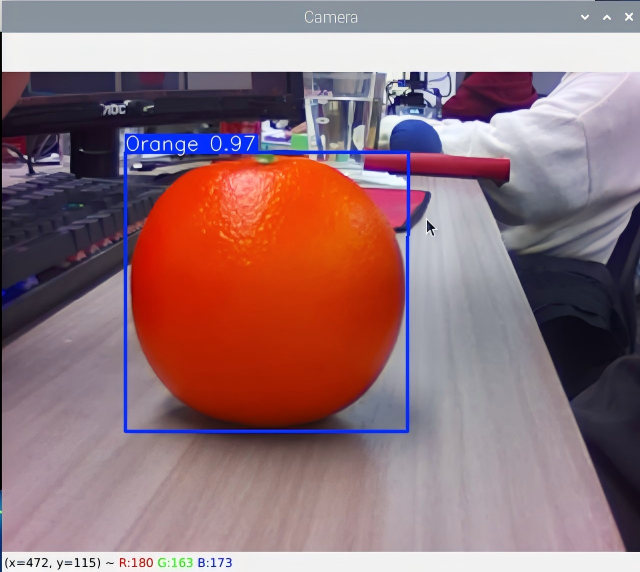
image-20260311181522446

Example code:

import cv2
import sys
from hobot_vio import libsrcampy
import numpy as np

from ultralytics import YOLO

fps = 30
w = 1920
h = 1080

cam = libsrcampy.Camera()
ret = cam.open_cam(0, 0, fps, w, h)

# Load the YOLO model
# model = YOLO("/home/sunrise/ultralytics26/data/yahboom_data/orange_data/runs/detect/train/weights/best.pt")
model = YOLO("/home/sunrise/ultralytics26/data/yahboom_data/orange_data/runs/detect/train/weights/best_ncnn_model")

# Set up video output
output_path = "/home/sunrise/ultralytics26/output/06.orange_camera_csi.mp4"
fourcc = cv2.VideoWriter_fourcc(*'mp4v')
out = cv2.VideoWriter(output_path, fourcc, 30, (640, 480))

# Loop through the video frames
while True:
    img_bytes = cam.get_img(1)
    yuv = np.frombuffer(img_bytes, dtype=np.uint8).reshape(-1, w)
    frame = cv2.cvtColor(yuv, cv2.COLOR_YUV2BGR_NV12)

    # Run YOLO11 inference on the frame
    results = model(frame)

    # Visualize the results on the frame
    annotated_frame = results[0].plot()


    # Display the resulting frame
    cv2.imshow("Camera", annotated_frame)

    # Break the loop if 'q' is pressed
    if cv2.waitKey(1) == ord("q"):
        break

# Release resources and close windows

out.release()
cv2.destroyAllWindows()

Model training - conversion
OpenClaw Deployment

COMPANY

  • About us
  • Team Style
  • Blog

LEARNING & EXPLORATION

  • Tutorials
  • Edge AI hardware
  • Educational robots
  • Embedded intelligent hardware

WHERE TO BUY

  • Yahboom Online Store
  • Amazon
  • Alibaba
  • AliExpress
  • Mercado

TECHNOLOGY SUPPORT

  • Email: support@yahboom.com

BE A DISTRIBUTOR

  • Email: sales@yahboom.com
QR Code

Copyright © 2017-2026 Yahboom. All Rights Reserved.

EN/中文