yahboom
HomeLearn
Solution
Blog
Online Store
About Us
EN/中文
RDK S600 Developer Kit📖
1.RDK S600 board introduction
  • 1.1 RDK S600 board introduction
  • 1.2 System Flashing
  • 1.3 Hardware Interface Description
  • 1.4 Accessory Installation
  • 1.5 Camera Expansion Board
  • 1.6 MCU Interface Expansion Board
  • 1.7 Precautions for Using the 15.6-inch Screen
  • 1.8 System Boot Modes
2.RDK S600 basic course
  • 2.1 Network Configuration
  • 2.2 Remote Login
  • 2.3 System Update
  • 2.4 Boot Auto-Start Configuration
  • 2.5 RDK Exclusive Command Usage
  • 2.6 Linux Command Usage
  • 2.7 Examples of GPIO Read and Write Operations
  • 2.8 Using the USB Camera
  • 2.9 Solid-state mounting
  • 2.10 SSD expansionnew
3.TogetheROS.Bot Vision Applications
  • 1. About TogetheROS. Bot
  • 2. System Installation
  • 3. Object Detection(YOLO)
  • 4. Image Classification(mobilenetv2)
  • 5. Image Segmentation(mobilenet_unet)
  • 6. Perception Algorithm(BEV)
  • 7. Human Detection and Tracking (Ultralytics YOLO Pose)
4. Offline AI Large Model Development
Offline large model (Text Interaction)
  • 1. AI large model environment deployment
  • 2. Install large model dialogue platform
  • 3. Meta AI Llama 3.2 model
  • 4. Alibaba Cloud Qwen3 model
  • 5. Microsoft Phi-4 mini model
  • 6. DeepSeek - DeepSeek-R1 model
  • 7. Alibaba Cloud Qwen2.5vl Visual Multimodal Large Model
  • 8. Google Gemma3 Visual Multimodal Large Model
  • 9. Lava Visual Multimodal Large Model
  • 10. MiniCPM-V Visual Multimodal Large Model
  • 11. Multimodal visual understand application
  • 12. Multimodal text image application
  • 13. Multimodal visual localization application
  • 14. Multimodal table scanning application
  • 15. Multimodal Autonomous Agent Applications
Offline large model (Voice Interaction)
  • 0. Voice Interaction Hardware Connection (Must Read)
  • 1. Offline speech-to-text (ASR)
  • 2. Offline Text-to-Speech (TTS)
  • 3. AI large model voice interaction
  • 4. Multimodal visual understanding voice interaction
  • 5. Multimodal Text-to-Image application
  • 6. Multimodal video analytics application
  • 7. Multimodal visual localization application
  • 8. Multimodal table scanning application
  • 9. Multimodal autonomous agent application
  • 10. AI Large Model Offline Voice Assistant
5. Online AI Large Model Development
Online large model (Text Interaction)
  • 1.OpenRouter large model API aggregation platform
  • 2.Multimodal visual understand application
  • 3.Multimodal visual localization application
  • 4.Multimodal table scanning application
  • 5.Multimodal autonomous proxy application
Online large model (Voice Interaction)
  • 0.Voice interaction hardware connection (ReadMe)
  • 1.Online speech to text (ASR)
  • 2.Online text to speech (TTS)
  • 3.AI large model voice interaction
  • 4.Multimodal visual understand speech interaction
  • 5.Multimodal visual localization application
  • 6.Multimodal table scanning application
  • 7.Multimodal autonomous proxy application
  • 8.AI large model online voice assistant
6.YOLO26 tutorials
  • 01.YOLO26 environment
  • 02.CLI use
  • 03.Object detection
  • 04.Instance segmentation
  • 05.Pose estimation
  • 06.Image classification
  • 07.Oriented object detection
  • 08.Model conversion
  • 09.Dataset annotation
  • 10.Model training - conversion
  • 11.Model prediction
7.OpenClaw Advanced Development
  • 1. OpenClaw Deployment
  • 2. OpenClaw and WhatsApp Plugin Application
  • 3. OpenClaw TUI Interaction
  • 4. OpenClaw WebChat Interaction
  • 5. OpenClaw Gate Gateway Operation Manual
  • 6. OpenClaw Plugin Function Introduction
  • 7. OpenClaw Tools Introduction
  • 8. OpenClaw ClawHub Introduction (skill Installation)
  • 9.OpenClaw Application - File Management
  • 10.OpenClaw Application - Browser Control
  • 11.OpenClaw Application - Camera
  • 12.OpenClaw Application - Script Execution
  • 13.OpenClaw Application - AI Programming (Peripheral & GPIO Control)
  • 14. OpenClaw Application - Dedicated AI Assistant
  • 15. OpenClaw Configure Web Search Capability
8.ROS2 basic course
  • 1.Introduction to ROS2
  • 2.ROS2 install Jazzy
  • 3.ROS2 development environment
  • 4.ROS2 workspace
  • 5.ROS2 function package
  • 6.ROS2 node
  • 7.ROS2 topic communication
  • 8.ROS2 service communication
  • 9.ROS2 action communication
  • 10.ROS2 custom interface message
  • 11.ROS2 parameter service case
  • 12.ROS2 meta-function package
  • 13.ROS2 distributed communication
  • 14.ROS2 DDS
  • 15.ROS2 time related API
  • 16.ROS2 common command tools
  • 17.ROS2 rviz2 use
  • 18.ROS2 rqt toolbox
  • 19.ROS2 Launch startup file configuration
  • 20.ROS2 recording and playback tool
  • 21.ROS2 URDF model
  • 22.ROS2 Gazebo simulation platform
  • 23.ROS2 TF2 coordinate transformation
Download
  • System_File
  • Code
  • 3D_Model_File
  • Tools_Software
Download ZIP

Welcome to RDK S600 Developer Kit repository

2. OpenClaw and WhatsApp Plugin Application

3. OpenClaw and WhatsApp Plugin Application

3. OpenClaw and WhatsApp Plugin ApplicationPreparation Before Use1. Configure the Bot2. Interact with the Bot

Preparation Before Use

!!! Confirm that OpenClaw has been configured and can interact normally.

If it cannot interact normally, the following content cannot be implemented.


1. Configure the Bot

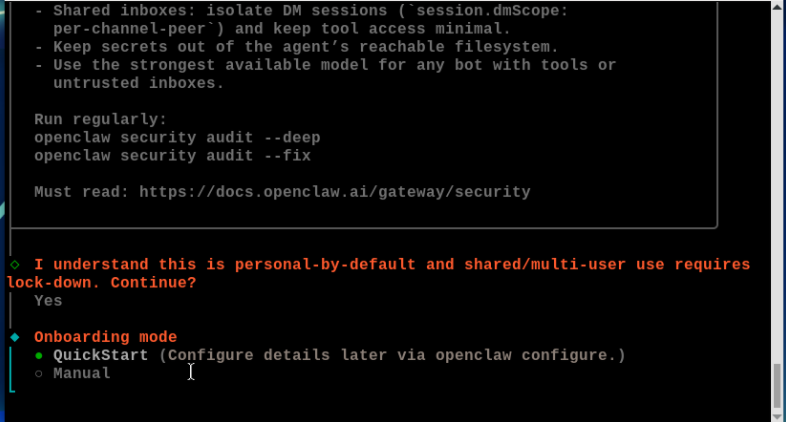
Enter configuration mode:

openclaw onboard --install-daemon
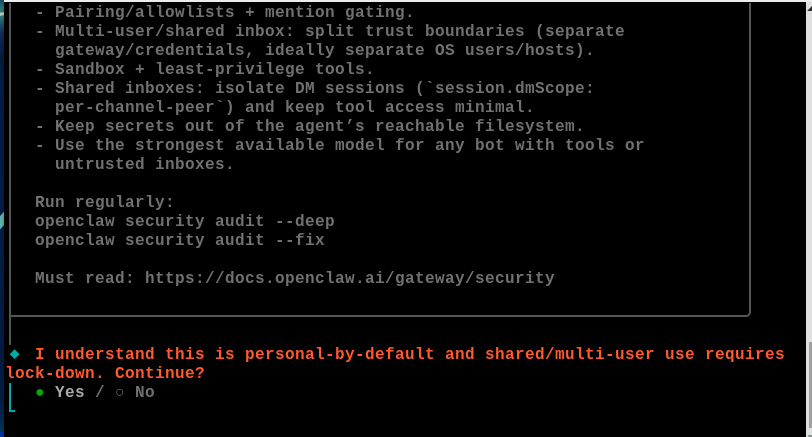
image-20260316170210574

Select QuickStart:

image-20260326163610191

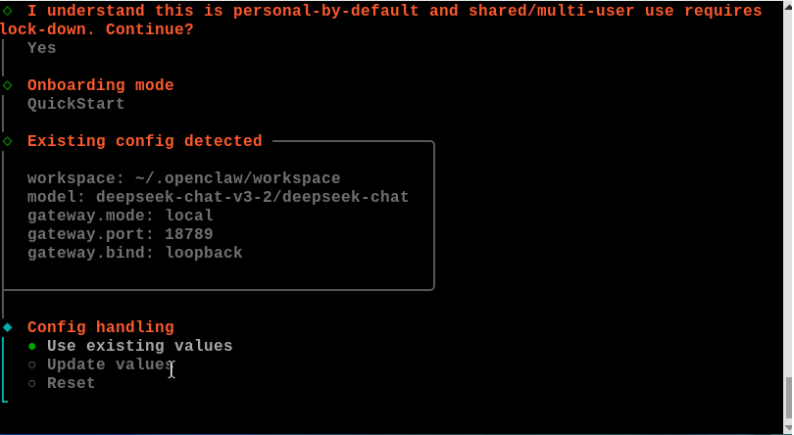
Select Use existing values:

image-20260326163621084

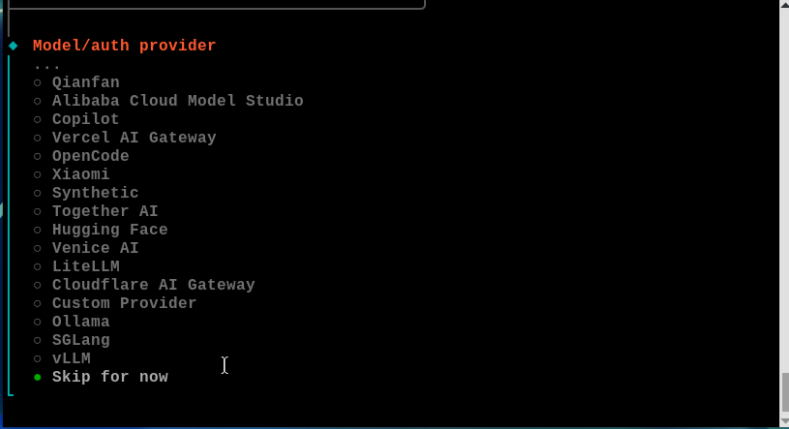
Select Skip for now:

image-20260326163629818

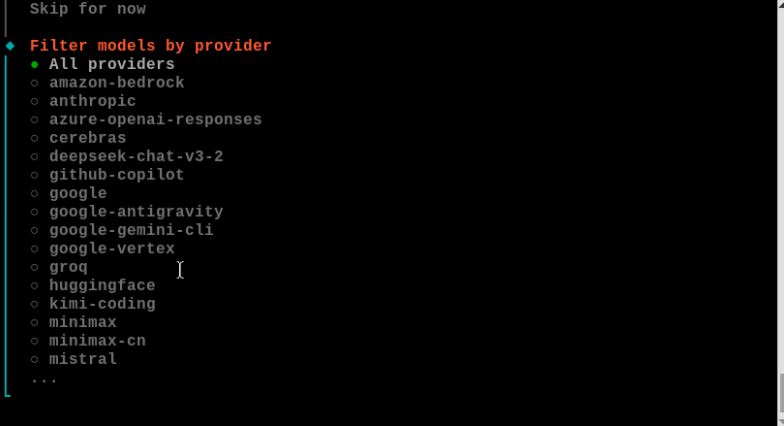
Select All providers:

image-20260326163639864

Select Keep current. Note: The content in parentheses is your configured model:
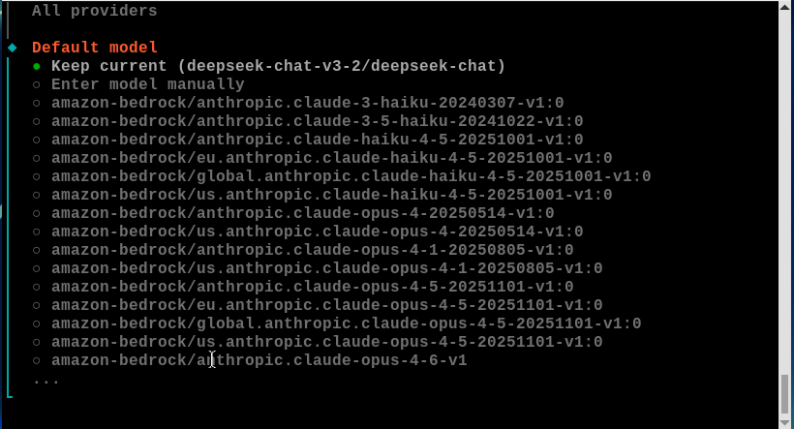
image-20260326163649191

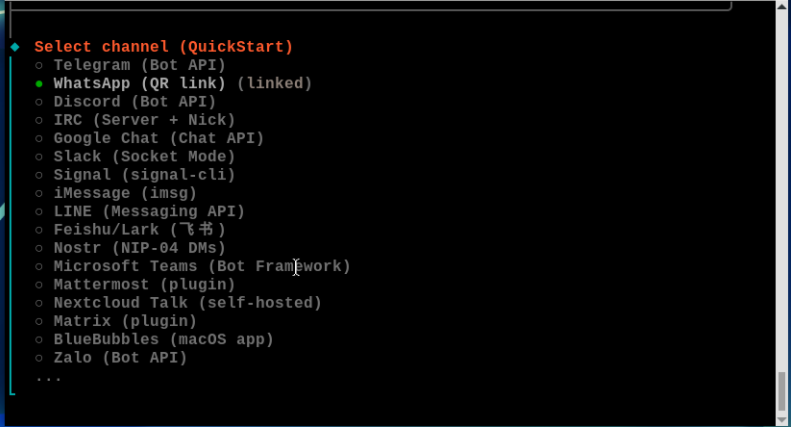
Select WhatsApp (QR link):

image-20260326163700761

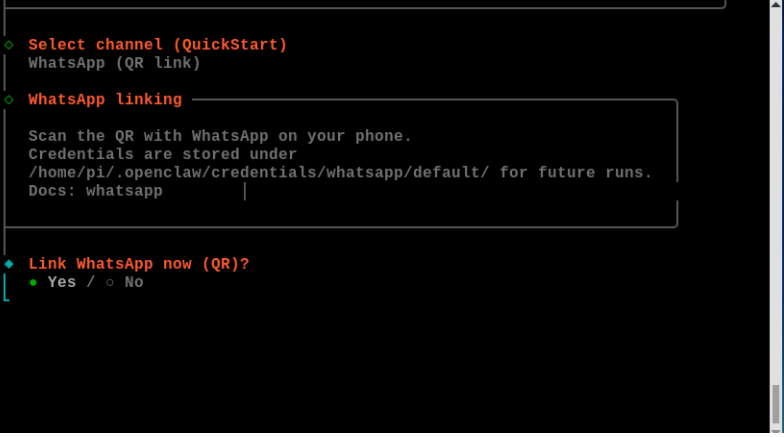
Select Link WhatsApp now (QR):

image-20260326163711047

Then a connection QR code will appear:
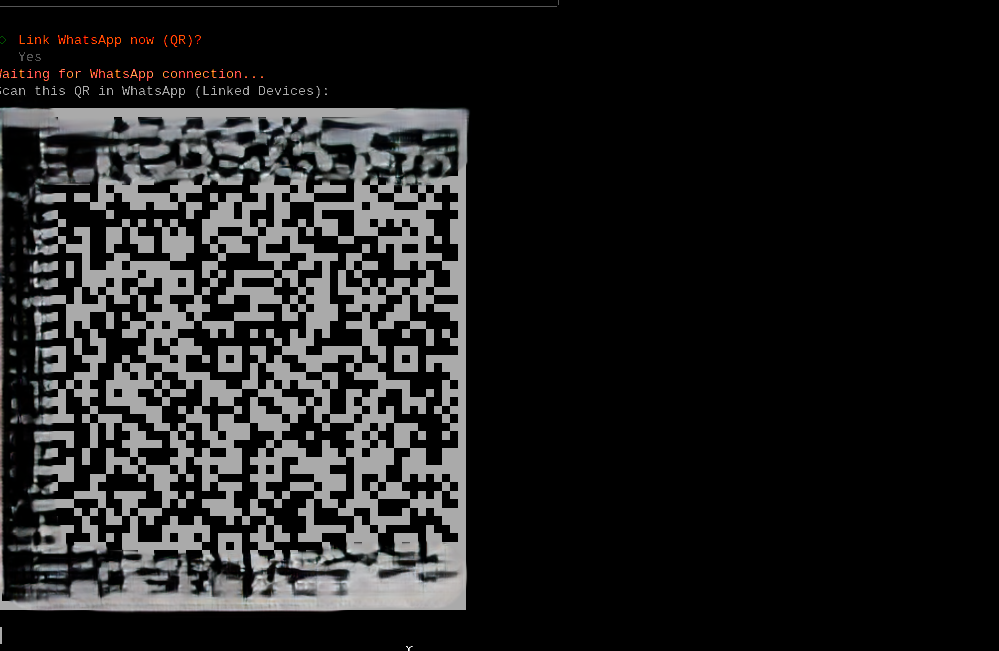
image-20260317181934610

Open WhatsApp on your phone, click on yourself----Linked devices:
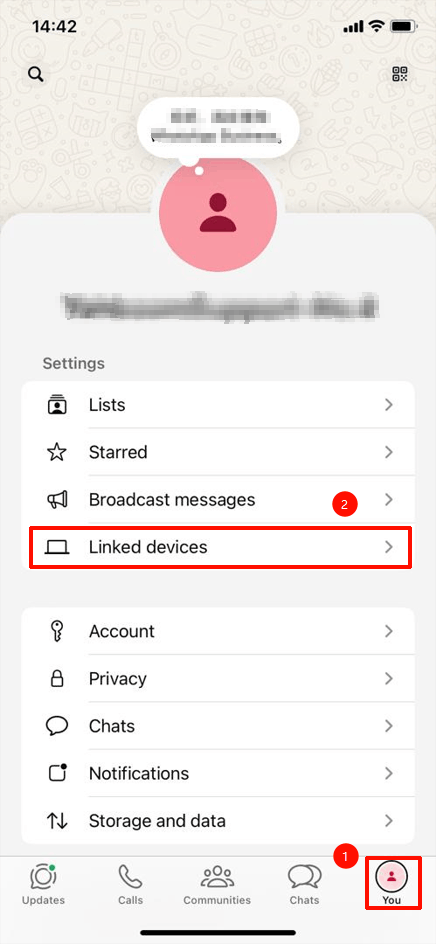
image-20260317182951441

Click "Link new device", then scan OpenClaw's QR code:
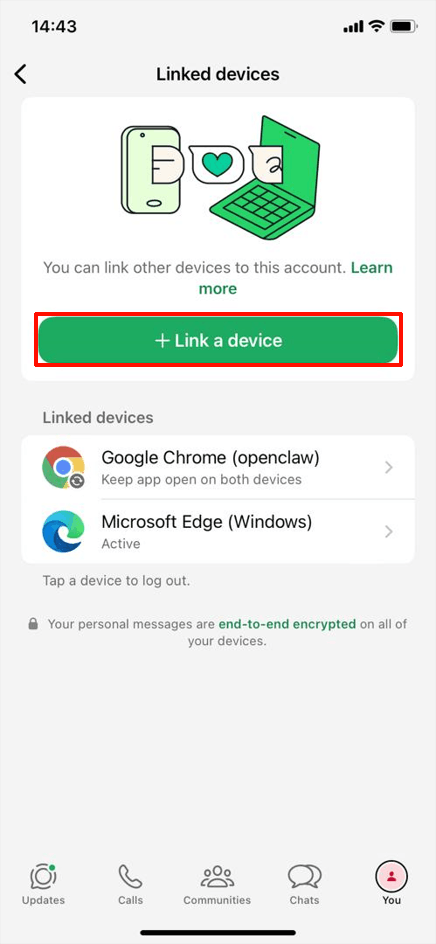
image-20260317183020123

After scanning, wait for connection to succeed. When successful, the following appears. Select "This Is my personal phone number":
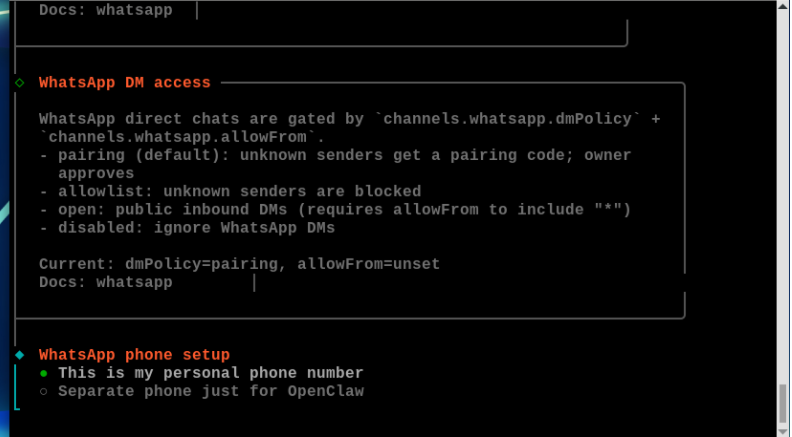
image-20260326163732524

Enter your phone number. For domestic (China) numbers, you need to add +86 before the phone number:
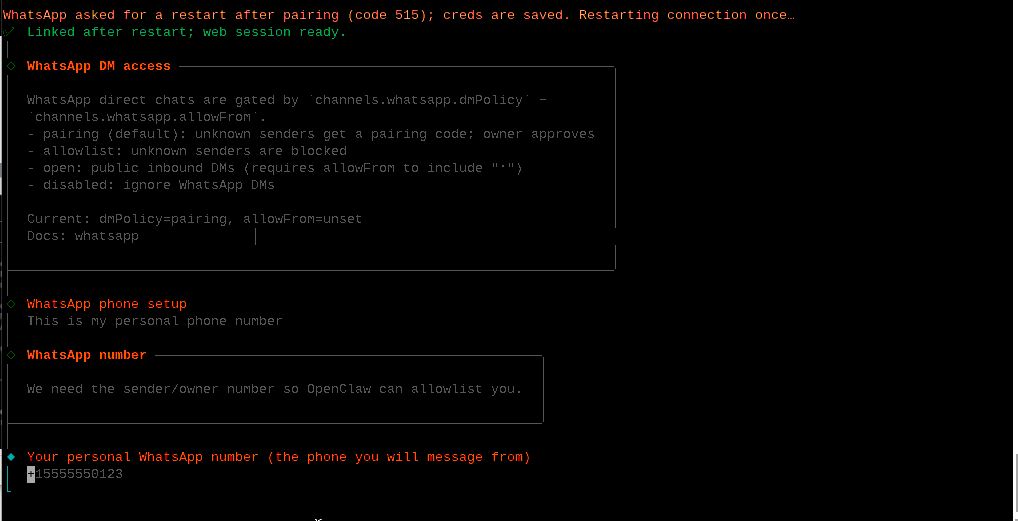
image-20260317182012823

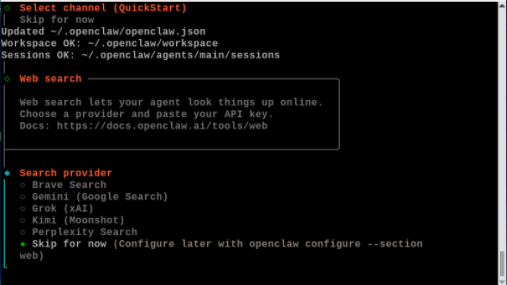
Search provider - skip this:

image-20260326163752781

Skills - also skip. Install later based on needs:
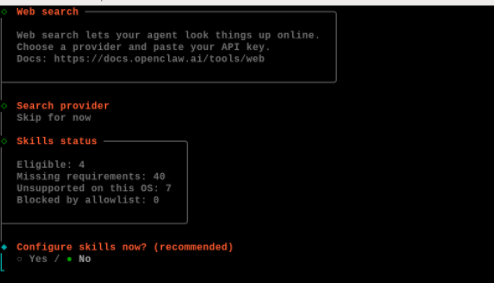
image-20260326163801826

Hooks - also skip. Select "Skip for now", press spacebar to select, then press Enter:
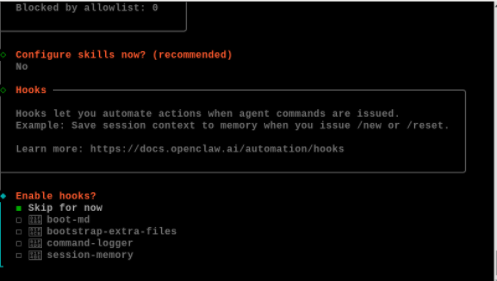
image-20260326163811921

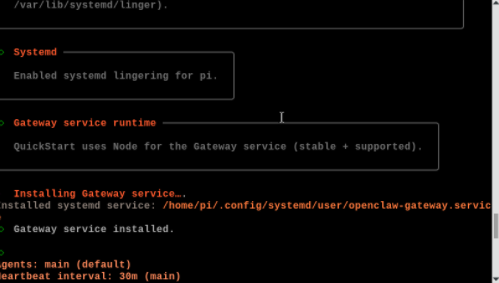
Select to restart the gateway:

image-20260326163822670

You can choose TUI interaction interface, or choose "Do this later".

2. Interact with the Bot

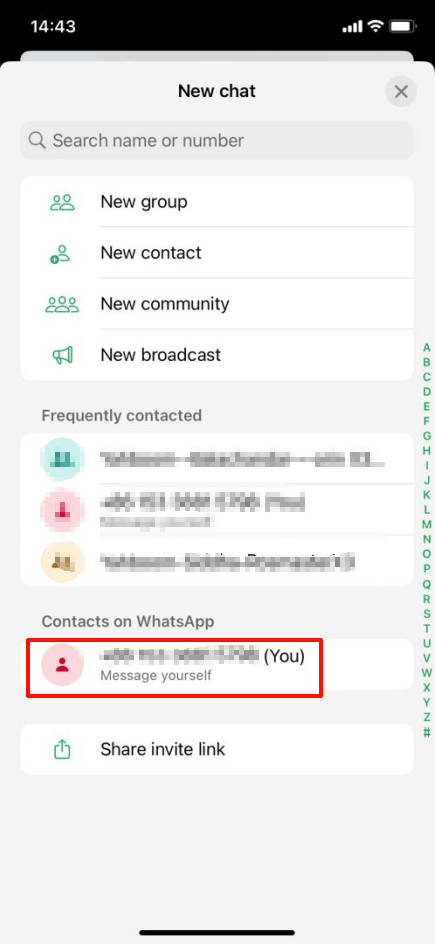
Open WhatsApp, click chat----"+":
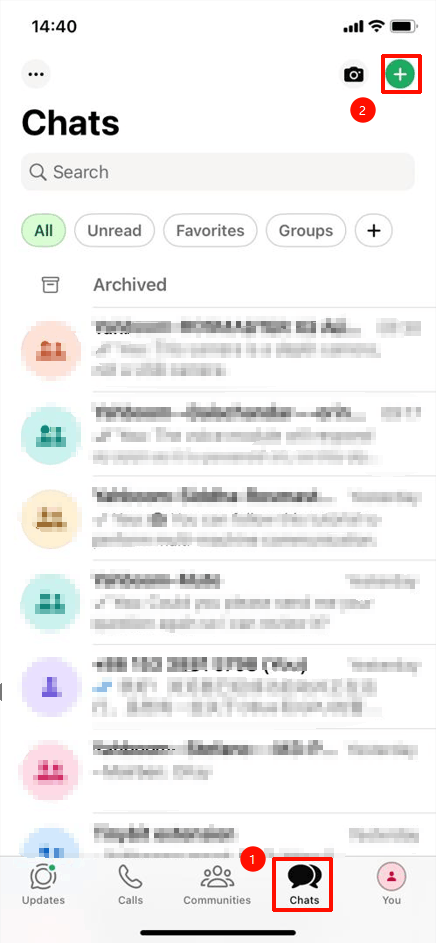
image-20260317183250616

Click to send a message to yourself:

image-20260317183415088

Send the content you want to interact with:
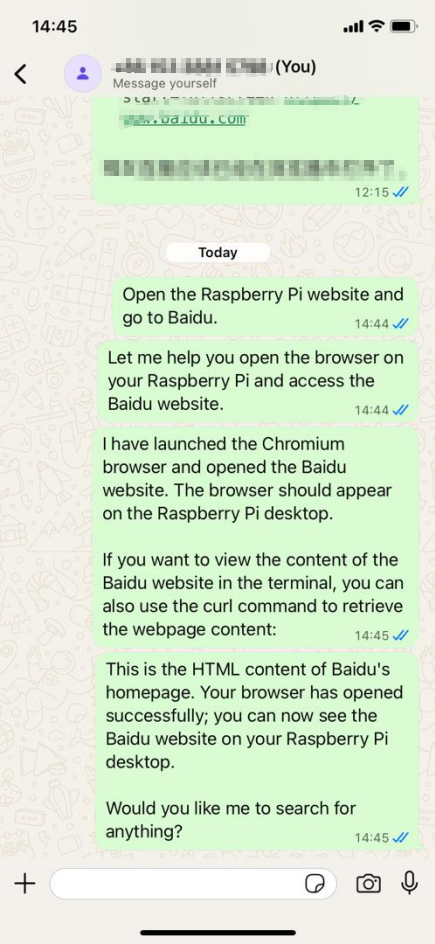
image-20260317183525016

OpenClaw Deployment
OpenClaw TUI Interaction

COMPANY

  • About us
  • Team Style
  • Blog

LEARNING & EXPLORATION

  • Tutorials
  • Edge AI hardware
  • Educational robots
  • Embedded intelligent hardware

WHERE TO BUY

  • Yahboom Online Store
  • Amazon
  • Alibaba
  • AliExpress
  • Mercado

TECHNOLOGY SUPPORT

  • Email: support@yahboom.com

BE A DISTRIBUTOR

  • Email: sales@yahboom.com
QR Code

Copyright © 2017-2026 Yahboom. All Rights Reserved.

EN/中文