yahboom
HomeLearn
Solution
Blog
Online Store
About Us
EN/中文
AI View Depth camera📖
01.Linux basic course
  • 1.Introduction to Linux system
  • 2.Ubuntu file system
  • 3.Ubuntu common commands
  • 4.Ubuntu common editors
  • 5.Ubuntu software operation commands
  • 6.Virtual machine installation
  • 7.SSH remote control
  • 8.VNC remote control
  • 9.Transfer files remotely
  • 10.Driver library and communication
  • 11.Static IP and hotspot mode
  • 12.Bind device ID
  • 13.Capacity expansion and resource allocation
  • 14.Update system software sources
  • 15.Set root user password
  • 16.sudo free password
  • 17.Connect to WiFi network
  • 18.View system version
  • 19.Customized service management
  • 20.Back up system image
02.ROS1-camera usage course
  • 1. Camera usage instructions
  • 2. Environment Construction
  • 3. Camera recording video
03.ROS1-OpenCV course
  • 1.Opencv Source CV Introduction
  • 2.Image reading and display
  • 3.Picture writing
  • 4.Picture Quality
  • 5.Pixel Operation
  • 6.Picture scaling
  • 7.Picture cutting
  • 8.Picture translation
  • 9.Picture mirroring
  • 10.Affine transformation
  • 11.Picture rotation
  • 12.Perspective transformation
  • 13.Grayscale processing
  • 14.Image binarization
  • 15.Edge detection
  • 16.Line segment drawing
  • 17.Rectangle and circle drawing
  • 18.Text and picture drawing
4.ROS1-basic course
  • 1.ROS introduction
  • 2.ROS installation
  • 3.ROS common command tools
  • 4.ROS workspace
  • 5.ROS function package
  • 6.ROS node
  • 7.ROS topic publisher
  • 8.ROS topic subscribers
  • 9.ROS service client
  • 10.ROS service server
  • 11.ROS action client
  • 12.ROS action server
  • 13.ROS custom message reception
  • 14.ROS-launch file
  • 15.ROS-TF transformation
  • 16.ROS parameter service
  • 17.ROS-rviz use
  • 18.ROS-rqt tool usage
  • 19.Topic message recording and playback
  • 20.urdf model introduction
  • 21.gazebo introduction
  • 22.ROS distributed communication
5.ROS1-Mediapipe course
  • 1.Hand detection
  • 2.Posture detection
  • 3.Overall detection
  • 4.Face detection
  • 5.Face recognition
  • 6.Face effects
  • 7.3D object recognition
  • 8.Brush
  • 9.Finger control
  • 10.Gesture recognition
6.ROS+Opencv application
  • 1.Camera calibration
  • 2.QR code
  • 3.Human body pose estimation
  • 4.Target detection
  • 5.ROS+Opencv basics
  • 6.Face recognition
  • 7.Harris corner detection
  • 8.Target tracking algorithm
  • 9.Contour moment
  • 10.Polygon outline
  • 11.Discrete Fourier transform algorithm
  • 12.Edge detection algorithm
  • 13.Face detection algorithm
  • 14.Optical flow detection algorithm
  • 15.Contour detection
  • 16.General contour detection
  • 17.Feature point tracking
  • 18.HLS color filtering
  • 19.Hough circle detection
  • 20.Hough line detection
  • 21.HSV color filtering
  • 22.LK optical flow algorithm
  • 23.Human body detection algorithm
  • 24.Phase-related displacement detection
  • 25.Image pyramid sampling algorithm
  • 26.RGB color filtering
  • 27.Clear background detection algorithm
  • 28.Simplified optical flow algorithm
  • 29.Simple filter
  • 30.Threshold image processing
  • 31.Watershed segmentation algorithm
  • 32.View point cloud data
  • 33.AR vision
  • 34.AR QR code tracking
  • 35.Color tracking
  • 36.Object tracking
07.ROS2-camera usage course
  • Instructions for using camera
08.ROS2-basic course
  • 1.Introduction to ROS2
  • 2.ROS2 install Humble
  • 3.ROS2 development environment
  • 4.ROS2 workspace
  • 5.ROS2 function package
  • 6.ROS2 node
  • 7.ROS2 topic communication
  • 8.ROS2 service communication
  • 9.ROS2 action communication
  • 10.ROS2 custom interface message
  • 11.ROS2 parameter service case
  • 12.ROS2 meta-function package
  • 13.ROS2 distributed communication
  • 14.ROS2 DDS
  • 15.ROS2 time related API
  • 16.ROS2 common command tools
  • 17.ROS2 rviz2 use
  • 18.ROS2 rqt toolbox
  • 19.ROS2 Launch startup file configuration
  • 20.ROS2 recording and playback tool
  • 21.ROS2 URDF model
  • 22.ROS2 Gazebo simulation platform
  • 23.ROS2 TF2 coordinate transformation
09.ROS2-OpenCV course
  • 1. ROS+opencv application
  • 2. QR code creation and recognition
  • 3. AR vision
10.ROS2-Mediapipe course
  • 1.Hand detection
  • 2.Posture detection
  • 3.Overall detection
  • 4.Face detection
  • 5.Personal insurance identification
11.ROS2-Depth camera course
  • 1. Use of depth camera
  • 2. Camera internal parameter calibration
  • 3. Color tracking
  • 4. KCF object tracking
  • 5. ORB_SLAM2 basics
  • 6. ORB_SLAM2 PCL mapping
  • 7. ORB_SLAM2 Octomap mapping
12.Bracket installation video
  • Bracket installation video
Download
  • VM_ROS1
  • VM_ROS2
  • Code-ROS1
  • Code-ROS2
  • 3D_File
  • ROS_Basic_VM
Download ZIP

Welcome to AI View Depth camera repository

17.Connect to WiFi network

17.Connect to WiFi network

17.Connect to WiFi network1. Connect the desktop to WiFi network2. Connect to WiFi network via command line

1. Connect the desktop to WiFi network

When connecting to a WiFi network, the desktop connection method is preferred, making the operation simpler and more convenient.

Click the WiFi logo in the upper right corner of the desktop, then select the WiFi signal you want to connect to, and then enter the WiFi password to confirm to connect to WiFi.
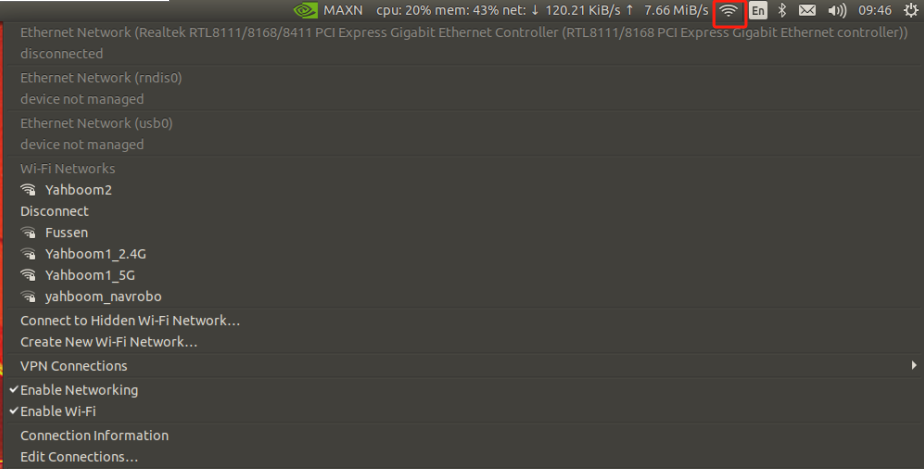
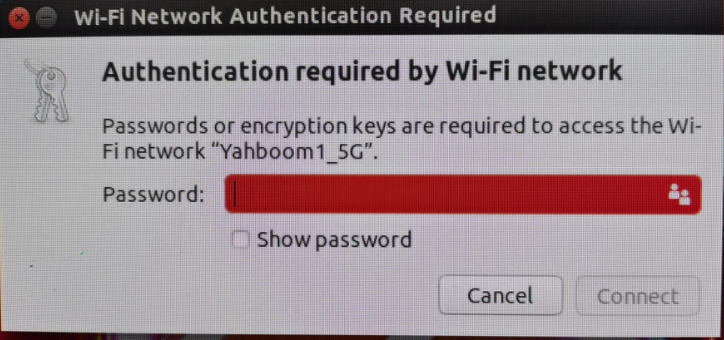
image-20231024094725482

image-20231024094849809


2. Connect to WiFi network via command line

Enter the following command to scan and list nearby WiFi signals

sudo iwlist scan
sudo nmcli device wifi list

Start connecting to the WiFi signal according to the WiFi name and password you need to connect.

xxxxxxxxxx
sudo nmcli device wifi connect [WiFi name] password [WiFi password]

Example: If WiFi name is Yahboom1_5G and password is 12345678, please enter the following command:

xxxxxxxxxx
sudo nmcli device wifi connect Yahboom1_5G password 12345678
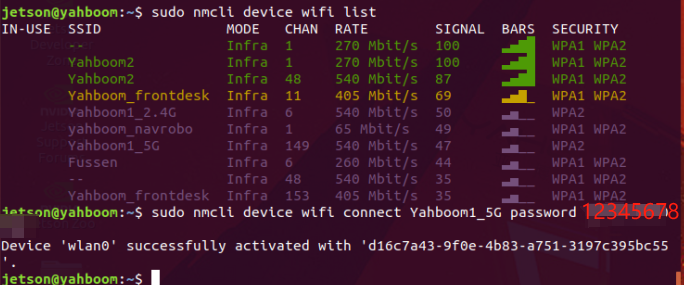
image-20231024100449094

sudo free password
View system version

COMPANY

  • About us
  • Team Style
  • Blog

LEARNING & EXPLORATION

  • Tutorials
  • Edge AI hardware
  • Educational robots
  • Embedded intelligent hardware

WHERE TO BUY

  • Yahboom Online Store
  • Amazon
  • Alibaba
  • AliExpress
  • Mercado

TECHNOLOGY SUPPORT

  • Email: support@yahboom.com

BE A DISTRIBUTOR

  • Email: sales@yahboom.com
QR Code

Copyright © 2017-2026 Yahboom. All Rights Reserved.

EN/中文