Welcome to MicroROS Self-balancing Robot Car repository
7.Navigation2 navigation avoid
Navigation2 Navigation
1. Navigation2 Introduction
Navigation2 Overall Architecture
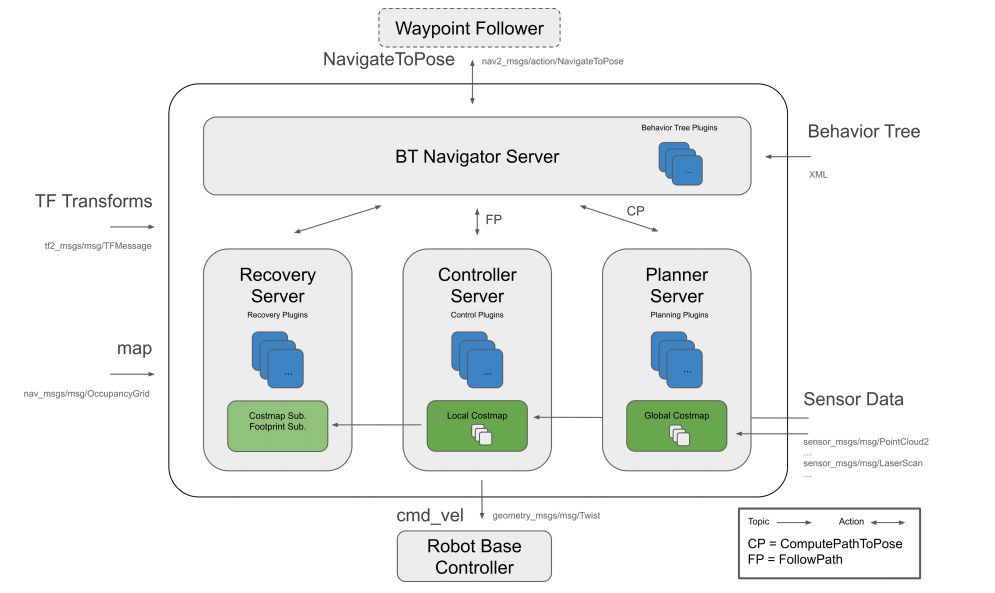
Navigation2 has the following tools:
Tools for loading, providing and storing maps (Map Server)
Tools for locating robots on maps (AMCL)
Path planning tools for moving from point A to point B while avoiding obstacles (Nav2 Planner)
Tools for controlling robots while following paths (Nav2 Controller)
Tools for converting sensor data into cost map expressions in the robot world (Nav2 Costmap 2D)
Tools for building complex robot behaviors using behavior trees (Nav2 Behavior Trees and BT Navigator)
Tools for calculating recovery behaviors when failures occur (Nav2 Recoveries)
Tools for following sequential waypoints (Nav2 Waypoint Follower)
Tools and watchdogs for managing server lifecycles (Nav2 Lifecycle Manager)
Plugins to enable user-defined algorithms and behaviors (Nav2 Core)
Navigation 2 (Nav 2) is the navigation framework included with ROS 2. Its purpose is to enable a mobile robot to move from point A to point B in a safe way. Therefore, Nav 2 can perform behaviors such as dynamic path planning, calculating motor speeds, avoiding obstacles, and recovering structures.
Nav 2 uses behavior trees (BT) to call modular servers to complete an action. Actions can be path calculations, control efforts, recovery, or other navigation-related actions. These actions are independent nodes that communicate with behavior trees (BT) through action servers.
Reference URL:
Navigation2 Document: https://navigation.ros.org/index.html
Navigation2 github: https://github.com/ros-planning/navigation2
Navigation2 Corresponding Paper: https://arxiv.org/pdf/2003.00368.pdf
Plugins provided by Navigation2: https://navigation.ros.org/plugins/index.html#plugins
2. Program Function Description
The car connects to the proxy, runs the program, and the map will be loaded in rviz. In the rviz interface, use the [2D Pose Estimate] tool to give the car an initial pose, and then use the [2D Goal Pose] tool to give the car a target point. The car will plan a path based on its own environment and move to the destination according to the planned path. If it encounters obstacles during the process, it will avoid obstacles by itself and stop after reaching the destination.
xxxxxxxxxxNote: Before running the program, the car needs to be restarted in a stable standing position to ensure that all sensors are reset
3. Start and connect the agent
Take the supporting virtual machine as an example, enter the following command to start the agent,
xxxxxxxxxxsudo docker run -it --rm -v /dev:/dev -v /dev/shm:/dev/shm --privileged --net=host microros/micro-ros-agent:humble udp4 --port 8899 -v4 
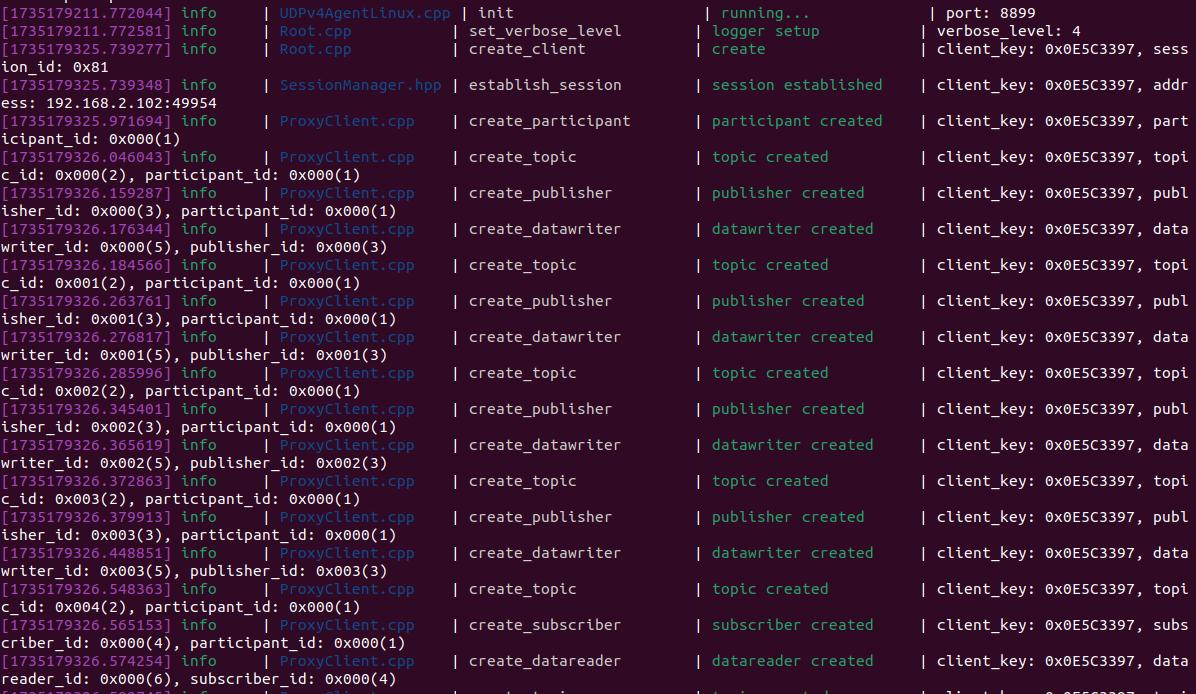
Then, turn on the car switch and wait for the car to connect to the proxy. The connection is successful as shown in the figure below.
4. Start the program
4.1 Run the command
First, start the car to process the underlying data program. Take the matching virtual machine as an example. Enter the terminal,
xxxxxxxxxxros2 launch yahboomcar_bringup yahboomcar_bringup_launch.py mode:=navxxxxxxxxxx#Parameter description, the speed of the car will be adjusted, this is the navigation modemode:=nav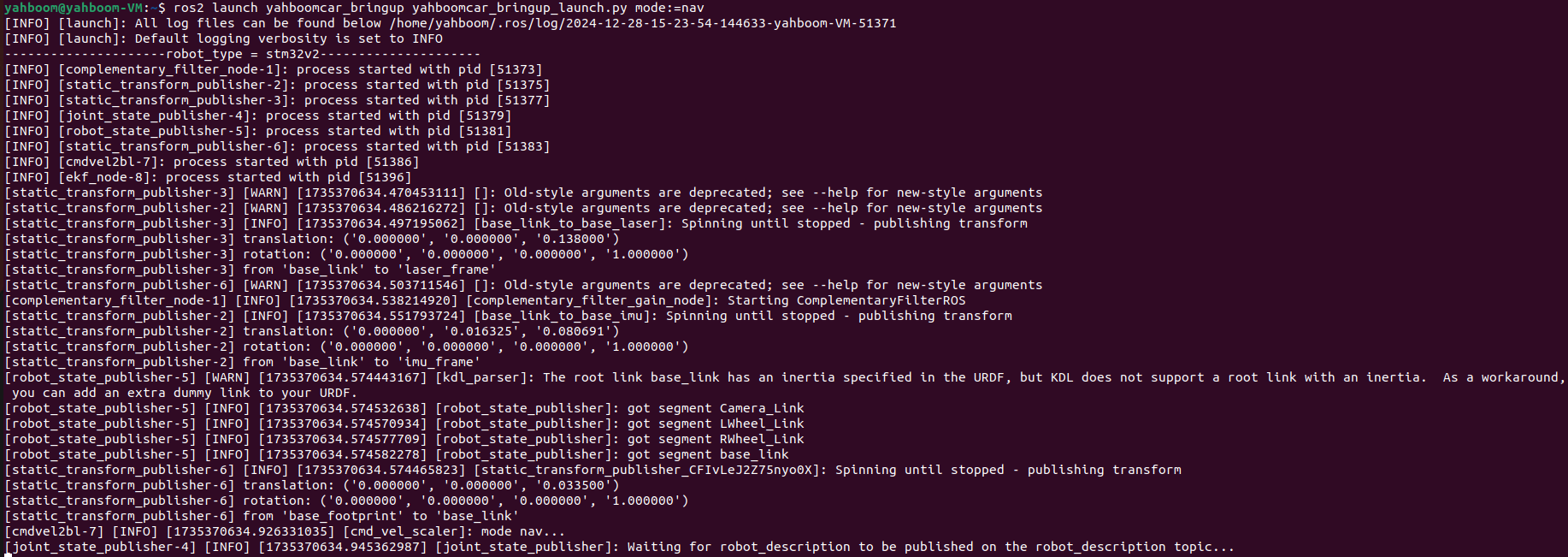
Then, start rviz, visualize navigation, and enter in the terminal
xxxxxxxxxxros2 launch yahboomcar_nav display_launch.py 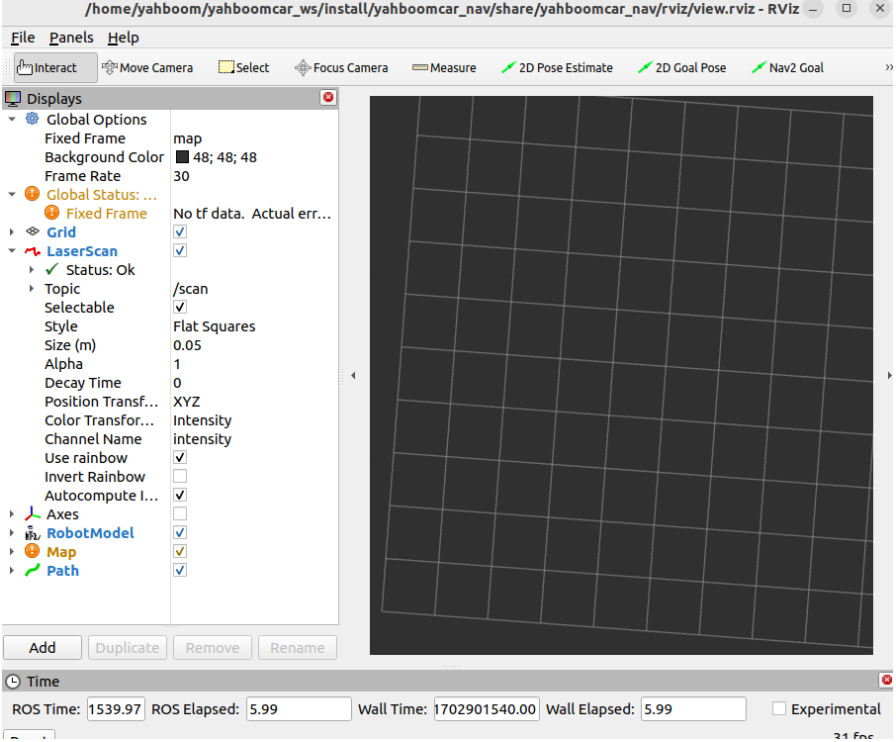
At this time, the map loading is not displayed, because the navigation program has not been started, so there is no map loading. Next, run the navigation node,
Take the virtual machine as an example, terminal input,
xxxxxxxxxxros2 launch yahboomcar_nav navigation_dwb_launch.pymaps:=/home/yahboom/yahboomcar_ws/src/yahboomcar_nav/maps/testaa.yamlxxxxxxxxxx#Load map parameters: (can replace the target map)maps:=/home/yahboom/yahboomcar_ws/src/yahboomcar_nav/maps/testaa.yaml#.pgm file must also be in the same path as .yaml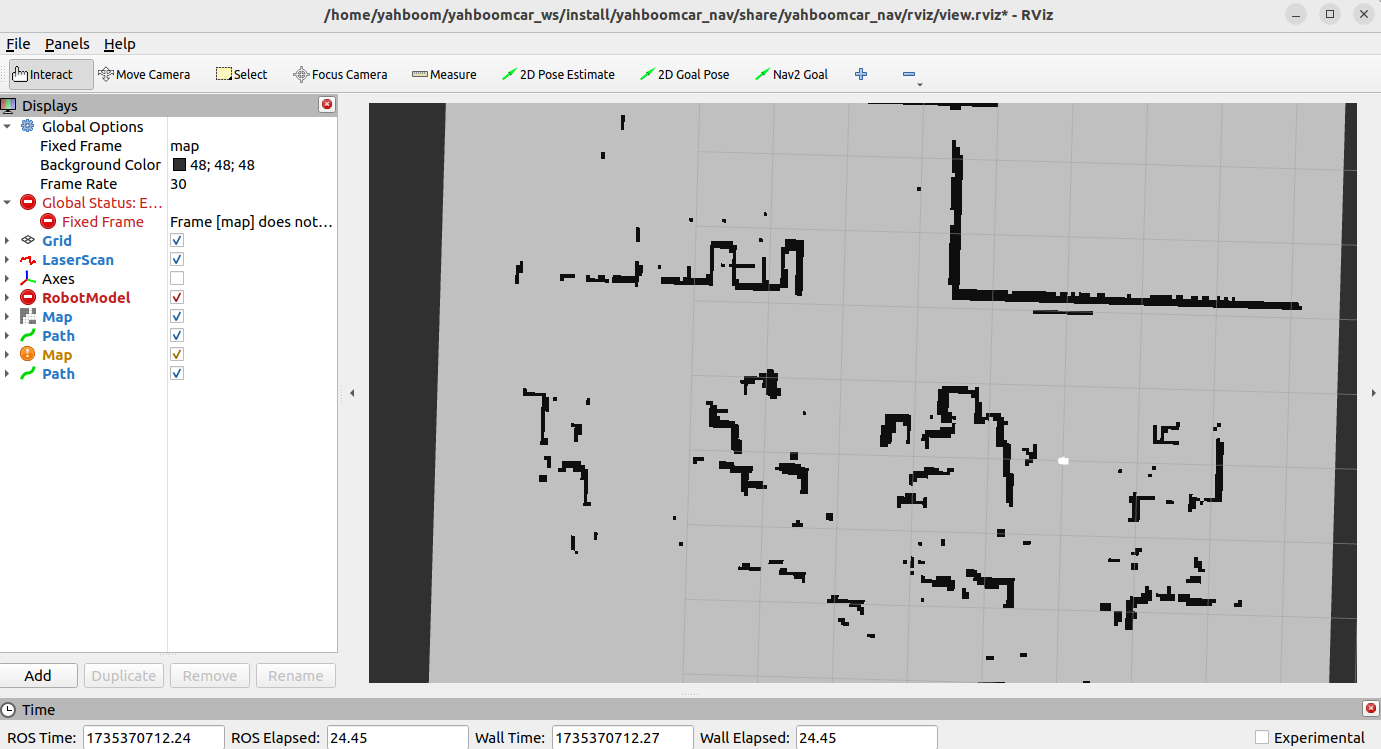
At this time, you can see that the map is loaded, and then we click [2D Pose Estimate】, set the initial pose for the car, and click and drag the mouse in rviz according to the position of the car in the actual environment, and the car model moves to the position we set. As shown in the figure below, if the area scanned by the radar roughly coincides with the actual obstacle, it means that the pose is accurate.
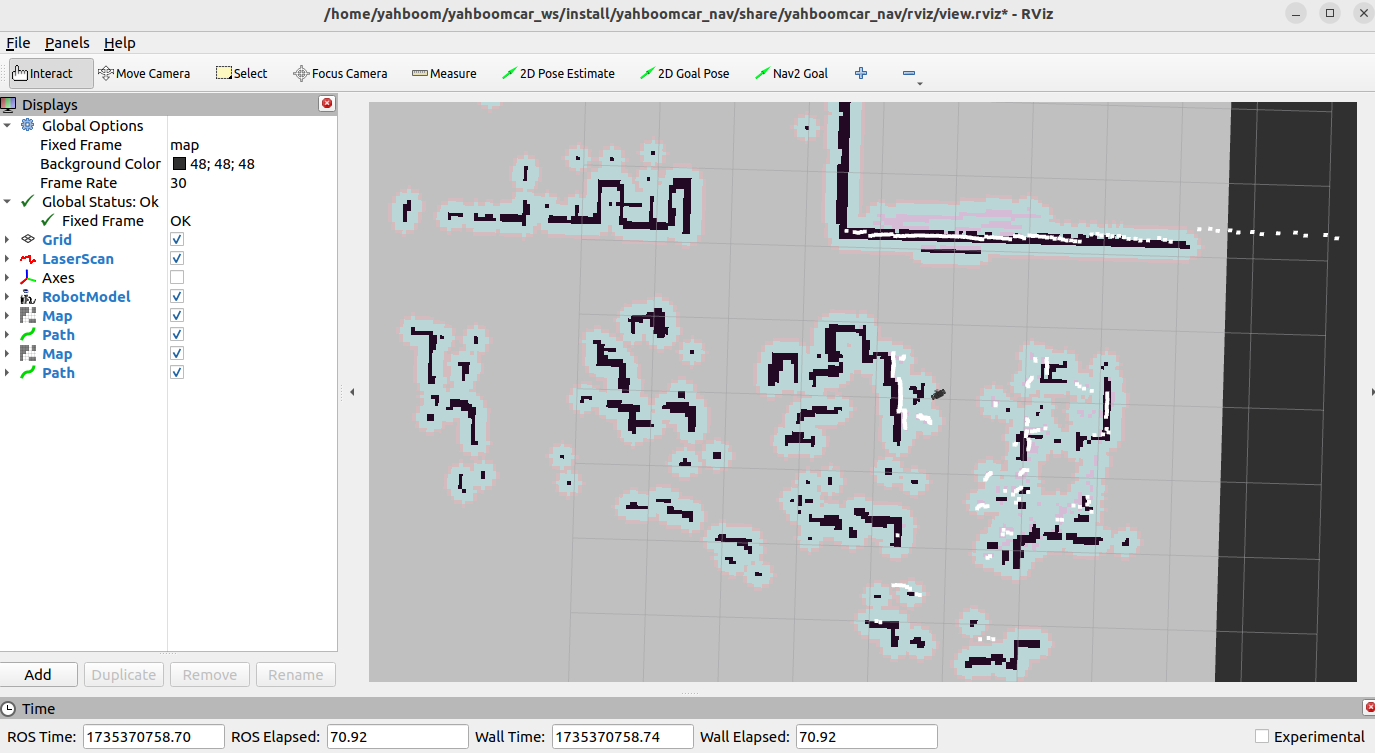
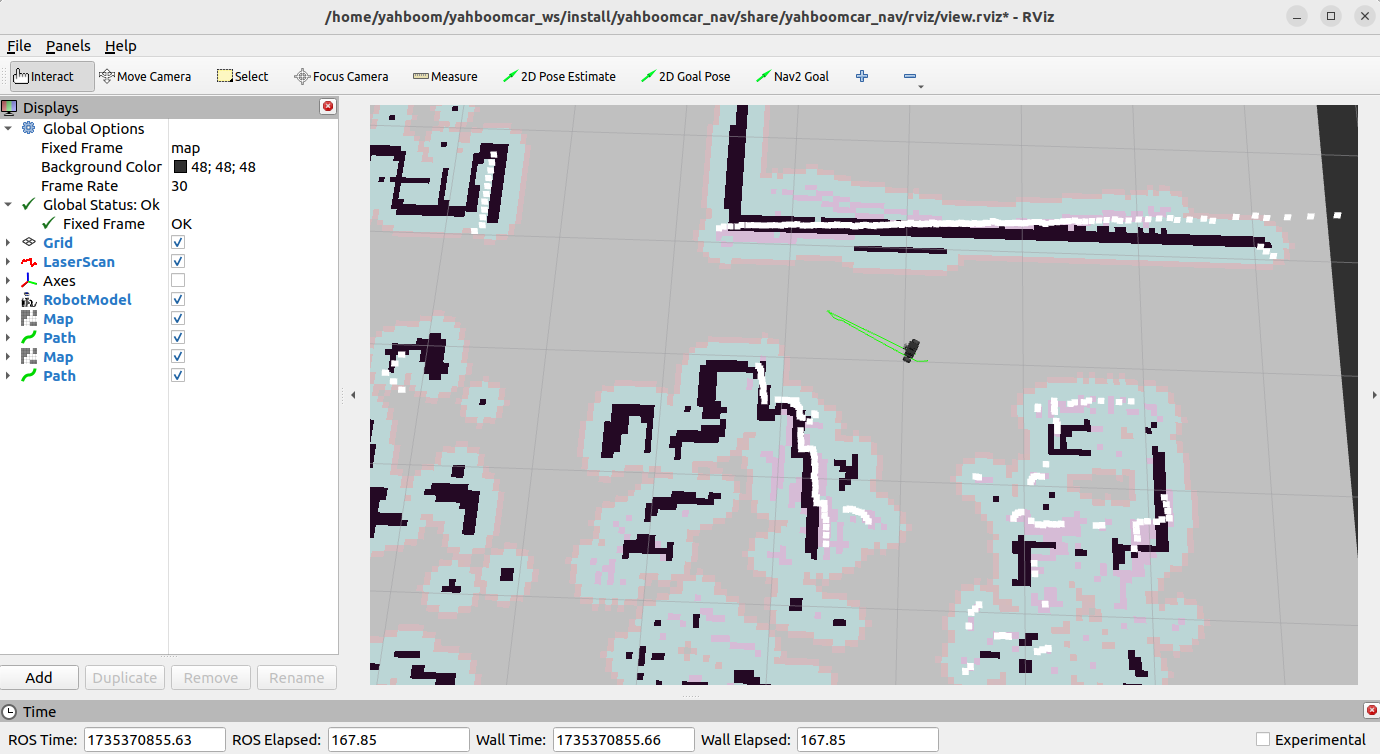
Single-point navigation, click the [2D Goal Pose] tool, and then select a target point in rviz. The car plans a path based on the surrounding situation and moves to the target point along the path.
For multi-point navigation, you need to add the nav2 plug-in.
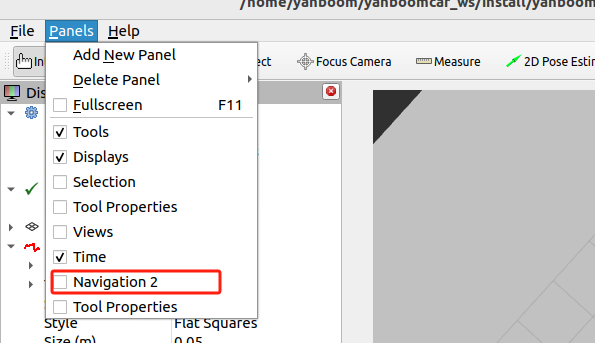
After adding, rviz displays as follows.
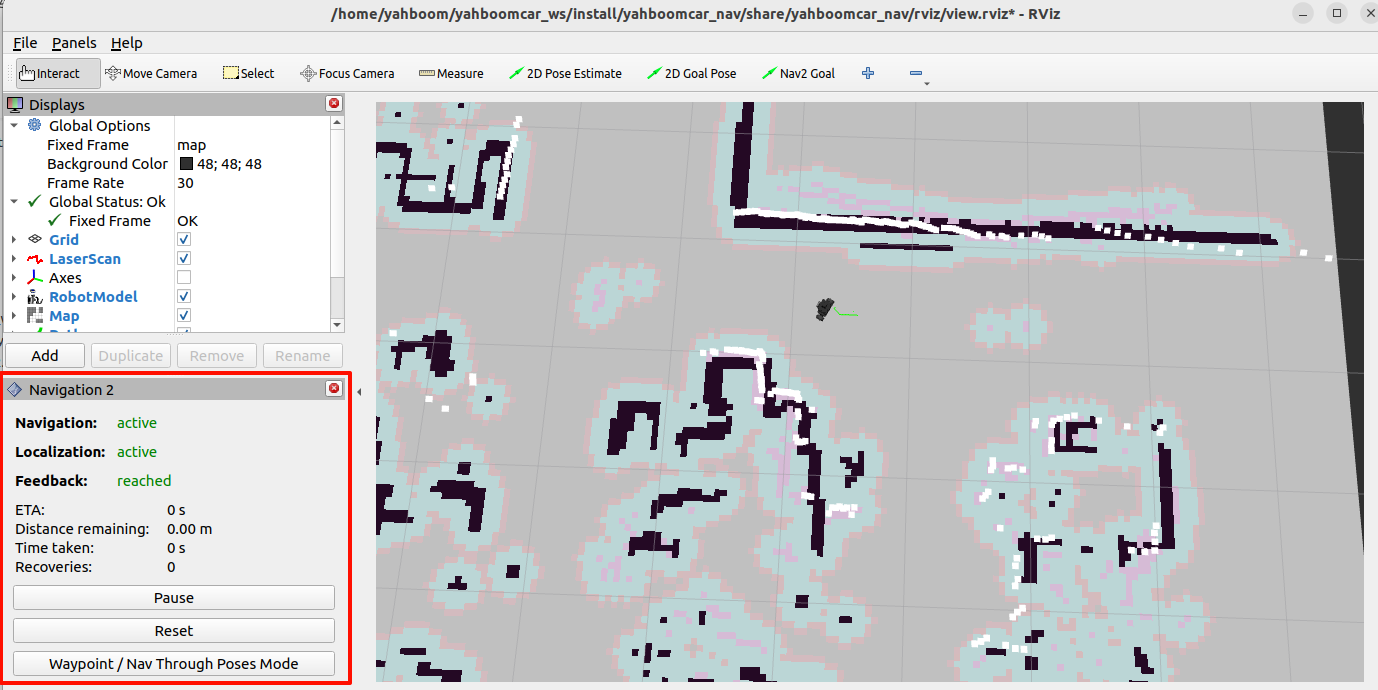
Then click [Waypoint/Nav Through Poses Mode],
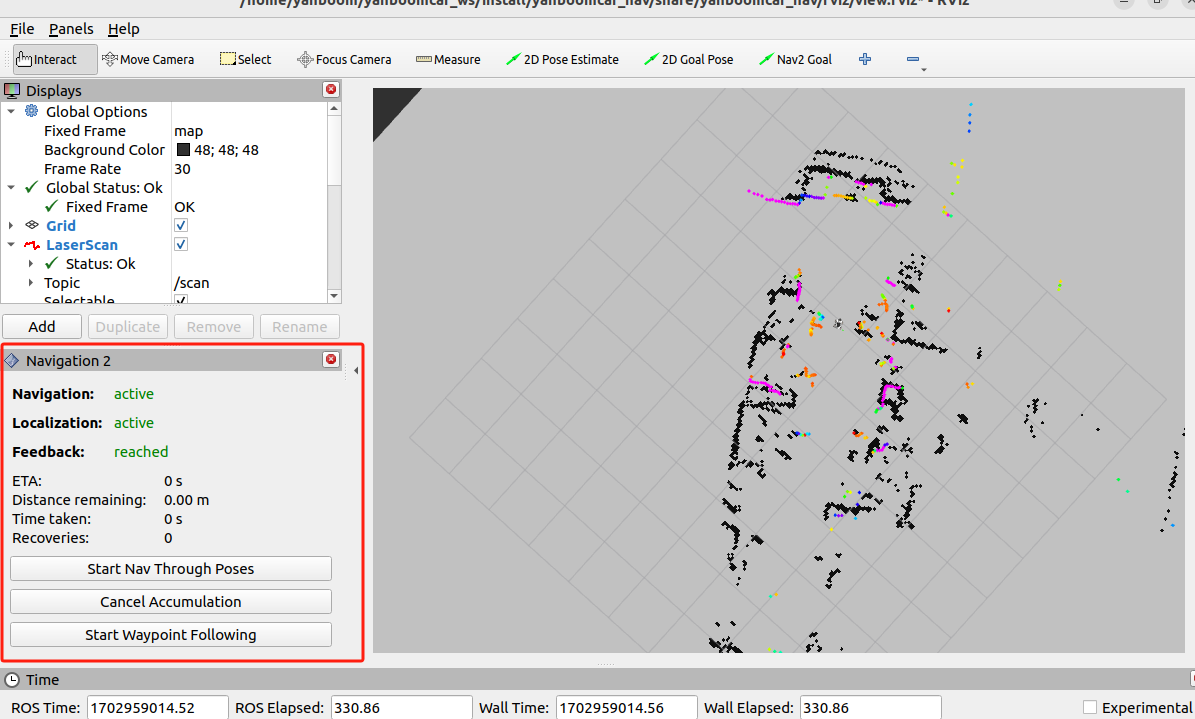
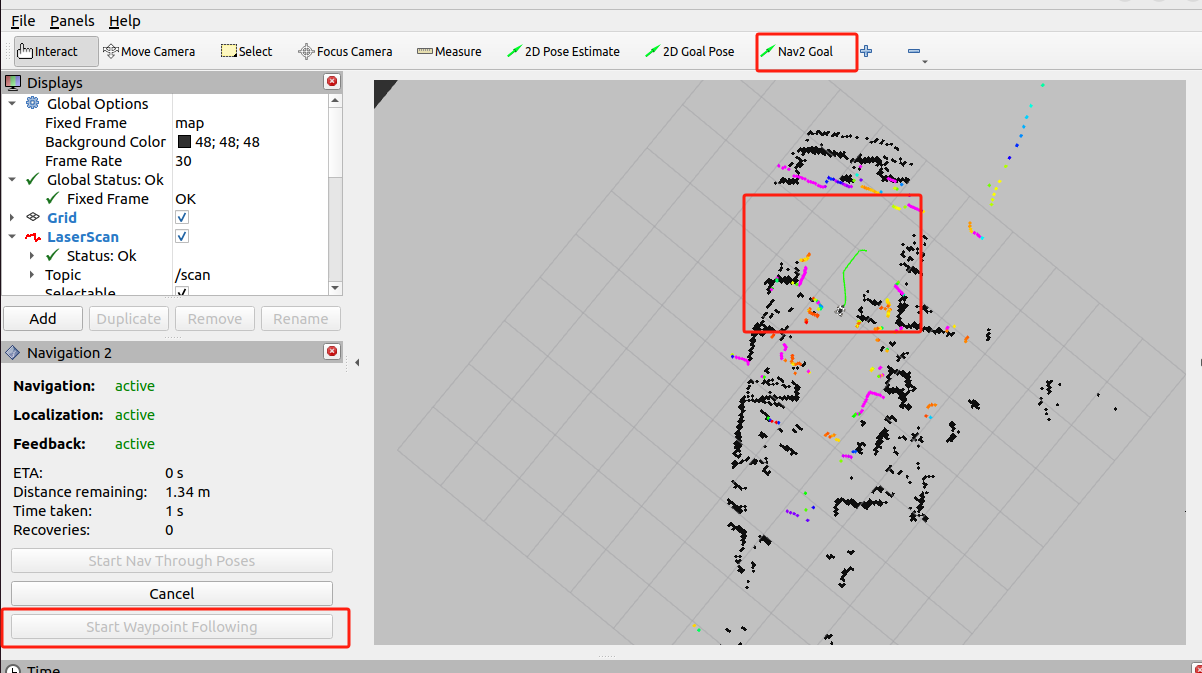
Use the [Nav2 Goal】Give multiple arbitrary target points, then click 【Start Waypoint Following】to start planning path navigation. The car will automatically go to the next point after reaching the target point according to the order of the selected points, without any operation. After reaching the last point, the car stops and waits for the next instruction.
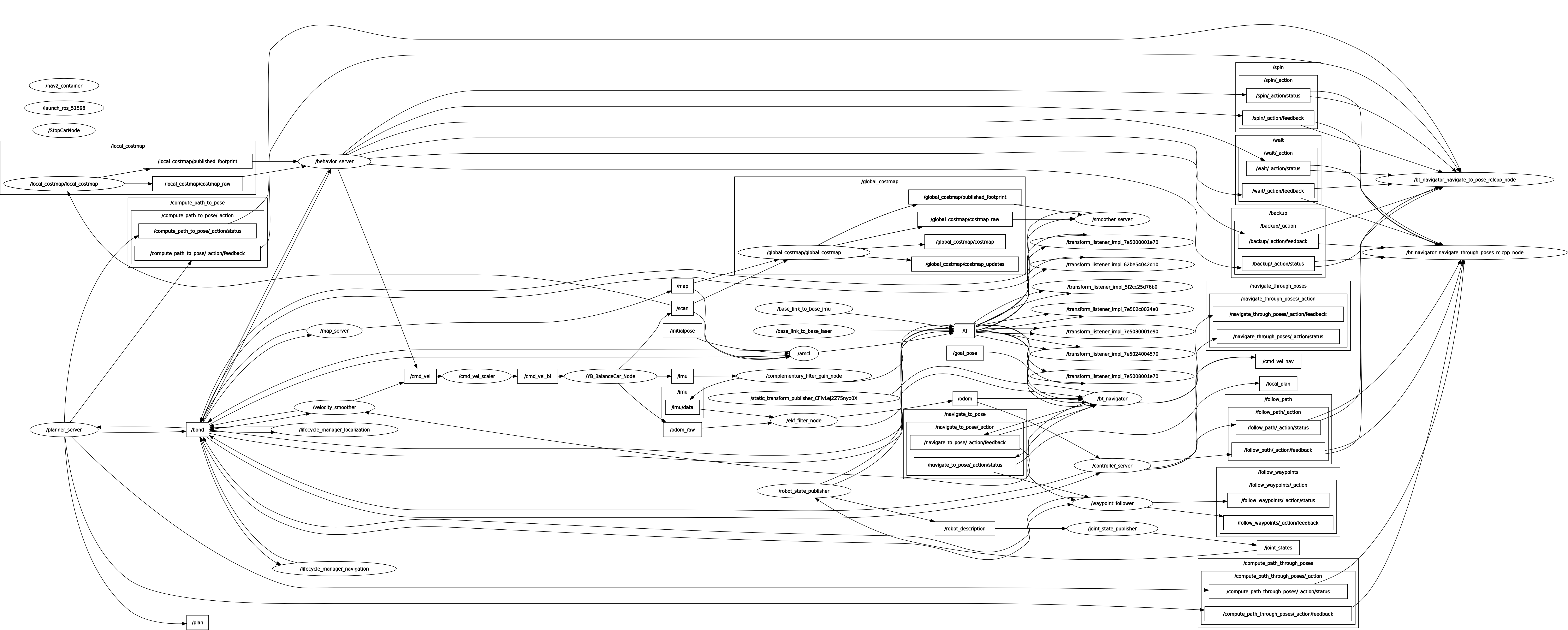
5. View the node communication graph
Terminal input,
xxxxxxxxxxros2 run rqt_graph rqt_graphIf it is not displayed at the beginning, select [Nodes/Topics(all)], and then click the refresh button in the upper left corner.
6. View TF tree
Terminal input,
xxxxxxxxxxros2 run tf2_tools view_frames
After running, two files will be generated in the terminal directory, namely .gv and .pdf files, and the pdf file is the TF tree.
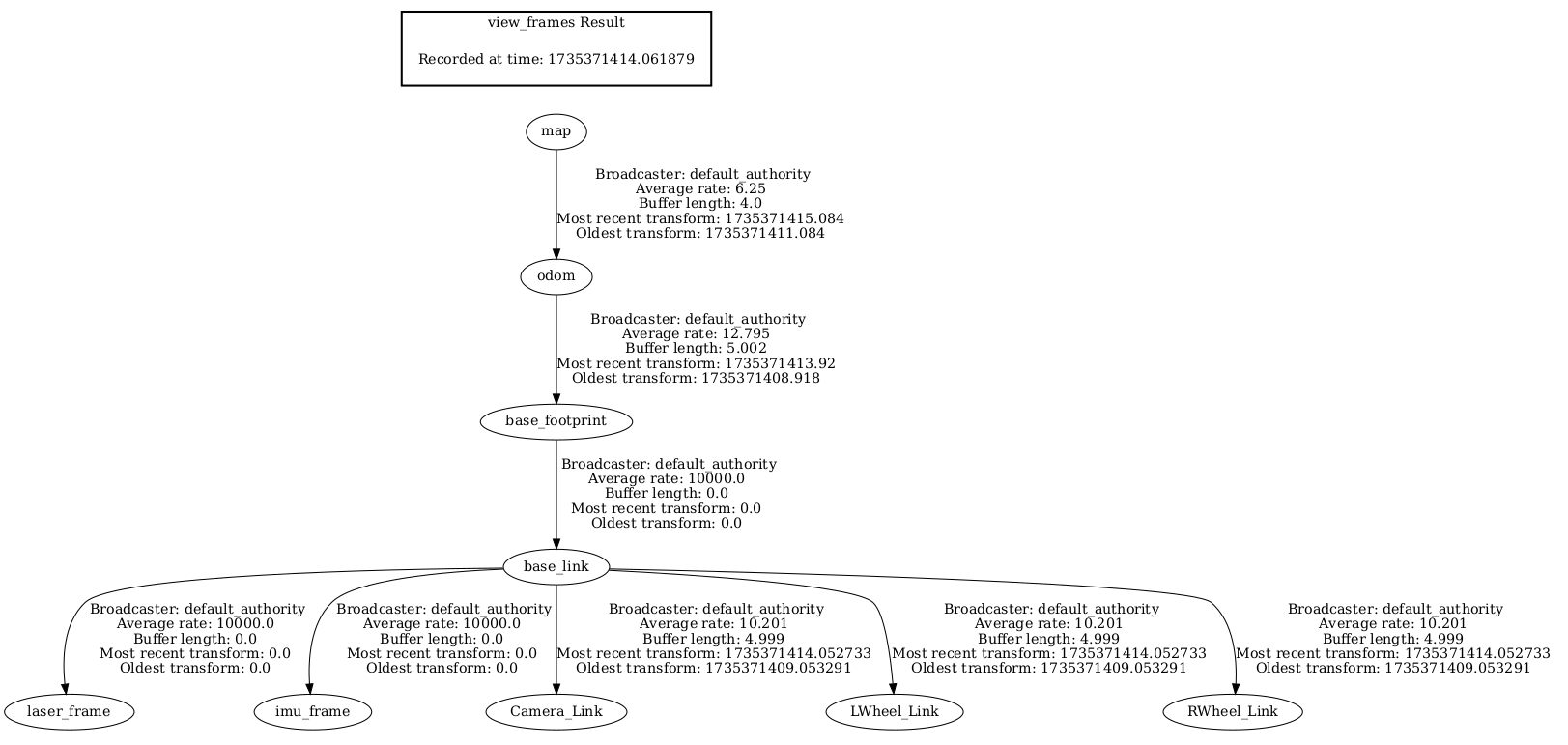
7. Code analysis
Here we only explain navigation_dwb_launch.py of navigation,
Take the virtual machine as an example, the file path is,
xxxxxxxxxx/home/yahboom/yahboomcar_ws/src/yahboomcar_nav/launchnavigation_dwb_launch.py,
xxxxxxxxxximport osfrom ament_index_python.packages import get_package_share_directoryfrom launch import LaunchDescriptionfrom launch.actions import DeclareLaunchArgumentfrom launch.actions import IncludeLaunchDescriptionfrom launch.launch_description_sources import PythonLaunchDescriptionSourcefrom launch.substitutions import LaunchConfigurationfrom launch_ros.actions import Node
def generate_launch_description():    package_path = get_package_share_directory('yahboomcar_nav')    nav2_bringup_dir = get_package_share_directory('nav2_bringup')
    use_sim_time = LaunchConfiguration('use_sim_time', default='false')    namespece = LaunchConfiguration('namespece', default='')    map_yaml_path = LaunchConfiguration(        'maps', default=os.path.join('/home/yahboom/yahboomcar_ws/src/yahboomcar_nav', 'maps', 'yahboom_map.yaml'))     nav2_param_path = LaunchConfiguration('params_file', default=os.path.join(        package_path, 'params', 'dwb_nav_params.yaml'))
    return LaunchDescription([        DeclareLaunchArgument('use_sim_time', default_value=use_sim_time,                              description='Use simulation (Gazebo) clock if true'),        DeclareLaunchArgument('namespece', default_value=namespece,                              description='Use simulation (Gazebo) clock if true'),        DeclareLaunchArgument('maps', default_value=map_yaml_path,                              description='Full path to map file to load'),        DeclareLaunchArgument('params_file', default_value=nav2_param_path,                              description='Full path to param file to load'),
        IncludeLaunchDescription(            PythonLaunchDescriptionSource(                [nav2_bringup_dir, '/launch', '/bringup_launch.py']),            launch_arguments={                'map': map_yaml_path,                'use_sim_time': use_sim_time,                'namespece': namespece,                'params_file': nav2_param_path}.items(),        ),        Node(            package='yahboomcar_nav',            executable='stop_car'        ) ,        Node(     package='tf2_ros',     executable='static_transform_publisher',     name='base_link_to_base_laser',     arguments=['-0.0046412', '0' , '0.094079','0','0','0','base_link','laser_frame']    )    ])
The following nodes are started here:
base_link_to_base_laser: publish static TF transformation;
stop_car: parking node, after ctrl c exits the program, the parking speed will be published to the car;
bringup_launch.py: launch file for navigation, the file is located at,
/opt/ros/humble/share/nav2_bringup/launch
In addition, a navigation parameter configuration file dwb_nav_params.yaml and a map file yahboom_map.yaml are loaded.
The map file is located at,
xxxxxxxxxx/home/yahboom/yahboomcar_ws/src/yahboomcar_nav/maps
Take the virtual machine as an example, the navigation parameter table is located at,
xxxxxxxxxx/home/yahboom/yahboomcar_ws/src/yahboomcar_nav/paramsdwb_nav_params.yaml,
xxxxxxxxxxamcl ros__parameters use_sim_timeFalse alpha10.5 alpha20.2 alpha30.2 alpha40.4 alpha50.2 base_frame_id"base_footprint" beam_skip_distance0.5 beam_skip_error_threshold0.9 beam_skip_threshold0.3 do_beamskipfalse global_frame_id"map" lambda_short0.1 laser_likelihood_max_dist2.0 laser_max_range100.0 laser_min_range-1.0 laser_model_type"likelihood_field" max_beams60 max_particles2000 min_particles500 odom_frame_id"odom" pf_err0.05 pf_z0.99 recovery_alpha_fast0.0 recovery_alpha_slow0.0 resample_interval1 robot_model_type"nav2_amcl::DifferentialMotionModel" save_pose_rate0.5 sigma_hit0.02 tf_broadcasttrue transform_tolerance1.25 update_min_a0.06 update_min_d0.025 z_hit0.5 z_max0.05 z_rand0.5 z_short0.05 scan_topicscan
bt_navigator ros__parameters use_sim_timeFalse global_framemap robot_base_framebase_link odom_topic/odom bt_loop_duration10 default_server_timeout20 default_bt_xml_filename"navigate_to_pose_w_replanning_and_recovery.xml" # 'default_nav_through_poses_bt_xml' and 'default_nav_to_pose_bt_xml' are use defaults: # nav2_bt_navigator/navigate_to_pose_w_replanning_and_recovery.xml # nav2_bt_navigator/navigate_through_poses_w_replanning_and_recovery.xml # They can be set here or via a RewrittenYaml remap from a parent launch file to Nav2. plugin_lib_namesnav2_compute_path_to_pose_action_bt_nodenav2_compute_path_through_poses_action_bt_nodenav2_smooth_path_action_bt_nodenav2_follow_path_action_bt_nodenav2_spin_action_bt_nodenav2_wait_action_bt_nodenav2_assisted_teleop_action_bt_nodenav2_back_up_action_bt_nodenav2_drive_on_heading_bt_nodenav2_clear_costmap_service_bt_nodenav2_is_stuck_condition_bt_nodenav2_goal_reached_condition_bt_nodenav2_goal_updated_condition_bt_nodenav2_globally_updated_goal_condition_bt_nodenav2_is_path_valid_condition_bt_nodenav2_initial_pose_received_condition_bt_nodenav2_reinitialize_global_localization_service_bt_nodenav2_rate_controller_bt_nodenav2_distance_controller_bt_nodenav2_speed_controller_bt_nodenav2_truncate_path_action_bt_nodenav2_truncate_path_local_action_bt_nodenav2_goal_updater_node_bt_nodenav2_recovery_node_bt_nodenav2_pipeline_sequence_bt_nodenav2_round_robin_node_bt_nodenav2_transform_available_condition_bt_nodenav2_time_expired_condition_bt_nodenav2_path_expiring_timer_conditionnav2_distance_traveled_condition_bt_nodenav2_single_trigger_bt_nodenav2_goal_updated_controller_bt_nodenav2_is_battery_low_condition_bt_nodenav2_navigate_through_poses_action_bt_nodenav2_navigate_to_pose_action_bt_nodenav2_remove_passed_goals_action_bt_nodenav2_planner_selector_bt_nodenav2_controller_selector_bt_nodenav2_goal_checker_selector_bt_nodenav2_controller_cancel_bt_nodenav2_path_longer_on_approach_bt_nodenav2_wait_cancel_bt_nodenav2_spin_cancel_bt_nodenav2_back_up_cancel_bt_nodenav2_assisted_teleop_cancel_bt_nodenav2_drive_on_heading_cancel_bt_nodenav2_is_battery_charging_condition_bt_node
bt_navigator_navigate_through_poses_rclcpp_node ros__parameters use_sim_timeFalse
bt_navigator_navigate_to_pose_rclcpp_node ros__parameters use_sim_timeFalse
controller_server ros__parameters use_sim_timeFalse controller_frequency20.0 min_x_velocity_threshold0.001 min_y_velocity_threshold0.5 min_theta_velocity_threshold0.001 #0.01 max_theta_velocity_threshold5.0 #0.5 failure_tolerance0.3 progress_checker_plugin"progress_checker" goal_checker_plugins"general_goal_checker" controller_plugins"FollowPath"
# Progress checker parameters progress_checker plugin"nav2_controller::SimpleProgressChecker" required_movement_radius0.5 movement_time_allowance10.0 # Goal checker parameters precise_goal_checker plugin"nav2_controller::SimpleGoalChecker" xy_goal_tolerance0.25 #0.25 yaw_goal_tolerance0.15 #0.15 statefulTrue general_goal_checker statefulTrue plugin"nav2_controller::SimpleGoalChecker" xy_goal_tolerance0.25 #0.25 yaw_goal_tolerance0.15 #0.15 # DWB parameters FollowPath plugin"dwb_core::DWBLocalPlanner" debug_trajectory_detailsTrue min_vel_x-0.50 min_vel_y0.0 max_vel_x0.55 max_vel_y0.0 max_vel_theta10.0 min_speed_xy-0.50 max_speed_xy0.55 min_speed_theta-10.0 # Add high threshold velocity for turtlebot 3 issue. # https://github.com/ROBOTIS-GIT/turtlebot3_simulations/issues/75 acc_lim_x2.5 acc_lim_y0.0 acc_lim_theta5.2 #4.5 decel_lim_x-2.5 decel_lim_y0.0 decel_lim_theta-5.2 #-4.5 vx_samples20 vy_samples5 vtheta_samples20 sim_time1.7 linear_granularity0.05 angular_granularity0.025 transform_tolerance0.25 xy_goal_tolerance0.2 trans_stopped_velocity0.25 short_circuit_trajectory_evaluationTrue statefulTrue critics"RotateToGoal" "Oscillation" "BaseObstacle" "GoalAlign" "PathAlign" "PathDist" "GoalDist" BaseObstacle.scale0.02 PathAlign.scale32.0 PathAlign.forward_point_distance0.1 GoalAlign.scale24.0 #24.0 GoalAlign.forward_point_distance0.1 PathDist.scale32.0 GoalDist.scale24.0 RotateToGoal.scale48.0 #32.0 RotateToGoal.slowing_factor0.5 #5.0 RotateToGoal.lookahead_time-1.0
local_costmap local_costmap ros__parameters update_frequency5.0 publish_frequency2.0 global_frameodom robot_base_framebase_link use_sim_timeFalse rolling_windowtrue width3 height3 resolution0.05 robot_radius0.15 plugins"voxel_layer" "inflation_layer" inflation_layer plugin"nav2_costmap_2d::InflationLayer" cost_scaling_factor3.0 inflation_radius0.18 voxel_layer plugin"nav2_costmap_2d::VoxelLayer" enabledTrue publish_voxel_mapTrue origin_z0.0 z_resolution0.05 z_voxels16 max_obstacle_height2.0 mark_threshold0 observation_sourcesscan scan topic/scan max_obstacle_height2.0 clearingTrue markingTrue data_type"LaserScan" raytrace_max_range3.0 raytrace_min_range0.0 obstacle_max_range2.5 obstacle_min_range0.0 static_layer plugin"nav2_costmap_2d::StaticLayer" map_subscribe_transient_localTrue always_send_full_costmapTrue
global_costmap global_costmap ros__parameters update_frequency1.0 publish_frequency1.0 global_framemap robot_base_framebase_link use_sim_timeFalse robot_radius0.15 resolution0.05 track_unknown_spacetrue plugins"static_layer" "obstacle_layer" "inflation_layer" obstacle_layer plugin"nav2_costmap_2d::ObstacleLayer" enabledTrue observation_sourcesscan scan topic/scan max_obstacle_height2.0 clearingTrue markingTrue data_type"LaserScan" raytrace_max_range3.0 raytrace_min_range0.0 obstacle_max_range2.5 obstacle_min_range0.0 static_layer plugin"nav2_costmap_2d::StaticLayer" map_subscribe_transient_localTrue inflation_layer plugin"nav2_costmap_2d::InflationLayer" cost_scaling_factor3.0 inflation_radius0.18 always_send_full_costmapTrue
map_server ros__parameters use_sim_timeFalse # Overridden in launch by the "map" launch configuration or provided default value. # To use in yaml, remove the default "map" value in the tb3_simulation_launch.py file & provide full path to map below. yaml_filename""
map_saver ros__parameters use_sim_timeFalse save_map_timeout5.0 free_thresh_default0.25 occupied_thresh_default0.65 map_subscribe_transient_localTrue
planner_server ros__parameters expected_planner_frequency20.0 use_sim_timeFalse planner_plugins"GridBased" GridBased plugin"nav2_navfn_planner/NavfnPlanner" tolerance0.5 use_astarfalse allow_unknowntruesmoother_server ros__parameters use_sim_timeFalse smoother_plugins"simple_smoother" simple_smoother plugin"nav2_smoother::SimpleSmoother" tolerance1.0e-10 max_its1000 do_refinementFalse
behavior_server ros__parameters costmap_topiclocal_costmap/costmap_raw footprint_topiclocal_costmap/published_footprint cycle_frequency10.0 behavior_plugins"spin" "backup" "drive_on_heading" "assisted_teleop" "wait" spin plugin"nav2_behaviors/Spin" backup plugin"nav2_behaviors/BackUp" drive_on_heading plugin"nav2_behaviors/DriveOnHeading" wait plugin"nav2_behaviors/Wait" assisted_teleop plugin"nav2_behaviors/AssistedTeleop" global_frameodom robot_base_framebase_link transform_tolerance0.15 use_sim_timeFalse simulate_ahead_time2.0 max_rotational_vel5.0 #1.0 min_rotational_vel4.0 #0.4 rotational_acc_lim3.2 #3.2
robot_state_publisher ros__parameters use_sim_timeFalse
waypoint_follower ros__parameters use_sim_timeFalse loop_rate20 stop_on_failurefalse waypoint_task_executor_plugin"wait_at_waypoint" wait_at_waypoint plugin"nav2_waypoint_follower::WaitAtWaypoint" enabledTrue waypoint_pause_duration200
velocity_smoother ros__parameters use_sim_timeFalse smoothing_frequency20.0 scale_velocitiesFalse feedback"OPEN_LOOP" max_velocity0.35 0.0 3.0 min_velocity-0.35 0.0 -3.0 max_accel2.5 0.0 3.2 max_decel-2.5 0.0 -3.2 odom_topic"odom" odom_duration0.1 deadband_velocity0.0 0.0 0.0 velocity_timeout1.0This parameter table configures the parameters required for each node started in the navigation launch file.