Welcome to MicroROS Self-balancing Robot Car repository
2. Common commands
2、Common commands
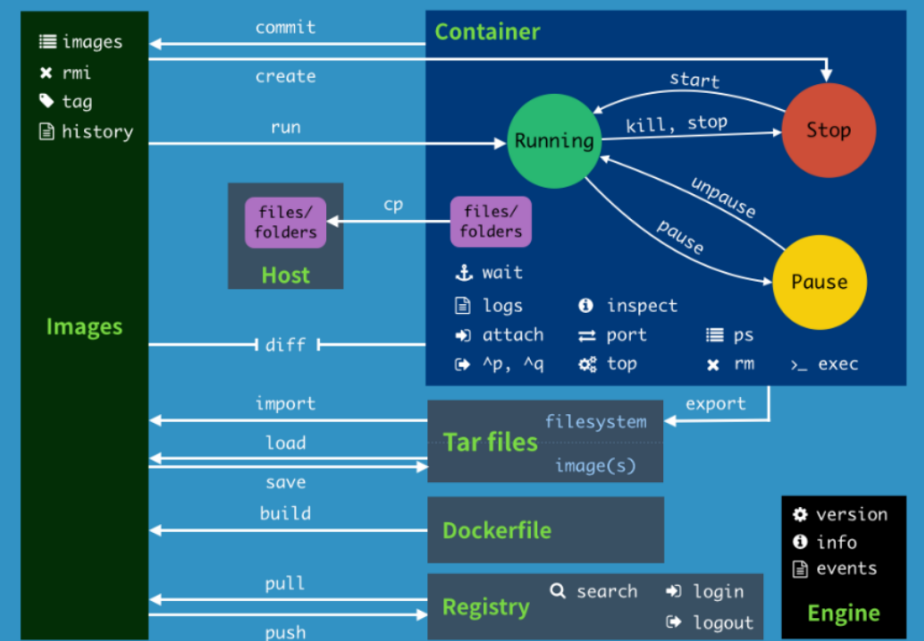
2、Common commands2.1、do not use the sudo command2.2、help commands2.3、mirror command2.4、container commands2.5、common other commands2.6、Command Summary
2.1、do not use the sudo command
Usually, to operate docker commands, you need to add the prefix sudo, as follows:
sudo docker version
But after adding the docker user group, you don't need to add the sudo prefix. How to add a docker user group (run commands in the host running docker):
xxxxxxxxxxsudo groupadd docker # Add docker user groupsudo gpasswd -a $USER docker # Add the current user to the docker user group, where $USER can automatically resolve to the currently logged in userNewgrp Docker# Update the docker user group
After adding the above command, use the [docker images] command to test, if there is no error, it means that you can already use the sudo command. If the following error is reported:
xxxxxxxxxxpi@ubuntu:~$ docker imagesWARNING: Error loading config file: /home/pi/.docker/config.json: open /home/pi/.docker/config.json: permission denied
Run the following command on the host to solve the problem:
xxxxxxxxxxsudo chown "$USER":"$USER" /home/"$USER"/.docker -Rsudo chmod g+rwx "/home/$USER/.docker" -R
2.2、help commands
xxxxxxxxxxdocker info # Displays Docker system information, including the number of images and containers.docker --help # Help
2.3、mirror command
1、Docker pull download image
xxxxxxxxxx# Download the imagejetson@ubuntu:~$ docker pull ubuntuUsing default tag: latest # Do not write tag, default is latestlatest: Pulling from library/ubuntucd741b12a7ea: Pull complete # Layered downloadDigest: sha256:67211c14fa74f070d27cc59d69a7fa9aeff8e28ea118ef3babc295a0428a6d21Status: Downloaded newer image for ubuntu:latestdocker.io/library/ubuntu:latest # Real Location
2、Docker images lists the images
x# Lists the images on the local hostjetson@ubuntu:~$ docker imagesREPOSITORY TAG IMAGE ID CREATED SIZEyahboomtechnology/ros-foxy 3.4.0 49581aa78b6b About an hour ago 24.3GByahboomtechnology/ros-foxy 3.3.9 cefb5ac2ca02 3 days ago 20.5GByahboomtechnology/ros-foxy 3.3.8 49996806c64a 4 days ago 20.5GByahboomtechnology/ros-foxy 3.3.7 8989b8860d17 4 days ago 17.1GByahboomtechnology/ros-foxy 3.3.6 326531363d6e 5 days ago 16.1GBhello-world latest 46331d942d63 13 months ago 9.14kB# interpretationREPOSITORY: The repository source of the mirrorTAG: The label of the imageIMAGE: ID The ID of the imageCREATED: Image creation timeSIZE: Image size# The same repository source can have multiple tags, representing different versions of this repository source, we use REPOSITORY:TAG to define different images, if you do not define the tag version of the image, docker will use lastest images by default!# Optional-a: Lists all local images-q: Only the image ID is displayed--digests: Displays the summary information of the image
3、docker search
xxxxxxxxxx# Search for mirrorsjetson@ubuntu:~$ docker search ros2NAME DESCRIPTION STARS OFFICIAL AUTOMATEDosrf/ros2 **Experimental** Docker Images for ROS2 deve… 60 [OK]tiryoh/ros2-desktop-vnc A Docker image to provide HTML5 VNC interfac… 11althack/ros2 An assortment of development containers for … 7tiryoh/ros2 unofficial ROS2 image 6athackst/ros2 [Deprecated-> use althack/ros2] 5uobflightlabstarling/starling-mavros2 ROS2 version of MAVROS 2theosakamg7/ros2_java_docker Image base 1 [OK]# docker search The name of an image corresponds to the image in the DockerHub repository# Optional--filter=stars=50 : Lists images with a collection of no less than the specified value.
4、docker rmi delete the image
xxxxxxxxxx# Delete the imagedocker rmi -f image id # deletes a singledocker rmi -f image name: tag image name: tag # Delete multipledocker rmi -f $(docker images -qa) # deletes all
2.4、container commands
To create a container with an image, we use the image of ubuntu here to test and download the image:
xxxxxxxxxxdocker pull ubuntu
1、docker run
xxxxxxxxxx# commanddocker run [OPTIONS] IMAGE [COMMAND][ARG...]# Description of common parameters--name="Name" # Specify a name for the container-d # runs the container in background mode and returns the ID of the container!-i # runs the container in interactive mode by using it with -t-t # reassigns a terminal to the container, usually used with -i-P # random port mapping (uppercase)-p # specifies the port mapping (summary), which can generally be written in four waysip:hostPort:containerPortip::containerPorthostPort:containerPort (commonly used)containerPort# testjetson@ubuntu:~$ docker imagesREPOSITORY TAG IMAGE ID CREATED SIZEyahboomtechnology/ros-foxy 3.4.0 49581aa78b6b 2 hours ago 24.3GByahboomtechnology/ros-foxy 3.3.9 cefb5ac2ca02 3 days ago 20.5GByahboomtechnology/ros-foxy 3.3.8 49996806c64a 4 days ago 20.5GByahboomtechnology/ros-foxy 3.3.7 8989b8860d17 4 days ago 17.1GByahboomtechnology/ros-foxy 3.3.6 326531363d6e 5 days ago 16.1GBubuntu latest bab8ce5c00ca 6 weeks ago 69.2MBhello-world latest 46331d942d63 13 months ago 9.14kB# Use ubuntu to start the container in interactive mode and execute the /bin/bash command inside the container!jetson@ubuntu:~$ docker run -it ubuntu:latest /bin/bashroot@c54bf9efae47:/# lsbin boot dev etc home lib media mnt opt proc root run sbin srv sys tmp usr varroot@c54bf9efae47:/# exit # Use exit to exit the container back to the hostexitjetson@ubuntu:~$
2、docker ps
xxxxxxxxxx# commanddocker ps [OPTIONS]# Description of common parameters-a # lists all currently running containers + historically run containers-l # displays the most recently created container-n=? # Displays the last n created containers-q # silent mode, only the container number is displayed.#testjetson@ubuntu:~$ docker ps -aCONTAINER ID IMAGE COMMAND CREATED STATUS PORTS NAMESc54bf9efae47 ubuntu:latest "/bin/bash" 2 hours ago Up 4 seconds funny_hugle3b9c01839579 hello-world "/hello" 3 hours ago Exited (0) 3 hours ago jovial_brown
3、Exit the container
xxxxxxxxxxexit # The container stops exitingctrl+P+Q # container does not stop exiting
4、Multiple terminals enter a running container
xxxxxxxxxx# Command 1docker exec -it docker_id bashShell# testjetson@ubuntu:~$ docker ps -aCONTAINER ID IMAGE COMMAND CREATED STATUS PORTS NAMESc54bf9efae47 ubuntu:latest "/bin/bash" 2 hours ago Up 4 seconds funny_hugle3b9c01839579 hello-world "/hello" 3 hours ago Exited (0) 3 hours ago jovial_brownjetson@ubuntu:~$ docker exec -it c5 /bin/bash # The ID of the container can be abbreviated, as long as it uniquely identifies the containerroot@c54bf9efae47:/## Command 2docker attach docker_id# testjetson@ubuntu:~$ docker ps -aCONTAINER ID IMAGE COMMAND CREATED STATUS PORTS NAMESc54bf9efae47 ubuntu:latest "/bin/bash" 2 hours ago Up 35 seconds funny_hugle3b9c01839579 hello-world "/hello" 3 hours ago Exited (0) 3 hours ago jovial_brownjetson@ubuntu:~$ docker attach c5 # The ID of the container can be abbreviated, as long as it uniquely identifies the containerroot@c54bf9efae47:/## Difference# exec is to open a new terminal in the container and a new process can be started# attach goes directly to the terminal of the container startup command and does not start a new process
5、Start and stop the container
xxxxxxxxxxdocker start (container ID or container name) # Start the containerdocker restart (container id or container name) # Restart the containerdocker stop (container id or container name) # Stop the containerdocker kill (container ID or container name) # Forces the container to stop
6、Delete the container
xxxxxxxxxxDocker rm docker_id # Deletes the specified containerdocker rm -f $(docker ps -a -q) # Delete all containersdocker ps -a -q|xargs docker rm # Delete all containers
2.5、common other commands
View the process information running in the container and support ps command parameters.
xxxxxxxxxx# commanddocker top docker_id# Testjetson@ubuntu:~$ docker ps -aCONTAINER ID IMAGE COMMAND CREATED STATUS PORTS NAMESc54bf9efae47 ubuntu:latest "/bin/bash" 2 hours ago Up 2 minutes funny_hugle3b9c01839579 hello-world "/hello" 3 hours ago Exited (0) 3 hours ago jovial_brownjetson@ubuntu:~$ docker top c5UID PID PPID C STIME TTY TIME CMDroot 9667 9647 0 14:20 pts/0 00:00:00 /bin/bash
2、View the metadata of the container/image
xxxxxxxxxx# Commanddocker inspect docker_id# Test viewing container metadatajetson@ubuntu:~$ docker ps -aCONTAINER ID IMAGE COMMAND CREATED STATUS PORTS NAMESc54bf9efae47 ubuntu:latest "/bin/bash" 2 hours ago Up 4 minutes funny_hugle3b9c01839579 hello-world "/hello" 3 hours ago Exited (0) 3 hours ago jovial_brownjetson@ubuntu:~$ docker inspect c54bf9efae47[{# The complete id, the container ID above here, is the first few digits of this ID that were intercepted"Id": "c54bf9efae471071391202a8718b346d9af76cb1ff17741e206280603d6f0056","Created": "2023-04-24T04:19:46.232822024Z","Path": "/bin/bash","Args": [],"State": {"Status": "running","Running": true,"Paused": false,"Restarting": false,"OOMKilled": false,"Dead": false,"Pid": 9667,"ExitCode": 0,"Error": "","StartedAt": "2023-04-24T06:20:58.508213216Z","FinishedAt": "2023-04-24T06:19:45.096483592Z"},# Test viewing image metadatajetson@ubuntu:~$ docker imagesREPOSITORY TAG IMAGE ID CREATED SIZEubuntu latest bab8ce5c00ca 6 weeks ago 69.2MBhello-world latest 46331d942d63 13 months ago 9.14kBjetson@ubuntu:~$ docker inspect bab8ce5c00ca[{"Id": "sha256:bab8ce5c00ca3ef91e0d3eb4c6e6d6ec7cffa9574c447fd8d54a8d96e7c1c80e","RepoTags": ["ubuntu:latest"],"RepoDigests": ["ubuntu@sha256:67211c14fa74f070d27cc59d69a7fa9aeff8e28ea118ef3babc295a0428a6d21"],"Parent": "","Comment": "","Created": "2023-03-08T04:32:41.063980445Z","Container": "094fd0c521be8c84d81524e4a5e814e88a2839899c56f654484d32d171c7195b","ContainerConfig": {"Hostname": "094fd0c521be",............."Labels": {"org.opencontainers.image.ref.name": "ubuntu","org.opencontainers.image.version": "22.04"}},"DockerVersion": "20.10.12","Author": "","Config": {"Hostname": "",........."Labels": {"org.opencontainers.image.ref.name": "ubuntu","org.opencontainers.image.version": "22.04"}},"Architecture": "arm64","Variant": "v8","Os": "linux","Size": 69212233,"VirtualSize": 69212233,"GraphDriver": {"Data": {"MergedDir": "/var/lib/docker/overlay2/8418b919a02d38a64ab86060969b37b435977e9bbdeb6b0840d4eb698280e796/merged","UpperDir": "/var/lib/docker/overlay2/8418b919a02d38a64ab86060969b37b435977e9bbdeb6b0840d4eb698280e796/diff","WorkDir": "/var/lib/docker/overlay2/8418b919a02d38a64ab86060969b37b435977e9bbdeb6b0840d4eb698280e796/work"},"Name": "overlay2"},"RootFS": {"Type": "layers","Layers": ["sha256:874b048c963ab55b06939c39d59303fb975d323822a4ea48a02ac8dc635ea371"]},"Metadata": {"LastTagTime": "0001-01-01T00:00:00Z"}}]
2.6、Command Summary