yahboom
HomeTutorialsProduct
Solution
Blog
Online Store
About Us
EN/中文
Store
MicroROS Self-balancing Car📖
01.Introduction
  • 0.Unboxing and Reviewing
  • 1. Must read before use - learning route
  • 2. Introduction to LiDAR
  • 3. Balance car interface description
  • 4. Analysis of common problems
  • 5. Robot charging and battery precautions
02.Assembly tutorial
  • Robot assembly steps
03.Preparation
  • 0.Quick Start (Must Read)
  • 1.Write firmware
  • 2.How to install and use VM
  • 3.ESP32 communication board configuration parameters
  • 4.Connect to microROS agent
04.ROS-WiFi module configuration
  • 0.Serial port configuration WiFi instructions
  • 1.Use ROS-WiFi cam module(must read)
  • 2.Connect to ROS-WiFi cam module agent
  • 3.Camera image correction (optional)
05.Quick start control
  • 1.Keyboard remote control
  • 2.Handle remote control
06.ROS+OpenCV course
  • 1.OpenCV Getting started
  • 2.Geometric transformation
  • 3.Image processing and drawing text line segments
  • 4.Image beautification
07.Mediapipe course
  • 1. Hand detection
  • 2. Posture detection
  • 3. Overall inspection
  • 4. Face detection
  • 5. Face recognition
  • 6. Facial effects
  • 7. 3D object recognition
  • 8. Brush
  • 9. Finger control
  • 10. Gesture recognition
08.Robot basic course
  • 1.Robot information release
  • 2.Robot keyboard control
  • 3.Robot handle control
  • 4.Robot state estimation
  • 5.Line speed calibration
  • 6.Angular velocity calibration
  • 7.Robot URDF model
09.Lidar course
  • 1.Lidar avoid
  • 2.Lidar following
  • 3.Lidar guard
  • 5.Gmapping mapping
  • 6.Cartographer mapping
  • 7.Navigation2 navigation avoid
  • 8.Navigation2 fast relocation navigation
  • 9.ROS Robot APP mapping
  • 10.ROS Robot APP navigation
10.Robot visual interaction
  • 1.Color tracking
  • 2.Object recognition and tracking
  • 3.Face recognition tracking
  • 4.Autonomous driving line patrol
  • 5.QR code motion control
  • 6.Gesture control car movement
  • 7.Palm control car movement
  • 8.Gesture control car action group
  • 9.Palm recognition and tracking
  • 10.Human body posture recognition and tracking
11.Multi-machine course
  • 1.Multi-machine handle control
  • 2.Multi-machine keyboard control
  • 3.Multi-machine navigation
  • 4.Multi-machine rapid relocation navigation
12.STM32 balancing case
01.Environment construction and development
  • 13.Window Watchdog (WWDG)
  • 01.MDK-ARM installation
  • 02.STM32CubeIDE installation
  • 03.Common driver installation
  • 04.Download the program
  • 05.MDK-ARM project usage
  • 06.Program simulation
02.STM32 getting started course
  • 01.Project creation
  • 02.LED Control(GPIO)
  • 03.Buzzer control(GPIO)
  • 04.Button control(EXTI)
  • 05.Serial communication(USART)
  • 06.Voltage detection(ADC)
  • 07.Basic timer(TIM)
  • 08.Universal timer(TIM)
  • 09.Advanced Timer(TIM)
  • 10.I2C Communication(I2C)-OLED
  • 11.SPI communication(SPI)-2.4G handle
  • 12.Independent Watchdog (IWDG)
  • 14.DMA-USART
  • 15.DMA-I2C
03.STM32 expansion course
  • 01.Battery voltage detection (ADC)
  • 02.Ultrasonic module-measuring distance (TIM)
  • 03.Motor drive+encoder (TIM)
  • 04.OLED Data-Display(I2C)
  • 05.MPU6050-Data Read (I2C)
04.Robot car PID control course
  • 01.PID basic concept
  • 02.PID example analysis
  • 03.P, PI, PD controller theory
  • 04.Position PID
  • 05.Incremental PID
  • 06.Cascade PID
  • 07.Balance principle of car
  • 08.Car upright control (PD)
  • 09.Car speed ​​control (PI)
  • 10.Car steering control (PD)
  • 11.Got angle and angular velocity (DMP algorithm)
  • 12.Got angle and angular velocity (Kalman filter algorithm)
  • 13.Got angle and angular velocity(Complementary filter algorithm)
05.Robot car basic course
  • 01.Car parameter adjustment
  • 02.Ultrasonic obstacle avoidance
  • 03.Ultrasonic follow
  • 04.Bluetooth remote control
  • 05.Load balance
  • 06.Radar obstacle avoidance
  • 07.Radar guard
  • 08.Radar follow
  • 09.Radar patrol
  • 10.Radar wall following go in a straight line
  • 11.Radar tracking wall multiple walls
06.Robot car LQR control
  • Balance car LQR high-level control
07.Circuit design
  • 01.Overall circuit design
  • 02.STM32 minimum system
  • 03.Serial port circuit design
  • 04.Power circuit design
  • 05.MPU6050 Circuit Design
  • 06.Motor drive circuit design
08.Mathematical model
  • Balance car mathematical model
13.Linux basic course
  • 1.Introduction to Linux system
  • 2.Ubuntu file system
  • 3.Ubuntu common commands
  • 4.Ubuntu common editors
  • 5.Ubuntu software operation commands
  • 6.Virtual machine installation
  • 7.SSH remote control
  • 8.VNC remote control
  • 9.Transfer files remotely
  • 10.Driver library and communication
  • 11.Static IP and hotspot mode
  • 12.Bind device ID
  • 13.Capacity expansion and resource allocation
  • 14.Update system software sources
  • 15.Set root user password
  • 16.sudo free password
  • 17.Connect to WiFi network
  • 18.View system version
  • 19.Customized service management
  • 20.Back up system image
14.Docker course
  • 1. Overview and installation
  • 2. Common commands
  • 3. Docker images deeply understand and publish images
  • 4. Docker hardware interaction and data processing
  • 5. Enter the bot's docker container
15.ROS2 basic course
  • 1.Introduction to ROS2
  • 2.ROS2 install Humble
  • 3.ROS2 development environment
  • 4.ROS2 workspace
  • 5.ROS2 function package
  • 6.ROS2 node
  • 7.ROS2 topic communication
  • 8.ROS2 service communication
  • 9.ROS2 action communication
  • 10.ROS2 custom interface message
  • 11.ROS2 parameter service case
  • 12.ROS2 meta-function package
  • 13.ROS2 distributed communication
  • 14.ROS2 DDS
  • 15.ROS2 time related API
  • 16.ROS2 common command tools
  • 17.ROS2 rviz2 use
  • 18.ROS2 rqt toolbox
  • 19.ROS2 Launch startup file configuration
  • 20.ROS2 recording and playback tool
  • 21.ROS2 URDF model
  • 22.ROS2 Gazebo simulation platform
  • 23.ROS2 TF2 coordinate transformation
Download
  • RemoteCtrl_APP(Android)
  • Mapping_APP(iOS_Android)
  • Code
  • Hardware Information
  • software tools
  • 3D model file
  • Instruction manual
  • VM image file
  • ROS2_Basic_VM
Download ZIP

Welcome to MicroROS Self-balancing Car repository

2.Multi-machine keyboard control


Multi-car keyboard control

Note: The virtual machine needs to be in the same LAN as the car, and the ROS_DOMAIN_ID needs to be the same. You can check [Must-read before use] to set the IP and ROS_DOMAIN_ID on the board.

1. Program function description

After the program is started, the two cars can be controlled to move synchronously through the keyboard.

2. Basic settings for multi-machine functions

Take two cars as an example. It is recommended to use two computers with matching virtual machines, change the config_robot.py files respectively, set robot.set_ros_namespace() to robot1 and robot2 respectively; set robot.set_udp_config() to the IP addresses of the two virtual machines respectively, and the ROS_DOMAIN_ID of the two cars and the ROS_DOMAIN_ID of the virtual machine need to be set to the same. Then open the terminal in the /home/yahboom directory and enter sudo python3 config_Balance_Car.py to run this program (you need to change the rest of the programs other than running multiple cars and rerun this program).
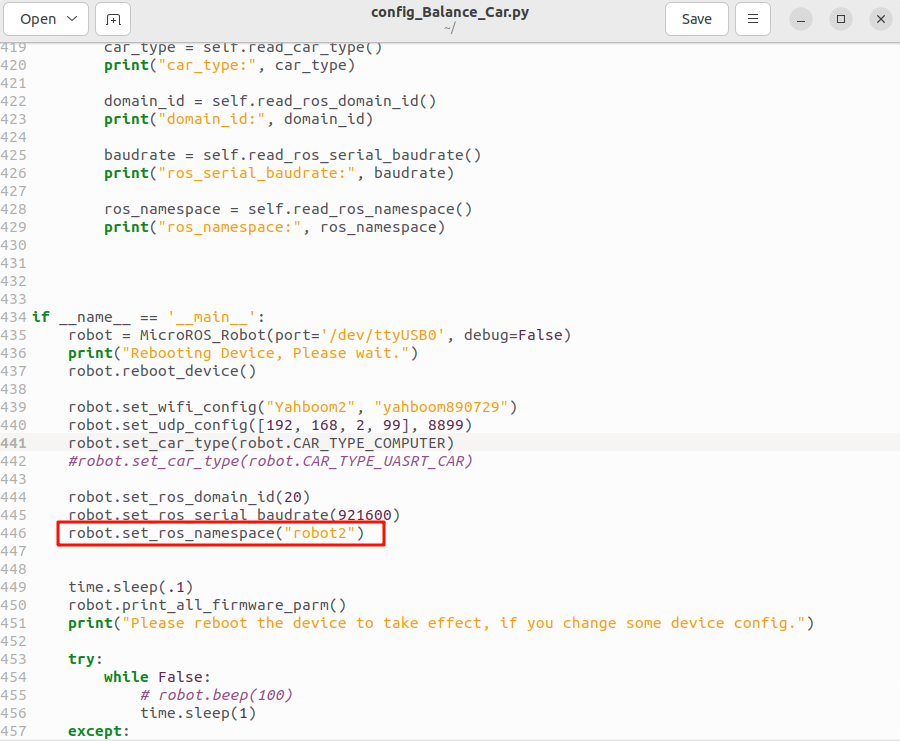
image-20250108211224464

3. Start and connect the agent

Take the matching virtual machine as an example. In the two virtual machines, enter the following command to start the agent of each car.

xxxxxxxxxx
sudo docker run -it --rm -v /dev:/dev -v /dev/shm:/dev/shm --privileged --net=host microros/micro-ros-agent:humble udp4 --port 8899 -v4

image-20241226101427280

Then, turn on the switches of the two cars and wait for the two cars to connect to their respective agents. If the connection is successful, the terminal display is as shown in the figure below.
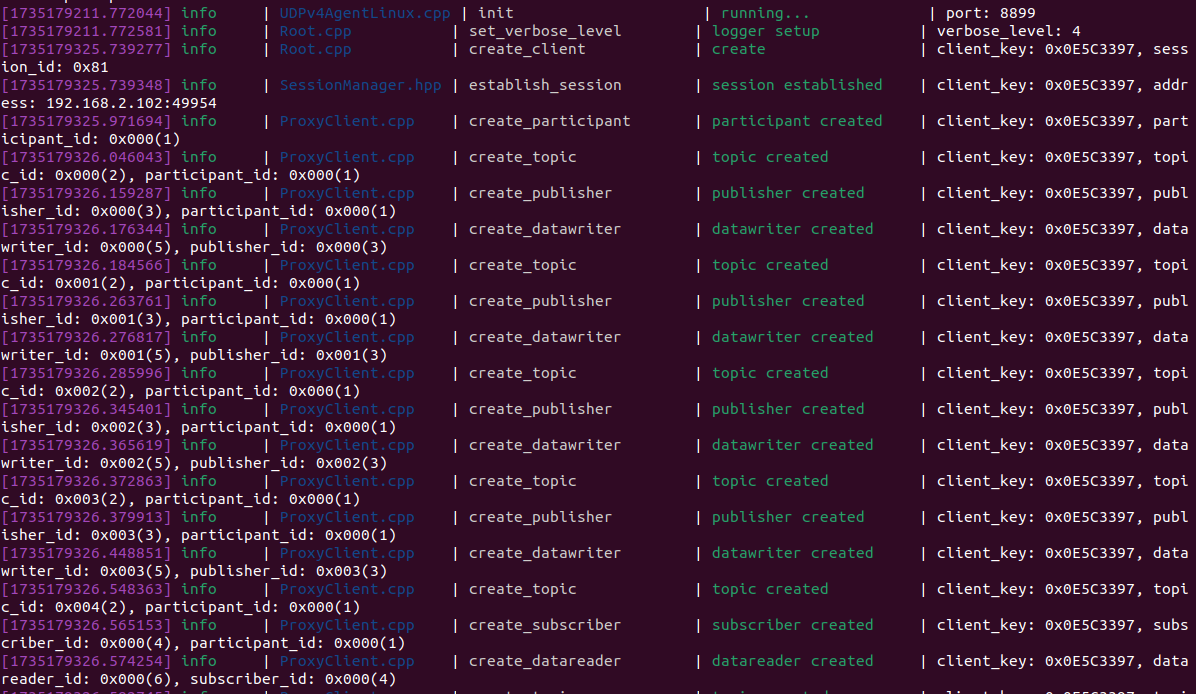
image-20241226101559446

Check the currently started node. In the two virtual machines, randomly select one and open the terminal to enter,

xxxxxxxxxx
ros2 node list

image-20250108211845321

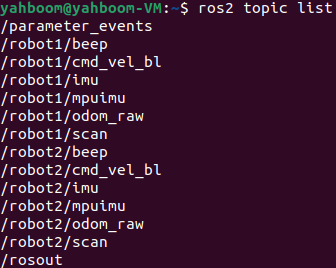
As shown in the figure above, the nodes of both cars have been started. Query the current topic information, input in the terminal,

xxxxxxxxxx
ros2 topic list

image-20250108211908765

4. Start the keyboard control program

Take the matching virtual machine as an example, select one of the two virtual machines at random, open the terminal and input,

xxxxxxxxxx
ros2 run yahboomcar_multi multi_keyboard_ctrl
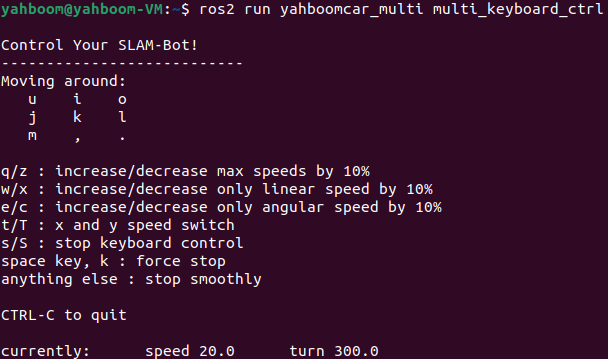
image-20250108213407228

The keyboard key description is as follows,

Direction control:

KeyLinear angular velocityDirectionKeyLinear angular velocityDirection
【i】 or 【I】【linear,0】Go forward【u】 or 【U】【linear,angular】Turn left
【,】【-linear,0】Go backward【o】 or 【O】【linear,-angular】Turn right
【j】 or 【J】【0, angular】Rotate left【m】 or 【M】【-linear,-angular】Reverse left
【l】 or 【L】【0,- angular】Rotate right【.】【-linear,angular】Reverse right

Speed ​​control:

ButtonSpeed ​​changeButtonSpeed ​​change
【q】Both linear and angular velocities increase by 10%【z】Both linear and angular velocities decrease by 10%
【w】Only linear velocity increases by 10%【x】Only linear velocity decreases by 10%
【e】Only angular velocity increases by 10%【c】Only angular velocity decreases by 10%
【t】Linear velocity X-axis/Y-axis direction switching【s】Stop keyboard control

Note: Since the car is a two-wheel drive structure with ordinary tires and cannot move sideways, the 【t】 key is meaningless. Before using keyboard control each time, you need to click the terminal to start the program, otherwise the key event cannot be detected.

5. Code analysis

Source code reference path (taking the matching virtual machine as an example):

xxxxxxxxxx
/home/yahboom/yahboomcar_ws/src/yahboomcar_multi/yahboomcar_multi

multi_yahboom_keyboard.py,

xxxxxxxxxx
#Create two speed publishers
self.pub_robot1 = self.create_publisher(Twist,'/robot1/cmd_vel_bl',1000)
self.pub_robot2 = self.create_publisher(Twist,'/robot2/cmd_vel_bl',1000)
#Get key events
def getKey(self):
    tty.setraw(sys.stdin.fileno())
    rlist, _, _ = select.select([sys.stdin], [], [], 0.1)
    if rlist: key = sys.stdin.read(1)
else: key = ''
termios.tcsetattr(sys.stdin, termios.TCSADRAIN, self.settings)
return key
#Analyze key events
while (1):
    key = yahboom_keyboard.getKey()
    if key=="t" or key == "T": xspeed_switch = not xspeed_switch
    elif key == "s" or key == "S":
    print ("stop keyboard control: {}".format(not stop))
    stop = not stop
    if key in moveBindings.keys():
        x = moveBindings[key][0]
        th = moveBindings[key][1]
        count = 0   
    elif key in speedBindings.keys():
        speed = speed * speedBindings[key][0]
        turn = turn * speedBindings[key][1]
        count = 0
        if speed > yahboom_keyboard.linenar_speed_limit: 
            speed = yahboom_keyboard.linenar_speed_limit
            print("Linear speed limit reached!")
            if turn > yahboom_keyboard.angular_speed_limit: 
                turn = yahboom_keyboard.angular_speed_limit
                print("Angular speed limit reached!")
                print(yahboom_keyboard.vels(speed, turn))
                if (status == 14): print(msg)
                status = (status + 1) % 15
            elif key == ' ': (x, th) = (0, 0)
        else:
            count = count + 1
            if count > 4: (x, th) = (0, 0)
            if (key == '\x03'): break
#Publish the car speed
yahboom_keyboard.pub_robot1.publish(robot1_twist)
yahboom_keyboard.pub_robot2.publish(robot2_twist)

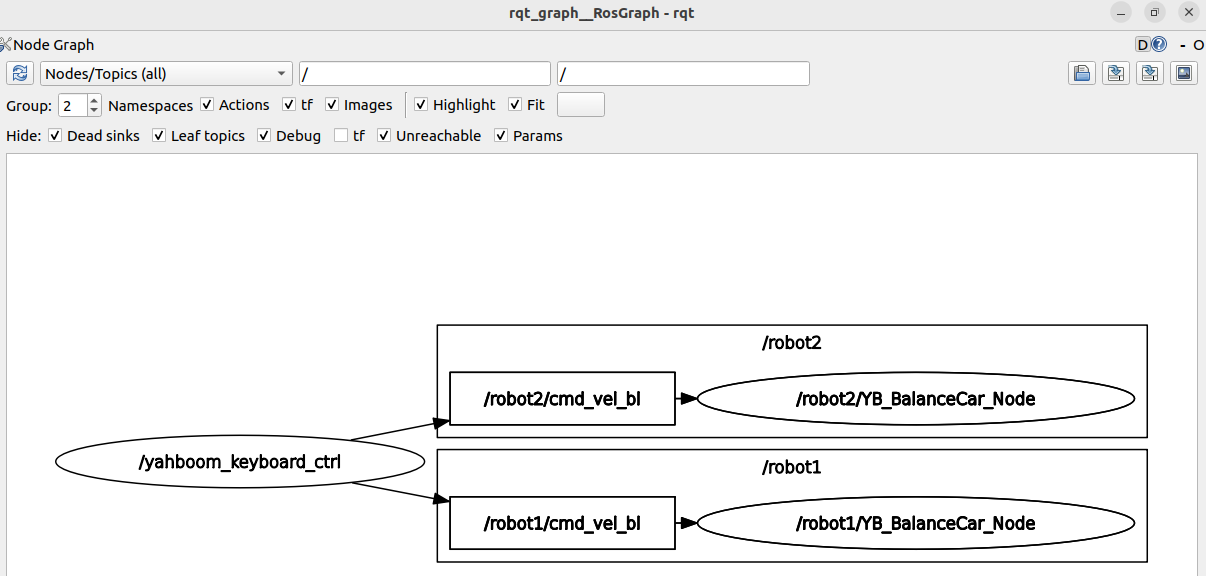
6. View the node communication graph

Select any of the two virtual machines, open the terminal and enter,

xxxxxxxxxx
ros2 run rqt_graph rqt_graph

image-20250108213645607

If it is not displayed at first, select [Nodes/Topics(all)] and click the refresh button in the upper left corner.

Multi-machine handle control
Multi-machine navigation

COMPANY

  • About us
  • Team Style
  • Blog

LEARNING & EXPLORATION

  • Tutorials
  • Edge AI hardware
  • Educational robots
  • Embedded intelligent hardware

WHERE TO BUY

  • Yahboom Online Store
  • Amazon
  • Alibaba
  • AliExpress
  • Mercado

TECHNOLOGY SUPPORT

  • Email: support@yahboom.com

BE A DISTRIBUTOR

  • Email: sales@yahboom.com
QR Code

Copyright © 2017-2026 Yahboom. All Rights Reserved.

EN/中文