yahboom
HomeLearn
Solution
Blog
Online Store
About Us
EN/中文
Jetson AGX Orin📖
01.Get started
  • 01.Learning Route
  • 02.Getting Started Quickly
02.Jetson basic course
  • 01.Jetson board introduction
  • 02.Flash new system to the onboard eMMC
  • 03.Flash new system to an NVMe SSD
  • 04.Install Jetpack environment
  • 05.Backup SSD system
  • 06.Restore factory image system
  • 07.SSD expansion
  • 08.Solid State Drive Speed Test
03.Basic setting course
  • 01.Basic knowledge
  • 02.Network configuration
  • 03.SSH remote login
  • 04.VNC remote control
  • 05.Remote file transfer
  • 06.Jtop tool
  • 07.Exchange space expansion
  • 08.Use VSCode
  • 09.Use VMware
  • 10. Change screen resolution
  • 11. Virtual Desktop
  • 12. Set root user password
  • 13. Configure sudo passwordless operation
  • 14. Managing custom services
  • 15. View system version information
04.GPIO control course
  • 01.GPIO description
  • 02.GPIO library installation
  • 03.GPIO reading
  • 04.GPIO output
  • 05.Serial communication
  • 06.I2C communication
05.OpenCV basic course
  • 01.Image reading
  • 02.Image saving
  • 03.Image modification
  • 04.Image scaling
  • 05.Image cropping
  • 06.Image translation
  • 07.Image mirroring
  • 08.Image grayscale conversion
  • 09.Image binarization
  • 10.Image edge detection
  • 11.Add line segments
  • 12.Add rectangles
  • 13.Add circular shape
  • 14.Add ellipses
  • 15.Add polygons
  • 16.Add Text
06.Vision basic course
  • 01.USB camera preview
  • 02.Use Jupyter Lab
  • 03.Use JetCam
07.Vision advanced course
01.Environment construction
  • 01.TensorFlow
  • 02.PyTorch
  • 03.Torchvision
02.DeepStream development
  • 01.DeepStream environment
  • 02.Four types of detection(traffic)
03.YOLO11 development
  • 01.YOLO environment construction
  • 02.CLI use
  • 03.Object detection
  • 04.Instance segmentation
  • 05.Pose estimation
  • 06.Image classification
  • 07.Oriented object detection
  • 08.Model conversion
  • 09.Dataset annotation
  • 10.Model training conversion
  • 11.Model prediction
04.Mediapipe development
  • 01.Mediapipe environment
  • 02.Hand detection
  • 03.Face detection
  • 04.Face effects
  • 05.3D object recognition
  • 06.Virtual brush
  • 07.Gesture recognition
  • 08.Finger control
  • 09.Posture estimation
  • 10.Face mask
  • 11.Overall detection
  • 12.Green scene removal(Human)
05.QR code recognition
  • 01.Barcode Recognition
  • 02.QR Code Recognition
  • 03.Machine Code Recognition
  • 04.Handwritten Digit Recognition
06.YOLO26 development
  • 01.YOLO Environment Setupnew
  • 02.CLI Usagenew
  • 03.Object Detectionnew
  • 04.Instance Segmentationnew
  • 05.Pose Estimationnew
  • 06.Image Classificationnew
  • 07.Oriented Bounding Boxes Object Detectionnew
  • 08.Model Conversionnew
  • 09.Dataset Annotationnew
  • 10.Model Training_Conversionnew
  • 11.Model Predictionnew
08.Docker basic course
  • 01.Docker introduction
  • 02.Docker installation
  • 03.Docker command
  • 04.Docker usage
  • 05.Docker interaction
09.ROS2-Humble
01.ROS2 basic course
  • 3.ROS2 development environment
  • 1.Introduction to ROS2
  • 2.ROS2 install Humble
  • 4.ROS2 workspace
  • 5.ROS2 function package
  • 6.ROS2 node
  • 7.ROS2 topic communication
  • 8.ROS2 service communication
  • 9.ROS2 action communication
  • 10.ROS2 custom interface message
  • 11.ROS2 parameter service case
  • 12.ROS2 meta-function package
  • 13.ROS2 distributed communication
  • 14.ROS2 DDS
  • 15.ROS2 time related API
  • 16.ROS2 common command tools
  • 17.ROS2 rviz2 use
  • 18.ROS2 rqt toolbox
  • 19.ROS2 Launch startup file configuration
  • 20.ROS2 recording and playback tool
  • 21.ROS2 URDF model
  • 22.ROS2 Gazebo simulation platform
  • 23.ROS2 TF2 coordinate transformation
02.ROS2 vision course
  • 01.Camera preview (USB)
  • 02.Camera calibration (USB)
  • 03.AR vision (USB)
10.Offline AI model course
Offline large model (Text Interaction)
  • 10.AI large model offline voice assistant
  • 1.Al large model environment deployment
  • 2.Install large model dialogue platform
  • 3.Meta Al Llama3.2 model
  • 4.Alibaba Cloud Qwen3 model
  • 5.Microsoft Phi-4-mini model
  • 6.DeepSeek DeepSeek-R1 model
  • 7.Alibaba Cloud Qwen2.5v visual multimodal large model
  • 8.Google Gemma3 visual multimodal large model
  • 9.Lava visual multimodal large model
  • 10.MiniCPM-V visual multimodal large model
  • 11.Multimodal visual understand application
  • 12.Multimodal text image application
  • 13.Multimodal video analysis application
  • 14.Multi module visual position application
  • 15.Multimodal table scanning application
  • 16.Multimodal autonomous agent application
Offline large model (Voice Interaction)
  • 0.Voice interaction hardware connection (ReadMe)
  • 1.Offline speech to text (ASR)
  • 2.Offline text to speech (TTS)
  • 3.AI large model voice interaction
  • 4.Multimodal visual understand speech interaction
  • 5.Multimodal text and graphics application
  • 6.Multimodal video analysis application
  • 7.Multi module visual position application
  • 8.Multimodal table scanning application
  • 9.Multimodal autonomous proxy application
11.Online AI model course
Online large model (Text Interaction)
  • 8.AI large model offline voice assistant
  • 1.OpenRouter large model API aggregation platform
  • 2.Multimodal visual understand application
  • 3.Multimodal visual localization application
  • 4.Multimodal table scanning application
  • 5.Multimodal autonomous proxy application
Online large model (Voice Interaction)
  • 0.Voice interaction hardware connection (ReadMe)
  • 1.Online speech to text (ASR)
  • 2.Online text to speech (TTS)
  • 3.AI large model voice interaction
  • 4.Multimodal visual understand speech interaction
  • 5.Multi module visual position application
  • 6.Multimodal table scanning application
  • 7.Multimodal autonomous proxy application
12.Offline Generative AI Applications
  • 01.Children's Storytelling Session
  • 02.Cooking Assistant
  • 03.Homework tutor
  • 04.Image to animation
13.OpenClaw Advanced Development
  • 00.OpenClaw Quick Start on Jetson Platform
  • 01.OpenClaw Installation
  • 02.OpenClaw Online Platform Deployment
  • 03.OpenClaw Local Model Deployment
  • 04.OpenClaw TUI Interaction
  • 05.OpenClaw WebChat Interaction
  • 06.OpenClaw Tools Introduction
  • 07.OpenClawGate Gateway User Manual
  • 08.OpenClaw Features Overview
  • 09.OpenClawClawHub Introduction (Skill Installation)
  • 10. OpenClaw Switching Models
  • 11.OpenClaw Application - File Management
  • 12.OpenClaw Application - Camera
  • 13.OpenClaw Application - Browser Control
  • 14.OpenClaw Application - Script Execution
  • 15.OpenClaw Application - AI Programming
  • 16.OpenClaw Application - Dedicated AI Assistant
  • 17.OpenClaw WhatsApp Plugin Application
Download
  • System_File
  • VM_File
  • Code
  • Tools
Download ZIP

Welcome to Jetson AGX Orin repository

当製品の日本語版マニュアル資料は、こちらからご取得ください。

03.Object detection

Object Detection

Object Detection1. Enabling Optimal Motherboard Performance1.1 Enabling MAX Power Mode1.2 Enabling Jetson Clocks2. Object Prediction: ImagesPreview of the effect3. Target Prediction: VideoPreview of Results4. Target Prediction: Real-time Detection4.1 USB CameraPreview of ResultsReference Materials

Demonstrating the effectiveness of Ultralytics: Object Detection in image, video, and real-time detection using Python.

1. Enabling Optimal Motherboard Performance

1.1 Enabling MAX Power Mode

Enabling MAX Power Mode on a Jetson will ensure all CPU and GPU cores are running:

xxxxxxxxxx
sudo nvpmodel -m 0

1.2 Enabling Jetson Clocks

Enabling Jetson Clocks will ensure all CPU and GPU cores run at maximum frequency:

xxxxxxxxxx
sudo jetson_clocks

2. Object Prediction: Images

Using yolo11n.pt to predict images included with the Ultralytics project.

Navigate to the code folder:

xxxxxxxxxx
cd /home/jetson/ultralytics/ultralytics/yahboom_demo

Run the code:

xxxxxxxxxx
python3 01.detection_image.py

Preview of the effect

Location of the image output by YOLO recognition: /home/jetson/ultralytics/ultralytics/output/
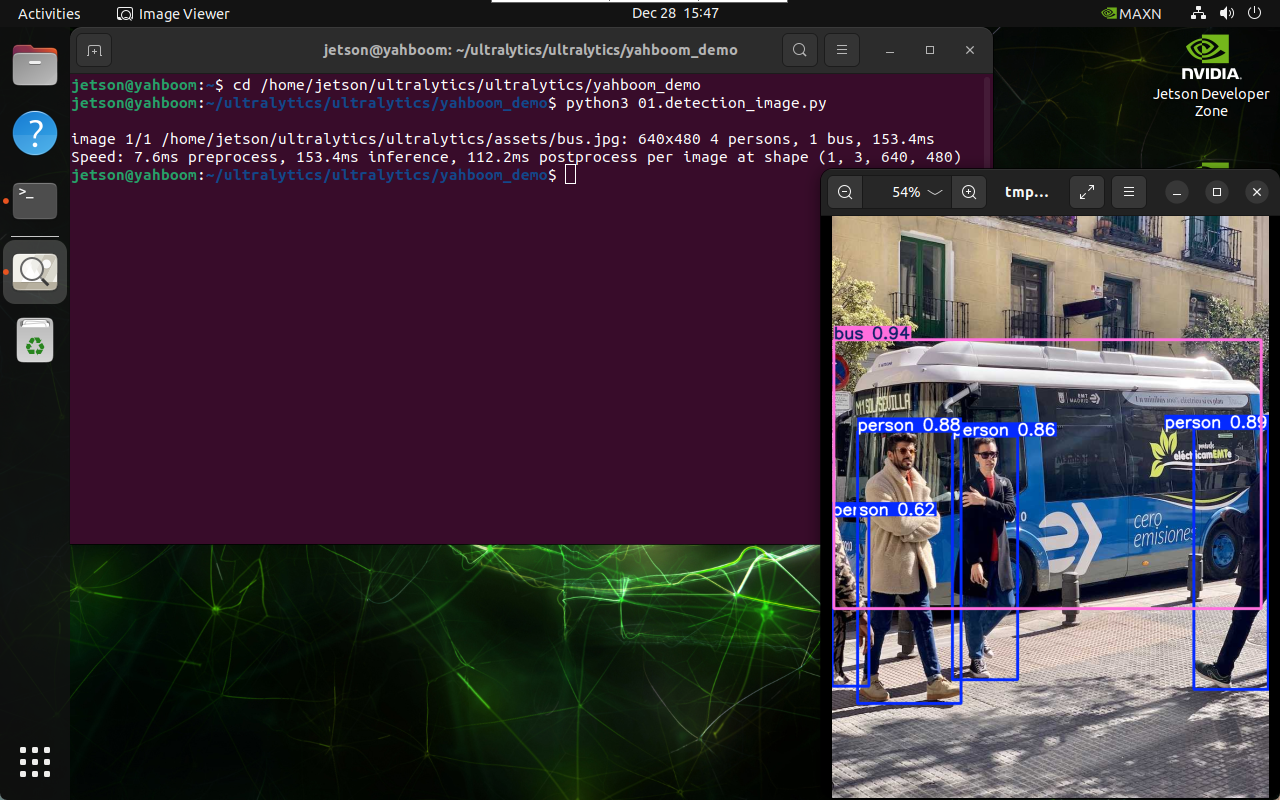
image-20241228154717085

Example code:

xxxxxxxxxx
from ultralytics import YOLO
​
# Load a model
model = YOLO("/home/jetson/ultralytics/ultralytics/yolo11n.pt")
​
# Run batched inference on a list of images
results = model("/home/jetson/ultralytics/ultralytics/assets/bus.jpg")  # return a list of Results objects
​
# Process results list
for result in results:
    boxes = result.boxes  # Boxes object for bounding box outputs
    # masks = result.masks  # Masks object for segmentation masks outputs
    # keypoints = result.keypoints  # Keypoints object for pose outputs
    # probs = result.probs  # Probs object for classification outputs
    # obb = result.obb  # Oriented boxes object for OBB outputs
    result.show()  # display to screen
    result.save(filename="/home/jetson/ultralytics/ultralytics/output/bus_output.jpg")  # save to disk

3. Target Prediction: Video

Use yolo11n.pt to predict videos in the Ultralytics project (not the videos included with Ultralytics).

Enter the code folder:

xxxxxxxxxx
cd /home/jetson/ultralytics/ultralytics/yahboom_demo

Run the code:

xxxxxxxxxx
python3 01.detection_video.py

Preview of Results

Location of the video output by YOLO: /home/jetson/ultralytics/ultralytics/output/
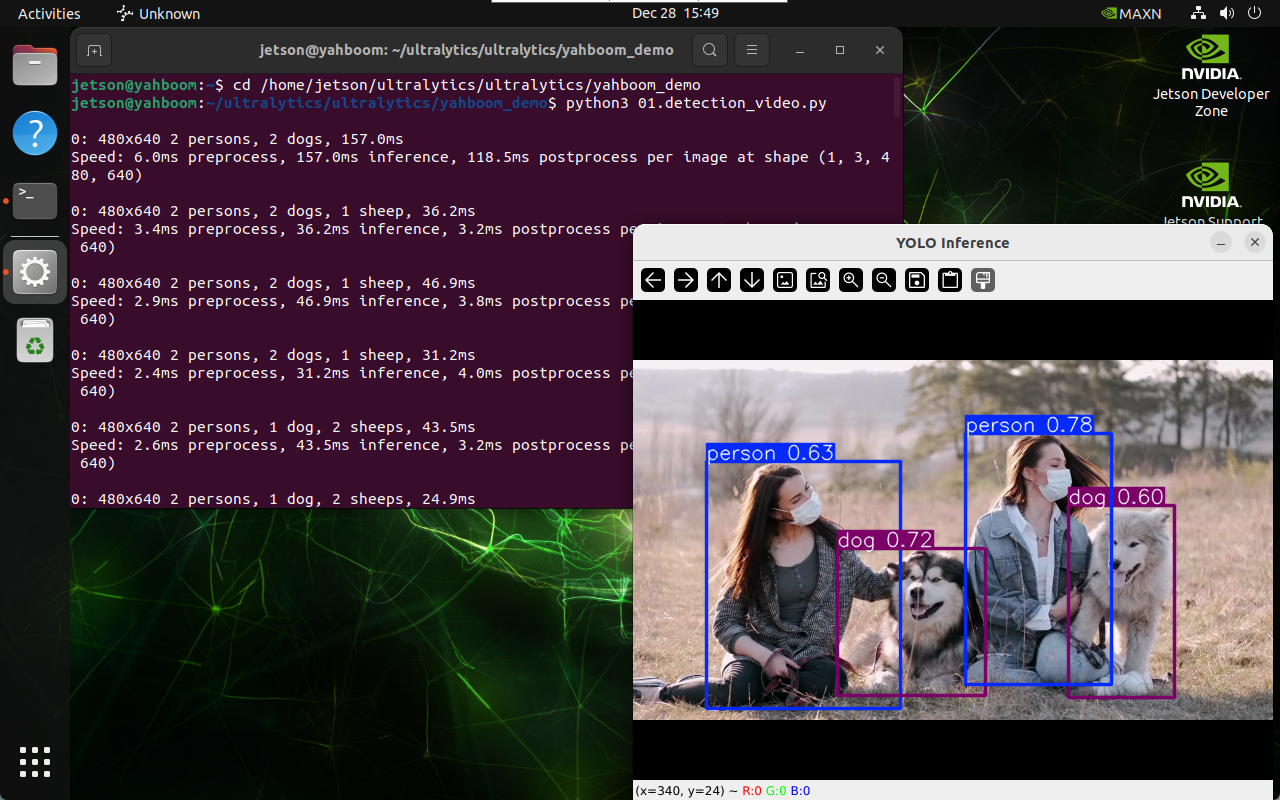
image-20241228155000451

Example Code:

xxxxxxxxxx
import cv2
from ultralytics import YOLO
​
# Load the YOLO model
model = YOLO("/home/jetson/ultralytics/ultralytics/yolo11n.pt")
​
# Open the video file
video_path = "/home/jetson/ultralytics/ultralytics/videos/people_animals.mp4"
cap = cv2.VideoCapture(video_path)
​
# Get the video frame size and frame rate
frame_width = int(cap.get(cv2.CAP_PROP_FRAME_WIDTH))
frame_height = int(cap.get(cv2.CAP_PROP_FRAME_HEIGHT))
fps = int(cap.get(cv2.CAP_PROP_FPS))
​
# Define the codec and create a VideoWriter object to output the processed video
output_path = "/home/jetson/ultralytics/ultralytics/output/01.people_animals_output.mp4"
fourcc = cv2.VideoWriter_fourcc(*'mp4v')  # You can use 'XVID' or 'mp4v' depending on your platform
out = cv2.VideoWriter(output_path, fourcc, fps, (frame_width, frame_height))
​
# Loop through the video frames
while cap.isOpened():
    # Read a frame from the video
    success, frame = cap.read()
​
    if success:
        # Run YOLO inference on the frame
        results = model(frame)
​
        # Visualize the results on the frame
        annotated_frame = results[0].plot()
​
        # Write the annotated frame to the output video file
        out.write(annotated_frame)
​
        # Display the annotated frame
        cv2.imshow("YOLO Inference", annotated_frame)
​
        # Break the loop if 'q' is pressed
        if cv2.waitKey(1) & 0xFF == ord("q"):
            break
    else:
        # Break the loop if the end of the video is reached
        break
# Release the video capture and writer objects, and close the display window
cap.release()
out.release()
cv2.destroyAllWindows()

4. Target Prediction: Real-time Detection

4.1 USB Camera

Use yolo11n.pt to predict the image from a USB camera.

Enter the code folder:

xxxxxxxxxx
cd /home/jetson/ultralytics/ultralytics/yahboom_demo

Run the code: Click the preview screen, press q to terminate the program!

xxxxxxxxxx
python3 01.detection_camera_usb.py

Preview of Results

Location of the video output by YOLO: /home/jetson/ultralytics/ultralytics/output/
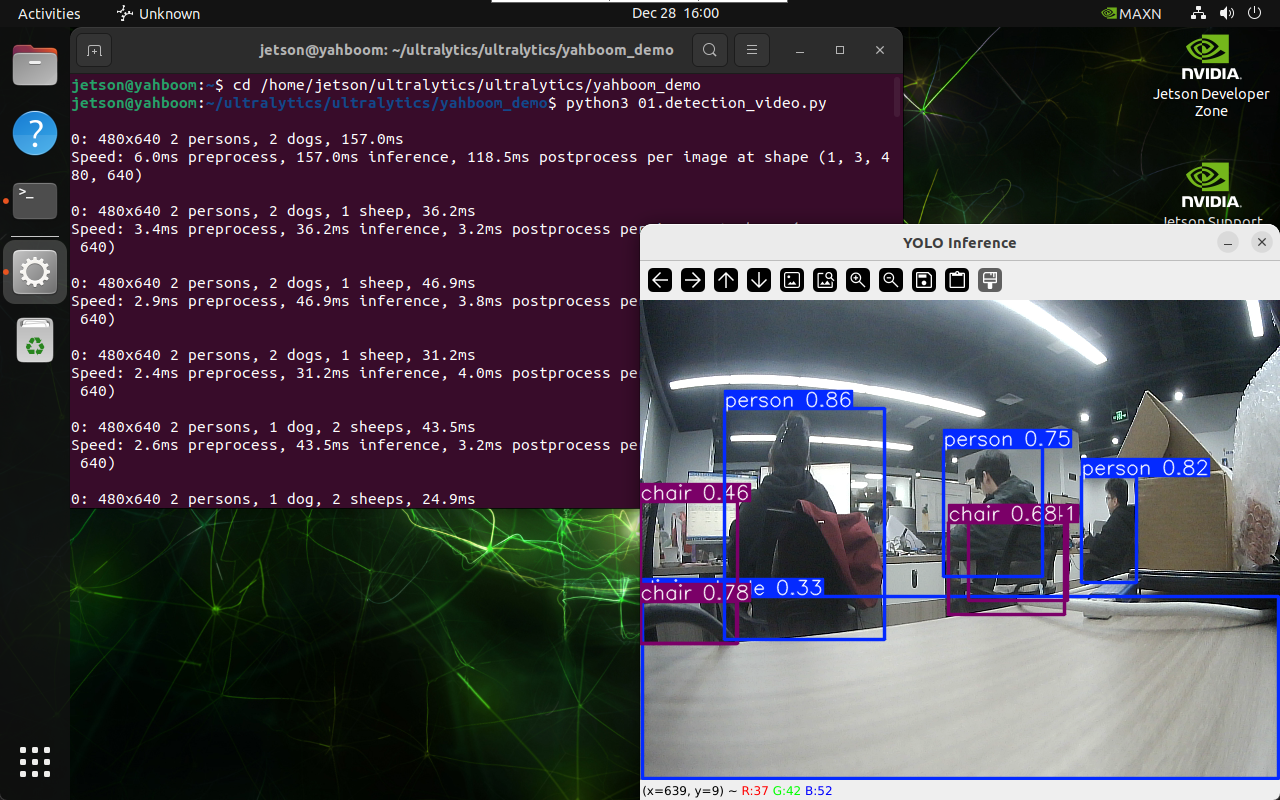
image-20241228160354642

Example Code:

xxxxxxxxxx
import cv2
from ultralytics import YOLO
​
# Load the YOLO model
model = YOLO("/home/jetson/ultralytics/ultralytics/yolo11n.pt")
​
# Open the cammera
cap = cv2.VideoCapture(0)
​
# Get the video frame size and frame rate
frame_width = int(cap.get(cv2.CAP_PROP_FRAME_WIDTH))
frame_height = int(cap.get(cv2.CAP_PROP_FRAME_HEIGHT))
fps = int(cap.get(cv2.CAP_PROP_FPS))
​
# Define the codec and create a VideoWriter object to output the processed video
output_path = "/home/jetson/ultralytics/ultralytics/output/01.detection_camera_usb.mp4"
fourcc = cv2.VideoWriter_fourcc(*'mp4v')  # You can use 'XVID' or 'mp4v' depending on your platform
out = cv2.VideoWriter(output_path, fourcc, fps, (frame_width, frame_height))
​
# Loop through the video frames
while cap.isOpened():
    # Read a frame from the video
    success, frame = cap.read()
​
    if success:
        # Run YOLO inference on the frame
        results = model(frame)
​
        # Visualize the results on the frame
        annotated_frame = results[0].plot()
​
        # Write the annotated frame to the output video file
        out.write(annotated_frame)
​
        # Display the annotated frame
        cv2.imshow("YOLO Inference", annotated_frame)
​
        # Break the loop if 'q' is pressed
        if cv2.waitKey(1) & 0xFF == ord("q"):
            break
    else:
        # Break the loop if the end of the video is reached
        break
# Release the video capture and writer objects, and close the display window
cap.release()
out.release()
cv2.destroyAllWindows()

Reference Materials

https://docs.ultralytics.com/tasks/detect/

CLI use
Instance segmentation

COMPANY

  • About us
  • Team Style
  • Blog

LEARNING & EXPLORATION

  • Tutorials
  • Edge AI hardware
  • Educational robots
  • Embedded intelligent hardware

WHERE TO BUY

  • Yahboom Online Store
  • Amazon
  • Alibaba
  • AliExpress
  • Mercado

TECHNOLOGY SUPPORT

  • Email: support@yahboom.com

BE A DISTRIBUTOR

  • Email: sales@yahboom.com
QR Code

Copyright © 2017-2026 Yahboom. All Rights Reserved.

EN/中文