yahboom
HomeLearn
Solution
Blog
Online Store
About Us
EN/中文
Jetson AGX Orin📖
01.Get started
  • 01.Learning Route
  • 02.Getting Started Quickly
02.Jetson basic course
  • 01.Jetson board introduction
  • 02.Flash new system to the onboard eMMC
  • 03.Flash new system to an NVMe SSD
  • 04.Install Jetpack environment
  • 05.Backup SSD system
  • 06.Restore factory image system
  • 07.SSD expansion
  • 08.Solid State Drive Speed Test
03.Basic setting course
  • 01.Basic knowledge
  • 02.Network configuration
  • 03.SSH remote login
  • 04.VNC remote control
  • 05.Remote file transfer
  • 06.Jtop tool
  • 07.Exchange space expansion
  • 08.Use VSCode
  • 09.Use VMware
  • 10. Change screen resolution
  • 11. Virtual Desktop
  • 12. Set root user password
  • 13. Configure sudo passwordless operation
  • 14. Managing custom services
  • 15. View system version information
04.GPIO control course
  • 01.GPIO description
  • 02.GPIO library installation
  • 03.GPIO reading
  • 04.GPIO output
  • 05.Serial communication
  • 06.I2C communication
05.OpenCV basic course
  • 01.Image reading
  • 02.Image saving
  • 03.Image modification
  • 04.Image scaling
  • 05.Image cropping
  • 06.Image translation
  • 07.Image mirroring
  • 08.Image grayscale conversion
  • 09.Image binarization
  • 10.Image edge detection
  • 11.Add line segments
  • 12.Add rectangles
  • 13.Add circular shape
  • 14.Add ellipses
  • 15.Add polygons
  • 16.Add Text
06.Vision basic course
  • 01.USB camera preview
  • 02.Use Jupyter Lab
  • 03.Use JetCam
07.Vision advanced course
01.Environment construction
  • 01.TensorFlow
  • 02.PyTorch
  • 03.Torchvision
02.DeepStream development
  • 01.DeepStream environment
  • 02.Four types of detection(traffic)
03.YOLO11 development
  • 01.YOLO environment construction
  • 02.CLI use
  • 03.Object detection
  • 04.Instance segmentation
  • 05.Pose estimation
  • 06.Image classification
  • 07.Oriented object detection
  • 08.Model conversion
  • 09.Dataset annotation
  • 10.Model training conversion
  • 11.Model prediction
04.Mediapipe development
  • 01.Mediapipe environment
  • 02.Hand detection
  • 03.Face detection
  • 04.Face effects
  • 05.3D object recognition
  • 06.Virtual brush
  • 07.Gesture recognition
  • 08.Finger control
  • 09.Posture estimation
  • 10.Face mask
  • 11.Overall detection
  • 12.Green scene removal(Human)
05.QR code recognition
  • 01.Barcode Recognition
  • 02.QR Code Recognition
  • 03.Machine Code Recognition
  • 04.Handwritten Digit Recognition
06.YOLO26 development
  • 01.YOLO Environment Setupnew
  • 02.CLI Usagenew
  • 03.Object Detectionnew
  • 04.Instance Segmentationnew
  • 05.Pose Estimationnew
  • 06.Image Classificationnew
  • 07.Oriented Bounding Boxes Object Detectionnew
  • 08.Model Conversionnew
  • 09.Dataset Annotationnew
  • 10.Model Training_Conversionnew
  • 11.Model Predictionnew
08.Docker basic course
  • 01.Docker introduction
  • 02.Docker installation
  • 03.Docker command
  • 04.Docker usage
  • 05.Docker interaction
09.ROS2-Humble
01.ROS2 basic course
  • 3.ROS2 development environment
  • 1.Introduction to ROS2
  • 2.ROS2 install Humble
  • 4.ROS2 workspace
  • 5.ROS2 function package
  • 6.ROS2 node
  • 7.ROS2 topic communication
  • 8.ROS2 service communication
  • 9.ROS2 action communication
  • 10.ROS2 custom interface message
  • 11.ROS2 parameter service case
  • 12.ROS2 meta-function package
  • 13.ROS2 distributed communication
  • 14.ROS2 DDS
  • 15.ROS2 time related API
  • 16.ROS2 common command tools
  • 17.ROS2 rviz2 use
  • 18.ROS2 rqt toolbox
  • 19.ROS2 Launch startup file configuration
  • 20.ROS2 recording and playback tool
  • 21.ROS2 URDF model
  • 22.ROS2 Gazebo simulation platform
  • 23.ROS2 TF2 coordinate transformation
02.ROS2 vision course
  • 01.Camera preview (USB)
  • 02.Camera calibration (USB)
  • 03.AR vision (USB)
10.Offline AI model course
Offline large model (Text Interaction)
  • 10.AI large model offline voice assistant
  • 1.Al large model environment deployment
  • 2.Install large model dialogue platform
  • 3.Meta Al Llama3.2 model
  • 4.Alibaba Cloud Qwen3 model
  • 5.Microsoft Phi-4-mini model
  • 6.DeepSeek DeepSeek-R1 model
  • 7.Alibaba Cloud Qwen2.5v visual multimodal large model
  • 8.Google Gemma3 visual multimodal large model
  • 9.Lava visual multimodal large model
  • 10.MiniCPM-V visual multimodal large model
  • 11.Multimodal visual understand application
  • 12.Multimodal text image application
  • 13.Multimodal video analysis application
  • 14.Multi module visual position application
  • 15.Multimodal table scanning application
  • 16.Multimodal autonomous agent application
Offline large model (Voice Interaction)
  • 0.Voice interaction hardware connection (ReadMe)
  • 1.Offline speech to text (ASR)
  • 2.Offline text to speech (TTS)
  • 3.AI large model voice interaction
  • 4.Multimodal visual understand speech interaction
  • 5.Multimodal text and graphics application
  • 6.Multimodal video analysis application
  • 7.Multi module visual position application
  • 8.Multimodal table scanning application
  • 9.Multimodal autonomous proxy application
11.Online AI model course
Online large model (Text Interaction)
  • 8.AI large model offline voice assistant
  • 1.OpenRouter large model API aggregation platform
  • 2.Multimodal visual understand application
  • 3.Multimodal visual localization application
  • 4.Multimodal table scanning application
  • 5.Multimodal autonomous proxy application
Online large model (Voice Interaction)
  • 0.Voice interaction hardware connection (ReadMe)
  • 1.Online speech to text (ASR)
  • 2.Online text to speech (TTS)
  • 3.AI large model voice interaction
  • 4.Multimodal visual understand speech interaction
  • 5.Multi module visual position application
  • 6.Multimodal table scanning application
  • 7.Multimodal autonomous proxy application
12.Offline Generative AI Applications
  • 01.Children's Storytelling Session
  • 02.Cooking Assistant
  • 03.Homework tutor
  • 04.Image to animation
13.OpenClaw Advanced Development
  • 00.OpenClaw Quick Start on Jetson Platform
  • 01.OpenClaw Installation
  • 02.OpenClaw Online Platform Deployment
  • 03.OpenClaw Local Model Deployment
  • 04.OpenClaw TUI Interaction
  • 05.OpenClaw WebChat Interaction
  • 06.OpenClaw Tools Introduction
  • 07.OpenClawGate Gateway User Manual
  • 08.OpenClaw Features Overview
  • 09.OpenClawClawHub Introduction (Skill Installation)
  • 10. OpenClaw Switching Models
  • 11.OpenClaw Application - File Management
  • 12.OpenClaw Application - Camera
  • 13.OpenClaw Application - Browser Control
  • 14.OpenClaw Application - Script Execution
  • 15.OpenClaw Application - AI Programming
  • 16.OpenClaw Application - Dedicated AI Assistant
  • 17.OpenClaw WhatsApp Plugin Application
Download
  • System_File
  • VM_File
  • Code
  • Tools
Download ZIP

Welcome to Jetson AGX Orin repository

当製品の日本語版マニュアル資料は、こちらからご取得ください。

00.OpenClaw Quick Start on Jetson Platform

OpenClaw Quick Start Guide

OpenClaw Quick Start Guide1. Quick Configuration Scripts1. Online Configuration2. Local Configuration2. Launching OpenClaw4. Common Commands5. Useful Resources

The disk image we provide comes pre-configured with OpenClaw, as well as the Deepseek online model and the Ollama local model. You can follow this tutorial to quickly launch OpenClaw and start exploring its features.

Note: Both the online and local configuration scripts will back up your original .openclaw configuration folder to the .openclaw_bak directory, and then clear the original configuration settings.

1. Quick Configuration Scripts

The Jetson AGX Orin supports utilizing local models via Ollama. The quick configuration scripts offer two options—online configuration and local configuration—of which you need to select only one.

1. Online Configuration

Run the one-click configuration script and enter y to confirm the reconfiguration.

~/.openclaw_bak/setup_online.sh
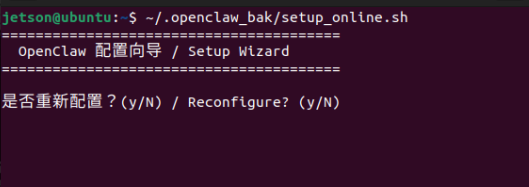
image-20260330210451804

Follow the prompts to enter your Deepseek API Key.

Note: For this Quick Start Guide, the default built-in API is Deepseek's. If you wish to use a different API, please refer to the Deployment Guide for instructions on how to reconfigure the settings.

Get an API Key: https://platform.deepseek.com/sign_in
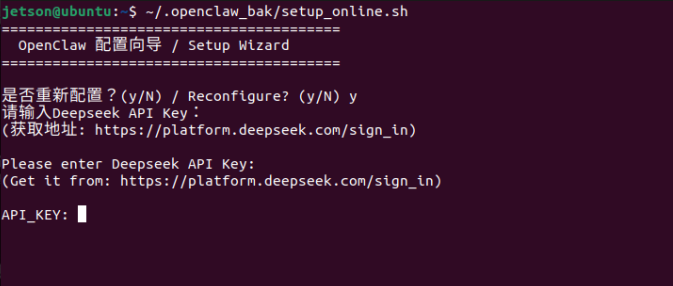
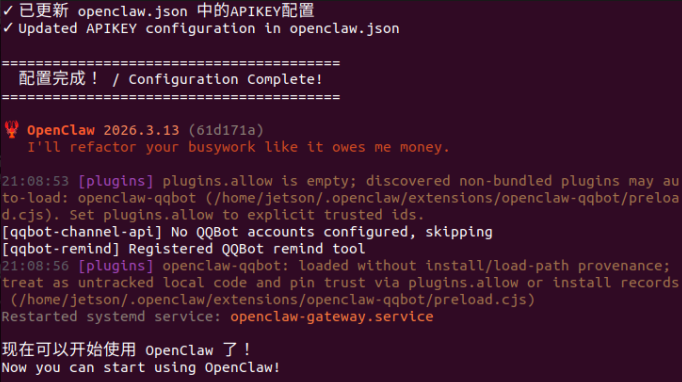
image-20260330210834539

Configuration update complete.

image-20260330210922642

2. Local Configuration

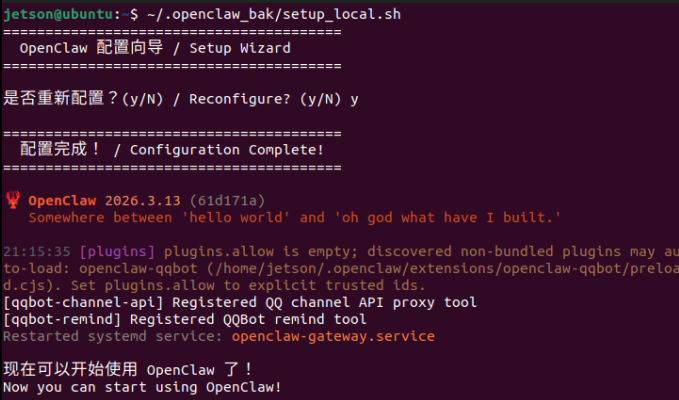
Run the one-click configuration script. Since local configuration does not require an API Key, simply enter y to proceed with the reconfiguration.

xxxxxxxxxx
~/.openclaw_bak/setup_local.sh

image-20260330211608347


2. Launching OpenClaw

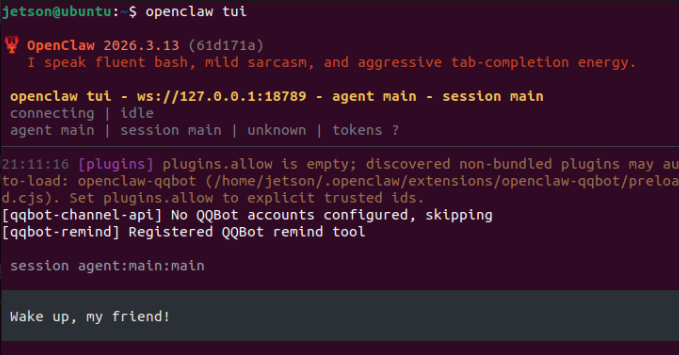
Use the TUI interface in a separate terminal:

xxxxxxxxxx
openclaw tui

image-20260330211143493

4. Common Commands

​x
# Start OpenClaw
openclaw
​
# TUI Interface
openclaw tui
​
# Check Status
openclaw status
​
# Configuration Wizard
openclaw wizard
​
# List Skills
openclaw skills list
​
# Help
openclaw --help

5. Useful Resources

  • OpenClaw Documentation: https://docs.openclaw.ai
  • Community: https://discord.com/invite/clawd
  • Skill Marketplace: https://clawhub.com
Image to animation
OpenClaw Installation

COMPANY

  • About us
  • Team Style
  • Blog

LEARNING & EXPLORATION

  • Tutorials
  • Edge AI hardware
  • Educational robots
  • Embedded intelligent hardware

WHERE TO BUY

  • Yahboom Online Store
  • Amazon
  • Alibaba
  • AliExpress
  • Mercado

TECHNOLOGY SUPPORT

  • Email: support@yahboom.com

BE A DISTRIBUTOR

  • Email: sales@yahboom.com
QR Code

Copyright © 2017-2026 Yahboom. All Rights Reserved.

EN/中文