yahboom
HomeLearn
Solution
Blog
Online Store
About Us
EN/中文
Jetson AGX Orin📖
01.Get started
  • 01.Learning Route
  • 02.Getting Started Quickly
02.Jetson basic course
  • 01.Jetson board introduction
  • 02.Flash new system to the onboard eMMC
  • 03.Flash new system to an NVMe SSD
  • 04.Install Jetpack environment
  • 05.Backup SSD system
  • 06.Restore factory image system
  • 07.SSD expansion
  • 08.Solid State Drive Speed Test
03.Basic setting course
  • 01.Basic knowledge
  • 02.Network configuration
  • 03.SSH remote login
  • 04.VNC remote control
  • 05.Remote file transfer
  • 06.Jtop tool
  • 07.Exchange space expansion
  • 08.Use VSCode
  • 09.Use VMware
  • 10. Change screen resolution
  • 11. Virtual Desktop
  • 12. Set root user password
  • 13. Configure sudo passwordless operation
  • 14. Managing custom services
  • 15. View system version information
04.GPIO control course
  • 01.GPIO description
  • 02.GPIO library installation
  • 03.GPIO reading
  • 04.GPIO output
  • 05.Serial communication
  • 06.I2C communication
05.OpenCV basic course
  • 01.Image reading
  • 02.Image saving
  • 03.Image modification
  • 04.Image scaling
  • 05.Image cropping
  • 06.Image translation
  • 07.Image mirroring
  • 08.Image grayscale conversion
  • 09.Image binarization
  • 10.Image edge detection
  • 11.Add line segments
  • 12.Add rectangles
  • 13.Add circular shape
  • 14.Add ellipses
  • 15.Add polygons
  • 16.Add Text
06.Vision basic course
  • 01.USB camera preview
  • 02.Use Jupyter Lab
  • 03.Use JetCam
07.Vision advanced course
01.Environment construction
  • 01.TensorFlow
  • 02.PyTorch
  • 03.Torchvision
02.DeepStream development
  • 01.DeepStream environment
  • 02.Four types of detection(traffic)
03.YOLO11 development
  • 01.YOLO environment construction
  • 02.CLI use
  • 03.Object detection
  • 04.Instance segmentation
  • 05.Pose estimation
  • 06.Image classification
  • 07.Oriented object detection
  • 08.Model conversion
  • 09.Dataset annotation
  • 10.Model training conversion
  • 11.Model prediction
04.Mediapipe development
  • 01.Mediapipe environment
  • 02.Hand detection
  • 03.Face detection
  • 04.Face effects
  • 05.3D object recognition
  • 06.Virtual brush
  • 07.Gesture recognition
  • 08.Finger control
  • 09.Posture estimation
  • 10.Face mask
  • 11.Overall detection
  • 12.Green scene removal(Human)
05.QR code recognition
  • 01.Barcode Recognition
  • 02.QR Code Recognition
  • 03.Machine Code Recognition
  • 04.Handwritten Digit Recognition
06.YOLO26 development
  • 01.YOLO Environment Setupnew
  • 02.CLI Usagenew
  • 03.Object Detectionnew
  • 04.Instance Segmentationnew
  • 05.Pose Estimationnew
  • 06.Image Classificationnew
  • 07.Oriented Bounding Boxes Object Detectionnew
  • 08.Model Conversionnew
  • 09.Dataset Annotationnew
  • 10.Model Training_Conversionnew
  • 11.Model Predictionnew
08.Docker basic course
  • 01.Docker introduction
  • 02.Docker installation
  • 03.Docker command
  • 04.Docker usage
  • 05.Docker interaction
09.ROS2-Humble
01.ROS2 basic course
  • 3.ROS2 development environment
  • 1.Introduction to ROS2
  • 2.ROS2 install Humble
  • 4.ROS2 workspace
  • 5.ROS2 function package
  • 6.ROS2 node
  • 7.ROS2 topic communication
  • 8.ROS2 service communication
  • 9.ROS2 action communication
  • 10.ROS2 custom interface message
  • 11.ROS2 parameter service case
  • 12.ROS2 meta-function package
  • 13.ROS2 distributed communication
  • 14.ROS2 DDS
  • 15.ROS2 time related API
  • 16.ROS2 common command tools
  • 17.ROS2 rviz2 use
  • 18.ROS2 rqt toolbox
  • 19.ROS2 Launch startup file configuration
  • 20.ROS2 recording and playback tool
  • 21.ROS2 URDF model
  • 22.ROS2 Gazebo simulation platform
  • 23.ROS2 TF2 coordinate transformation
02.ROS2 vision course
  • 01.Camera preview (USB)
  • 02.Camera calibration (USB)
  • 03.AR vision (USB)
10.Offline AI model course
Offline large model (Text Interaction)
  • 10.AI large model offline voice assistant
  • 1.Al large model environment deployment
  • 2.Install large model dialogue platform
  • 3.Meta Al Llama3.2 model
  • 4.Alibaba Cloud Qwen3 model
  • 5.Microsoft Phi-4-mini model
  • 6.DeepSeek DeepSeek-R1 model
  • 7.Alibaba Cloud Qwen2.5v visual multimodal large model
  • 8.Google Gemma3 visual multimodal large model
  • 9.Lava visual multimodal large model
  • 10.MiniCPM-V visual multimodal large model
  • 11.Multimodal visual understand application
  • 12.Multimodal text image application
  • 13.Multimodal video analysis application
  • 14.Multi module visual position application
  • 15.Multimodal table scanning application
  • 16.Multimodal autonomous agent application
Offline large model (Voice Interaction)
  • 0.Voice interaction hardware connection (ReadMe)
  • 1.Offline speech to text (ASR)
  • 2.Offline text to speech (TTS)
  • 3.AI large model voice interaction
  • 4.Multimodal visual understand speech interaction
  • 5.Multimodal text and graphics application
  • 6.Multimodal video analysis application
  • 7.Multi module visual position application
  • 8.Multimodal table scanning application
  • 9.Multimodal autonomous proxy application
11.Online AI model course
Online large model (Text Interaction)
  • 8.AI large model offline voice assistant
  • 1.OpenRouter large model API aggregation platform
  • 2.Multimodal visual understand application
  • 3.Multimodal visual localization application
  • 4.Multimodal table scanning application
  • 5.Multimodal autonomous proxy application
Online large model (Voice Interaction)
  • 0.Voice interaction hardware connection (ReadMe)
  • 1.Online speech to text (ASR)
  • 2.Online text to speech (TTS)
  • 3.AI large model voice interaction
  • 4.Multimodal visual understand speech interaction
  • 5.Multi module visual position application
  • 6.Multimodal table scanning application
  • 7.Multimodal autonomous proxy application
12.Offline Generative AI Applications
  • 01.Children's Storytelling Session
  • 02.Cooking Assistant
  • 03.Homework tutor
  • 04.Image to animation
13.OpenClaw Advanced Development
  • 00.OpenClaw Quick Start on Jetson Platform
  • 01.OpenClaw Installation
  • 02.OpenClaw Online Platform Deployment
  • 03.OpenClaw Local Model Deployment
  • 04.OpenClaw TUI Interaction
  • 05.OpenClaw WebChat Interaction
  • 06.OpenClaw Tools Introduction
  • 07.OpenClawGate Gateway User Manual
  • 08.OpenClaw Features Overview
  • 09.OpenClawClawHub Introduction (Skill Installation)
  • 10. OpenClaw Switching Models
  • 11.OpenClaw Application - File Management
  • 12.OpenClaw Application - Camera
  • 13.OpenClaw Application - Browser Control
  • 14.OpenClaw Application - Script Execution
  • 15.OpenClaw Application - AI Programming
  • 16.OpenClaw Application - Dedicated AI Assistant
  • 17.OpenClaw WhatsApp Plugin Application
Download
  • System_File
  • VM_File
  • Code
  • Tools
Download ZIP

Welcome to Jetson AGX Orin repository

当製品の日本語版マニュアル資料は、こちらからご取得ください。

02.CLI Usage

CLI Usage

CLI Usage1、CLI Introduction2、Enable Maximum Board Performance2.1、Enable MAX Power Mode2.2、Enable Jetson Clocks3、Using CLI for Prediction3.1、CLI Usage Syntax3.2、Image PredictionEffect Preview3.3、Video PredictionEffect Preview3.4、Real-time PredictionReferences


1、CLI Introduction

‌CLI‌ (Command-Line Interface) is a user interface that interacts with computer systems or programs through keyboard text commands. It was the mainstream interaction method before the popularity of Graphical User Interfaces (GUIs) and is still widely used in system administration, automation scripts, development tools, and other fields.

2、Enable Maximum Board Performance

2.1、Enable MAX Power Mode

Enabling MAX Power Mode on Jetson will ensure all CPU and GPU cores are enabled:

sudo nvpmodel -m 0

2.2、Enable Jetson Clocks

Enabling Jetson Clocks will ensure all CPU and GPU cores run at maximum frequency:

xxxxxxxxxx
sudo jetson_clocks

3、Using CLI for Prediction

The following CLI commands are all run in the desktop terminal.

3.1、CLI Usage Syntax

​x
yolo TASK MODE ARGS
​
Where   TASK (optional) is one of [detect, segment, classify, pose, obb]
        MODE (required) is one of [train, val, predict, export, track, benchmark]
        ARGS (optional) are any number of custom 'arg=value' pairs like 'imgsz=320' that override defaults.


3.2、Image Prediction

Use yolo26n.pt to predict images included in the ultralytics project: If the system cannot find the corresponding model file in the directory where the command is run, it will automatically download (if download fails, you can copy the model in manually)

Enter project folder:

xxxxxxxxxx
cd /home/jetson/ultralytics/ultralytics/

Use yolo26n.pt to detect images in the target folder and output results:

xxxxxxxxxx
yolo predict model=yolo26n source='/home/jetson/ultralytics/ultralytics/assets'
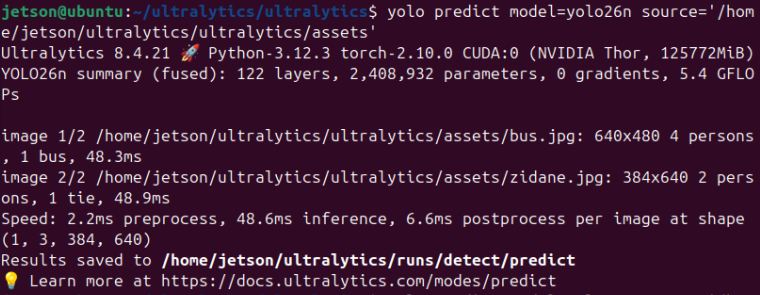
image-20260309213948312

Note: Each time it runs, the predict in the output folder automatically increments by 1. Record the path printed by the program.
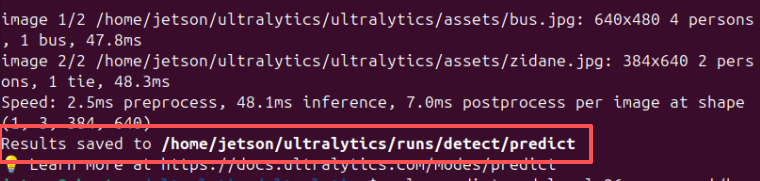
image-20260309213827091

Effect Preview

yolo recognition output location: /home/jetson/ultralytics/runs/detect

Note: The actual path should be based on the path printed above. /home/jetson/ultralytics/runs/detect/predict
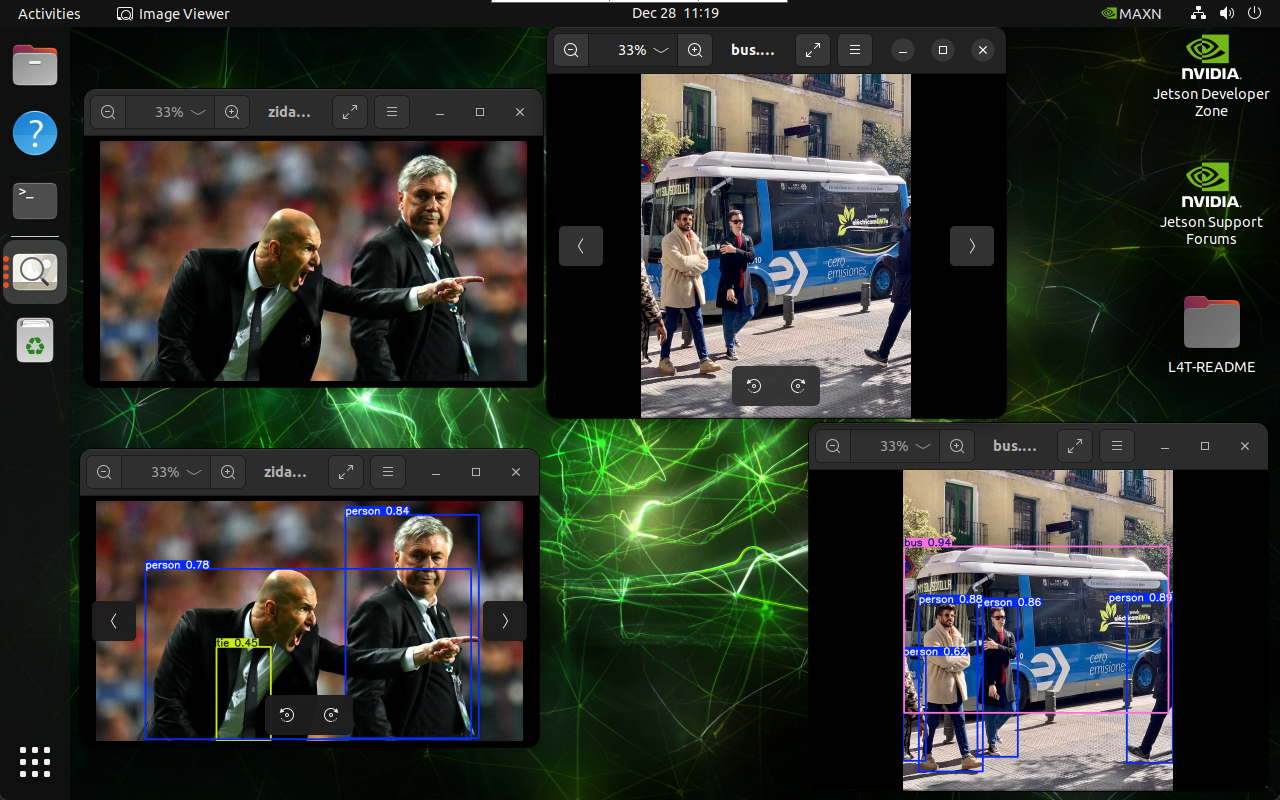
image-20241228111925618


3.3、Video Prediction

Use yolo26n.pt to predict videos in the ultralytics project (not videos that come with ultralytics, if the program cannot find the video, you need to manually place the video file in the /home/jetson/ultralytics/ultralytics/videos path): If the system cannot find the corresponding model file in the directory where the command is run, it will automatically download (if download fails, you can copy the model in manually)

Enter project folder:

xxxxxxxxxx
cd /home/jetson/ultralytics/ultralytics

Use yolo26n.pt to detect videos in the target folder and output results:

xxxxxxxxxx
yolo predict model=yolo26n source='/home/jetson/ultralytics/ultralytics/videos'
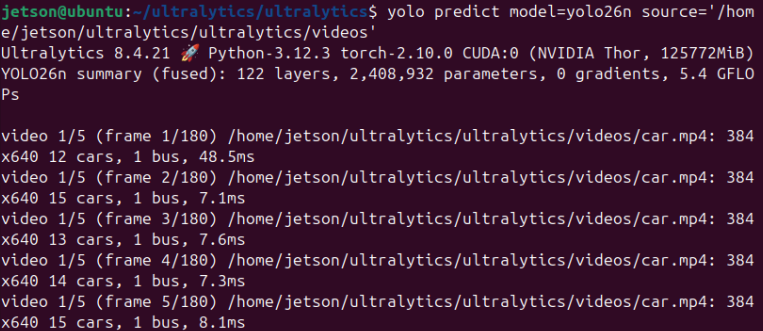
image-20260309214502345

Each time it runs, the predict in this folder automatically increments by 1. Record the path printed by the program.

image-20260309213313029

Effect Preview

yolo recognition output video location: /home/jetson/ultralytics/runs/detect

You can use ffmpeg to view videos. Use the following command to install:

xxxxxxxxxx
sudo apt install ffmpeg -y

Enter video input path:

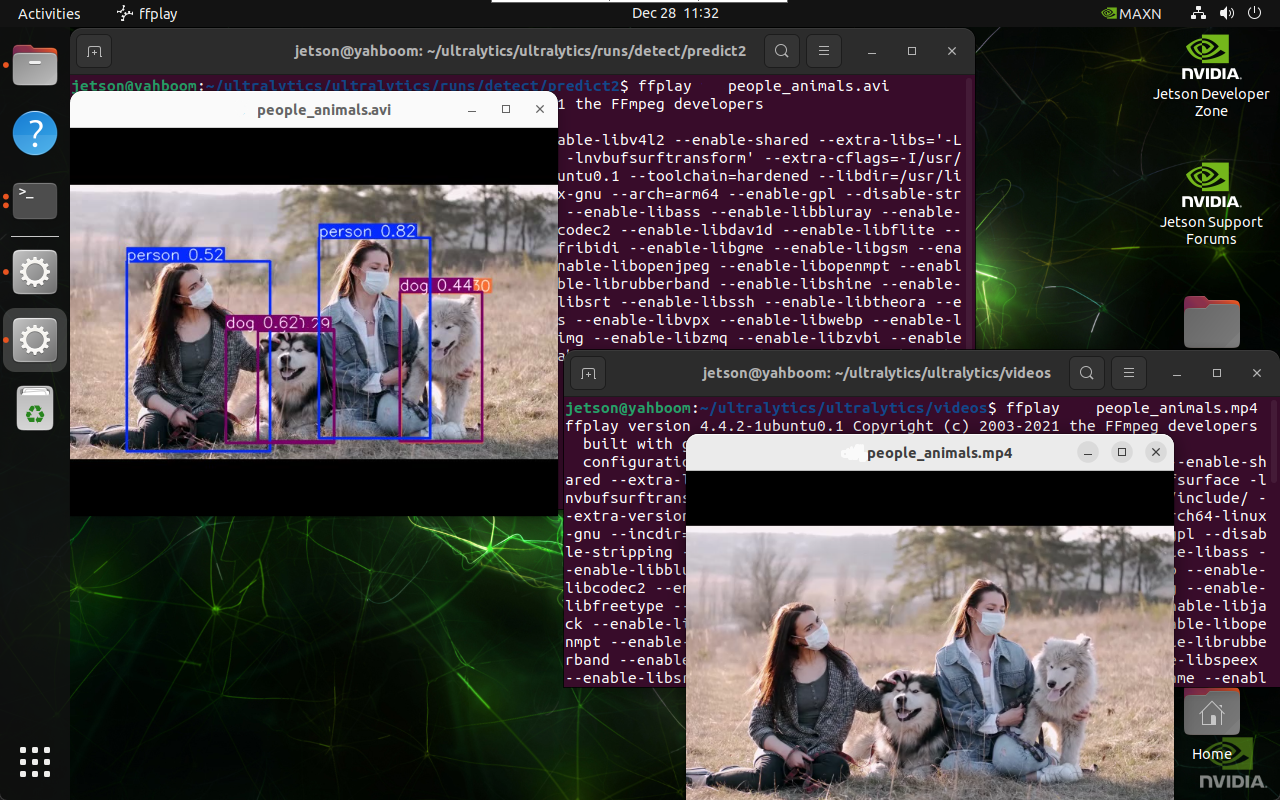
Note: Since predict automatically increments by 1 each time the program runs, use the actual output as the standard. predict2 needs to be changed to the actual folder name.

xxxxxxxxxx
cd /home/jetson/ultralytics/ultralytics/runs/detect/predict2

Play video:

xxxxxxxxxx
ffplay people_animals.avi

image-20241228113207095


3.4、Real-time Prediction

Please first connect the USB camera to the USB port of the motherboard.

Use yolo26n.pt to predict USB camera footage: If the system cannot find the corresponding model file in the directory where the command is run, it will automatically download (if download fails, you can copy the model in manually)

Enter project folder:

xxxxxxxxxx
cd /home/jetson/ultralytics/ultralytics

Use yolo26n.pt to detect camera footage and output results. You can choose one of the following functions to run.

After the program runs, it will open the camera footage and detect it in real-time, displaying the output results on the screen.

xxxxxxxxxx
# Object detection
yolo predict model=yolo26n.pt source=0 save=False show
​
# Instance segmentation:
yolo predict model=yolo26n-seg.pt source=0 save=False show
​
# Image classification:
yolo predict model=yolo26n-cls.pt source=0 save=False show
​
# Pose estimation:
yolo predict model=yolo26n-pose.pt source=0 save=False show
​
# Oriented object detection:
yolo predict model=yolo26n-obb.pt source=0 save=False show

If this is the first time running the program, the model needs to be loaded, so the loading time will be relatively long. Please wait patiently.

Click the terminal and press the "Ctrl + C" shortcut to terminate the program!

Parameter Description

model: Specify YOLO model

source: Specify recognition source: multiple cameras can switch numbers

save=False: Disable saving results

show: Real-time display
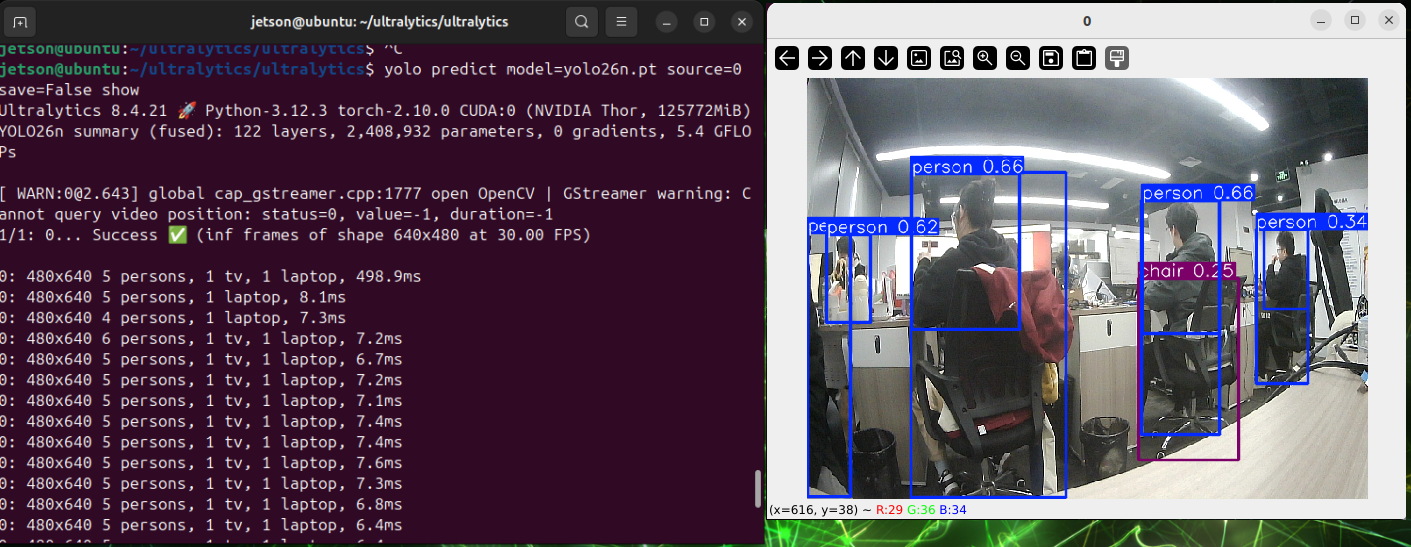
image-20260309220316716


References

https://github.com/ultralytics/ultralytics

https://docs.ultralytics.com/usage/cli/

YOLO Environment Setup
Object Detection

COMPANY

  • About us
  • Team Style
  • Blog

LEARNING & EXPLORATION

  • Tutorials
  • Edge AI hardware
  • Educational robots
  • Embedded intelligent hardware

WHERE TO BUY

  • Yahboom Online Store
  • Amazon
  • Alibaba
  • AliExpress
  • Mercado

TECHNOLOGY SUPPORT

  • Email: support@yahboom.com

BE A DISTRIBUTOR

  • Email: sales@yahboom.com
QR Code
QR Code

Copyright © 2017-2026 Yahboom. All Rights Reserved.

EN/中文