yahboom
HomeLearn
Solution
Blog
Online Store
About Us
EN/中文
Muto S2 Robot📖
1.Introduction to Muto Robot
  • 1.Introduction to Muto Robot
  • 2.Accessories introduction
  • 3.Precautions for battery
  • 4.FAQ
2.Assembly and write system
  • 1.Raspberry Pi write system
  • 2.Jetson Nano write sytem
  • 3. Robot assembly tutorial
  • 4. Installation Video Part1-Part5
  • 4. Installation Video Part6-Part10
3.Remote control course
  • 1.Close APP control process
  • 2.Mobile APP remote control tutorial
  • 3.USB wireless handle remote control
4.Linux basic course
  • 1.Introduction to Linux system
  • 2.Ubuntu file system
  • 3.Ubuntu common commands
  • 4.Ubuntu common editors
  • 5.Ubuntu software operation commands
  • 6.Virtual machine installation
  • 7.SSH remote control
  • 8.VNC remote control
  • 9.Transfer files remotely
  • 10.Driver library and communication
  • 11.Static IP and hotspot mode
  • 12.Bind device ID
  • 13.Capacity expansion and resource allocation
  • 14.Update system software sources
  • 15.Set root user password
  • 16.sudo free password
  • 17.Connect to WiFi network
  • 18.View system version
  • 19.Customized service management
  • 20.Back up system image
5.JupyterLab course
  • 1.ReadMe before operate
  • 2.Environment setup
  • 3.Basic usage tutorial
  • 4.Widgets configuration
  • 5.Widgets controls use
6.Jetson NANO course
  • 1.About JetsonNano system
  • 2.Network configuration and Jtop
  • 3.swap space increased
  • 4.API usage of GPIO library
  • 5.Hardware library configuration
  • 6.Pin reading function
  • 7.Pin level output control
  • 8.Control LED
  • 9.Jetson Nano communicates with external device serial ports
  • 10.jetson nano I2C communication
7.Raspberry Pi course
  • 1.Python usage
  • 2.Use APT to install Python packages
  • 3.Python virtual environment
  • 4.GPIO Zero
  • 5.Pin output high and low levels
  • 6.Pin reads high and low levels
  • 7.Pin output PWM
  • 8.Serial communication
  • 9.I2C communication
8.Robot basic course
  • 1.Control buzzer
  • 2.Control PWM servo
  • 3.Control bus servo
  • 4.Robot forward and backward
  • 5.Robot move left and right
  • 6.Robot rotate left and right
  • 7.Control height
  • 8.Control head
  • 9.Action group performance
  • 10.Read data
  • 11.Host computer control
  • 12.Camera driver
9.Open Source CV course
  • 1.Introduction to Open Source CV
  • 2.Image reading and display
  • 3.Picture writing
  • 4.Image Quality
  • 5.Pixel operations
  • 6.Image zoom
  • 7.Picture cut
  • 8.Picture pan
  • 9.Picture mirroring
  • 10.Affine transformation
  • 11.Picture rotation
  • 12.perspective transformation
  • 13.Grayscale processing
  • 14.Binary image
  • 15.Edge green detection
  • 16.Line segment drawing
  • 17.Rectangular circle drawing
  • 18.Text and picture drawing
7.AI vision course
  • 0.Color HSV value calibration
  • 1.Color recognition
  • 2.Color tracking
  • 3.Color following
  • 4.Color recognition action group
  • 5.Face detection
  • 6.Face tracking
  • 7.Greet people
  • 8.QR code recognition
  • 9.QR code instructions
  • 10.visual line following
  • 11.Motion learning
  • 12.Teach pendant synchronized action
8.Machine deep learning
  • 1.KNN
  • 2.TensorFlow basic tutorial
  • 3.Basic use of PyTorch
  • 4.Yolov5 detects objects in real time
  • 5.Jetson-inference environment construction(selective viewing)
  • 6.Object detection and action
  • 7.Body movement control robot
  • 8.Gesture controlled robot
Remote login control
  • 1. VNC and SSH remote login
  • 2. Jupyter lab login and case code running
9.FAQnew
  • Using your own Jetson board, Muto S2 cannot start normally
Download
  • APP(iOS/Android)
  • SystemFile_For_RPi5
  • System_for_RPi4
  • System_for_JetsonNANO
  • Hardware and protocol
  • Instruction manual
  • Jetson_Boot_USB.tar.gz
Download ZIP

Welcome to Muto S2 Robot repository

7.SSH remote control

7.SSH remote control

7.SSH remote control1. PuTTY log into2.SSH

putty download link:https://www.chiark.greenend.org.uk/~sgtatham/putty/latest.html


Note: You must know the robot's username, password and IP address before logging in remotely.

For example, in the picture below: IP address [192.168.2.119], user name [jetson], host name [yahboom].
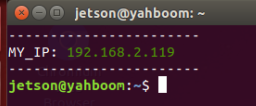
image-20231023155349286


Note:

Yahboom Raspberry Pi version Muto RS image, username: pi, password: yahboom

Yahboom jetson nano version Muto RS image, username: jetson, password: yahboom

1. PuTTY log into

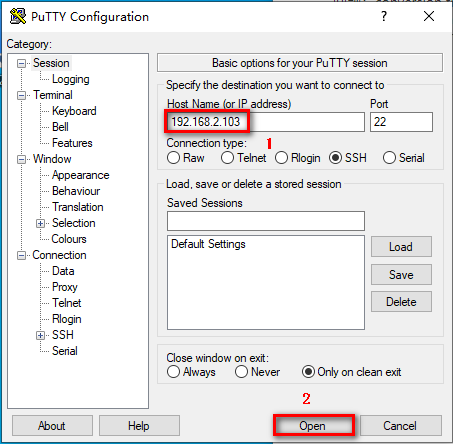
Download the Putty installation file and double-click the [.exe] file to install it.
302

Enter the robot IP address and click [open].
303

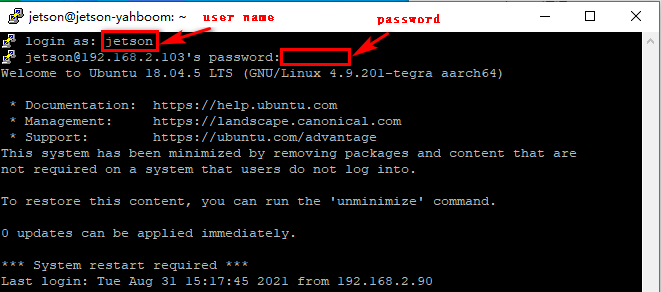
Enter the username [jetson] and password [yahboom], and press Enter to confirm.

After successful login, the following figure will appear.

image-20220214182400502

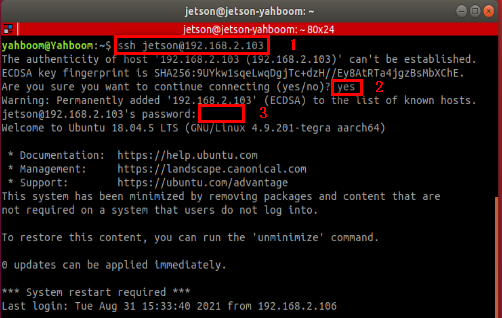
2.SSH

  • Log in

Operate under ubuntu system


304

1)Enter the following command

ssh jetson@192.168.2.103
  1. Then enter [yes]
  2. Enter password [yahboom]
  • Copy files

If jetson's IP is 192.168.2.103, username: jetson; virtual machine username: yahboom

xxxxxxxxxx
scp jetson@192.168.2.103:/home/jetson/xxx.tar.gz /home/yahboom/ # Copy files from remote to local (file)
scp /home/yahboom/xxx.png jetson@192.168.2.103:/home/jetson/    # Copy files from local to remote (file)
scp -r jetson@192.168.2.103:/home/jetson/test /home/yahboom/    # Copy directory from remote to local -r (folder)
scp -r /home/yahboom/test jetson@192.168.2.103:/home/jetson/    # Copy directory from local to remote -r (folder)


Virtual machine installation
VNC remote control

COMPANY

  • About us
  • Team Style
  • Blog

LEARNING & EXPLORATION

  • Tutorials
  • Edge AI hardware
  • Educational robots
  • Embedded intelligent hardware

WHERE TO BUY

  • Yahboom Online Store
  • Amazon
  • Alibaba
  • AliExpress
  • Mercado

TECHNOLOGY SUPPORT

  • Email: support@yahboom.com

BE A DISTRIBUTOR

  • Email: sales@yahboom.com
QR Code

Copyright © 2017-2026 Yahboom. All Rights Reserved.

EN/中文