yahboom
HomeTutorialsProduct
Solution
Blog
Online Store
About Us
EN/中文
Store
Muto S2 Robot📖
1.Introduction to Muto Robot
  • 1.Introduction to Muto Robot
  • 2.Accessories introduction
  • 3.Precautions for battery
  • 4.FAQ
2.Assembly and write system
  • 1.Raspberry Pi write system
  • 2.Jetson Nano write sytem
  • 3. Robot assembly tutorial
  • 4. Installation Video Part1-Part5
  • 4. Installation Video Part6-Part10
3.Remote control course
  • 1.Close APP control process
  • 2.Mobile APP remote control tutorial
  • 3.USB wireless handle remote control
4.Linux basic course
  • 1.Introduction to Linux system
  • 2.Ubuntu file system
  • 3.Ubuntu common commands
  • 4.Ubuntu common editors
  • 5.Ubuntu software operation commands
  • 6.Virtual machine installation
  • 7.SSH remote control
  • 8.VNC remote control
  • 9.Transfer files remotely
  • 10.Driver library and communication
  • 11.Static IP and hotspot mode
  • 12.Bind device ID
  • 13.Capacity expansion and resource allocation
  • 14.Update system software sources
  • 15.Set root user password
  • 16.sudo free password
  • 17.Connect to WiFi network
  • 18.View system version
  • 19.Customized service management
  • 20.Back up system image
5.JupyterLab course
  • 1.ReadMe before operate
  • 2.Environment setup
  • 3.Basic usage tutorial
  • 4.Widgets configuration
  • 5.Widgets controls use
6.Jetson NANO course
  • 1.About JetsonNano system
  • 2.Network configuration and Jtop
  • 3.swap space increased
  • 4.API usage of GPIO library
  • 5.Hardware library configuration
  • 6.Pin reading function
  • 7.Pin level output control
  • 8.Control LED
  • 9.Jetson Nano communicates with external device serial ports
  • 10.jetson nano I2C communication
7.Raspberry Pi course
  • 1.Python usage
  • 2.Use APT to install Python packages
  • 3.Python virtual environment
  • 4.GPIO Zero
  • 5.Pin output high and low levels
  • 6.Pin reads high and low levels
  • 7.Pin output PWM
  • 8.Serial communication
  • 9.I2C communication
8.Robot basic course
  • 1.Control buzzer
  • 2.Control PWM servo
  • 3.Control bus servo
  • 4.Robot forward and backward
  • 5.Robot move left and right
  • 6.Robot rotate left and right
  • 7.Control height
  • 8.Control head
  • 9.Action group performance
  • 10.Read data
  • 11.Host computer control
  • 12.Camera driver
9.Open Source CV course
  • 1.Introduction to Open Source CV
  • 2.Image reading and display
  • 3.Picture writing
  • 4.Image Quality
  • 5.Pixel operations
  • 6.Image zoom
  • 7.Picture cut
  • 8.Picture pan
  • 9.Picture mirroring
  • 10.Affine transformation
  • 11.Picture rotation
  • 12.perspective transformation
  • 13.Grayscale processing
  • 14.Binary image
  • 15.Edge green detection
  • 16.Line segment drawing
  • 17.Rectangular circle drawing
  • 18.Text and picture drawing
7.AI vision course
  • 0.Color HSV value calibration
  • 1.Color recognition
  • 2.Color tracking
  • 3.Color following
  • 4.Color recognition action group
  • 5.Face detection
  • 6.Face tracking
  • 7.Greet people
  • 8.QR code recognition
  • 9.QR code instructions
  • 10.visual line following
  • 11.Motion learning
  • 12.Teach pendant synchronized action
8.Machine deep learning
  • 1.KNN
  • 2.TensorFlow basic tutorial
  • 3.Basic use of PyTorch
  • 4.Yolov5 detects objects in real time
  • 5.Jetson-inference environment construction(selective viewing)
  • 6.Object detection and action
  • 7.Body movement control robot
  • 8.Gesture controlled robot
Remote login control
  • 1. VNC and SSH remote login
  • 2. Jupyter lab login and case code running
9.FAQnew
  • Using your own Jetson board, Muto S2 cannot start normally
Download
  • APP(iOS/Android)
  • SystemFile_For_RPi5
  • System_for_RPi4
  • System_for_JetsonNANO
  • Hardware and protocol
  • Instruction manual
  • Jetson_Boot_USB.tar.gz
Download ZIP

Welcome to Muto S2 Robot repository

10.Affine transformation

10.Affine transformation

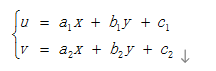
Affine transformation (Affine Transformation or Affine Map) is a linear transformation from two-dimensional coordinates (x, y) to two-dimensional coordinates (u, v). Its mathematical expression is as follows: The corresponding homogeneous coordinate matrix representation is:
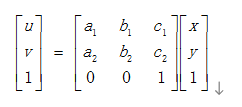
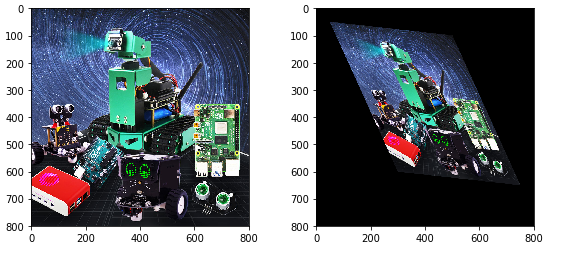
Affine transformation maintains the "flatness" (straight lines remain straight lines after affine transformation) and "parallelism" (the relative positional relationship between straight lines remains unchanged) of two-dimensional graphics,parallel lines are still parallel lines after affine transformation, and the position order of the points on the straight line will not change).Three non-collinear pairs of corresponding points determine a unique affine transformation. The rotation of the image plus the lifting is the image affine transformation. Affine change also requires an M matrix. However, because the affine transformation is more complicated, it is generally difficult to find this matrix directly. OpenCV provides an automatic solution for M based on the correspondence between the three points before and after the transformation. This function is:

M=cv2.getAffineTransform(pos1,pos2)

Two of the positions are the corresponding position relationships before and after the transformation. The output is the affine matrix M. Then use the function cv2.warpAffine().

Let’s look at the block diagram of the entire affine transformation and perspective transformation: two methods of image transformation:cv2.warpAffine and cv2.warpPerspective

Code path: muto/Samples/OpenCV/02_OpenCV Transform/05Affine transformation.ipynb

xxxxxxxxxx
import cv2
import   numpy as np
import   matplotlib.pyplot as plt
 
img =   cv2.imread('yahboom.jpg',1)
img_bgr2rgb   = cv2.cvtColor(img, cv2.COLOR_BGR2RGB)
plt.imshow(img_bgr2rgb)
plt.show()
#   cv2.waitKey(0)
xxxxxxxxxx
imgInfo =   img.shape
height =   imgInfo[0]
width =   imgInfo[1]
#src   3->dst 3 (upper left corner lower left corner upper right corner)
matSrc =   np.float32([[0,0], [0,height-1], [width-1,0]])
matDst =   np.float32([[50,50], [300,height-200], [width-300,100]])
#combination
matAffine =   cv2.getAffineTransform(matSrc,matDst)# mat 1 src 2 dst
dst =   cv2.warpAffine(img,matAffine,(width,height))
img_bgr2rgb   = cv2.cvtColor(dst, cv2.COLOR_BGR2RGB)
plt.imshow(img_bgr2rgb)

Picture mirroring
Picture rotation

COMPANY

  • About us
  • Team Style
  • Blog

LEARNING & EXPLORATION

  • Tutorials
  • Edge AI hardware
  • Educational robots
  • Embedded intelligent hardware

WHERE TO BUY

  • Yahboom Online Store
  • Amazon
  • Alibaba
  • AliExpress
  • Mercado

TECHNOLOGY SUPPORT

  • Email: support@yahboom.com

BE A DISTRIBUTOR

  • Email: sales@yahboom.com
QR Code

Copyright © 2017-2026 Yahboom. All Rights Reserved.

EN/中文