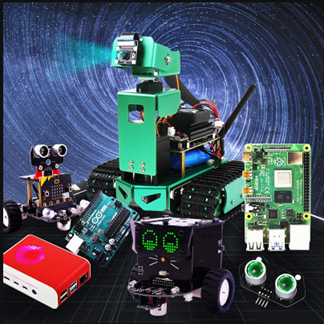
Welcome to Muto S2 Robot repository
2.Image reading and display
2.Image reading and display
2.1. Reading of images:
img = cv2.imread('yahboom.jpg', 0) The first parameter is the path of the image, and the second parameter is how to read the image.
cv2.IMREAD_UNCHANGED:Keep the original format unchanged,-1;
cv2.IMREAD_GRAYSCALE:Read the image in grayscale mode, which can be represented by 0;
cv2.IMREAD_COLOR:,read a color picture, which can be represented by 1; default value
cv2.IMREAD_UNCHANGED:Read in an image and include its alpha channel, which can be represented by 2.
2.2. Image display
cv.imshow('frame', frame):Open a window named frame and display frame data (image/video data)
Parameter meaning:
The first parameter represents the name of the window that is created and opened.
The second parameter represents the image to be displayed
2.2.1.Code and actual effect display
Code path:
x
muto/Samples/OpenCV/01_Getting_Started_with_OpenCV/01_OpenCVImage reading and display.ipynbMain code:
xxxxxxxxxximport cv2img = cv2.imread('yahboom.jpg', 1)# cv2.imshow('image', img) #This line can only be executed from the py file on the command line, and a video window will pop up.# cv2.waitKey (0)xxxxxxxxxx#bgr8 to jpeg formatimport enumimport cv2def bgr8_to_jpeg(value, quality=75):return bytes(cv2.imencode('.jpg', value)[1])xxxxxxxxxx# The image component in jupyterLab displays the read imageimport ipywidgets.widgets as widgetsimage_widget = widgets.Image(format='jpg', width=800, height=800)display(image_widget)image_widget.value = bgr8_to_jpeg(img)After running the code block, you can see the following interface, and the image has been read out.