Welcome to Jetson Orin NX SUPER repository
当製品の日本語版マニュアル資料は、こちらからご取得ください。
5. AI Weather Station
OpenClaw AI Weather Station Tutorial
Before starting, please complete the following from the
Pre-use Preparationdirectory: [01-Peripheral Hardware Configuration], [02-OpenClaw Jetson-KEY Configuration], [03-OpenClaw Model Switching], [04-AI Voice Interaction Configuration], [05-Three Dialogue Solutions Configuration Test]. If you are currently only using TUI / WhatsApp, you can skip04. This article assumes the basic environment is already prepared and only covers the AI Weather Station project itself.
1. Tutorial Objectives
This article demonstrates OpenClaw's capabilities in a desktop weather station scenario through temperature/humidity collection, information display, and AI interpretation. After completing this tutorial, readers will be able to:
- Understand how to combine DHT, OLED, and RGB to build a local AI weather station
- Interact with OpenClaw through three methods: WhatsApp, TUI, and voice code
- Complete four project scenarios: environment collection, AI broadcast, weather card, and status alert
2. Hardware Preparation
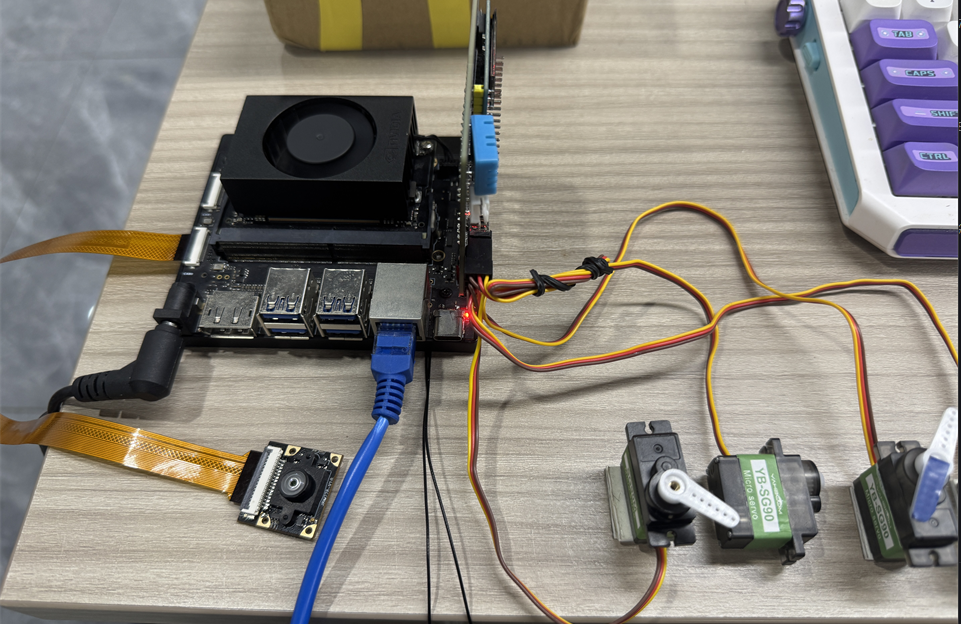
- OpenClaw main control board
- DHT temperature and humidity sensor
- OLED display
- RGB light strip / RGB LED module
[Optional] AI voice module + speaker- Wiring diagram
3. Software Preparation
Code entry points used in this tutorial
- Temperature and humidity reading command:
/home/jetson/hardware_hal_demo/dht - OLED control command:
/home/jetson/hardware_hal_demo/oled - RGB control command:
/home/jetson/hardware_hal_demo/rgb - Voice entry:
/home/jetson/voice_to_openclaw/src/main.py - Terminal text entry:
/home/jetson/voice_to_openclaw/src/text_main.py
This tutorial focuses on a "local environment weather station", i.e., using DHT-based indoor temperature and humidity data for display and explanation.
4. Testing Project Basic Capabilities
Before starting this project, please complete a basic dialogue self-check using openclaw tui; if you haven't done so yet, see [05-Three Dialogue Solutions Configuration Test] first. After passing, proceed to the AI Weather Station specific test.
It is recommended to first enter OpenClaw TUI:
openclaw tui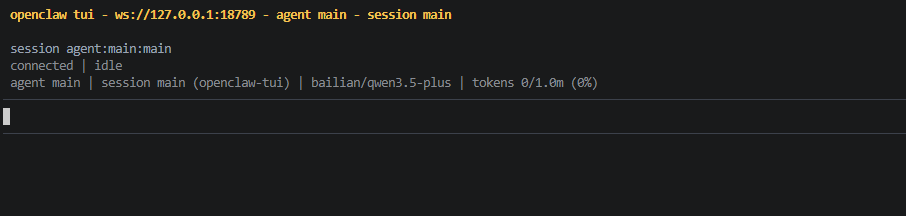
Then test the following types of commands in sequence:
- Read current temperature and humidity
- Display weather card on OLED
- If the environment is normal, turn on green light
- Give me a brief environment broadcast
5. Three Solutions for Communicating with OpenClaw
| Solution | Suitable Scenarios | Advantages | Recommended Use |
|---|---|---|---|
| Remote environment viewing, classroom demonstrations | Suitable for remotely asking "how is the environment right now" | Demonstrate "remote weather station assistant" | |
| TUI | Local debugging, threshold verification | Easiest for troubleshooting sensor and display logic | First run through the collection pipeline |
| Voice code | Voice broadcast, desktop assistant | Closer to daily usage experience | Use as the final demonstration solution |
If the optional AI voice module + speaker is selected, Feishu dialogue, TUI, and WhatsApp dialogue need to read aloud OpenClaw's reply content. You can run the following program in the terminal. The AI voice module dialogue does not need to run this program repeatedly.
- Enable the broadcast parameter
xxxxxxxxxx/home/jetson/voice_to_openclaw/.env
xxxxxxxxxxENABLE_TTS=true #This parameter controls whether audio readback is enabled. After modification, save and run the following program in the terminal- Run the following in the terminal:
xxxxxxxxxxcd ~/voice_to_openclawsource .venv/bin/activatepython -m src.openclaw_session_tts
5.1 WhatsApp Solution
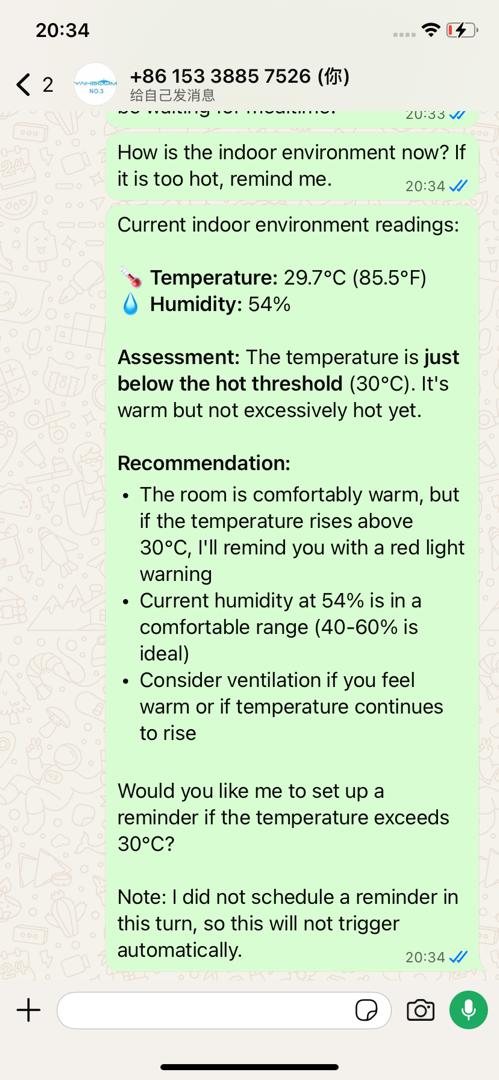
For WhatsApp integration and bot creation steps, please refer directly to [05-Three Dialogue Solutions Configuration Test]. After creation, you can remotely view environment status in WhatsApp, for example:
- How's the indoor environment now? If it's too hot, remind me
5.2 TUI Solution
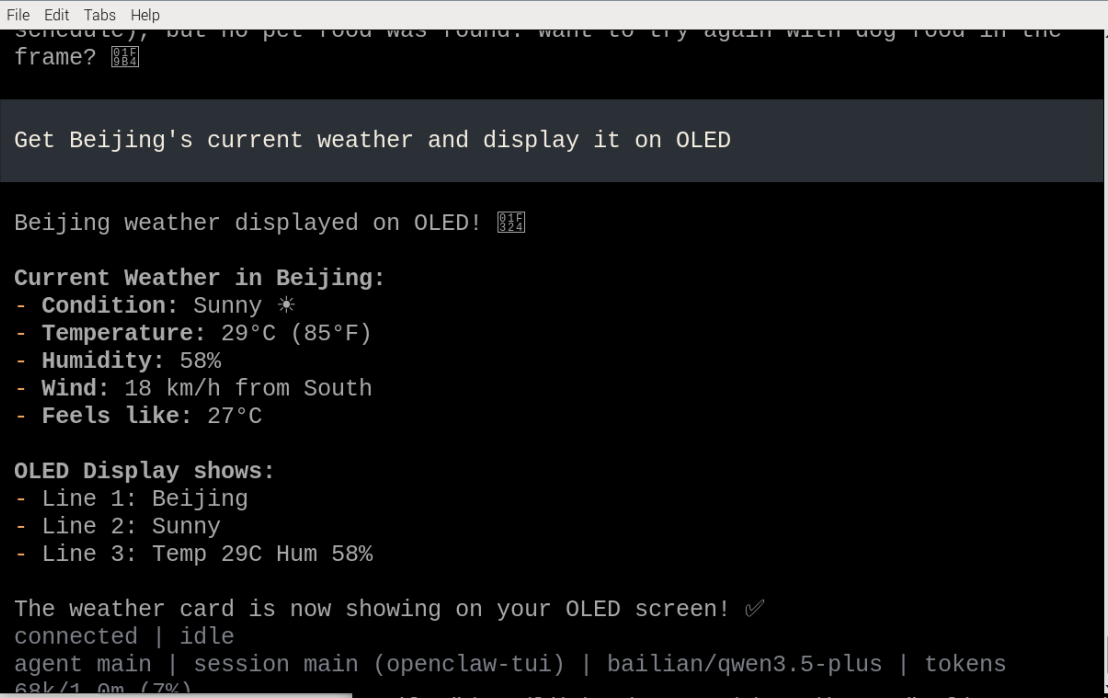
If you have completed the TUI self-check in article 0, directly enter terminal text dialogue:
xxxxxxxxxxopenclaw tuiThen enter project-related commands, for example:
- Get current weather for Beijing and display it on OLED
5.3 Voice Interaction Solution
xxxxxxxxxxRequires optional AI voice interaction module + speaker
For voice module installation, environment configuration, and basic wake-up process, please refer directly to [04-AI Voice Interaction Configuration]. After wake-up, you can directly speak control commands, for example:
- AI weather station
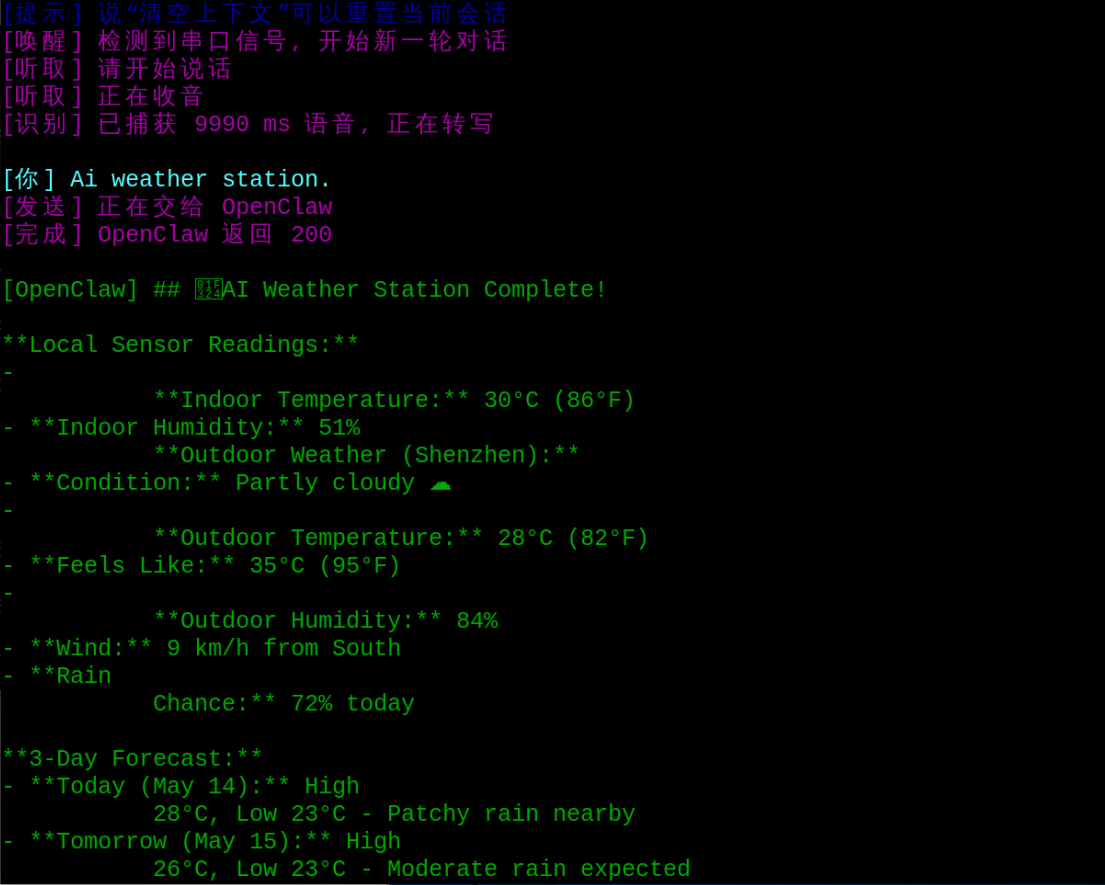
6. Project Implementation
Note: The following demonstrations are all conducted using openclaw tui dialogue. You can also choose WhatsApp or voice methods to complete them.
6.1 Scenario 1: Environment Collection
Experiment Objective
Read the local ambient temperature and humidity to complete the most basic data sampling for the weather station.
Effect Description
OpenClaw will call DHT to get the current environment data and return the results to the user, providing a real-time "weather reading" of the indoor environment.
Example Commands
- Read current ambient temperature and humidity
- What's the current indoor temperature and humidity
- Help me check the current weather data
6.2 Scenario 2: AI Broadcast
Experiment Objective
Make OpenClaw not just report numbers, but also summarize the environment status like a weather broadcaster.
Effect Description
OpenClaw can summarize "26 degrees, 57% humidity" into more natural phrases, such as "the environment is relatively comfortable", "it's a bit stuffy", "the air is slightly dry", etc.
Example Commands
- Give me a brief environment broadcast
- Is the environment comfortable now
- Make a weather summary based on current readings
6.3 Scenario 3: OLED Weather Card
Experiment Objective
Display local temperature and humidity results in a "weather card"-style page.
Effect Description
In addition to plain text results, OLED can also arrange location, status, temperature, and humidity into a compact card, making the entire project more like a desktop display device.
Example Commands
- Display an indoor weather card on OLED
- Get current weather for xx location and display it on OLED
6.4 Scenario 4: RGB Status Alert
Experiment Objective
Use RGB colors to quickly indicate the current environment status.
Effect Description
For example, turn on the green light when the environment is comfortable, yellow light when it's hot, red light when abnormal. This way, even without reading text, you can quickly know the current environment status.
Example Commands
- If the environment is normal, turn on green light
- If the temperature is high, turn on yellow light
- If abnormal, flash red light