Welcome to Jetson ORIN NANO SUPER repository
当製品の日本語版マニュアル資料は、こちらからご取得ください。
01.CSI camera preview
CSI camera preview
CSI camera preview1. Enable CSI camera1.1. Configure pins2. Check the video device3. Preview the camera screen3.1. Specify the camera3.2. Specify preview resolution
1. Enable CSI camera
If the user has installed the CSI camera but does not have the /dev/video* device, you can enable the CSI camera pins as follows.
1.1. Configure pins
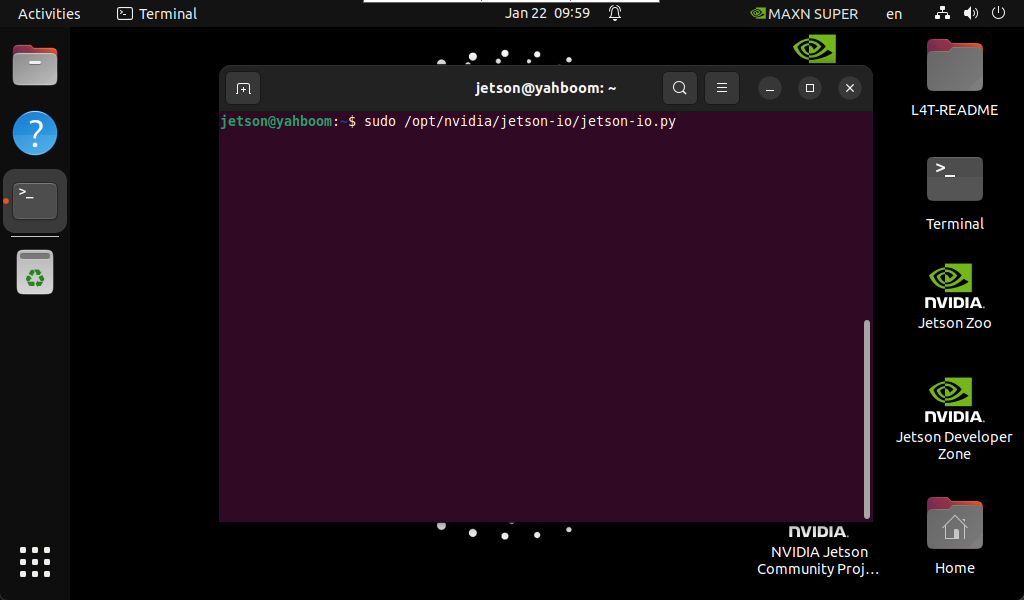
Enter the following command in the terminal:
sudo /opt/nvidia/jetson-io/jetson-io.py
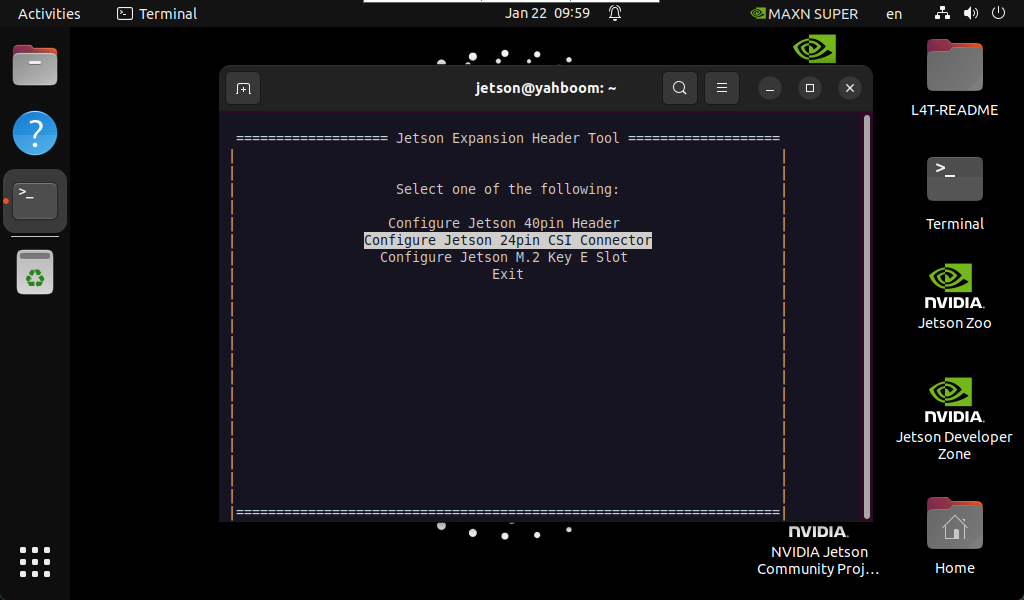
Press the arrow keys to select Configure Jetson 24pin CSI Connector, then press Enter to enter the configuration:
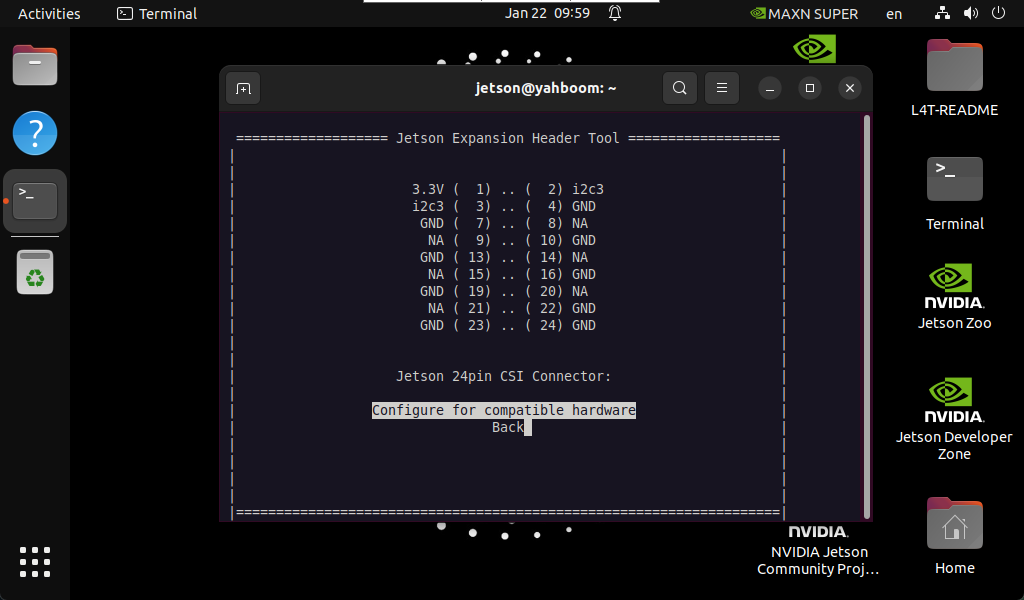
Select Configure for compatible hardware , then press Enter to enter the configuration:
Select Camera IMX219 Dual, then press Enter to enter the configuration:
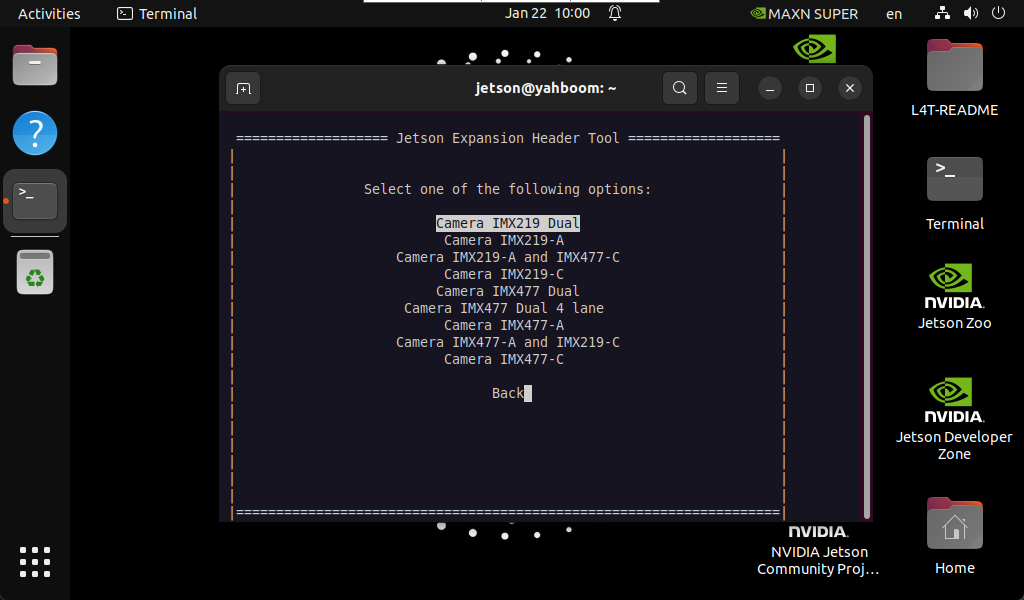
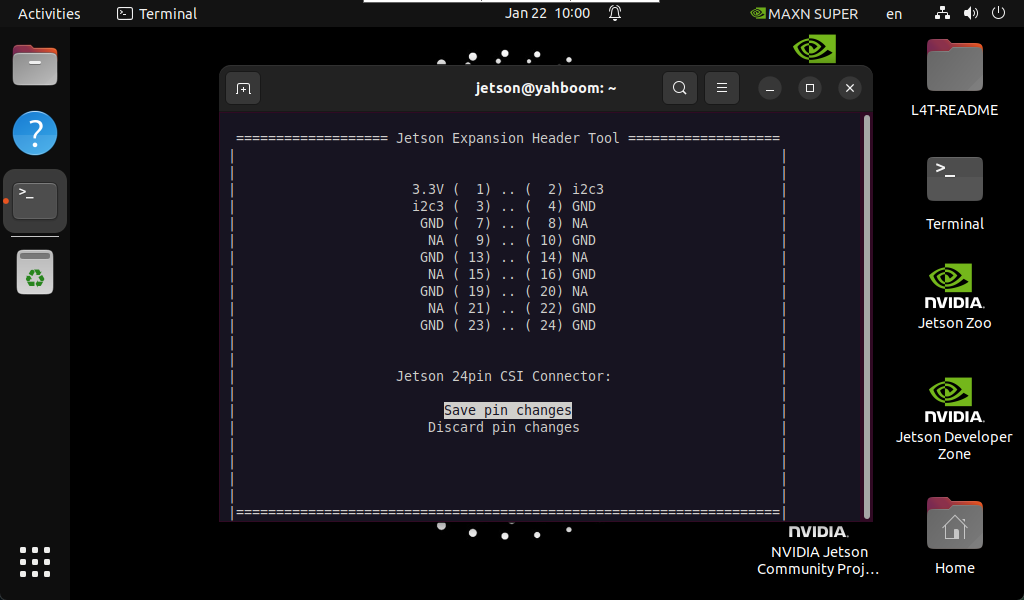
Select Save pin changes, then press Enter to enter the configuration:
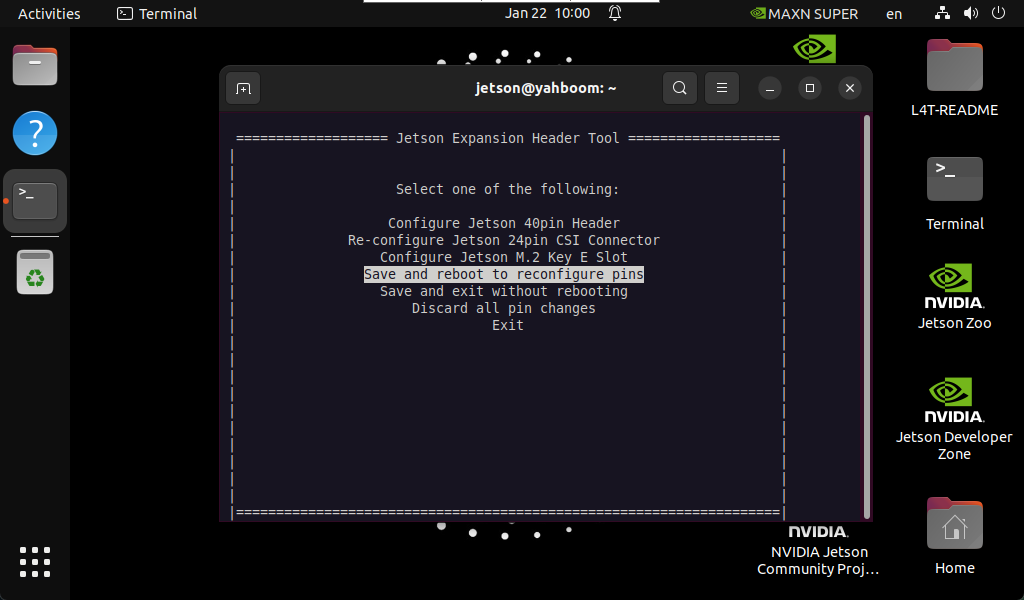
Select Save and reboot to reconfigure pins , and then wait for the system to restart:
2. Check the video device
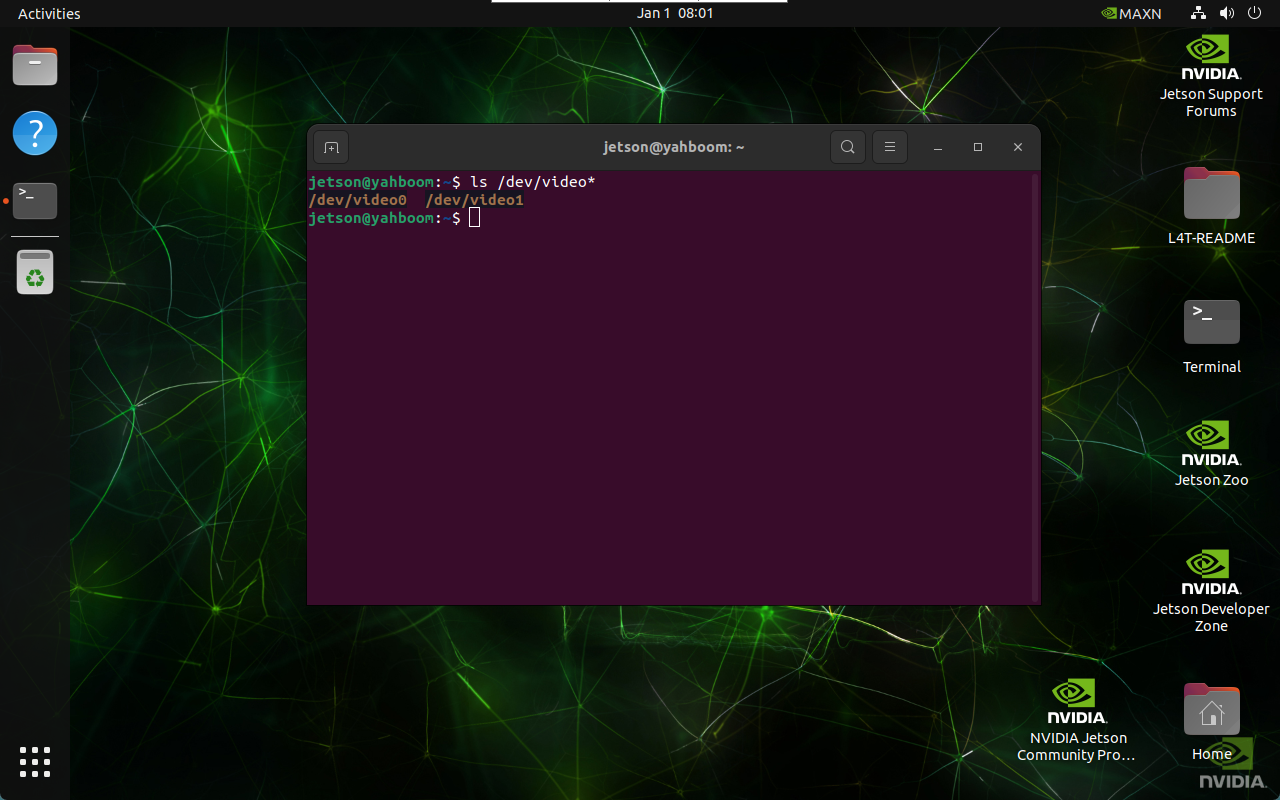
xxxxxxxxxxls /dev/video*
The result of the picture is the result of connecting two CSI cameras: generally one CSI camera displays one video device
3. Preview the camera screen
Enter the following command in the terminal, and the system will automatically pop up the camera screen window: Open the /dev/video0 device by default
xxxxxxxxxxnvgstcapture-1.0
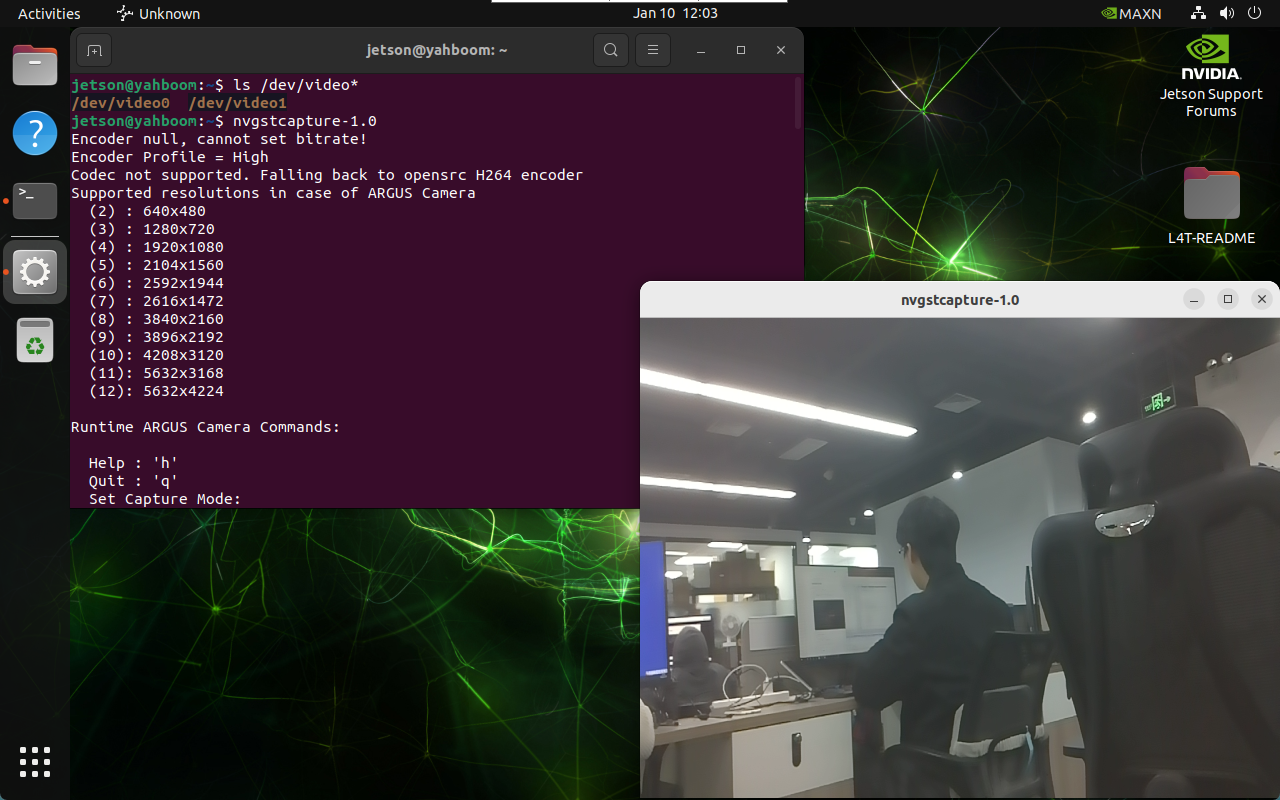
3.1. Specify the camera
If there are multiple cameras, you can specify the camera ID:
xxxxxxxxxxnvgstcapture-1.0 --sensor-id=1

3.2. Specify preview resolution
If there is only one CSI camera, change --sensor-id=1 to --sensor-id=0:
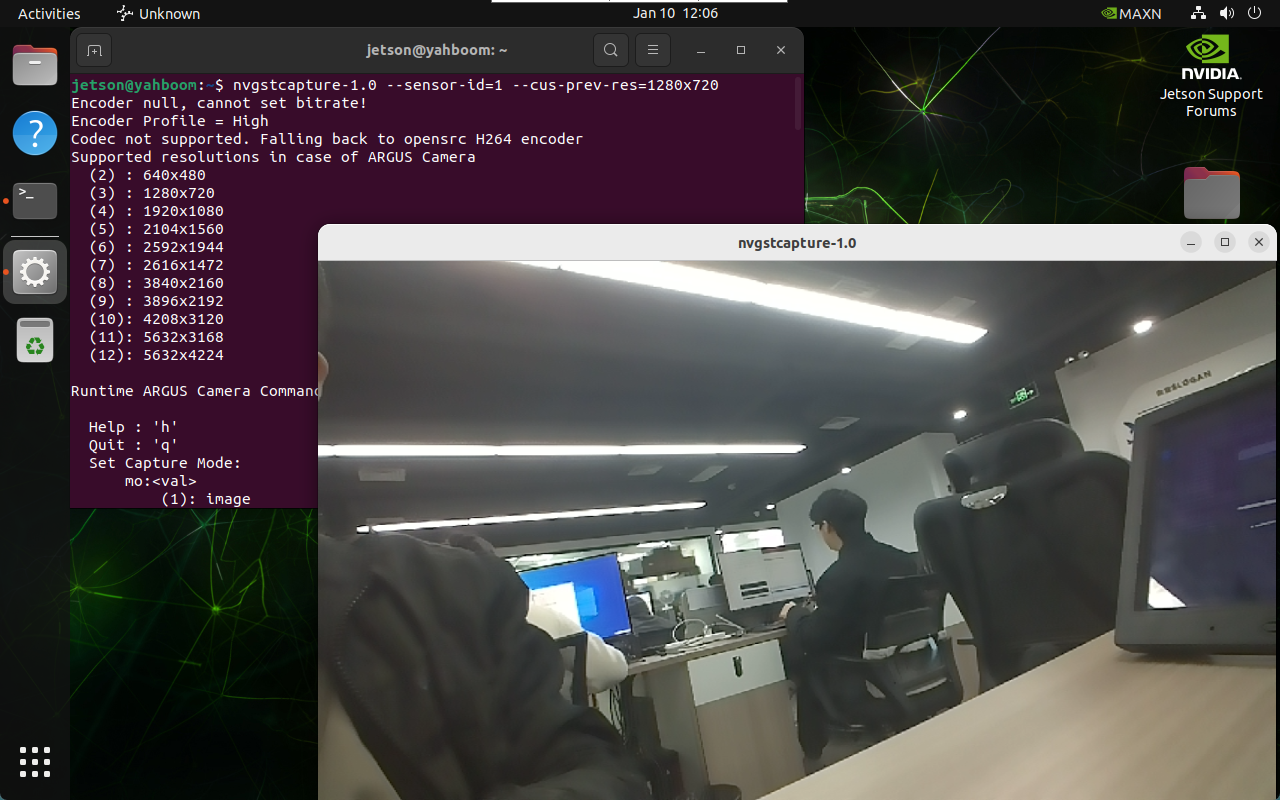
xxxxxxxxxxnvgstcapture-1.0 --sensor-id=1 --cus-prev-res=1280x720